Google Tasks Read-Only Sharing: Give Someone View-Only Access to a List

You want a client to follow the progress of a project without being able to tick things off. Or a new hire should see the team’s list for a week before they start changing it. Or your manager wants a window on the backlog, not a hand in it.
Google Tasks cannot do any of this. It has no sharing for ordinary lists, and even where Google adds collaboration, in Chat spaces and Docs, there is no read-only option: anyone who can see a task can edit it.
This guide shows how to share a Google Tasks list as view-only with TasksBoard, what a viewer sees and cannot do, and the related tools that make a shared list readable for a whole team: the people filter, links that open one person’s tasks, several assignees on a task, and a task order that stays the same for everyone.
Why Google Tasks has no permissions
Every Google Tasks list belongs to exactly one Google account. When TasksBoard shares a list, each collaborator gets their own copy in their own account, and TasksBoard keeps the copies in sync. That is the only way to share a list that still shows up in Gmail, Google Calendar and the Google Tasks app for everyone.
The consequence is that Google itself has no idea the list is shared, and no notion of who may edit it. Permissions have to live in the sync layer. That is what TasksBoard’s roles do. For the background on how shared lists work, see how to share Google Tasks.
Two roles: Editor and Viewer
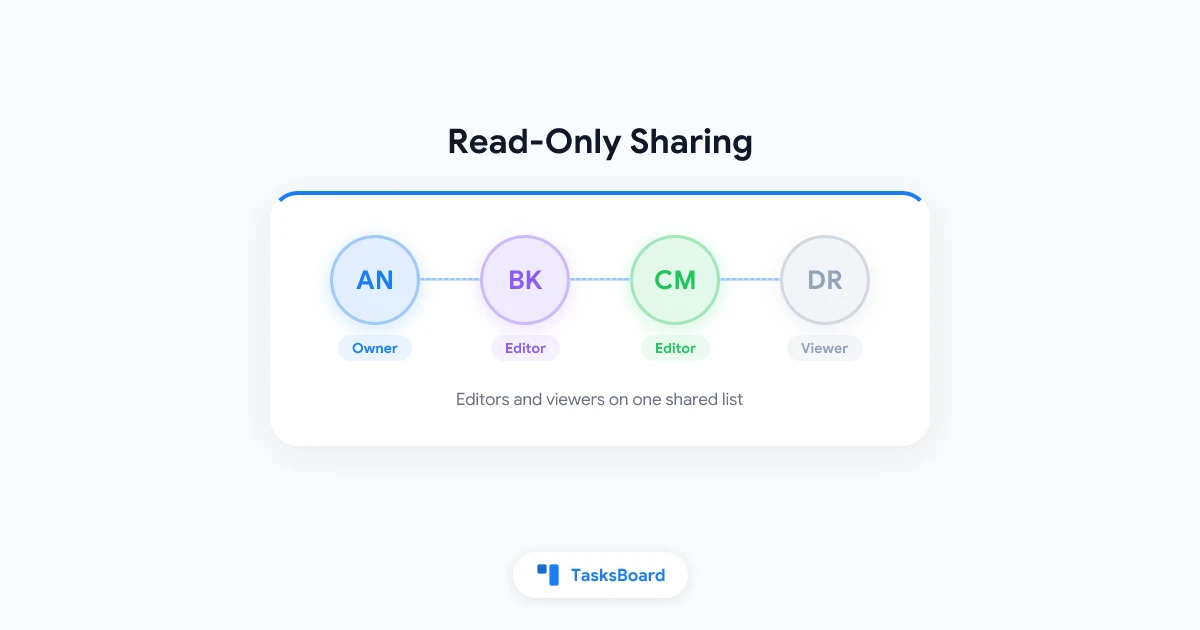
A collaborator on a shared list or a shared board is either an Editor or a Viewer.
- Editor is the role everyone has had so far: full access to add, edit, complete, reorder, assign and delete tasks.
- Viewer sees the list and every task in it, kept in sync as usual, but cannot change anything.
Viewers are part of the TasksBoard Team plan. On the free plan and on Pro, everyone shares with full edit access, as before. Without the Team plan the role selectors are shown, but changing them opens the Team offer.
Only the owner of the list, the person who shared it first, sets roles.
Give one collaborator view-only access
- Open the list’s three dots menu and click Share list. For a shared board, open the board menu and click Share board.
- In the dialog, find the collaborator in the list of people.
- Next to their name, pick Viewer instead of Editor.
The change applies at once. The collaborator keeps the list on their board, with a “View only” badge in its header. On a shared board the role applies to every list of the board, including lists you add later.
A viewer who later needs to work on the list can be switched back to Editor from the same dialog, without sharing the list again.
Make everyone who joins a viewer
If you share a link with a wider group, a client team or a department, you may want every new member to arrive as a viewer.
- Open the Share list (or Share board) dialog.
- Under Link sharing, set New members join as to Viewer.
- Copy the link and send it.
The invitation page then tells the person “You will have view-only access to this list” before they join. People who already joined keep their current role until you change it one by one.
What a viewer sees and cannot do
A viewer’s copy of the list looks like any other list on their board, with the “View only” badge in the header. The tasks, due dates, labels and assignees are all there and stay up to date.
What is missing is every way to change it:
- Can: see every task, due date, label and assignee; search and filter; follow the list as it changes
- Cannot: add, edit, complete, reorder, assign or delete tasks
- Hidden: the add-task row, the task menu and the task editor; dragging is off; renaming or deleting the list is disabled
- Told why: the Shared List dialog says "You have view-only access to this list"
What about Gmail and the Google Tasks app?
This is the part that needs explaining to viewers. Google Tasks has no permissions, so a viewer still holds a real copy of the list in their own Google account. From Gmail, Google Calendar or the Google Tasks app, they can edit that copy. They can also drop a task into it from another list in TasksBoard.
Those changes never reach the other collaborators. At the next sync, TasksBoard puts the viewer’s copy back in line with the editors’ copy: tasks they added are removed, tasks they deleted come back, their edits are reverted and the order is restored.
So the view-only rule holds for the team, but a viewer who edits from the Google Tasks app will see their change disappear. Tell them in advance, and point them at the read-only access help page if they wonder what happened.
Show one person’s tasks with the people filter
Once several people share a board, the next request is usually “can I just see mine?” or “show me what Alex has on her plate”.
A board with at least one shared list shows people chips next to its name: Everyone, one avatar per collaborator, and Unassigned.
- Click a collaborator’s avatar to keep only the tasks assigned to them, in every list of the board.
- Click Unassigned to see the tasks nobody owns yet.
- Click the avatar again, or Everyone, to go back to the full board.
The choice is remembered per board on your device. The chips are hidden on the smart boards and while a search is active. For a filter across every board, use the “Who” filter in the search bar, described in the search filters help page.
Send a link that opens one person’s tasks
While a people filter is on, the page address gains ?assignee=<email> (or ?assignee=unassigned). Copy that address and send it.
This is a practical pairing with the Viewer role. An owner can share a board with a client as view-only, then send them a link that opens the board filtered on the tasks assigned to their account manager. Everyone else keeps seeing the whole board; the link only changes what the recipient sees when they open it.
Several assignees on one task
Read-only sharing and the people filter both rely on assignments being accurate, and real work does not always have one owner. A task in a shared list can have several assignees.
- Click a task in a shared list to open the editor.
- Click Add assignee (the person icon) in the toolbar.
- Click each person to add or remove them. A filled circle marks the current assignees, and the popover stays open so you can pick several in a row.
Their avatars stack on the card. Each assignee is stored as a 👤 Assigned to … line in the task’s details, which is how the assignment reaches collaborators through Google Tasks, and why it is visible as text in the Google Tasks app. A task with two assignees shows up under either person in the people filter. More in our guide to assigning Google Tasks.
The same order for everyone
A shared list is only readable if everyone sees it the same way. The Custom order of a shared list is synced: when an editor drags a task to a new place, the other copies, including viewers’ copies, follow at the next sync. A copy that syncs for the first time takes the order of the copy that changed.
A few cases keep their own order: lists sorted by due date, title or last updated (switch everyone back to Custom order from the list menu), completed tasks, and open tasks that share the same title. If two people move the same task at the same time, the last sync wins. See sort tasks in a list.
 Try TasksBoard Team
Share Google Tasks lists with editors and viewers, filter a board by person, and keep every copy in the same order. One bill for the whole team.
See plans →Other ways to control who can do what
Roles are the finest control, but not the only one. From the same Share list dialog, the owner can also:
- Limit access to current members (Premium): the invite link stops working, current collaborators stay. “Allow access to new members” turns it back on.
- Remove a collaborator (Premium): they keep a copy of the list as it is, but their changes no longer reach anyone and they no longer receive yours.
- Stop sharing: ends the sharing for everyone. Each collaborator keeps a copy, and you can share again later with a new link.
All of these are covered in the shared lists FAQ.
FAQ
Conclusion
Google Tasks has no read-only sharing because it has no sharing and no permissions at all. TasksBoard adds both on top of your lists: Editor and Viewer roles per collaborator, a default role for everyone who joins through the link, and the sync rules that keep a viewer’s copy in line even when they edit it from Gmail.
Pair the Viewer role with the people filter and a ?assignee= link, and a client or a manager can follow exactly the part of the board that concerns them without touching the rest. The step-by-step reference is in the help center: read-only access to shared tasks.
Ready to share your Google Tasks?
Get started with TasksBoard for free, no credit card required.
Sign in