Google Tasks Email Notifications: Know When a Shared Task Is Completed

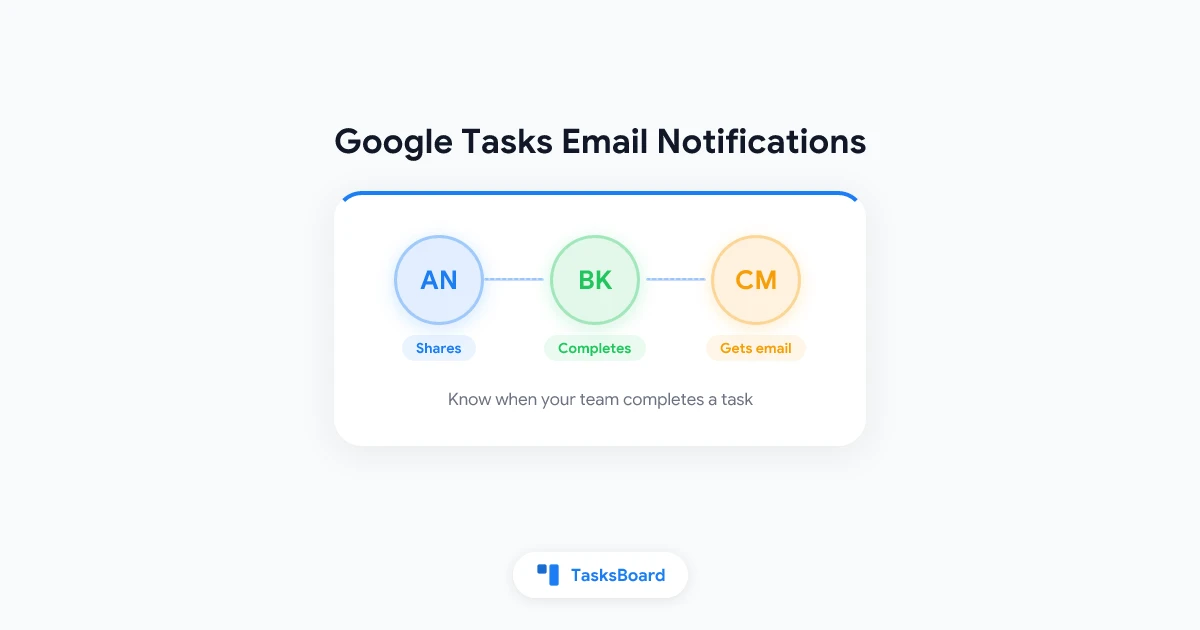
You hand a task to a teammate, and then you wait. Did they finish it? You open the list to check. An hour later you check again. Google Tasks email notifications for completed tasks would solve this, but Google Tasks does not send them for your lists.
It is the missing half of working together. Sharing a list tells everyone what needs to be done. A notification tells you when it actually is.
This guide shows how to get an email when someone completes a task in a shared Google Tasks list, using TasksBoard. It also covers how to set up one list for the whole team, so the emails have something useful to report.
TL;DR:
- Google Tasks reminds you about your own due dates. It does not email you when another person completes a task in your list, and it cannot share a list in the first place.
- In TasksBoard, share a list with a link. Everyone works on the same tasks from their own Google account.
- Open your profile picture, choose Account settings, and turn on Completed tasks in shared lists.
- You get an email with the task, the list, and the name of the person who completed it. Several completions in a few minutes arrive as one email.
- Sharing lists is free for up to 5 lists. Completion emails are a Premium feature.
Does Google Tasks Send Email Notifications?
Only in a narrow set of cases. The notifications most people know are reminders: set a date and time on a task, and Google reminds you when it is due. Those reminders go to you, about your own tasks. Our guide to Google Tasks notifications explains how they work on each platform.
Google also has shared tasks, which live in a Google Chat space or a Google Doc. According to Google’s shared tasks help page, you get notified when such a task is created, assigned, completed, or deleted. In Chat, the notification appears in the space. In Docs, it is an email.
That sounds close to what a team needs, but the limits show up quickly:
- It only covers tasks created in Chat or Docs. A normal list in Google Tasks is private to your account. Nobody else can see it, so nobody can be notified about it.
- Docs assignment is for work and school accounts. Google’s guide to assigning tasks from Google Docs says you can assign tasks to people in your organization. Families, freelancers, and clients on personal Gmail accounts are left out.
- Shared tasks are stripped down. Google states that you cannot add subtasks to them or make them repeat.
- There is no team list. Tasks are scattered across spaces and documents instead of sitting in one list everyone opens.
So the honest answer is: Google Tasks has no email notification for a task completed in a regular list, because a regular list has no second person in it.
TasksBoard Premium can now email you when a collaborator completes a task in a list you share. Each email names the task, the list, and the person who finished it. One switch in Account settings turns it on.
Work Together in One Google Tasks List
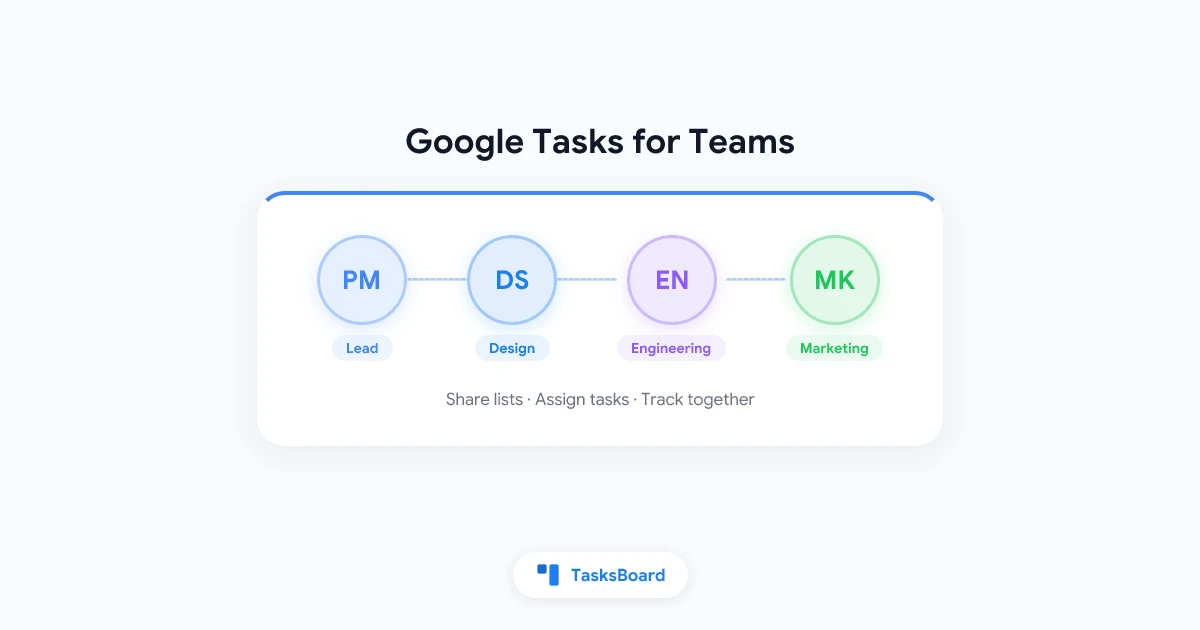
Notifications only make sense once several people work in the same list. That is the part TasksBoard adds on top of Google Tasks. Your tasks stay in Google Tasks, and the shared list appears in each person’s own Google account.
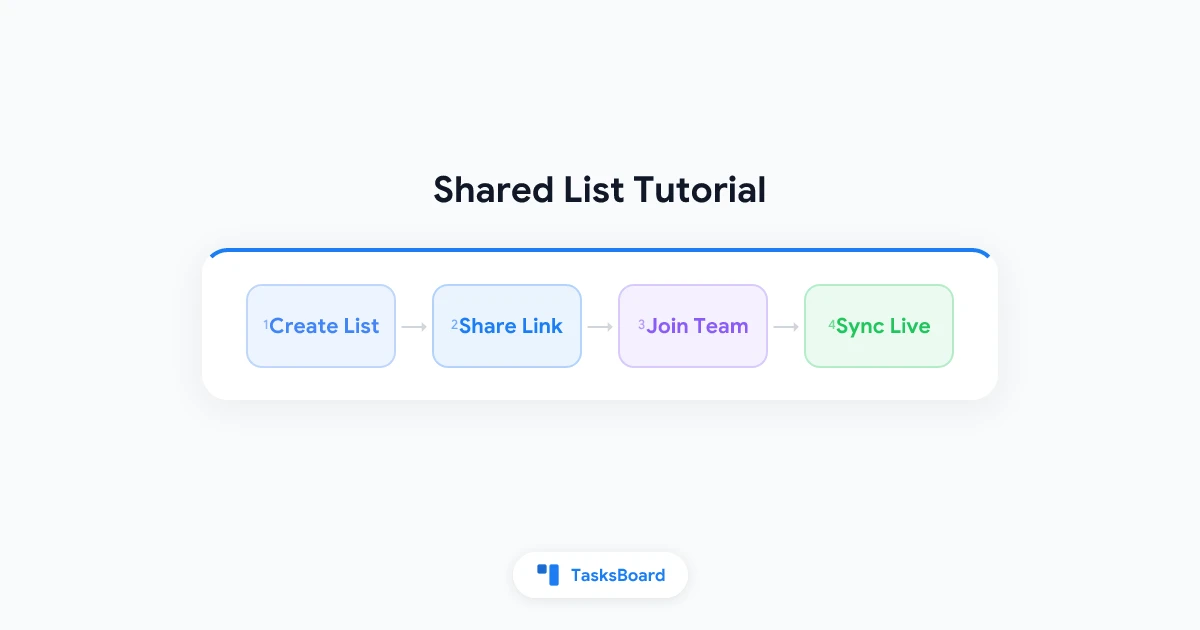
Here is how to set up a shared list:
- Sign in to TasksBoard with your Google account. Your existing lists appear right away.
- Open the list you want to work on together, or create a new one for the project.
- Click the share icon in the list header and copy the link.
- Send the link to your teammates by email or chat.
- Each person opens the link, signs in with their Google account, and clicks Join shared list.
From that moment, everyone sees the same tasks. A change made by one person syncs to the others within seconds. The list also shows up in the Google Tasks mobile app, the Gmail side panel, and Google Calendar for every member, because it is a real Google Tasks list in each account.
For screenshots of every step, see our full guide on how to share Google Tasks.
A shared list in TasksBoard keeps the features Google’s own shared tasks drop:
- Subtasks work as usual, so a task can carry its own checklist.
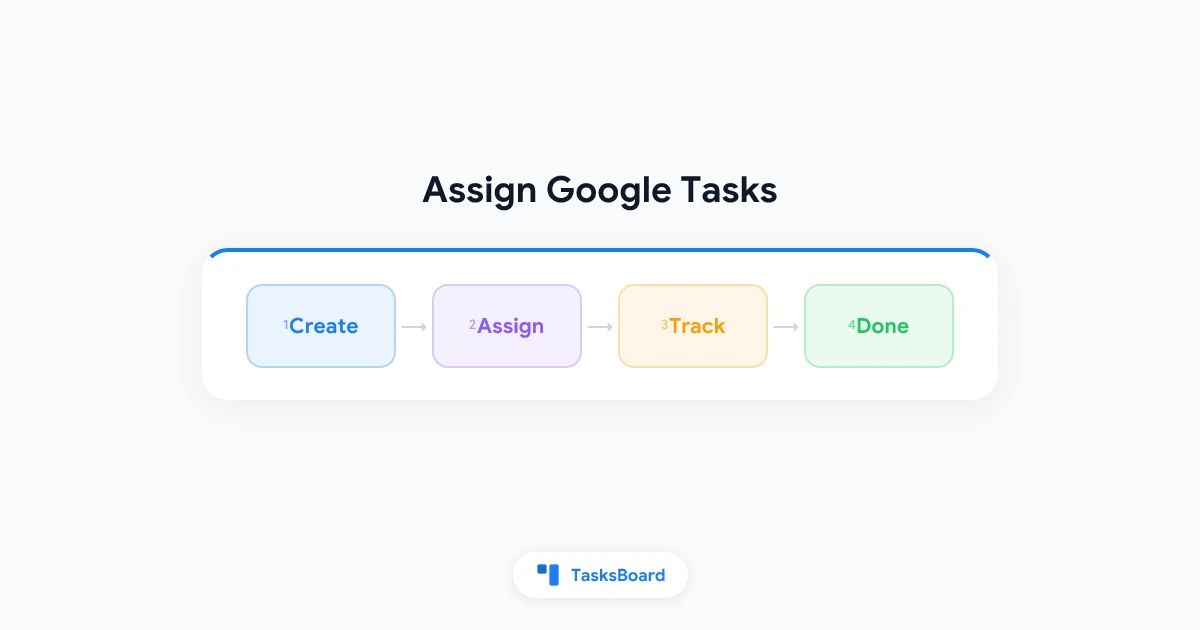
- Assignees show who owns each task. Our guide to assigning Google Tasks covers how to delegate inside a shared list.
- Due dates and notes sync to everyone.
- Any Google account can join, whether it is a work account or a personal Gmail address.
 Try TasksBoard
Share a Google Tasks list with your team in one link and get an email when someone completes a task. TasksBoard works on top of your existing Google Tasks, with no new account to create.
Get Started →How to Turn On Email Notifications for Completed Tasks
Once you share at least one list, turning on the emails takes a few seconds:
- Open TasksBoard and click your profile picture in the top right corner.
- Choose Account settings.
- Find the Notifications section and the option called Completed tasks in shared lists.
- Turn on the switch. The line under the option shows the address the emails will go to, which is the email of the Google account you are signed in with.
That is the whole setup. There is nothing to configure per list. The setting covers every list you share and every shared list you have joined.
If you are on the free plan, turning on the switch opens the Premium upgrade screen instead.
Each person decides for themselves. Turning the emails on for your account does not sign up your teammates. Anyone on the list who wants the emails turns on the same switch in their own Account settings.
What the Completion Email Looks Like
The email is built to be read in two seconds. Often the subject line is enough:
- One task: the subject names the person, the task, and the list. For example, “Anna completed ‘Send the invoice’ in Client projects”.
- Several tasks by one person in one list: the subject gives the person, the list, and the count.
- Several people or several lists: the subject gives the total number of completed tasks.
Inside, tasks are grouped by list. Each line shows the task title and who completed it. A completed subtask also shows the task it belongs to, so “Check mobile layout” is not left without context.
A few details keep the emails useful instead of noisy:
- Completions are grouped. Tasks completed within about five minutes of each other arrive as one email. A teammate who clears ten tasks in a row sends you one message, not ten.
- Long batches are trimmed. An email lists up to 30 tasks and then tells you how many more were completed.
- Your own work is skipped. You never get an email about a task you completed yourself.
- Only completions count. New tasks, edits, and tasks that are reopened do not send an email.
- It works from the Google apps too. A task checked off in the Google Tasks mobile app or the Gmail side panel counts. It is picked up the next time the shared list syncs in TasksBoard.
- The email matches your language. It is written in the language you use in TasksBoard.
Built-in Google Options vs TasksBoard
Here is how the native options compare with a shared list in TasksBoard:
| Google Chat space tasks | Tasks assigned in Google Docs | TasksBoard shared list | |
|---|---|---|---|
| Where tasks live | Inside one Chat space | Inside one document | A Google Tasks list in every member’s account |
| Who can join | Members of the space | People in your organization | Anyone with a Google account |
| Notice when a task is completed | Notification in Chat | Email, grouped every few minutes | |
| Subtasks | No | No | Yes |
| One list for the whole team | No, tied to the space | No, tied to the document | Yes |
| Cost | Part of Google Chat | Eligible Workspace plans | Sharing free up to 5 lists, emails on Premium |
If your team already lives in a Chat space and only needs a few action items, the native option is fine. If you want one list that the whole team opens every morning, a shared list is the better fit. Our guide to Google Tasks for teams goes deeper into when each approach works.
Tips for Teamwork in a Shared List
The emails are only as good as the list behind them. A few habits make both work better:
- Use one list per project or workflow. “Website launch” or “Client onboarding” tells everyone what belongs there. The list name also appears in every email, so a clear name makes the email clear.
- Write task titles that stand on their own. “Send the signed contract to Marta” reads well in an inbox. “Contract” does not.
- Assign an owner. A task with a name on it gets done. A task that belongs to everyone waits for someone else.
- Complete tasks, do not delete them. Checking a task off notifies the team and keeps a record. Deleting it does neither.
- Break large tasks into subtasks. Each completed subtask shows progress long before the parent task is done.
- Let the right people subscribe. A team lead who delegates work benefits most. A teammate who only works on their own tasks may prefer to leave the emails off.
- Filter the emails in Gmail. The emails come from notifications@tasksboard.com. Create a Gmail filter for that address and apply a label, and you get a running log of what the team finished.
Completed tasks stay in the list after they are checked off. Our guide to completed tasks in Google Tasks shows how to view them and when to clear them.
How to Turn the Emails Off
You can stop the emails at any time, in two ways:
- From the email. Every message has an Unsubscribe link at the bottom. Click it, confirm, and the notifications are off for your account.
- From TasksBoard. Open Account settings from your profile picture and turn off Completed tasks in shared lists.
Turning the emails off changes nothing else. The list stays shared, and your teammates keep their own settings.
FAQ
Conclusion
Google Tasks is good at reminding you about your own tasks. It has no way to share a list, and no Google Tasks email notifications for work that someone else finishes.
TasksBoard adds both. Share a list with a link, and your team works on the same tasks from their own Google accounts. Turn on Completed tasks in shared lists in Account settings, and you get an email naming the task, the list, and the person who completed it.
You stop checking the list to see what is done. The list tells you.
Get started with TasksBoard and share your first list with your team today.
Ready to share your Google Tasks?
Get started with TasksBoard for free, no credit card required.
Sign in