Google Tasks Activity Log: See Who Did What on a Shared List

A task on your shared list was marked complete on Tuesday. Nobody remembers doing it. Another task vanished from the list, and the due date on a third one moved by a week. In Google Tasks, you have no way to find out who did any of this, or when.
Google Tasks stores the current state of a task and nothing else. For a personal list that is fine. For a list you share with a team, it means every question about history ends in a Chat thread: “Did you finish this?”, “Who moved the deadline?”, “Where did the onboarding task go?”.
This guide explains why Google Tasks has no activity log, and how to get one on a shared list with TasksBoard: a board-wide activity panel, a history for each task, a log of everything completed with a weekly summary, and an alert when someone assigns a task to you.
Why Google Tasks has no activity log
Google Tasks was designed as a personal capture tool. Each list belongs to one Google account, so there was never a reason to record who changed what: the answer was always you.
The Tasks API reflects that design. A task carries an updated timestamp and, once done, a completed timestamp. There is no field for the person who made the change, no event stream, and no way to read a previous version of a task. Once a task is edited, the earlier state is gone.
Tasks assigned in a Google Chat space or a Google Doc show who the assignee is, but they do not keep a log either. If you need to know who reopened a task or who removed a due date, Google Tasks cannot tell you. For the broader picture of what Google offers teams, see our guide to Google Tasks for teams.
What TasksBoard records
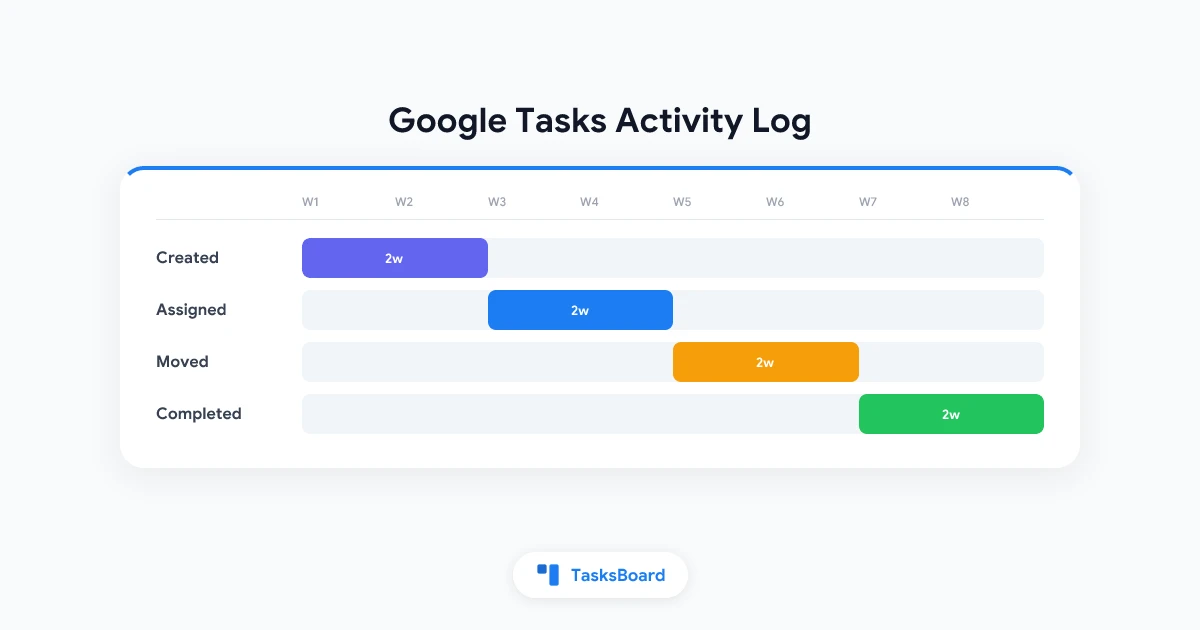
With TasksBoard Premium (the “Activity & history” feature, included in both the Pro and the Team plan), a board keeps a record of what happens to its tasks:
- who created, completed, reopened or deleted a task
- who assigned or unassigned someone
- who moved a task to another list
- when a due date was set or removed
On a shared list, changes made by your collaborators are recorded as well, and so are changes made from the Google Tasks apps, Gmail or Google Calendar, once the list syncs. Edits to a task’s title or details are not recorded.
The history belongs to the list, not to a person. A collaborator who joins the shared list later sees everything that was recorded on it before they arrived.
Open the activity panel
The activity panel shows the whole board at once, newest changes first.
- Hover the board’s title and click the history icon (“Board activity”), next to the three dots menu.
- The Activity panel opens on the right. Changes are grouped by day.
- Use the two menus at the top, “All lists” and “Everyone”, to narrow the panel down to one list or one person.
Each line names the person, the task and what happened, with the time and the list. Your own changes read “You”. Click “Load more” at the bottom to page back.
- About a minute of delay: the log is read from TasksBoard's analytics, so a change shows up in the panel roughly a minute after it happens
- Collaborators' changes arrive with the sync: a task completed in the Google Tasks app is recorded once the shared list syncs
- 90 days of history: the panel covers the last 90 days; "Load more" pages back within that window
- Shared by everyone on the list: a collaborator who joins later sees the full record
The one-minute delay matters in practice: if you complete a task and open the panel immediately, the line is not there yet. Wait a moment and reopen it.
See one task’s history
When the question is about a single task, you do not need to scroll through the whole board.
- Click the task to open it.
- Click History under its row of buttons.
You get the same lines as in the activity panel, limited to that task: when it was created and by whom, each time it was completed or reopened, who was assigned, and when it changed lists. This is the fastest way to settle “I never saw this task” or “I did finish that one”.
The completed log and “What I did this week”
The activity panel answers “who touched this?”. The completed log answers a different question: “what actually got done?”.
- Open the board’s three dots menu.
- Click Completed tasks.
The dialog lists every completed task across the board’s lists with the time it was completed, grouped into Today, Yesterday, This week and Earlier, with the exact count. Type in the search box to filter by task, parent task or list.
At the top sits the What I did this week box. It counts the tasks completed on the board in the last seven days, per day and per list, whoever completed them. On a shared list, that means it doubles as a team summary: how much the board moved this week, and which list most of that work landed in.
Two ways teams use it:
- Friday wrap-up. Open the completed log, scan the week, and copy the counts into your status update instead of reconstructing the week from memory.
- Monday review. Compare “This week” against what was planned. Lists with zero completions are where the conversation should start.
If you want this summary delivered rather than opened, Premium also sends a completion email when collaborators complete tasks on a shared list. Our post on Google Tasks email notifications covers that setup.
 Try TasksBoard
Share a Google Tasks list with your team and keep a record of who completed, assigned and moved each task. Your tasks stay in Google Tasks.
Get Started →Get alerted when a task is assigned to you
A log tells you what happened after the fact. For assignments, you usually want to know right away. When a collaborator assigns you a task in a shared list, TasksBoard can alert you in two ways.
Browser notification. If you have enabled notifications for shared lists from the bell icon in the header, you get a push notification: right away when the task is assigned in TasksBoard, otherwise when the list syncs.
Email. Turn on the “Tasks assigned to me” switch:
- Click your profile picture, then Account settings.
- Under Notifications, turn on Tasks assigned to me.
Assignments are gathered for a few minutes and sent as one email, so five tasks assigned in a row do not produce five messages. Every email ends with an Unsubscribe link that opens a page where you confirm; this turns the switch off. The email alerts are Premium: on a free account, the switch opens the Premium offer instead.
Everything assigned to you, from TasksBoard or from a Google Doc or Chat space, is also collected in the Assigned to me smart board in the sidebar. More on assignment in our guide to assigning Google Tasks.
A simple routine for a shared list
Once the log exists, it is worth deciding how your team uses it. A light routine that works for small teams:
- Daily: nobody opens the log. Assignment alerts and shared-list notifications carry the day-to-day.
- When something looks wrong: open the task’s History before asking in Chat. Most “who did this?” questions are answered in ten seconds.
- Weekly: one person opens Completed tasks, reads “What I did this week”, and uses the activity panel filtered to “Everyone” to check that nothing was deleted or moved by mistake.
Because the record covers 90 days, you can also go back at the end of a quarter and see when a project’s tasks were actually completed, rather than when you remember them being done.
FAQ
Conclusion
Google Tasks will not tell you who completed, moved or deleted a task on a shared list, because it was never built to keep that record. TasksBoard keeps one for you: an activity panel for the board, a History button on each task, a completed log with a “What I did this week” summary, and alerts when a task is assigned to you. Changes appear after about a minute and stay for 90 days.
If your team already shares Google Tasks lists, open a board, hover its title and click the history icon. The full reference is in the help center: activity log, task history and completed tasks.
Ready to share your Google Tasks?
Get started with TasksBoard for free, no credit card required.
Sign in