Google Tasks Review 2026: Honest Pros, Cons, and Who It's For

Google Tasks is the task manager Google ships inside Gmail, Calendar, and Android, free, synced, and easy to ignore. This Google Tasks review is an honest 2026 look at what it does well, where it falls short, and who should build their workflow around it versus who should look elsewhere.
TL;DR: Google Tasks scores highest on ecosystem integration and simplicity. It loses points on sharing, visual workflow, reminders flexibility, and power features. Best for Gmail-centric individuals and small teams willing to add a kanban layer like TasksBoard. Skip it as your primary system if you need native team collaboration, rich reminders, or deep project management.
Google Tasks Overview
Google Tasks launched as a replacement for Google Keep’s checklist workflow in Gmail and has remained deliberately minimal. Tasks live in lists, support one level of subtasks, accept due dates that sync to Google Calendar, and appear in the Gmail sidebar, Calendar panel, dedicated mobile apps, and tasks.google.com.
There is no paid tier. Google Tasks is included with every Google account and Google Workspace plan.
| Attribute | Detail |
|---|---|
| Price | Free |
| Platforms | Web, Android, iOS, Gmail sidebar, Calendar |
| Storage | Google account cloud sync |
| Sharing | No native list sharing |
| Subtasks | One level |
| Reminders | Via Calendar due dates (date + time) |
| Integrations | Gmail, Calendar, Assistant (limited) |
Rating Breakdown
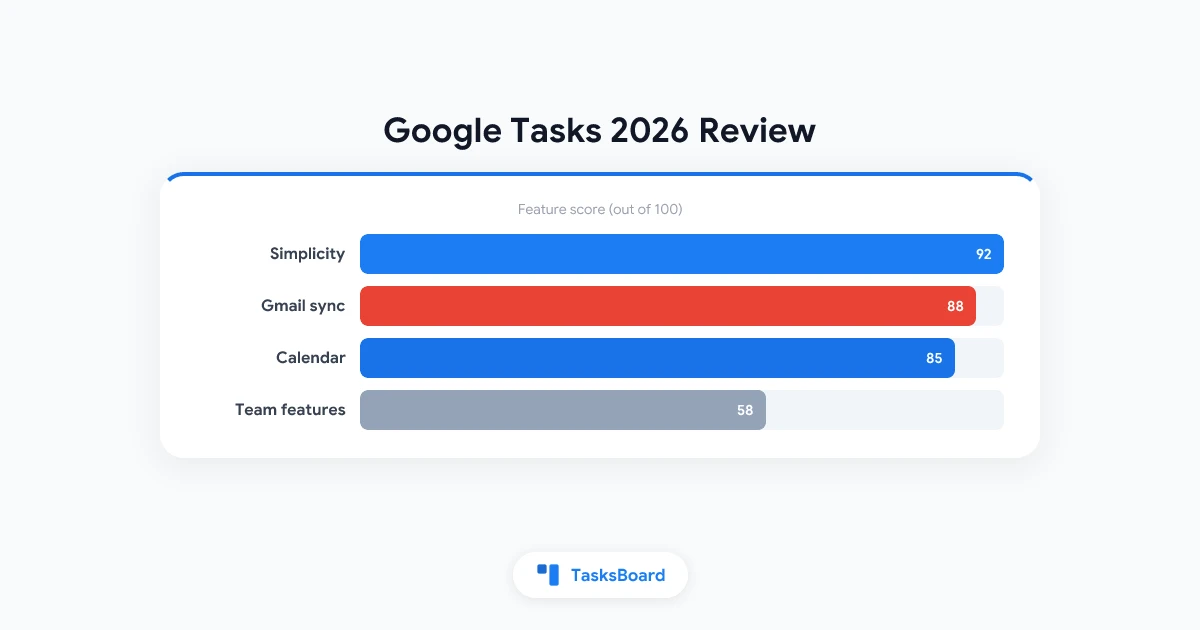
| Category | Score (out of 10) | Notes |
|---|---|---|
| Ease of use | 9 | Minimal UI, near-zero learning curve |
| Gmail / Calendar integration | 10 | Best-in-class for Google-centric work |
| Mobile experience | 7 | Solid apps; fewer power features than rivals |
| Reminders & notifications | 6 | Depends on Calendar; no location reminders |
| Collaboration | 3 | No shared lists without third-party tools |
| Visual workflow | 4 | List-only; no native kanban or board view |
| Power features | 4 | No tags, filters, priorities, or templates |
| Value for money | 10 | Free with no upsell inside the app |
| Overall | 7.1 / 10 | Excellent companion app, modest standalone PM tool |
What Google Tasks Does Well
1. Invisible until you need it
Google Tasks does not ask you to open another app. Tasks sit beside email in Gmail and beside events in Google Calendar. That proximity means capture friction is almost zero, drag an email to Tasks, set a due date, move on.
2. Real cross-device sync
Create a task on your phone, see it in Gmail on your laptop within seconds. For users already inside Google Workspace, this reliability matters more than feature checklists.
3. Clean, fast interface
No bloated dashboards. Opening tasks.google.com shows your lists immediately. On older hardware or congested workdays, that speed keeps the tool usable.
4. Calendar-backed scheduling
Due dates appear on Google Calendar’s Tasks calendar. Time-blocking alongside meetings is natural, you see work, not just meetings.
5. Free forever
Competitors gate reminders, filters, or collaboration behind subscriptions. Google Tasks gives every user the same core feature set.
Where Google Tasks Falls Short
No native sharing
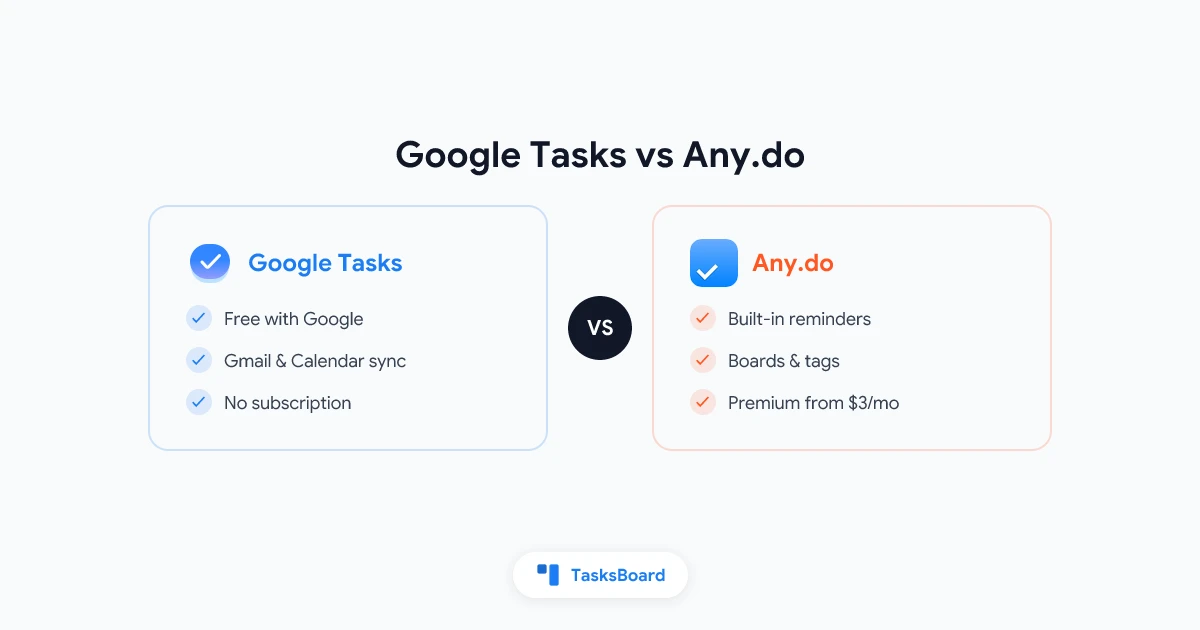
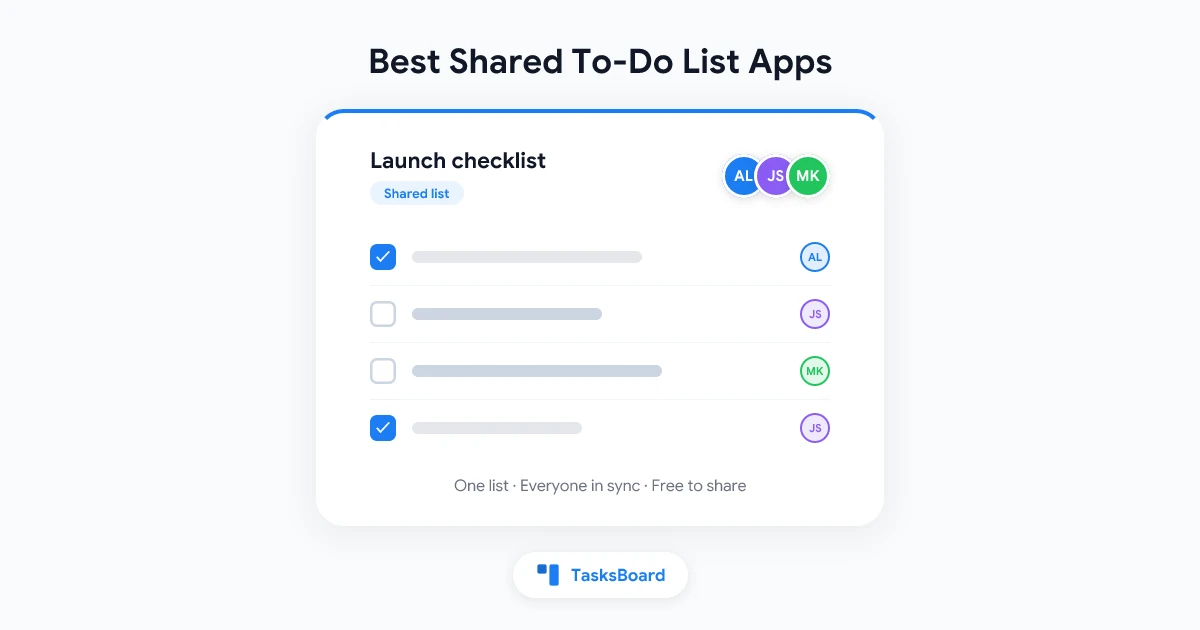
You cannot invite a colleague to a Google Tasks list the way you share a Google Doc. Teams workaround this with TasksBoard shared boards or by switching to Todoist or Microsoft To Do.
List-only views
There is no built-in kanban, timeline, or workload view. Status-based work (backlog → doing → done) requires mental translation from list order or a tool like TasksBoard kanban.
Limited reminders
Reminders require a due date with a time and flow through Calendar. There are no location-based reminders, snooze stacks, or separate reminder times decoupled from due dates. See our Google Tasks reminders guide and notifications guide for details.
Shallow task detail
Notes are plain text. No attachments in native Tasks (TasksBoard adds Drive attachments). No custom fields, priorities, or labels inside Google Tasks itself.
One level of subtasks
Checklists under a parent task work for groceries or meeting prep. They do not replace a work breakdown structure for complex projects.
Easy to neglect
Because Tasks is a sidebar, lists outgrow the visible area. Without weekly review habits, “My Tasks” becomes an unsearchable pile.
Google Tasks vs the Competition (Quick Takes)
| Need | Better option | Why |
|---|---|---|
| Stay in Google ecosystem | Google Tasks + TasksBoard | Native sync + kanban and sharing |
| Richest features | Todoist | Filters, labels, natural language |
| Microsoft shop | Microsoft To Do | Outlook integration, My Day |
| Apple household | Apple Reminders | Siri, location reminders |
| Quick notes + checklists | Google Keep | Faster capture, worse task hygiene |
We cover more alternatives in Google Tasks alternatives.
Who Should Use Google Tasks
Good fit if you:
- Live in Gmail and Google Calendar daily
- Want a free, synced capture tool with minimal setup
- Manage personal errands, solo client work, or small lists
- Prefer adding a kanban layer (TasksBoard) instead of migrating task data
- Already pay for Google Workspace and want zero additional subscriptions
Teams on Google Workspace often pair Google Tasks with TasksBoard when they need shared lists without leaving Google’s data model.
Who Should Not Use Google Tasks
Poor fit if you:
- Need native shared lists and assignments inside the task app
- Depend on location reminders or rich notification rules
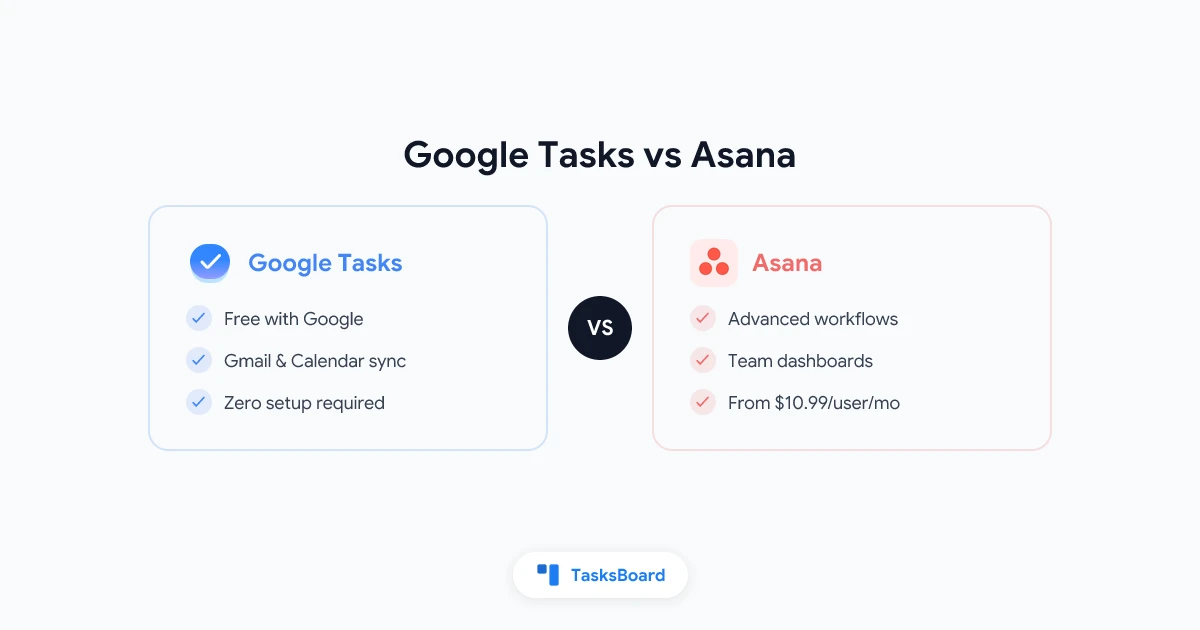
- Run agile sprints with built-in reporting (use Jira, Linear, or Asana)
- Want tags, filters, and saved views without third-party tools
- Are not invested in Google, Microsoft To Do or Todoist will feel more capable out of the box
Google Tasks in 2026: Still Minimal, Still Relevant
Google has not shipped a Tasks overhaul. The product remains a companion, not a platform. That is a feature for some users and a dealbreaker for others.
For Google-centric professionals, the practical 2026 stack is:
- Google Tasks for capture and sync
- Google Calendar for time-based reminders
- TasksBoard when you need kanban, labels, sharing, or Sheets export
That stack keeps one source of truth while fixing the sidebar’s visibility and collaboration limits.
How We Tested
We used Google Tasks across Gmail (web), tasks.google.com, Android 15, and iOS 18 with personal and Workspace accounts over four weeks. We evaluated capture speed, Calendar reminder delivery, mobile usability, subtask limits, and collaboration gaps. We compared against Todoist, Microsoft To Do, and TasksBoard on the same workflows.
Notification behavior matched Calendar settings, when reminders failed, fixes were almost always in Calendar permissions, documented in Google Tasks notifications not working.
A Real-World Day with Google Tasks
Picture a marketing coordinator on Google Workspace. Morning: triage Gmail, drag three emails to Tasks, set due dates before standup. Midday: check off two items on the Android app between meetings. Afternoon: open tasks.google.com for a weekly review, move stalled items to a Waiting For list. End of day: one timed reminder fires through Calendar for a report deadline.
That workflow works until the coordinator needs to share a campaign board with a designer. Native Google Tasks stops there, no invite link, no shared list. The team adds TasksBoard, keeps the same Google Tasks lists, and gains a kanban view plus link sharing. The review score does not change; the stack does.
This pattern, Tasks for capture, Calendar for time, TasksBoard for visibility, is how most satisfied Workspace users rate Google Tasks higher than the standalone 7.1/10 implies.
Security and Admin Notes for Workspace
Google Tasks data inherits your Google account security: 2FA, SSO via Workspace, Vault retention (for eligible plans), and admin controls on which third-party apps access Tasks via OAuth.
TasksBoard requests Google Tasks API access, the same scope family other marketplace apps use. Tasks remain in Google’s infrastructure; TasksBoard is a client, not a second task store. Admins evaluating apps should compare that model to migrating everyone to a non-Google task database with separate compliance review.
FAQ
Is Google Tasks good enough for work?
Yes for individuals and light team coordination. No for dedicated project management. Many Workspace teams use Google Tasks plus TasksBoard for shared kanban.
How much does Google Tasks cost?
Nothing. It is included with free Google accounts and all Google Workspace plans.
What is the biggest weakness of Google Tasks?
Lack of native list sharing and visual workflow tools. You can add sharing and kanban with TasksBoard without leaving Google Tasks.
Can Google Tasks replace Todoist?
For simple lists and Gmail-centric users, often yes. For filters, labels, karma, and templates, compare Google Tasks vs Todoist before switching.
Does Google Tasks have reminders?
Effectively through due dates synced to Google Calendar. There is no separate reminder field independent of the due date.
Is Google Tasks better than Google Keep for tasks?
Keep is better for quick notes; Tasks is better for dated, actionable items tied to Gmail and Calendar. See Google Tasks vs Google Keep.
Should I use Google Tasks in 2026?
If you are already in Google Workspace, yes, as your capture and sync layer. Add specialized tools only when list view becomes the bottleneck.
The Bottom Line
Google Tasks review verdict: A 7.1/10 companion app, unbeatable Gmail integration, acceptable mobile apps, weak collaboration, and list-only planning. Use it when Google is your home base. Extend it with TasksBoard when you need kanban and sharing. Switch to Todoist or Microsoft To Do when you want a standalone power tool instead.
Want kanban on the Google Tasks you already have? Try TasksBoard free, no migration, no duplicate task database, just a better board for the lists you already use.
Ready to share your Google Tasks?
Get started with TasksBoard for free, no credit card required.
Sign in