Google Tasks vs Keep: Which Google App Should You Use in 2026?

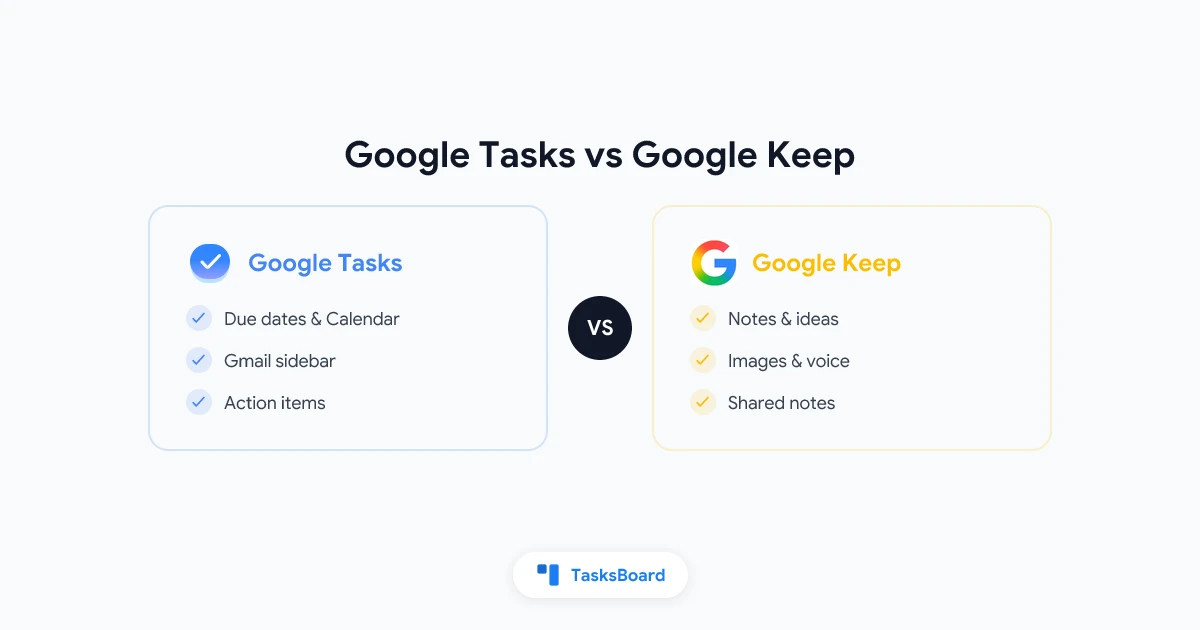
Google Tasks vs Keep is one of the most common questions inside Google Workspace. Both apps are free, both sync to your Google account, and both show up when you search for a simple way to stay organized. They are not interchangeable. Google Tasks is built for action items with due dates. Google Keep is built for notes, ideas, and quick captures that may never become tasks.
This guide compares the two apps side by side, explains when to use each one, and shows how to connect notes in Keep to actionable work in Google Tasks (and a kanban board when your list outgrows the sidebar).
TL;DR: Use Google Keep for notes, checklists you want to pin, images, and voice memos. Use Google Tasks for dated to-dos that belong in Gmail and Google Calendar. Many productive workflows use both. When Google Tasks needs sharing or a visual board, add TasksBoard on top without leaving Google.
Google Tasks vs Keep at a Glance
| Feature | Google Tasks | Google Keep |
|---|---|---|
| Primary purpose | Action items and to-do lists | Notes, ideas, and quick captures |
| Due dates | Yes, syncs to Google Calendar | Reminders only (time or location) |
| Subtasks | One level under a parent task | Checklist items inside a note |
| Gmail integration | Sidebar panel, email to task | Save email text to a note |
| Google Calendar | Tasks with dates appear on calendar | Reminders can notify you |
| Sharing | No native list sharing | Share notes with collaborators |
| Attachments | No | Images, drawings, audio |
| Labels or colors | No | Color labels on notes |
| Search | Task title and notes field | Full-text search across notes |
| Kanban or board view | No (add TasksBoard) | Grid of note cards |
| Best for | Deadlines, email follow-ups, project next steps | Brain dumps, shopping lists, meeting notes |
The table tells the story in one glance. Keep is a notebook. Tasks is a to-do list tied to your calendar and inbox.
What Google Tasks Is Built For
Google Tasks lives inside Gmail, Google Calendar, and the dedicated mobile app. Its job is to hold things you intend to do, often with a deadline attached.
Strengths:
- Gmail sidebar: turn an email into a task without leaving your inbox
- Calendar sync: a task with a due date shows up on your Google Calendar
- Clean lists: separate lists for work, personal errands, or project scopes
- Subtasks: one checklist level under a parent task
- Mobile apps: iOS and Android apps sync with the web instantly
Google Tasks stays intentionally small. There are no tags, no attachments, and no native way to share a list with a teammate. That minimal design works for personal productivity. It breaks down when a team needs shared visibility or a workflow view beyond a flat list.
If you want to get more from the app before comparing alternatives, read how to use Google Tasks effectively. That guide covers list structure, due dates, and when the sidebar stops being enough.
Every item in Google Tasks is meant to be completed and checked off. Due dates push tasks into Google Calendar. Email follow-ups land in the same list as your weekly errands. If it has a deadline or belongs in your schedule, it belongs in Tasks.
What Google Keep Is Built For
Google Keep is Google’s digital sticky-note app. Open it and you see a grid of colorful cards. Each card can hold text, a checklist, an image, a drawing, or a voice recording.
Strengths:
- Fast capture: add a thought in seconds from the mobile widget or Chrome extension
- Visual organization: color-code notes, pin important cards to the top
- Rich content: snap a photo of a whiteboard, record a voice memo, sketch an idea
- Collaboration: share a note with a link so someone else can edit in real time
- Reminders: set a time-based or location-based nudge on any note
- Search and labels: find old notes by keyword or custom label
Keep checklists feel like tasks, which is where the confusion starts. You can check off grocery items or packing lists inside Keep and never move them to Google Tasks. That works well for lists without deadlines. It works poorly when those items need to appear on your calendar or survive an inbox-to-action workflow.
Keep does not integrate with Gmail the way Tasks does. You can save email content to a Keep note, but you cannot assign a due date that flows into Google Calendar the same way a Google Tasks item does.
Reminders: How Google Tasks vs Keep Handle Dates
Both apps can remind you about something. The mechanics differ.
Google Tasks reminders through Calendar
Google Tasks does not send standalone push alerts like a dedicated reminder app. When you add a date and time to a task, it creates an event on your Google Calendar Tasks calendar. Calendar delivers the notification. Date-only tasks usually sit on the calendar as all-day items without a ping.
For a full walkthrough of this behavior, see our Google Tasks reminders guide.
Google Keep reminders
Keep lets you attach a reminder directly to a note. You can pick a date and time, or set a location reminder that fires when you arrive somewhere. Keep sends its own notification independent of Calendar.
| Scenario | Better choice |
|---|---|
| Task must appear on your calendar schedule | Google Tasks |
| Quick nudge on a shopping note | Google Keep |
| Location-based reminder (“buy milk near store”) | Google Keep |
| Email follow-up with a firm deadline | Google Tasks |
| Meeting notes with optional follow-up | Keep for notes, Tasks for actions |
When to Use Google Tasks, Keep, or Both
Most Google power users do not pick one app forever. They split the work by intent.
Use Google Tasks when you…
- Turn Gmail emails into follow-up items
- Need due dates that sync to Google Calendar
- Track project next actions with subtasks
- Want a dedicated to-do list separate from random notes
- Plan to add a kanban board through TasksBoard for visual workflow
Use Google Keep when you…
- Capture ideas before you know if they are actionable
- Store reference material (links, screenshots, quotes)
- Maintain shared shopping or packing checklists
- Record voice memos or snap photos of physical notes
- Collaborate on a single note in real time
Use both together when you…
- Take meeting notes in Keep, then move action items to Google Tasks
- Brainstorm in Keep during the week, then promote deadlines to Tasks on Friday
- Keep long-term reference in Keep and short-term execution in Tasks
A simple weekly review closes the loop. Open pinned Keep notes, scan for unchecked items that now have dates, and create matching tasks in Google Tasks. Delete or archive the Keep checklist once the work lives in Tasks.
There is no official one-click “convert Keep note to Google Task” button. Copy the text manually, or use Google Assistant on mobile (“add to my tasks”) after reading the Keep note. Automation tools like Google Apps Script can bridge the gap for advanced setups, but most people succeed with a five-minute weekly review.
Google Tasks vs Keep for Teams
Neither app was designed as a team project manager. The collaboration story differs slightly.
Google Keep supports shared notes. Two people can edit the same shopping list or meeting agenda simultaneously. That works for lightweight coordination.
Google Tasks has no native list sharing. Teammates cannot see your task list unless you export it or use a third-party layer.
For Google Workspace teams that outgrow personal lists, TasksBoard adds shared kanban boards on top of Google Tasks. Notes and reference material stay in Keep. Committed work with owners and deadlines moves to Google Tasks and appears on a board the team can see together.
 Try TasksBoard
Keep your notes in Google Keep and your team's action items on a shared Google Tasks kanban board. No migration, no new account.
Get Started →Google Keep vs Google Tasks vs Google Calendar
A third app often enters this conversation. Here is how the three fit together.
- Google Keep: unstructured notes and reminders on those notes
- Google Tasks: structured to-do items, some with due dates
- Google Calendar: your schedule, including timed tasks from Google Tasks
Tasks with dates flow into Calendar. Keep reminders stay separate unless you manually block time on Calendar. For a single view of your week, rely on Calendar plus Google Tasks, and use Keep as the upstream capture tool.
Frequently Asked Questions
Conclusion
The Google Tasks vs Keep decision is not about which app is better overall. It is about matching the tool to the type of information you are holding.
Google Keep wins for notes, images, voice memos, shared reference lists, and ideas you have not committed to yet.
Google Tasks wins for dated action items, Gmail follow-ups, calendar-backed deadlines, and structured to-do lists.
Use both in the same workflow. Capture freely in Keep. Promote real commitments to Google Tasks. When your task list needs a kanban view or team sharing, TasksBoard extends Google Tasks without replacing either app.
For a broader look at tools beyond Google’s defaults, see our best Google Tasks alternatives in 2026 comparison.
Ready to share your Google Tasks?
Get started with TasksBoard for free, no credit card required.
Sign in