Google Tasks vs Notion: Which Should You Use in 2026?

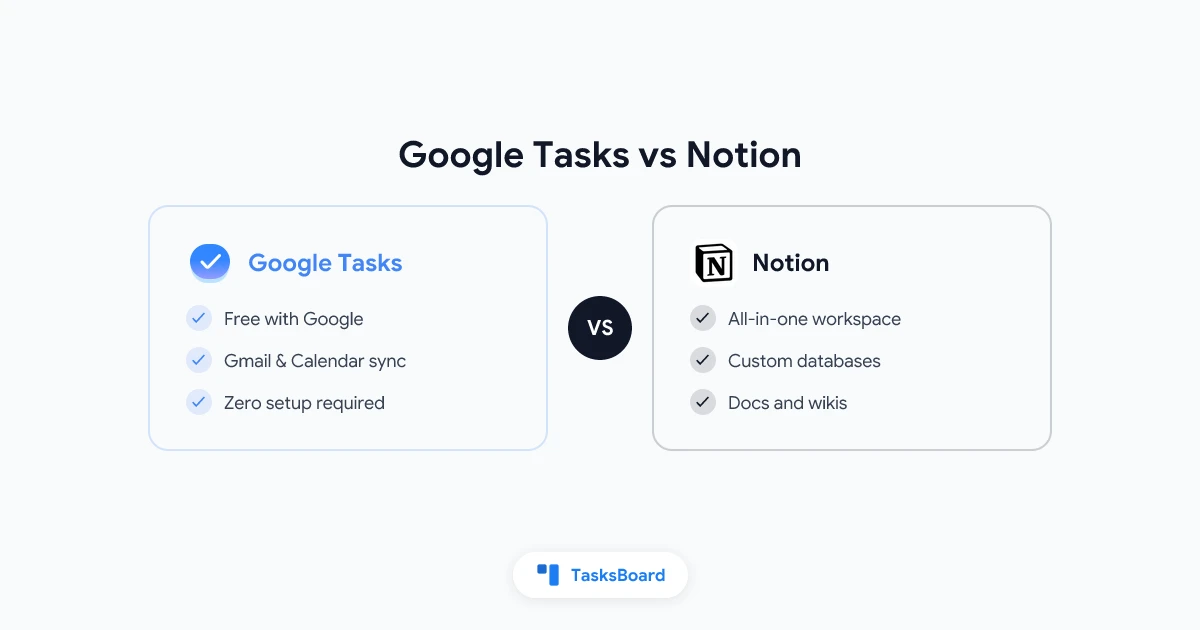
Google Tasks and Notion both help you stay organized. But they are built for very different purposes. One is a lightweight task list baked into Gmail and Google Calendar. The other is a flexible workspace where you can build databases, docs, and project trackers from scratch.
Choosing between them does not have to be complicated. This guide compares Google Tasks vs Notion across price, features, ease of use, and real-world fit so you can pick the right tool in 2026.
Google Tasks vs Notion at a Glance
| Feature | Google Tasks | Notion |
|---|---|---|
| Price | Free | Free (limited) / Plus $10/mo |
| Platform | Web, iOS, Android | Web, iOS, Android, Windows, Mac |
| Setup time | Zero | Medium to high |
| Gmail integration | Native sidebar | Via extension only |
| Google Calendar sync | Automatic | Manual or third-party |
| Task lists | Yes | Via databases |
| Subtasks | Yes (one level) | Yes (unlimited nesting) |
| Due dates | Yes | Yes |
| Kanban board | No | Yes |
| Documents and notes | No | Yes |
| Team sharing | No native sharing | Yes |
| AI features | No | Yes (Notion AI, paid) |
| Offline access | Limited | Yes (desktop app) |
| Learning curve | None | Steep |
Google Tasks: Simple, Fast, and Free for Google Users
Google Tasks is a focused to-do list. It lives inside Gmail, Google Calendar, Google Drive, and other Google apps as a sidebar panel. Every Google account includes it at no cost.
You get task lists, one level of subtasks, due dates, and short notes. That covers most everyday task management needs. The killer feature is automatic sync with Google Calendar: any task with a due date appears on your calendar automatically, with no setup required.
The experience is clean and fast. There is no onboarding, no template gallery, and no configuration. You open Google Tasks and start adding tasks. For people who already use Gmail and Google Calendar all day, this frictionless workflow is hard to beat.
The trade-offs are real, though. Google Tasks has no priority labels, no time-based reminders, no file attachments, and no way to share task lists with another person. For a solo personal task list tied to your calendar, it works well. For anything involving team coordination or structured project tracking, it reaches its limits quickly.
Notion: A Flexible Workspace Built for Power Users
Notion is not really a task manager. It is a workspace where you can build almost anything: a personal wiki, a project tracker, a CRM, a content calendar, or a team knowledge base. Tasks in Notion live inside databases, which you can view as a list, a board, a calendar, a gallery, or a timeline.
That flexibility is the appeal. If you need to connect tasks to meeting notes, link projects to client databases, or build a custom dashboard that shows everything in one place, Notion can do it. Many teams use Notion as a combination of project management tool, internal wiki, and shared workspace.
The free tier gives you unlimited pages and blocks for individual use. The Plus plan ($10 per member per month) unlocks unlimited history, team spaces, and full admin controls. Notion also offers an AI add-on that can write summaries, fill in task details, and generate content inside your pages.
The downside is complexity. Notion takes time to set up. A new user faces a blank page with hundreds of possible configurations. Building a task database that actually works requires understanding Notion’s data model. Many people start, get overwhelmed, and end up with an empty workspace.
Where Google Tasks Has the Edge
Google Tasks wins on simplicity and Google Workspace integration.
Zero setup. You open Gmail and Google Tasks is already there. There is nothing to install, configure, or learn.
Calendar sync. Tasks with due dates show up automatically in Google Calendar. You can see your tasks alongside meetings in a single view.
Speed. Adding a task takes two seconds. You can create a task from an email thread in one click.
Cost. Google Tasks is completely free. No tiers, no trials, no seat limits.
Reliability. Google Tasks runs on Google infrastructure. It is always available and syncs instantly across all your devices.
For people who want a no-fuss to-do list inside their existing Google tools, Google Tasks is the obvious choice.
Strengths: zero setup, free, Google Workspace sync
Limits: no sharing, no priorities, no board view
Strengths: all-in-one, highly customizable, AI features
Limits: steep learning curve, complex setup, higher cost
Where Notion Has the Edge
Notion wins when you need flexibility, team documentation, or structured project management.
Custom databases. Notion lets you build task databases with custom properties: assignees, status labels, priority tags, related documents, and more. You design the structure yourself.
Multiple views. The same task database can appear as a list, a kanban board, a calendar, a gallery, or a timeline. You switch views without duplicating any data.
Documents alongside tasks. Notion pages can mix tasks with rich text, images, embedded files, and linked databases. A project page can hold your goals, meeting notes, task list, and references all in one place.
Team collaboration. Notion supports real-time editing, comments, mentions, and granular sharing permissions. Teams can build a shared workspace that replaces scattered docs, spreadsheets, and chat threads.
AI writing help. Notion AI can summarize pages, draft content, fill in task descriptions, and generate action items from meeting notes. For content-heavy teams, this is a real time-saver.
Who Should Use Google Tasks?
Google Tasks is the right choice if:
- You already use Gmail and Google Calendar daily and want tasks in the same place
- You prefer a minimal tool with almost no learning curve
- You manage personal tasks and do not need to share them with anyone
- You want free task management with no strings attached
- Speed and simplicity matter more than features
If you mostly need to capture action items, link them to emails, and see them alongside your calendar, Google Tasks is hard to improve upon.
Who Should Use Notion?
Notion is the right choice if:
- Your work involves a lot of documentation alongside task tracking
- You need custom databases with multiple views and linked properties
- Your team uses Notion as a shared knowledge base already
- You want to manage projects, wikis, and tasks in one unified workspace
- You are comfortable investing time in setup to get a powerful system
Notion shines for teams that treat their workspace as a product: continuously refined, connected, and tailored to how they work.
 Try TasksBoard
Get the best of Google Tasks plus kanban boards, shared lists, and real-time team collaboration. No Notion setup required.
Get Started →The Hybrid Option: TasksBoard for Google Workspace Teams
If you use Google Tasks and want more without switching to Notion, TasksBoard fills the gap.
TasksBoard is a kanban board and shared task management layer built directly on top of Google Tasks. Your tasks stay in Google Tasks. They sync with Gmail and Google Calendar exactly as before. But TasksBoard adds the features that Google Tasks is missing.
With TasksBoard you get:
- Kanban boards for a visual overview of your work in progress
- Shared task lists so your team can view and update the same board in real time
- Subtasks and a cleaner task detail view
- Workspace-level boards that pull tasks from multiple lists into one view
You do not have to rebuild your entire workflow to get collaboration and a board view. If your team lives in Google Workspace, TasksBoard makes far more sense than migrating to a tool like Notion.
For a deeper look at how Google Tasks fits into larger team workflows, see our guide on Google Tasks for teams and the article on Google Tasks project management.
How to Make the Decision
Here is a simple way to decide which tool to use.
Choose Google Tasks if you want a no-setup, free task list that works inside Gmail and Google Calendar. It is best for personal use and individual contributors in Google Workspace.
Choose Notion if you need a full workspace for documentation, team knowledge sharing, and highly customized project databases. It requires investment in setup but rewards that investment with flexibility.
Choose TasksBoard if you use Google Tasks and want to add shared boards and team collaboration without leaving the Google ecosystem. It is the fastest path from individual task tracking to team-level task management.
You can also combine tools. Some teams use Google Tasks (via TasksBoard) for day-to-day task tracking and Notion for longer-form documentation and planning. The two tools can coexist because they serve different purposes. For a comparison of other options in this space, see our Google Tasks alternatives guide.
FAQ
Conclusion
Google Tasks and Notion solve different problems. Google Tasks is the fastest, simplest way to manage a personal to-do list inside the Google ecosystem. Notion is a powerful, flexible workspace for teams that need documentation, custom databases, and interconnected project tracking.
If you are a Google Workspace user who wants more than a basic task list without the complexity of Notion, TasksBoard is the practical middle ground. You get kanban boards, shared lists, and real-time team collaboration built right on top of Google Tasks.
Start with the tool that fits your current problem. You can always expand from there.
Ready to share your Google Tasks?
Get started with TasksBoard for free, no credit card required.
Sign in