Codificación por colores en Google Tasks: Guía completa para organizar tareas visualmente

Google Tasks Color Coding Guide: How to Organize Visually
Google Tasks is clean and minimal. Every task looks identical: white background, black text, a checkbox. That visual simplicity is part of its appeal. But the moment you have 30 or 40 items spread across work, personal life, and side projects, you start wanting color to break the monotony.
Color coding is the fastest way to add visual structure to a task list. A red item signals urgency. A green item signals done or low stakes. A blue item belongs to a specific project. Your eye makes these distinctions in milliseconds without reading a word.
This guide explains exactly what Google Tasks offers for color coding, how to use those native tools well, and when to add a layer like TasksBoard to unlock the full visual organization experience.
What Color Options Does Google Tasks Have?
Google Tasks does support color, but only at the list level. You cannot color individual tasks.
What this means in practice: each task list you create gets a small color dot next to its name in the sidebar. That same color appears on your Google Calendar as a chip background color for any tasks with due dates. It is a lightweight but real visual layer built into every Google account.
The native color system gives you:
- List-level accent colors chosen from a preset palette of around 12 options
- Calendar color chips that match each list’s assigned color on due dates
- Sidebar color dots that help you identify lists at a glance
What Google Tasks does not provide:
- Color labels on individual tasks
- Priority-based color flags (like Todoist’s red/orange/blue P1-P4 system)
- Color filters or color-based search
- Custom color values or hex input
The native tool is limited but consistent. Used with a clear system, list colors turn your Google Calendar into a color-coded daily overview without any plugins or workarounds.
How to Set List Colors in Google Tasks
Changing a list color takes under a minute on every platform.
On the web (tasks.google.com or the Gmail sidebar):
- Open Google Tasks in your browser
- Look for your list names in the left sidebar
- Click the three-dot menu next to any list name
- Select “Edit list”
- Pick a color from the swatches in the dialog
- Click “Done” to save
The color appears immediately next to the list name and on any Calendar task chips tied to that list.
On Android and iOS:
- Open the Google Tasks app
- Tap the hamburger menu (three lines) to reveal the list panel
- Tap the three-dot menu next to any list name
- Choose “Edit list”
- Select your color and confirm
Important limits to know: You cannot create new colors or enter custom hex values. The preset palette is the full range. If your color system needs more than 12 distinct colors, you have hit the ceiling of what Google Tasks can do natively.
How to Build a Color-Coded System That Actually Works
Random colors create visual noise rather than visual clarity. The key is choosing a meaning for each color before you assign it, then sticking to that meaning consistently.
Here are three approaches that work well within Google Tasks’ list-level color system.
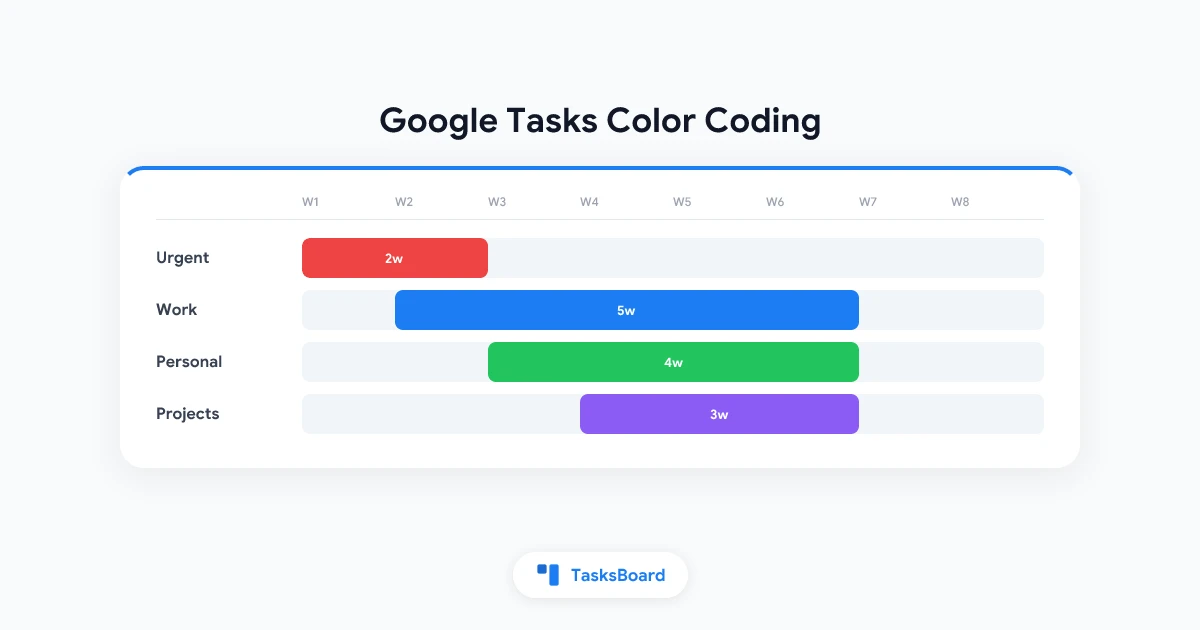
Approach 1: Color by Life Context
Split your life into three or four distinct contexts and give each a color.
- Red for urgent or time-sensitive items
- Blue for work and professional tasks
- Green for personal life and errands
- Purple for side projects or ongoing goals
This is the most intuitive system for most people. When you scan your task lists in the sidebar, the colors tell you which area of life you are in before you read a single word.
Approach 2: Color by Priority Level
Use colors to signal urgency rather than category.
- Red for today or overdue
- Orange or yellow for this week
- Blue for upcoming
- Gray for backlog or someday
This works best when most of your tasks live in a single context, such as an all-work setup, and you need urgency signals more than category separation.
Approach 3: Color by Project
Assign one list per active project, then give each list a distinct color. Every task inside that project automatically inherits the list color in Calendar. When you are running three projects at once, you can see which project owns which Calendar block just by the chip color.
This approach pairs naturally with Google Tasks multiple lists, especially for freelancers and small teams managing a handful of parallel workstreams.
Tips that apply to any color approach:
- Limit yourself to five or fewer color categories. More than five and the system becomes a memory exercise instead of a visual shortcut.
- Write down your color meanings somewhere visible: a pinned note, a sticky on your monitor, or a reference doc. Do not rely on memory.
- Revisit your color system every quarter and reset it as projects change.
- Match your Google Tasks list colors to your Google Calendar colors when possible. Consistency between apps reduces mental friction.
The Missing Piece: Coloring Individual Tasks
The biggest gap in Google Tasks’ color system is that individual tasks cannot have their own color. A red “urgent” marker on one specific task inside your blue “Work” list is not possible natively.
People use several workarounds to get around this limit.
Emoji color dots: Put a colored circle emoji at the start of the task name. For example: ”🔴 Send contract before 5pm” or ”🟡 Review quarterly report.” Emoji render correctly on every platform where Google Tasks runs, including the web, Android, iOS, and the Gmail sidebar. The visual signal is immediate and requires no extensions.
Text prefix codes: Add a short text flag like [URGENT], [WAITING], or [HOLD] to the start of the task name. Less visual than emoji, but easier to scan in a list and useful if you later export tasks to a spreadsheet for analysis.
Starred tasks as a color layer: Google Tasks includes a star toggle on every task. Stars are not technically a color, but they create a visual distinction. A starred task stands out in the list. Use stars as a “highlight” layer on top of your list-color system: red list for urgent items, stars for the two or three you are doing today.
Browser extensions: Some Chrome extensions claim to add color labels directly inside Google Tasks. Extension quality is inconsistent, and they can break after Google updates the Tasks interface. Check reviews and update histories carefully before relying on one for daily work.
None of these workarounds are as clean as true per-task color labels. They all require manual effort every time you create a task. If per-task color coding is essential to your workflow, a dedicated layer on top of Google Tasks handles it far better than workarounds inside it.
How TasksBoard Adds a Full Visual Color Layer to Google Tasks
TasksBoard is a kanban board built directly on the Google Tasks API. It does not copy or duplicate your tasks. It reads your existing Google Tasks lists and displays them as visual columns on a shared board, with full two-way sync.
Here is what this means for color coding:
Color-coded column headers. Every list you have in Google Tasks becomes a column in TasksBoard, and each column header reflects its list’s accent color. A red “Urgent” column is instantly distinguishable from a blue “Work” column without reading the label.
Workflow-based color coding. You can set up columns to represent workflow stages: “To Do,” “In Progress,” “Review,” and “Done.” Each column has a distinct color header. Moving a task card from one column to another changes its list assignment in Google Tasks automatically. The visual workflow in TasksBoard and the underlying data in Google Tasks stay perfectly in sync.
Team-shared color systems. If you work with others, TasksBoard lets you share boards. Everyone on your team sees the same color-coded columns. There is no need to explain “red means urgent” individually to each person since the board itself carries that meaning visually.
No new data import needed. Because TasksBoard connects directly to your Google account and reads your existing Google Tasks, setup takes a few minutes, not hours. Your tasks are already there. You are just adding the visual board on top.
Frequently Asked Questions
Can Google Tasks be color coded at the individual task level? Not natively. Google Tasks assigns colors at the list level, not the task level. To get visual color on individual tasks, the most practical workaround is adding colored circle emoji to the task name (for example, ”🔴 urgent item”). For a true per-task color layer, TasksBoard provides color-coded kanban columns that sync back to your Google Tasks lists automatically.
How do I change the color of a Google Tasks list? On the web, click the three-dot menu next to any list name in the left sidebar, then select “Edit list” and choose a color from the preset swatches. On Android and iOS, long-press the list name or tap the three-dot menu next to it, then choose “Edit list.” The updated color appears immediately in the sidebar and on Google Calendar task chips.
Do Google Tasks colors show up in Google Calendar? Yes. When a task has a due date, it appears on Google Calendar as a small chip on that date. The chip takes the color of the list the task belongs to. This is one of the most useful native features: set up color-coded lists once, and your Calendar automatically becomes a color-coded task overview without any extra configuration.
Is there a Google Tasks extension for color coding individual tasks? A few Chrome extensions attempt to add color labels to individual tasks inside the Google Tasks interface. Results vary and extensions can break when Google updates the Tasks UI. Check the extension’s most recent reviews and update history before relying on it. For a more stable and feature-complete solution, TasksBoard provides color-coded kanban columns that sync natively with Google Tasks and do not depend on injecting code into the Tasks interface.
Conclusion
Google Tasks does not offer deep color customization, but it offers enough to build a meaningful visual system. Assign colors to your lists with intention, match those colors to your Google Calendar, and you get a lightweight color-coded overview of your tasks without leaving the Google ecosystem.
When you need to go further, whether that means color coding individual tasks, building a shared team board, or adding a workflow-based kanban view, TasksBoard extends Google Tasks visually without replacing it. Your tasks stay in Google. The color-coded visual layer sits on top.
Start with the list colors Google Tasks gives you today. Add a kanban layer when you are ready for more.
¿Listo para compartir tus Google Tasks?
Empieza con TasksBoard gratis, no se requiere tarjeta de crédito.
Iniciar sesión