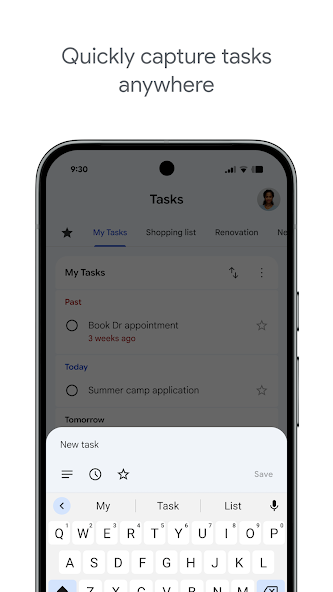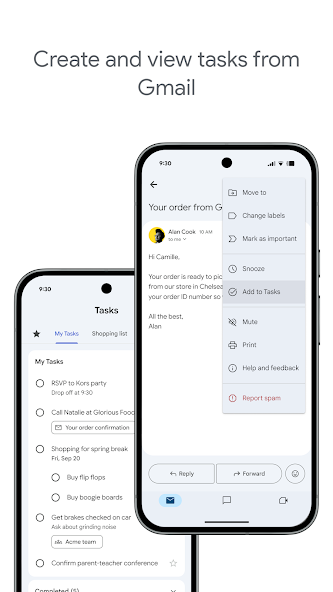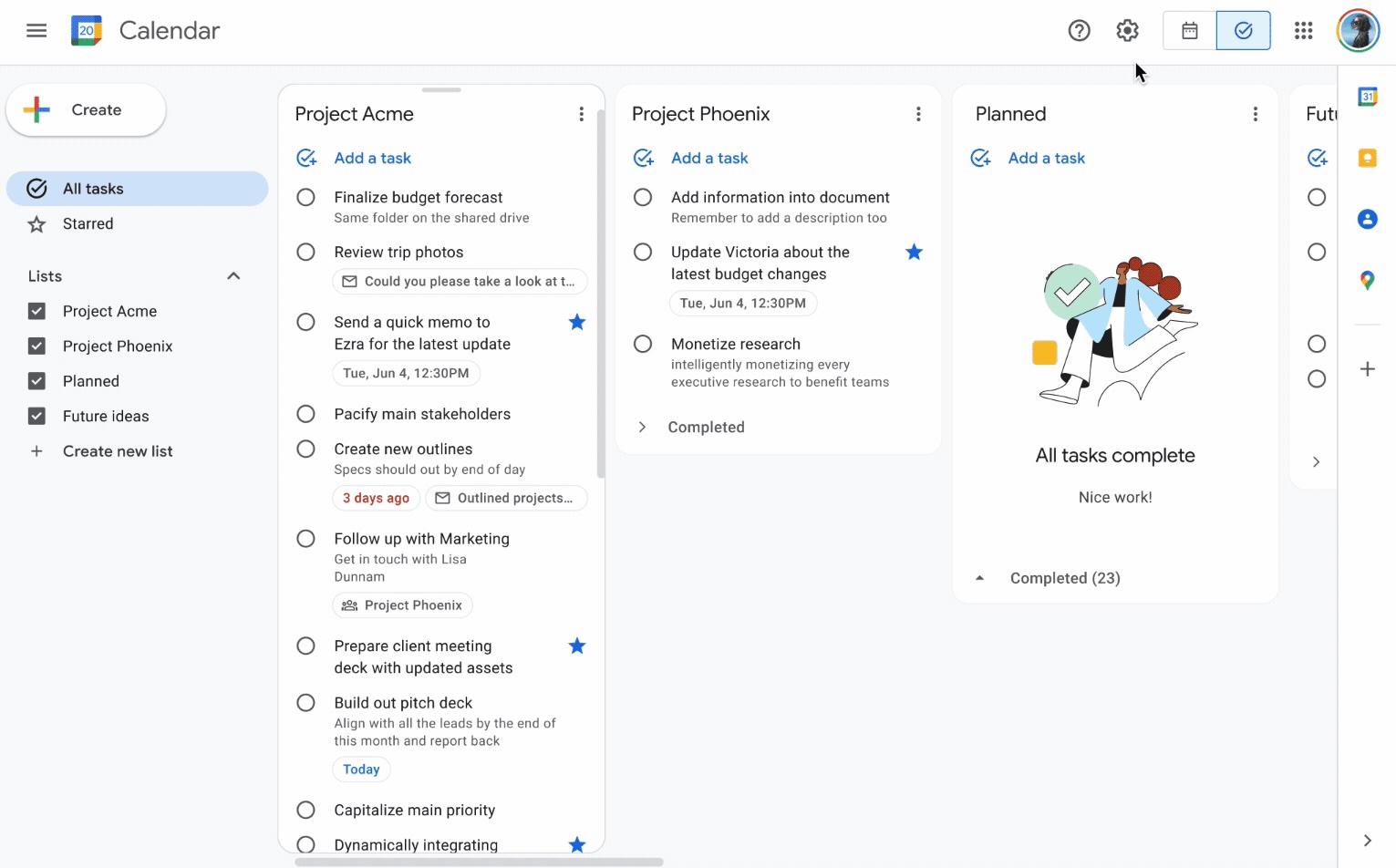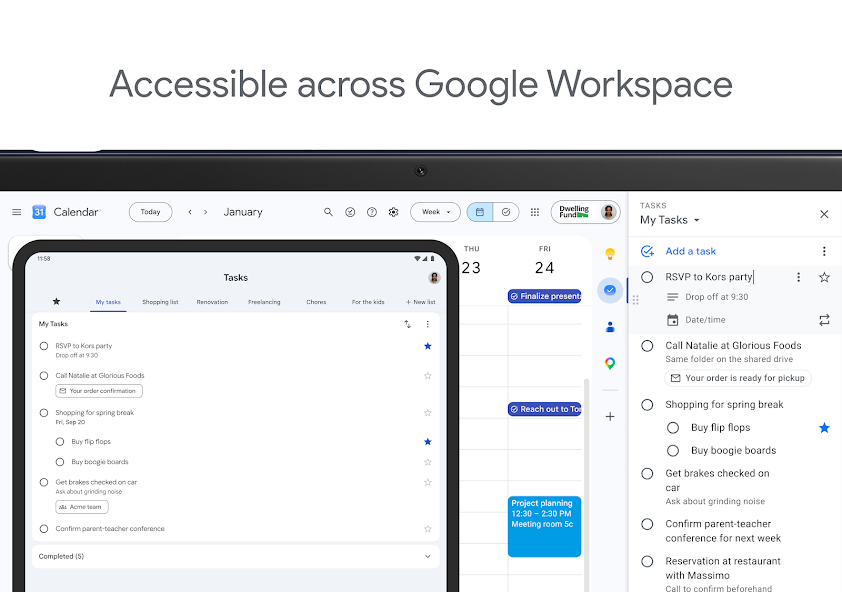

Google Tasks
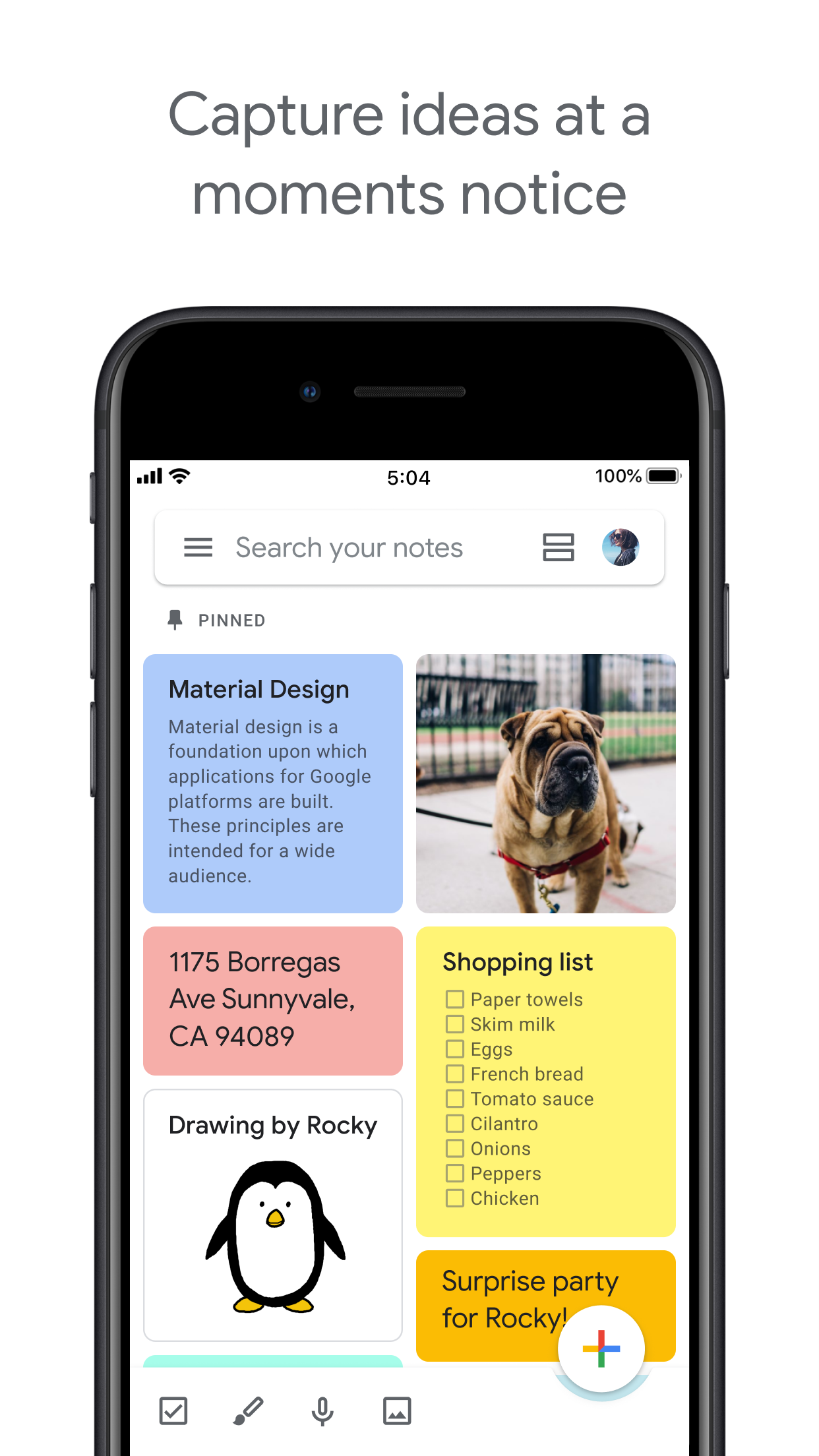
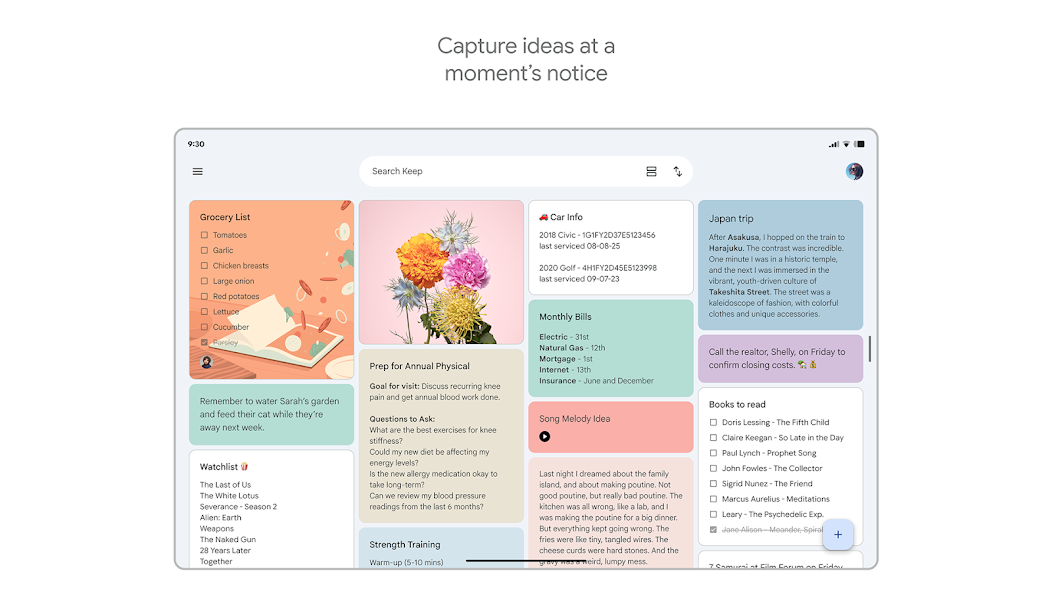
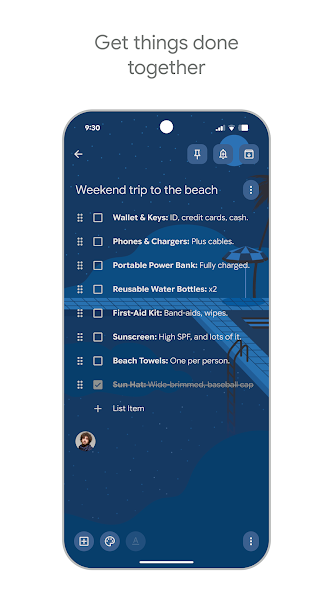
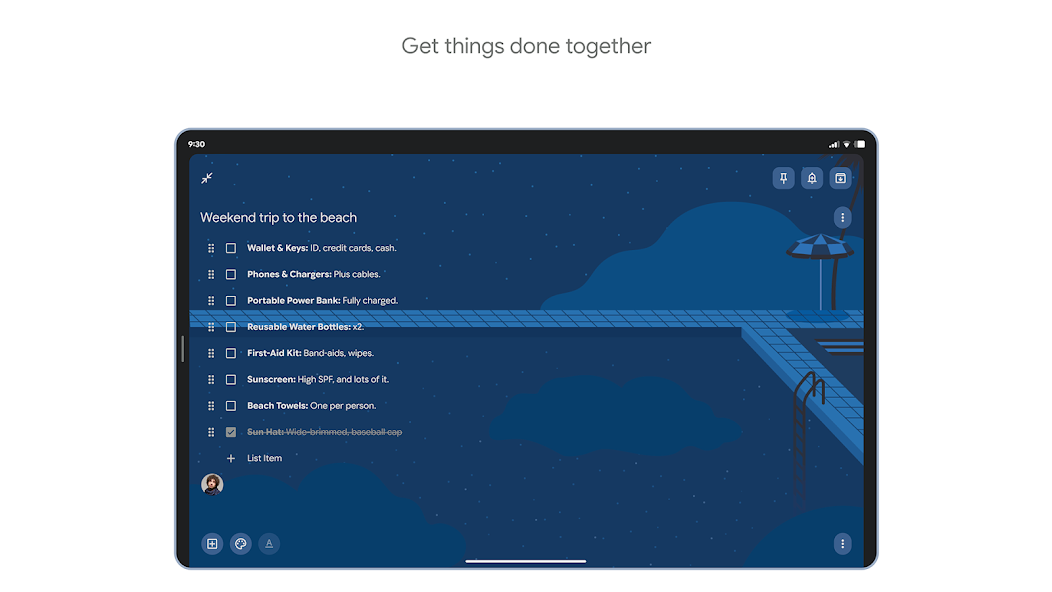
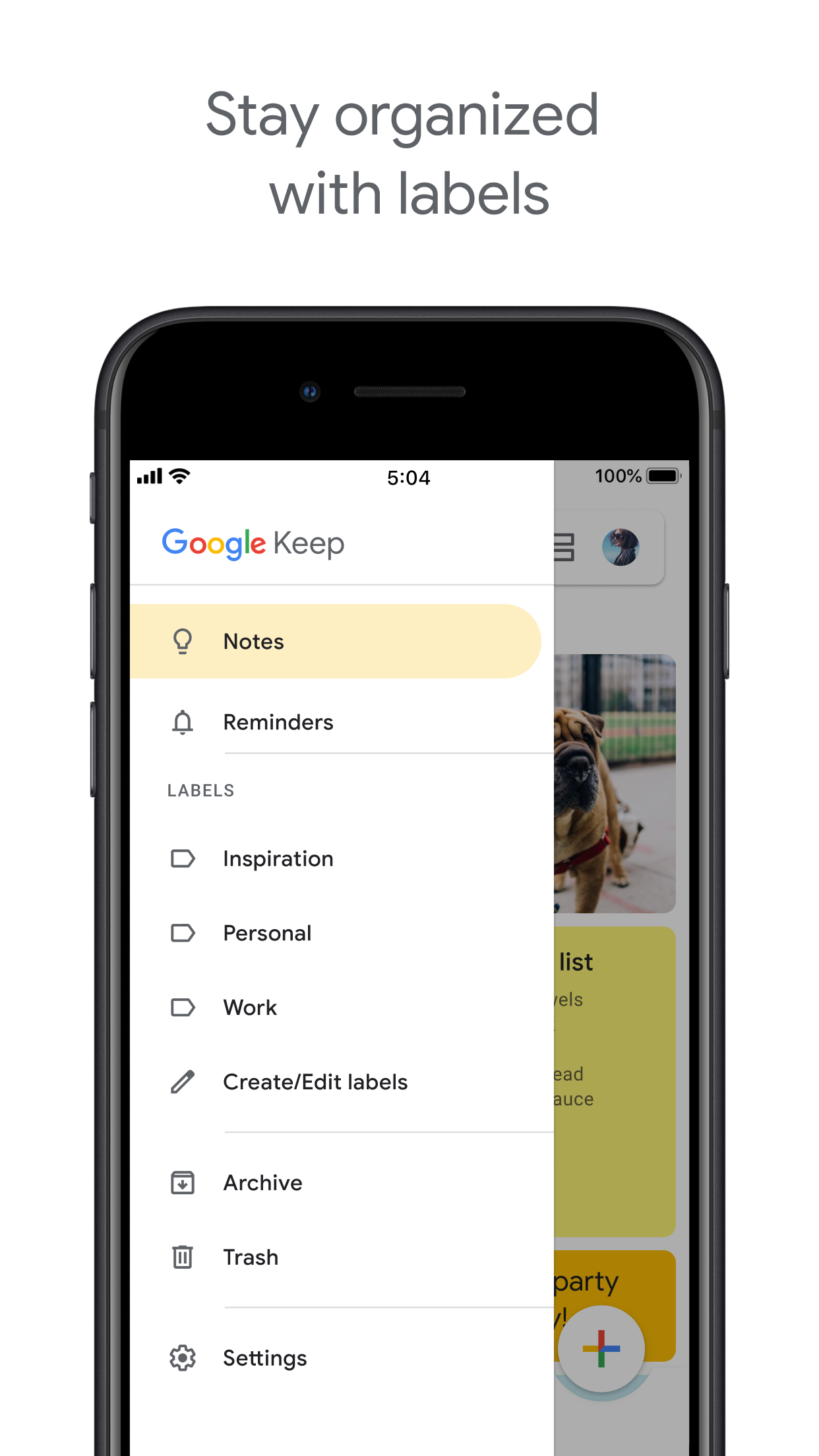
Google Keep

Google Tasks 与 Google Keep

Google Tasks vs Google Keep: 有什么区别,哪一个适合您的工作流程?

这两个工具都随您的 Google 账户免费提供,但它们解决的问题截然不同。本指南详细说明了何时使用每一个工具,以及 TasksBoard 如何让 Google Tasks 成为结构化工作的明确赢家。

超过 200 万人使用。免费开始。


Google Tasks vs Google Keep: 功能对比

Feature
Google Tasks
Google Keep
截止日期和提醒 Due dates and reminders 仅提醒(通过 Keep 提醒)
子任务 Subtasks
按项目/列表组织 Organize by project/list 仅标签
Google Calendar 集成 Google Calendar integration
自由格式笔记 Freeform notes
图像捕捉 Image capture
语音备忘录 Voice memos
看板视图 Kanban board view 通过 TasksBoard
团队看板共享 Team board sharing 通过 TasksBoard 仅协作笔记
Gmail 集成 Gmail integration

Feature-by-feature comparison

Google Tasks is for actionable to-dos; Google Keep is for notes and capture. See how each tool handles reminders, lists, and collaboration.

Google Tasks 6 Google Keep 3 It's a tie 1

Due dates and reminders

Winner: Google Tasks

Google Tasks is built around due dates, deadlines, and notifications synced through Google Calendar.

Google Keep supports note reminders; newer flows save reminders in Google Tasks and surface them in Calendar.

Google Tasks Winner
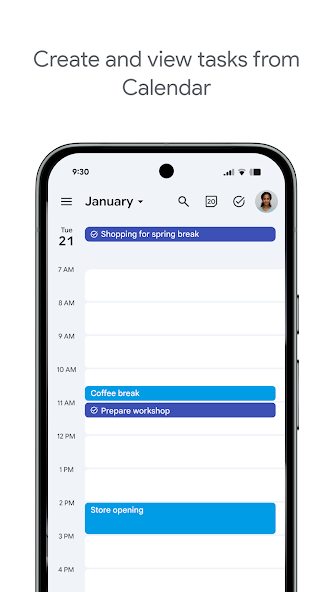
Due dates and reminders — left column screenshot
Task due dates in Calendar.
Google Keep
Due dates and reminders — right column screenshot
Note reminders linked to Tasks.

Winner: Google Tasks

Google Tasks is purpose-built for due dates, deadlines, and Calendar-synced reminders.

Subtasks

Winner: Google Tasks

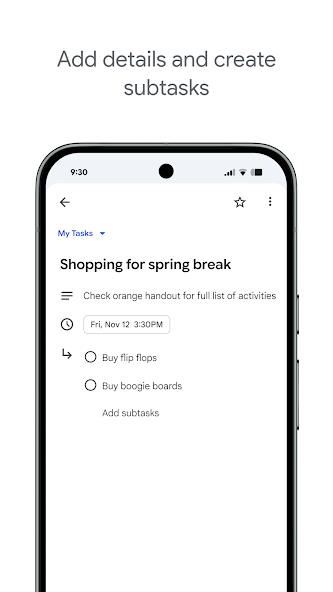
Google Tasks nests true subtasks under a parent task for step-by-step execution.

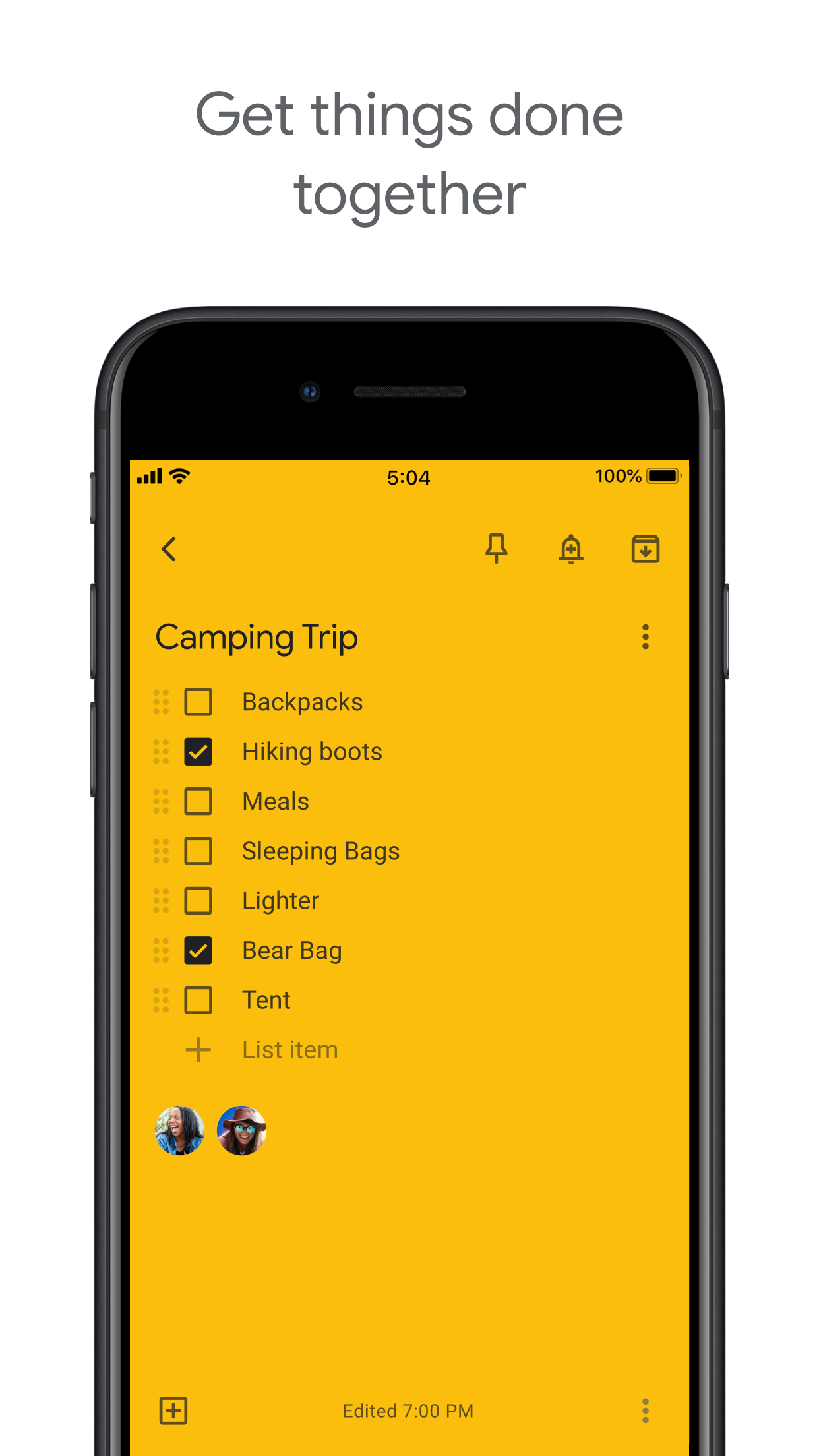
Keep supports checklists inside a note, but not dedicated parent-child task entities.

Google Tasks Winner
Subtasks — left column screenshot
Parent task with subtasks.
Google Keep
Subtasks — right column screenshot
Checklist items in a note.

Winner: Google Tasks

True parent-child subtask entities beat checklist items inside a note for step-by-step execution.


Organize by project or list

Winner: Google Tasks

Google Tasks uses multiple named lists with drag-and-drop reordering and sorting.

Keep organizes by labels, colors, and pinned notes in a card grid.

Google Tasks Winner
Organize by project or list — left column screenshot
Named task lists.
Google Keep
Organize by project or list — right column screenshot
Labels and pinned notes.

Winner: Google Tasks

Named task lists with drag-and-drop ordering suit project workflows better than a note card grid.


Google Calendar integration

Winner: Google Tasks

Dated tasks appear in Google Calendar natively. Plan events and to-dos together.

Keep reminders can appear in Calendar when saved through the Google Tasks integration.

Google Tasks Winner
Google Calendar integration — left column screenshot
Tasks on your Calendar grid.
Google Keep
Google Calendar integration — right column screenshot
Reminders via Tasks bridge.

Winner: Google Tasks

Dated tasks appear on your Google Calendar grid natively — the core planning integration for to-dos.


Freeform notes

Winner: Google Keep

Google Tasks has lightweight detail fields optimized for completion, not long-form writing.

Keep is purpose-built for freeform notes, brainstorming, and quick capture.

Google Tasks
Freeform notes — left column screenshot
Task detail fields.
Google Keep Winner
Freeform notes — right column screenshot
Freeform note editor.

Winner: Google Keep

Keep is purpose-built for freeform notes, brainstorming, and quick unstructured capture.


Image capture

Winner: Google Keep

Google Tasks does not support image attachments on tasks.

Keep lets you snap photos, attach images from your library, or scan documents directly into a note.

Google Tasks
Image capture — left column screenshot
Text-based tasks only.
Google Keep Winner
Image capture — right column screenshot
Image notes and scans.

Winner: Google Keep

Keep lets you snap photos, attach images, and scan documents — Google Tasks is text-only.


Voice memos

Winner: Google Keep

Google Tasks focuses on typed task entry with optional Assistant on Android.

Keep records audio notes you can play back and transcribe later.

Google Tasks
Voice memos — left column screenshot
Typed task capture.
Google Keep Winner
Voice memos — right column screenshot
Audio note recording.

Winner: Google Keep

Keep records audio notes you can play back; Google Tasks focuses on typed task entry.


Kanban board view

Winner: Google Tasks

Google Tasks is list-based. TasksBoard adds kanban columns for project-stage visibility.

Keep shows notes in a grid or list — no column-based workflow board.

Google Tasks Winner
Kanban board view — left column screenshot
Kanban via TasksBoard.
Google Keep
Kanban board view — right column screenshot
Grid and list note views.

Winner: Google Tasks

TasksBoard adds kanban columns for project-stage visibility; Keep has no workflow board.


Team board sharing

It's a tie

TasksBoard enables shared kanban boards on Google Tasks for cross-platform teams.

Keep supports real-time collaborative notes and checklists with other Google accounts.

Google Tasks
Team board sharing — left column screenshot
Shared boards via TasksBoard.
Google Keep
Team board sharing — right column screenshot
Collaborative Keep notes.

It's a tie

Both support collaboration — TasksBoard for shared task boards, Keep for real-time collaborative notes. Different jobs.


Gmail integration

Winner: Google Tasks

Turn any email into a Google Task with one click. The task links back to the original message.

Keep is available in the Gmail side panel for note-taking, but not for structured task workflows.

Google Tasks Winner
Gmail integration — left column screenshot
Add to Tasks from Gmail.
Google Keep
Gmail integration — right column screenshot
Keep side panel in Gmail.

Winner: Google Tasks

Turn any Gmail message into a linked Google Task in one click — structured task workflows from email.


深受数千名用户喜爱

在 Chrome Web Store 上获得 1,000+ 条评价,评分 4.8 / 5

"Always have 101 things to do and this helps me organize and prioritize like no other app can. It syncs to my phone and laptop, and when I add dates to tasks, they automatically integrate into my Google Calendar, which is immensely convenient. I can look at my daily, weekly, and monthly overview in Google Calendar and clearly see how much I was able to accomplish! Great tool indeed. Excited to see how it will evolve over time."

PR Parina Ramjee avatar
Parina Ramjee

"Seriously, makes my tasks easier to share with the team, and the free version is quite nice for our little office. Eventually, we will expand, and this is definitely a great tool to do that! Syncs with my Workspace and Calendar."

CC Chase Cattrall avatar
Chase Cattrall

"I love the simple, intuitive interface and the Add to Tasks feature, especially as I work through my emails! Sharing my tasks is also easy. Overall, outstanding and simple to use, and that means a lot with too many complex tasks out there!"

GC Greg Cantori avatar
Greg Cantori

"Great too for managing daily routine and plan tasks. Would be perfect if it was updated for generating reports for statistics. For google tasks and google calendar"

NV Nick Vlasov avatar
Nick Vlasov

常见问题解答

Google Tasks 和 Google Keep 的主要区别是什么?

Google Tasks 是一个结构化的待办事项列表工具,具有截止日期、子任务和 Google Calendar 集成。Google Keep 是一个自由格式的笔记应用,支持文本、图像、语音备忘录和颜色编码标签。Tasks 用于行动;Keep 用于捕捉。

哪一个更适合工作任务--Google Tasks 还是 Google Keep?

Google Tasks 更适合工作任务。它支持截止日期、子任务、Gmail 集成,并与 Google Calendar 同步。Keep 更适合快速捕捉笔记和想法,但它不提供可靠管理工作所需的结构。

我可以将 Google Keep 笔记转换为 Google Task 吗?

应用内无法直接转换。推荐的工作流程是根据 Keep 笔记中的信息在 Google Tasks 中手动创建任务。一些用户会将 Keep 笔记内容复制到任务描述或备注字段中。

Google Tasks 支持像 Google Keep 那样的提醒吗?

Google Tasks 支持截止日期,这会触发 Google Calendar 中的提醒。Google Keep 有自己的提醒系统,支持基于位置的提醒。对于与日历绑定的基于时间的提醒,带有截止日期的 Google Tasks 是更可靠的选择。

可以像在 Google Keep 中共享笔记那样共享 Google Tasks 吗?

原生 Google Tasks 不支持共享。Google Keep 允许与其他 Google 用户共享笔记。但是,TasksBoard 为 Google Tasks 增加了实时团队共享功能--您可以与队友共享整个看板并分配任务。

TasksBoard 为 Google Tasks 增加了什么使其优于 Keep?

TasksBoard 为 Google Tasks 提供了全屏看板、团队共享、拖放式任务管理以及结合了任务与 Google Calendar 事件的“今日”视图。这使得 Tasks 的结构化特性变成了一个 Keep 无法比拟的完整生产力系统。

有没有结合 Google Tasks 和 Google Keep 的应用?

没有单一应用能原生合并两者。大多数高级用户遵循的实用工作流程是:在 Keep 中捕捉,处理到 Tasks 中,然后使用 TasksBoard 通过全屏看板界面和团队共享来管理 Tasks。


开始使用

让 Google Tasks 成为您的主要生产力工具

使用 Google 登录,即可为您的 Google Tasks 获得全屏看板。免费计划包括无限任务、看板视图和日历同步。

无需信用卡。您的 Google Tasks 数据保留在 Google 中。