Google Workspace Tutorial: Getting Started Guide for 2026

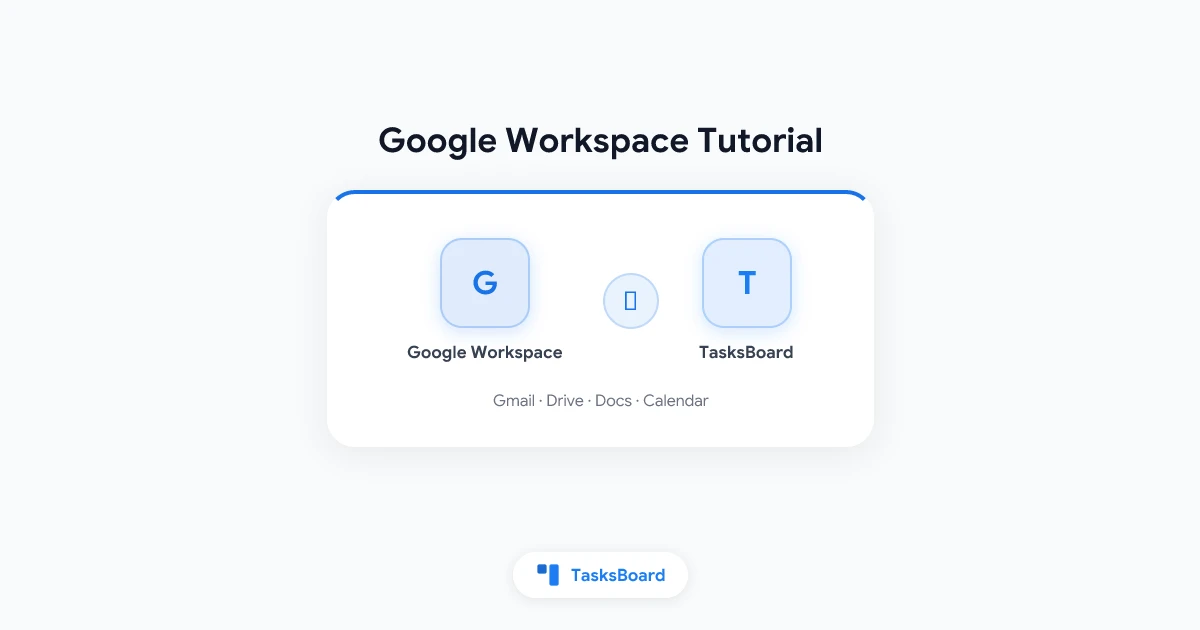
Google Workspace brings together Gmail, Google Drive, Google Calendar, Google Meet, Google Docs, Google Tasks, and more under a single managed account. For individuals, it is the most integrated free productivity suite available. For organizations, it is the backbone of how millions of teams communicate and collaborate.
If you are new to Google Workspace, whether as a solo user, a new employee joining a company that uses it, or an administrator setting it up for a team, this tutorial walks you through the essential setup and the most important features to know.
What Is Google Workspace?
Google Workspace (formerly G Suite) is a collection of cloud-based productivity and collaboration tools from Google. The core applications are:
- Gmail: email, with powerful search, filters, and labels
- Google Drive: cloud storage and file management
- Google Docs, Sheets, Slides: document, spreadsheet, and presentation editors
- Google Calendar: scheduling and meeting management
- Google Meet: video conferencing
- Google Tasks: task and to-do list management
- Google Chat: team messaging
- Google Forms: surveys and data collection
- Google Sites: simple internal websites and wikis
All of these are accessible from any device with a browser and are integrated with each other, which is Google Workspace’s core advantage over using a collection of separate, unconnected tools.
Setting Up Your Google Workspace Account
For Individuals (Free Google Account)
If you have a Gmail address, you already have access to most Google Workspace apps at no cost. Go to workspace.google.com and sign in with your Google account.
The free tier includes Google Docs, Sheets, Slides, Drive (15GB), Calendar, Meet (up to 60 minutes per call), Tasks, and Forms.
For Organizations (Google Workspace Business)
Organizations need a Google Workspace subscription to get:
- Custom email addresses (you@yourcompany.com)
- More storage (30GB to 5TB per user depending on plan)
- Admin console for managing users and security
- Advanced Meet features (longer calls, recordings)
- Shared drives and enhanced collaboration controls
Plans start at $6/user/month (Business Starter). For the full breakdown, see Google Workspace pricing on Google’s website.
Admin Console Basics (For Administrators)
If you are the administrator setting up Google Workspace for a team:
- Go to admin.google.com
- Add users individually or import a CSV of email addresses
- Assign user roles (Admin, User, or custom roles)
- Configure organization policies (password requirements, app access, external sharing)
- Set up groups for team-based email and access management
The admin console is where you control security settings, manage licenses, and configure which apps your organization can use.
Gmail: Beyond Basic Email
Gmail is the entry point to Google Workspace for most users. Here is what to set up first.
Labels and Filters
Labels are Gmail’s filing system. Unlike folders, a single email can have multiple labels. Create labels for your most important categories: clients, projects, urgent, waiting-for.
Filters automate labeling and other actions. A filter can automatically apply a label, skip the inbox, or forward messages that match specific criteria.
To create a filter: Open any email, click the three-dot menu, select “Filter messages like these,” then specify what to do with matching emails.
Stars and Priority Inbox
Gmail offers multiple star colors and Priority Inbox, a view that separates important emails from the rest. Enable Priority Inbox in Settings > Inbox > Inbox type.
Keyboard Shortcuts
Gmail has an extensive keyboard shortcut system. Enable it in Settings > General > Keyboard shortcuts. The most useful:
C: compose new emailR: replyE: archiveShift + !: mark as spam/: search
Google Drive: Your Cloud File System
Google Drive is where all Google files live (Docs, Sheets, Slides) plus any files you upload. It replaces traditional local file storage for collaborative work.
Folder Structure
Create a logical folder structure at the start. A simple structure that works for most organizations:
- Company-wide shared folder (accessible to all)
- By department or team
- By project
- Personal “My Drive” for individual work in progress
Sharing Settings
Every file and folder in Drive has sharing settings. You can share with:
- Specific people (by email)
- Anyone with the link (with or without edit permissions)
- Your organization only
For sensitive files, restrict access to specific people. For frequently referenced documents, share with the organization and turn off edit access for non-editors.
Shared Drives
Shared Drives (available on paid Google Workspace plans) are drives owned by the organization rather than individuals. Files in a Shared Drive remain accessible even if the creator leaves the organization. Use Shared Drives for team assets, templates, and any files that need to outlast individual employment.
Google Calendar: Scheduling and Time Management
Google Calendar is where your schedule lives. It integrates with Google Meet for video calls, Google Tasks for deadline visibility, and Gmail for meeting invitations.
Multiple Calendars
Create separate calendars for different areas: Work, Personal, Team Shared. Color-coding makes them visually distinct. You can show or hide each calendar with one click.
Setting Your Working Hours
In Settings > General, set your working hours. This lets colleagues see when you are available and prevents meeting invitations outside your working hours from going unnoticed.
Meeting Scheduling
When creating an event, use the “Find a time” feature to see when invitees are available. For external scheduling, Google Calendar’s “Appointment schedules” feature creates a booking page where people can self-schedule into your available slots.
Google Tasks in Calendar
Tasks with due dates appear on your Google Calendar, making it easy to see deadlines alongside meetings. This integration between Google Tasks and Calendar is one of the most underused features of Google Workspace.
For a more visual task management experience, TasksBoard adds a kanban board interface to Google Tasks while maintaining the Calendar integration.
Google Docs, Sheets, and Slides
These are Google’s versions of Word, Excel, and PowerPoint. They are cloud-native, meaning they save automatically, support simultaneous editing by multiple people, and include a full version history.
Real-Time Collaboration
Multiple people can edit a Google Doc simultaneously. Each person’s cursor appears in a different color, and changes appear in real time. This eliminates the version control confusion of emailing files back and forth.
Comments and Suggestions
Use comments (Ctrl+Alt+M) to leave feedback without editing the document directly. Suggestion mode allows editors to propose changes that the document owner can accept or reject.
Version History
Google Docs maintains a full version history. To review or restore previous versions, go to File > Version history > See version history. You can name important versions (e.g., “Before legal review”) for easy reference.
Templates
Google offers template libraries for all three apps. Access them from the Docs, Sheets, or Slides home pages. Templates for project plans, invoices, budgets, resumes, and presentations are available at no extra cost.
Google Meet: Video Conferencing
Google Meet is the video conferencing tool built into Google Workspace. Meetings created in Google Calendar automatically include a Meet link.
Starting a Meeting
From Calendar: create an event and click “Add Google Meet video conferencing.” From Gmail: click the video camera icon in the chat sidebar. From meet.google.com: click “New meeting.”
Key Features
- Captions: real-time automated captions in English (and other languages)
- Noise cancellation: filters out background noise (available on paid plans)
- Recording: record meetings to Google Drive (Business plans and above)
- Breakout rooms: split a large meeting into smaller groups
- Screen sharing: share your entire screen, a window, or a browser tab
Meeting Best Practices
Send an agenda before meetings. Use the “raise hand” feature to manage speaking order in larger calls. Record important meetings and share the Drive link for team members who could not attend.
Google Tasks: Task Management
Google Tasks is the built-in task manager in Google Workspace. It appears in Gmail’s sidebar, Calendar, and as a standalone app (tasks.google.com).
Creating Tasks
Click the checkmark icon in Gmail’s sidebar to open Tasks. Add tasks by typing and pressing Enter. Add due dates by clicking the task and expanding the detail view.
Task Lists
Create multiple task lists to organize work by project, area, or priority. Click the dropdown at the top of the Tasks panel to create and switch between lists.
Subtasks
Add subtasks to any task by clicking the task to open the detail view and clicking “Add a subtask.” Subtasks help break complex tasks into executable steps.
Extending Google Tasks with TasksBoard
Google Tasks’ interface is intentionally minimal. For users who want a kanban board view, team sharing, and visual project organization, TasksBoard extends Google Tasks without replacing it. Your tasks stay in Google Tasks. TasksBoard adds the board interface on top.
Google Chat: Team Messaging
Google Chat is the team messaging app in Google Workspace. It replaces email for quick internal communication.
Spaces
Spaces are persistent group conversations organized by topic, project, or team. Unlike group emails, Spaces maintain a searchable history and allow file sharing.
Direct Messages
Direct messages work like any messaging app, supporting one-on-one or small group conversations without the formality of email.
Integration with Drive
Files shared in Chat are stored in your Drive. You can also access files from Drive directly within a Chat conversation without switching apps.
Google Workspace Security Basics
Google Workspace includes substantial security features. A few basics for new users and administrators:
Two-factor authentication (2FA). Enable 2FA for all accounts. Go to myaccount.google.com > Security > 2-Step Verification. Administrators can make this mandatory for all organization users.
App access review. Periodically review which third-party apps have access to your Google account at myaccount.google.com > Security > Third-party apps with account access. Revoke access for apps you no longer use.
Password management. Use Google’s built-in password manager or a dedicated password manager. Never reuse passwords across accounts.
For a deeper look at security settings, see Google Workspace Security Best Practices.
FAQ
What is the difference between a free Google account and Google Workspace?
A free Google account gives you access to most Google apps. Google Workspace (paid) adds custom email domains, more storage, advanced admin controls, enhanced Meet features, and better support. For individuals, the free tier is usually sufficient. For organizations, Workspace is typically necessary.
Can I access Google Workspace offline?
Yes. Google Docs, Sheets, Slides, and Gmail all have offline modes. Enable offline access in each app’s settings. Changes sync when you reconnect.
How do I switch between personal and work Google accounts?
Click your profile photo in the top-right of any Google app to see your accounts and switch between them. Chrome allows separate profiles for cleaner separation.
Is Google Workspace secure enough for business use?
For most businesses, yes. Google Workspace is SOC 2 certified, HIPAA eligible (with a Business Associate Agreement), and compliant with major privacy regulations. Enterprise customers can add additional security controls.
What is the best way to organize files in Google Drive?
Create a clear folder hierarchy at the start (by team, then by project). Use Shared Drives for organization-owned assets. Apply consistent naming conventions to files. Search is excellent in Drive, so consistent naming also makes retrieval faster.
How do I add Google Tasks to my workflow?
Open the Tasks panel in Gmail or Calendar by clicking the checkmark icon. Create a list for each active project and add tasks as they come in. Add due dates so they appear on your Calendar. Use TasksBoard for a kanban board view of your tasks.
Get More from Google Workspace
Google Workspace is most powerful when you use the integrations between apps rather than each app in isolation. Tasks with due dates appear on Calendar. Files attached in Calendar events open in Drive. Emails can be converted to tasks with one click.
Building habits around these connections, and adding TasksBoard for visual task management, turns Google Workspace from a collection of apps into a genuinely unified productivity system.
Ready to share your Google Tasks?
Get started with TasksBoard for free, no credit card required.
Sign in