Google Tasks Gmail Sidebar: How to Open, Use, and Fix the Panel

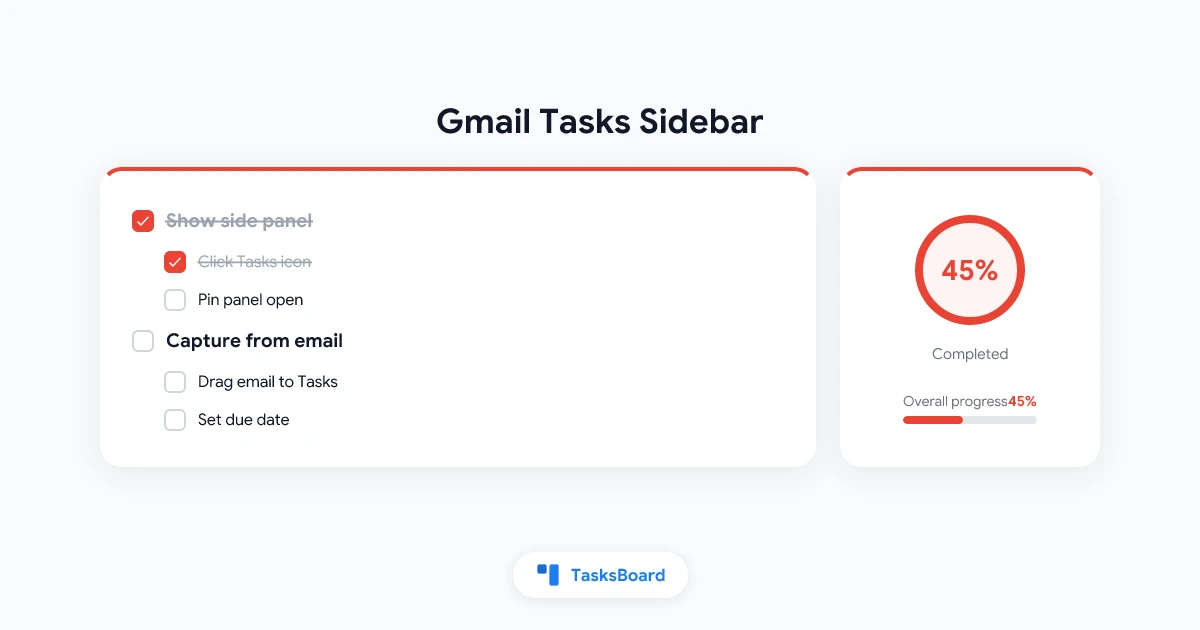
The Google Tasks Gmail sidebar is the narrow panel on the right side of Gmail where your to-do list lives next to your inbox. You do not need a separate app or extension to open it. One click on the blue checkmark icon and your tasks appear while you read email.
Most people hide the panel by accident or never pin Tasks in the first place. This guide explains how the sidebar works, how to show it again, how to build a daily workflow inside Gmail, and when the built-in panel stops being enough. For the broader picture of Gmail and Tasks working together, see our Google Tasks Gmail integration guide.
TL;DR: Click Show side panel at the bottom right of Gmail, then click the Tasks icon. Drag emails into the panel to capture follow-ups. Use due dates for Calendar sync. When the list outgrows the sidebar, open tasks.google.com or a full-screen Google Tasks desktop view.
What the Gmail Tasks sidebar is
Gmail’s right side panel is a shared strip for Google apps. Calendar, Keep, Tasks, Contacts, and add-ons all live on the same vertical icon rail. When you click Tasks, the panel expands into a live view of your Google Tasks lists.
This is not a copy of your tasks stored only in Gmail. The sidebar reads the same data as tasks.google.com, the Google Tasks mobile app, and the Tasks panel inside Google Calendar. Edit a task in the sidebar and it updates everywhere on your account within seconds.
According to Google’s Gmail help documentation, you can use Calendar, Keep, and Tasks side by side without leaving your inbox. That side-by-side layout is the main reason people keep Gmail open all day and still stay on top of action items.
| Sidebar action | What happens |
|---|---|
| Add a task | New item appears in the active list |
| Complete a task | Item moves to Completed, syncs to all devices |
| Switch lists | Dropdown at top changes which list you see |
| Drag an email | Creates a task linked to that message |
| Set a due date | Task may appear on Google Calendar |
The panel is narrow by design. You get speed and context, not a project dashboard. That tradeoff becomes obvious once you have more than a dozen active items across several lists.
The inbox stays primary. The sidebar is a companion surface for quick capture and check-offs while you process mail.
How to open the Tasks sidebar in Gmail
Google Tasks is built into Gmail for personal accounts and most Google Workspace plans. You do not install anything to get the basic sidebar.
Step 1: Show the side panel
- Open Gmail in a desktop browser.
- Look at the bottom-right corner of the window.
- If you only see a small arrow or bar, click Show side panel.
- A vertical strip of app icons appears on the right edge.
Google’s Tasks help page notes that if Tasks is not visible, expanding the side panel is the first fix to try.
Step 2: Click the Tasks icon
The Tasks icon is a blue circle with a white checkmark. It usually sits below Calendar and Keep on the icon strip. Click it once. The Tasks panel opens to the right of your inbox.
First-time users may see a short Get started prompt. After that, your existing lists load from your Google account.
Step 3: Pin your workflow
Keep the panel open while you process email if you capture tasks often. Close individual apps with the X at the top of the expanded panel, but leave the icon strip visible so one click brings Tasks back.
On Google Workspace, the Learning Center guide lists Gmail, Calendar, Chat, Drive, and Docs editors as apps where the same Tasks sidebar appears. The steps match Gmail: expand the panel, click Tasks, add or edit items.
Daily workflow inside the Gmail sidebar
The sidebar works best as an inbox processing tool, not a project planner. A simple loop keeps mail and tasks aligned without opening another tab.
Capture from email
You have three fast options while the Tasks panel is open:
- Drag and drop: Select an email in your inbox and drag it into the Tasks panel. Gmail creates a new task with the subject line as the title and a link back to the message.
- Add to Tasks button: Open an email and click Add to Tasks at the top (or More → Add to Tasks if the button is hidden).
- Keyboard shortcut: Select one or more emails and press Shift+T. This requires Gmail keyboard shortcuts turned on in Settings.
The linked email is the killer feature. When you return to the task days later, one click reopens the original thread. You skip searching the inbox or copying context into notes.
Organize with lists and due dates
Use the dropdown at the top of the panel to switch lists or create a new one. Name lists by context (Client follow-ups, Finance, This week) so the sidebar stays scannable.
Tap Edit on a task to add details, a due date, or a subtask. Tasks with dates sync to Google Calendar automatically. That connection matters when your sidebar list is really a schedule in disguise.
Complete and review
Click the circle next to a task to mark it done. Open Completed at the bottom of the panel to review finished work. Clear completed items periodically so the sidebar does not feel cluttered.
Show, hide, and customize the right panel
The sidebar is easy to lose because Gmail lets you collapse it completely. Knowing the controls saves repeated setup.
Show or hide the icon strip
- Show side panel: Click the arrow or bar at the bottom right when the strip is hidden.
- Hide side panel: Close any open app panel, then click Hide side panel at the bottom right.
- Close only Tasks: Click the X on the Tasks panel header. The icon strip stays visible.
Hiding the strip gives you more horizontal space for reading long threads. Just remember that a hidden strip also hides Calendar and Keep until you expand it again.
Customize which apps appear
Some Gmail layouts let you choose which Google apps show on the strip. Open Gmail Settings → See all settings → Customize under Apps in Gmail if your account exposes that option. Make sure Tasks is checked, then reload Gmail.
Workspace admins can disable Tasks for the organization. If Tasks never appears after you expand the panel, ask your IT admin whether the service is turned off. Google’s admin documentation describes org-level Tasks access.
Gmail sidebar vs full-screen Google Tasks
The sidebar and tasks.google.com show the same lists. The difference is screen space and focus, not data.
| Surface | Best for | Limitation |
|---|---|---|
| Gmail sidebar | Email triage, quick capture, linked tasks | Narrow width, easy to hide |
| tasks.google.com | Long lists, reordering, focused review | Separate tab or window |
| Google Tasks mobile app | On-the-go check-offs | No drag-from-email on phone |
| TasksBoard | Kanban, shared boards, team view | Third-party layer on Google Tasks |
Use the sidebar when Gmail is your home base. Switch to the full web app when you need to reorganize a long list or work without inbox noise. Install tasks.google.com as a Progressive Web App if you want a standalone window without Gmail beside it.
When you need columns, shared lists, or a board view on top of the same Google Tasks data, TasksBoard integrations add kanban and collaboration without leaving the Google ecosystem. Our Google Tasks kanban board guide walks through that upgrade path.
 Try TasksBoard
Keep using the Gmail sidebar for capture. Open TasksBoard when you need a full-screen kanban board, shared lists, and real-time sync with Google Tasks.
Get Started →What the sidebar cannot do (and workarounds)
Google Tasks in the Gmail sidebar is intentionally simple. Knowing the limits upfront prevents frustration.
- No kanban or board view: Tasks display as a vertical list only. Use TasksBoard for drag-and-drop columns on the same data.
- No native list sharing: Personal lists stay personal. Teams need a shared layer or separate tools.
- One level of subtasks: You can nest subtasks once. Deeper breakdowns belong in notes or a project tool.
- No priority field: Reorder manually or prefix titles (
[Today],[Waiting]) to signal urgency. - No rich text in notes: Plain text only in the detail field.
- Mobile Gmail has no sidebar panel: Use the Google Tasks app or Add to Tasks from the email menu on phone.
Google does not publish a hard cap on list or task count. Very large lists can feel slow in the narrow panel. Split work across lists or move heavy projects to a full-screen tool when scrolling becomes painful.
Troubleshooting when the Tasks sidebar does not show
Try these fixes in order before assuming Tasks is broken.
- Expand the side panel. Click Show side panel at the bottom right. This is the most common fix.
- Look for the Tasks icon on the strip. Scroll the icon list if you have many add-ons installed.
- Hard refresh Gmail. Press Ctrl+Shift+R (Windows) or Cmd+Shift+R (Mac).
- Check another browser or incognito window. Extensions sometimes block panel scripts.
- Confirm Tasks is enabled for your account. Workspace users should contact an admin if the icon never appears.
- Try Calendar. Open Google Calendar and click Tasks in the same right panel. If it works there but not in Gmail, reload Gmail or clear cache.
If Tasks works on mobile and at tasks.google.com but not in Gmail, the issue is almost always a hidden panel or a browser session glitch, not missing data.
FAQ
Where is the Google Tasks Gmail sidebar?
It is on the right side of Gmail on desktop. Click Show side panel at the bottom right if you do not see the icon strip, then click the blue Tasks checkmark icon. The panel opens beside your inbox.
Is the Gmail sidebar the same as the Google Tasks app?
Yes. The sidebar, tasks.google.com, the mobile app, and the Calendar panel all read the same Google Tasks data. Changes sync across surfaces on the same Google account.
Can I use the Tasks sidebar in Gmail on my phone?
The Gmail mobile app does not show the same right sidebar. On phone, use the Google Tasks app for list management and choose Add to Tasks from an email’s menu to capture follow-ups.
Why did my Tasks sidebar disappear in Gmail?
You likely hid the side panel or closed Tasks without reopening it. Click Show side panel at the bottom right, then click the Tasks icon again. Workspace admins can also disable Tasks for your organization.
When should I leave the sidebar for a bigger tool?
Move to tasks.google.com or TasksBoard when you need more screen space, kanban columns, shared team lists, or a persistent desktop window. Keep the sidebar for quick capture while you process email.
Conclusion
The Google Tasks Gmail sidebar puts your to-do list where your requests already land. Show the right panel, open Tasks, drag emails into action items, and set due dates so Calendar keeps you honest. Hide the panel when you need focus, but keep the workflow simple enough to reopen in one click.
When the sidebar feels tight, you do not need a new task system. You need more room on the same data. Open tasks.google.com for full-screen lists, or try TasksBoard for kanban boards and shared work on top of Google Tasks.
Ready to share your Google Tasks?
Get started with TasksBoard for free, no credit card required.
Sign in