Google Tasks Keyboard Shortcuts: The Full List and How to Use Them (2026)

Yes, Google Tasks has keyboard shortcuts, and they work on the web version on your computer. Press Ctrl + / (or ⌘ + / on a Mac) inside Google Tasks to pull up the full list at any time. With a handful of keys, you can add a task, check it off, indent it into a subtask, and move it up your list without ever touching the mouse.
Most people use Google Tasks by clicking around the side panel in Gmail or Google Calendar. That works, but it is slow when you are capturing five things at once during a meeting. The keyboard is faster, and Google Tasks keyboard shortcuts are built for exactly that moment.
This guide gives you the complete list, shows you how to turn them on, and points out the few shortcuts that are worth committing to memory today.
Do Google Tasks keyboard shortcuts really exist?
They do, and they live in the web app. According to Google’s official Tasks help page, you can use keyboard shortcuts to save time when you open Google Tasks on a computer. The mobile apps for Android and iPhone are touch-first, so the shortcuts below apply to desktop browsers only.
There are three places the shortcuts work, and they behave the same in all of them:
- tasks.google.com: the full-screen web app.
- The Gmail side panel: click the Tasks icon on the right edge of your inbox.
- The Google Calendar side panel: the same Tasks panel, next to your calendar.
You do not need to enable anything. Open any of those surfaces, click on a task so it is selected, and the keys are live. To see the built-in cheat sheet without leaving the app, press Ctrl + / on Windows or Linux, or ⌘ + / on a Mac.
One quick note on platform differences. Windows and Linux use the Ctrl key, while Mac swaps in ⌘ (Command) for most shortcuts. The actions are identical, only the modifier key changes.
The full Google Tasks keyboard shortcuts list
Here is the complete set of keyboard shortcuts for Google Tasks, grouped by what they do. These are confirmed against Google’s help center and the independent cheat sheet from Make Tech Easier. Mac users replace Ctrl with ⌘.
| Action | Shortcut |
|---|---|
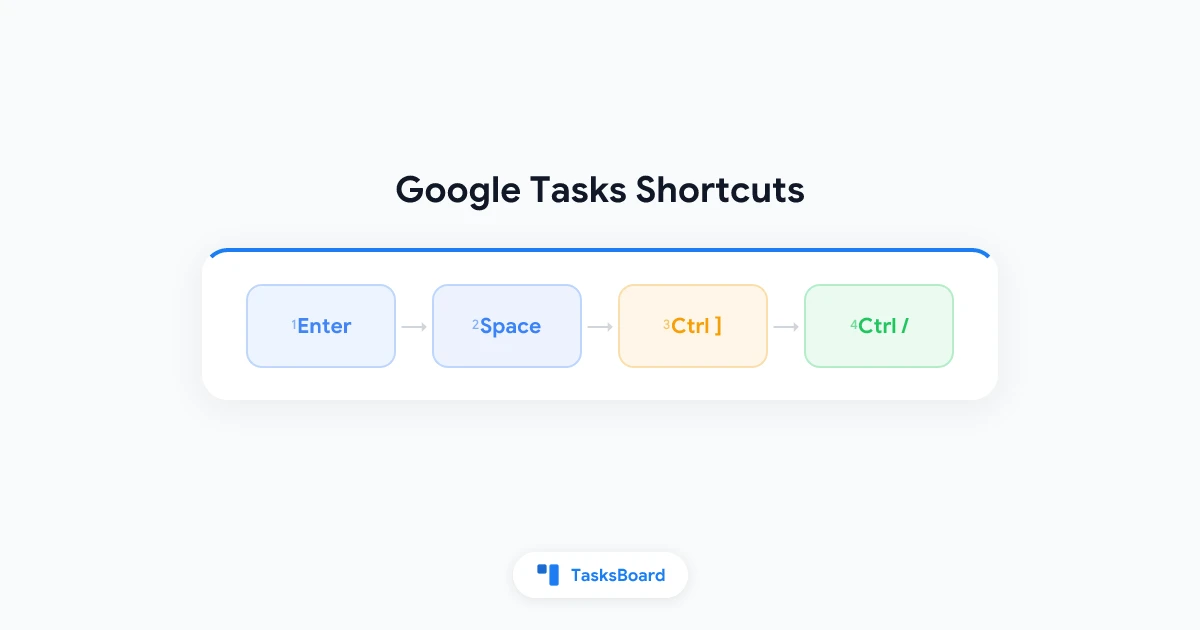
| Add a new task | Enter |
| Mark a task complete or incomplete | Space |
| Edit the selected task | Enter |
| Delete a task | Delete or Backspace |
| Finish editing | Esc or Enter |
| Indent a task (make it a subtask) | Ctrl + ] |
| Remove indent | Ctrl + [ |
| Add a subtask | Ctrl + Alt + Enter |
| Move a task up | Ctrl + Up |
| Move a task down | Ctrl + Down |
| Move a task to the top | Ctrl + Shift + Up |
| Move a task to the bottom | Ctrl + Shift + Down |
| Star a task | s, then + or = |
| Remove a star | s, then - |
| Move a task to another list | . or v |
| Print a task list | Ctrl + P |
| Undo | Ctrl + Z |
| Show all keyboard shortcuts | Ctrl + / |
That is the whole map. You will notice there is nothing exotic here, no need for the function keys or obscure combinations. The list is short on purpose, which is good news because you can learn the useful half in an afternoon.
How to use Google Tasks shortcuts step by step
The fastest way to feel the difference is to capture a batch of tasks with the keyboard only. Here is the flow that turns a five-minute typing session into a 30-second one.
- Open tasks.google.com in your browser, or click the Tasks icon in Gmail.
- Click once inside your list so a task is selected, then press
Enterto start a new task. - Type the task title and press
Enteragain to save it and immediately start the next one. - Keep typing and pressing
Enterto stack up your whole list. - Press
Spaceon any task to check it off when it is done.
That rhythm of type, Enter, type, Enter is the single biggest time-saver in Google Tasks. You never reach for the mouse, so your hands stay on the keyboard and your train of thought stays intact.
If you manage anything with nested steps, the indent shortcuts are your friends. Press Ctrl + ] to push a task one level in so it becomes a subtask, and Ctrl + [ to pull it back out. For a deeper look at how nesting works, read our Google Tasks subtasks guide.
The shortcuts worth memorizing first
You do not need all 17 shortcuts to feel faster. Four of them carry most of the value, and they map cleanly to the three things you do every day: capture, prioritize, and reorder.
Enter to capture. Maya, a project lead who runs back-to-back standups, used to scribble action items on paper and retype them later. Now she keeps the Tasks panel open in Calendar and bangs out one line per item with Enter, ending each meeting with a clean list instead of a notebook to transcribe.
s then + to star. Stars are the closest thing Google Tasks has to priority levels. Hit s followed by + on the two or three tasks that actually matter today, and they jump to a starred view you can work from. If you want a full system around this, our Google Tasks priority guide shows how to build one.
Ctrl + Up and Ctrl + Down to reorder. Plans change mid-morning. Instead of dragging a task with the mouse, select it and tap Ctrl + Up to float it toward the top, or Ctrl + Shift + Up to send it straight to the top of the list.
Space to complete. The most satisfying key on the list. Tap Space and the task gets a checkmark and slides into the completed section, no confirmation dialog in the way.
Learn those four and you have covered roughly 80% of daily Google Tasks use without touching a mouse.
 Try TasksBoard
Keep your keyboard-fast Google Tasks habits, then add a full-screen kanban board on top. TasksBoard syncs with your Google account and gives you shared boards, subtasks, and drag-and-drop columns the side panel cannot show.
Get Started →Where the keyboard stops, and what to do next
Keyboard shortcuts make Google Tasks fast for one thing: getting items in and out of a single list. They do less for the bigger picture. There is no shortcut to see three projects side by side, to drag a card across a board, or to hand a task to a teammate.
That is the ceiling of the native side panel. It is a vertical list, so once you are juggling more than one project or working with other people, keys alone cannot give you the layout you need.
This is where TasksBoard, a full-screen kanban for Google Tasks, picks up. Your task entry still flows through Google Tasks, so the shortcuts above keep working, and TasksBoard turns those same lists into a visual board you can share. For the full visual setup, see our guide on the Google Tasks kanban board.
Use these keyboard shortcuts to capture and triage on the fly, then open TasksBoard to spread the same lists across columns like To Do, In Progress, and Done. Because everything syncs back to Google Tasks, a task you star with s, + in the side panel shows up on your board, and a card you drag on the board updates the list in Gmail.
The two work as a pair. Fast hands on the keyboard for capture, a shared board for context. If you spend most of your day in the browser anyway, our Google Tasks desktop app guide shows how to pin either one to your taskbar so the shortcuts are one click away.
A few habits that make the shortcuts stick
Shortcuts only help if you actually reach for them. These small habits move them from “I read about that” to muscle memory.
- Open the cheat sheet once a day. Press
Ctrl + /each morning for a week. Seeing the list repeatedly is how it sticks. - Pick two keys, not ten. Start with
EnterandSpace. Adds, +andCtrl + Uponly once the first two feel automatic. - Keep Tasks visible. Dock the panel in Gmail or Calendar so capture is always one keystroke away, never a tab switch.
- Pair stars with a daily review. Star your top three each morning, then work the starred view top to bottom.
For a broader set of workflows beyond the keys, our guide on how to use Google Tasks effectively covers lists, due dates, and Calendar integration in one place. You can find more Google Tasks how-tos across the TasksBoard blog.
FAQ
What are some keyboard shortcuts I should learn first in Google Tasks?
Start with four: press Enter to add a task, Space to mark it complete, s then + to star it, and Ctrl + Up to move it up the list. Those cover capture, completion, prioritization, and reordering, which is most of what you do daily. Press Ctrl + / (⌘ + / on Mac) any time to see the full list inside the app.
Do Google Tasks keyboard shortcuts work on mobile?
No. The shortcuts are a web feature and work on a computer at tasks.google.com or in the Gmail and Google Calendar side panels. The Android and iPhone apps are touch-based, so there are no keyboard shortcuts there even if you connect an external keyboard.
How do I see the full list of keyboard shortcuts for Google Tasks?
Open Google Tasks on your computer, click a task to select it, then press Ctrl + / on Windows or Linux, or ⌘ + / on a Mac. A panel opens listing every shortcut. You can also check the official Google Tasks help page for the same list with platform notes.
Does Google have a task list app?
Yes. Google Tasks is the to-do list built into every Google account. It lives in the Gmail side panel, the Google Calendar side panel, the standalone web app at tasks.google.com, and free mobile apps for Android and iPhone. It supports lists, due dates, subtasks, and recurring tasks, and it is free with both personal and Google Workspace accounts.
Can I get keyboard shortcuts with a kanban board for Google Tasks?
Yes. TasksBoard connects to your Google Tasks account and adds a full-screen kanban board with shared boards and subtasks. You still capture and triage tasks with the standard Google Tasks shortcuts in the side panel, and TasksBoard displays those same lists as a board you can drag and share. It is free to start at tasksboard.com.
Conclusion
Google Tasks keyboard shortcuts are a small feature with an outsized payoff. Learn Enter, Space, s + , and Ctrl + Up, and you can run your whole list without lifting your hands from the keyboard. Press Ctrl + / whenever you forget the rest.
The next step takes under a minute: open Google Tasks on your computer, click a task, and capture five lines using only Enter. Once that flow feels natural, add a visual layer so your fast lists become a board you can share with your team.
Ready for the overview the side panel cannot give you? Try TasksBoard free and turn your keyboard-driven Google Tasks into a shared kanban board.
Ready to share your Google Tasks?
Get started with TasksBoard for free, no credit card required.
Sign in