Google Tasks Mobile App: The Complete Guide for iPhone and Android (2026)

Google Tasks is available as a free mobile app for both iPhone and Android. It syncs instantly with Google Calendar and works inside Gmail, making it one of the most connected task apps for anyone in the Google ecosystem.
But a lot of users don’t know what the app can actually do on mobile. This guide covers downloading, setting up widgets, enabling notifications, and getting more done on the go.
How to Download Google Tasks on iPhone and Android
Getting started takes under two minutes.
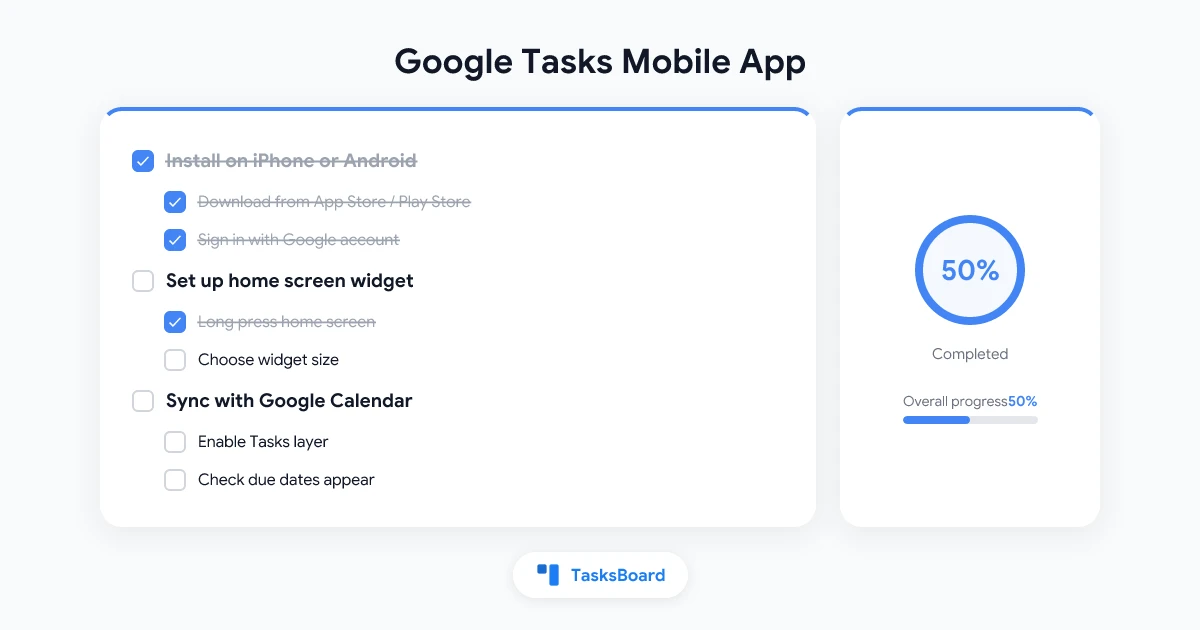
On iPhone (iOS): Open the App Store and search for “Google Tasks.” The app is made by Google LLC and is completely free. Tap “Get” and sign in with your Google account. Your existing tasks sync automatically once you log in.
On Android: Open the Google Play Store and search for “Google Tasks.” The app is pre-installed on many Android devices. If not, install it and sign in with your Google account.
Both versions give you the same core features. Your tasks, lists, and due dates appear on every device the moment you sign in.
What You Can Do in the Google Tasks Mobile App
The mobile app is lightweight by design. Here is what it supports:
- Create tasks with a title, notes, and due date
- Add subtasks nested under any parent task
- Switch between multiple lists (Work, Personal, etc.)
- Mark tasks complete with a single tap
- Set due dates that appear in Google Calendar
- Work offline with changes syncing when you reconnect
What it does not do on mobile: it does not support labels, priority levels, or built-in comments. For those, you need a tool like TasksBoard that builds on top of Google Tasks.
How to Add the Google Tasks Widget on iPhone
Widgets let you see and tick off tasks without opening the app. This is one of the most useful features for mobile users.
Steps to add the Google Tasks widget on iPhone:
- Long-press any empty area on your home screen
- Tap the ”+” button in the top-left corner
- Search for “Tasks” in the widget gallery
- Choose your preferred widget size (small, medium, or large)
- Tap “Add Widget” and position it on your home screen
Lock screen widget (iOS 16 and later): Long-press your lock screen, tap “Customize,” select “Lock Screen,” and add a Tasks widget to the bottom row. This shows your upcoming tasks without unlocking your phone.
The widget updates automatically as you complete tasks and add new ones.
How to Add the Google Tasks Widget on Android
Android home screen widgets work similarly.
Steps to add the widget on Android:
- Long-press any empty area on your home screen
- Tap “Widgets” from the menu that appears
- Scroll to find “Tasks” (or search for it)
- Long-press the widget and drag it to your home screen
- Resize it by dragging the edges
For a deeper look at widgets across all platforms, see our Google Tasks widget guide.
 Try TasksBoard
See all your Google Tasks in a kanban board on any device. Share lists with your team, assign tasks, and track progress in real time.
Get Started →Enabling Notifications for Google Tasks on Mobile
By default, Google Tasks sends push notifications when a task is due. But notifications often get blocked by system settings, especially on Android.
On iPhone: Go to Settings, then “Notifications,” find “Tasks,” and make sure “Allow Notifications” is on. Set alerts to “Immediate Delivery” so you get notified right at the due time.
On Android: Go to your phone’s Settings, then “Apps,” find “Tasks,” and tap “Notifications.” Enable all notification categories. Also check that Battery Optimization is not set to “Restricted” for the Tasks app, as this can block background alerts.
Important: Google Tasks only sends notifications at the time a task is due, not in advance. If you want advance reminders (30 minutes before, for example), you need to create a Google Calendar event for the task. Our article on Google Tasks notifications covers this setup in detail.
Working with Multiple Lists on Mobile
The Google Tasks mobile app supports multiple lists, which is useful for separating work tasks from personal ones.
To switch between lists, tap the list name at the bottom of the screen and select a different list. You can also create a new list by tapping the ”+” icon next to the list name.
Tips for managing lists on mobile:
- Keep work tasks in one list and personal tasks in another
- Use different lists as project folders for larger work
- Archived lists are hidden but still searchable
For a full guide, see Google Tasks multiple lists.
Using Google Tasks on Mobile with Other Google Apps
The Google Tasks mobile app connects naturally to other apps you already use.
Gmail on mobile: Open Gmail on your phone, tap any email, and tap the “Add to Tasks” button (the clock icon). This creates a task linked to that email. It works the same way as on desktop.
Google Calendar on mobile: Any task with a due date appears in Google Calendar. Open the Calendar app and look for the “Tasks” layer in the side menu. Tap it to show your tasks alongside your events.
Google Assistant: Say “Hey Google, add a task to my Tasks list: [task name].” Your task appears instantly in the app.
Offline Mode: Using Google Tasks Without Internet
The Google Tasks mobile app works offline. Tasks you create or complete while offline sync the next time your phone connects to the internet.
This makes it reliable for travel or areas with spotty coverage. For a full breakdown of what works without a connection, see our Google Tasks offline guide.
When Google Tasks Mobile Is Not Enough
The native Google Tasks app works well for personal task lists. But teams hit its limits quickly.
There is no way to share a task list from the mobile app. There is no way to assign a task to a colleague. There is no kanban view, no due time (only due dates), and no comments on tasks.
TasksBoard solves these problems. It reads directly from your Google Tasks data and adds a shared kanban board on top. You can invite teammates, assign tasks, and track progress, all while keeping Google Tasks as the data layer. Changes sync back to the Google Tasks app instantly.
Need Team Features on Mobile?
TasksBoard adds kanban boards, task assignments, and real-time sharing to your Google Tasks. Free to start, works on any device.
Try TasksBoard Free →Tips to Get More from Google Tasks on Mobile
A few habits that make the mobile app significantly more useful:
Use Quick Add from the floating button. The blue ”+” button in the bottom right of the app is the fastest way to add a task. Tap it, type your task, and tap “Save.” It takes two seconds.
Voice input. Tap the microphone on your keyboard while typing a task to dictate instead. This works especially well when you are hands-free.
Swipe to complete. Swipe a task to the right to mark it as done. Swipe left to delete it. These gestures work on both iPhone and Android.
Sort by date. Tap the three-dot menu at the top of any list and select “Sort by date.” This brings overdue and upcoming tasks to the top.
Group by list in Calendar. If you use Google Calendar heavily, turn on the Tasks layer in Calendar settings. Each list shows up as its own color in your calendar view.
FAQ
Conclusion
The Google Tasks mobile app is a clean, fast, and free tool for anyone who lives in the Google ecosystem. It handles the basics well: creating tasks, setting due dates, managing lists, and syncing across devices.
For solo users, it is more than enough. For teams or anyone who wants a kanban view, shared boards, and task assignments, TasksBoard adds those features directly on top of your Google Tasks data. Your tasks stay in Google Tasks, and you get a full team collaboration layer on top.
Download Google Tasks on your phone, set up a widget, and start with a single list. Once it becomes a habit, you can layer in more features as your needs grow.
Ready to share your Google Tasks?
Get started with TasksBoard for free, no credit card required.
Sign in