
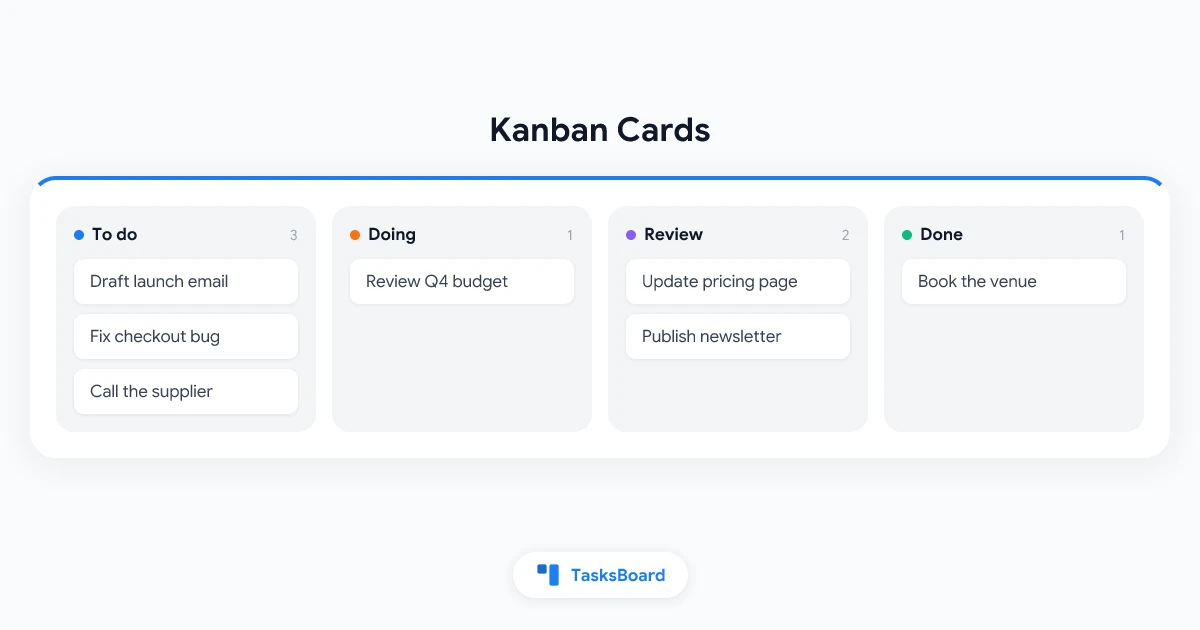
Kanban cards are the small rectangles that make a kanban board work. Each one stands for a single piece of work, and its place on the board tells you where that work stands.
Most cards fail for a simple reason. They carry too little to act on, or so much that nobody reads them.
This guide covers what a card is, where it comes from, what to write on it, seven examples you can copy, and how to build cards on top of Google Tasks.
Quick answer:
- One card, one piece of work. A card is the visible marker of a single work item.
- The face is for scanning. A title, an owner, a due date and a label are enough for most teams.
- The inside is for doing. Notes, a checklist, links and the condition that closes the card.
- The column is the status. Never write “in progress” on the card itself.
- Factory cards came first. Toyota adopted kanban at all its plants in 1963, long before software boards.
- Google Tasks can be cards. TasksBoard shows each Google task as a card on a board.
What Is a Kanban Card? One Piece of Work Made Visible
A kanban card is one work item you can see and move. In Atlassian’s guide to kanban cards, each card “represents a single work item as it moves through various stages of completion”.
Those stages are the columns of the board. The card travels from left to right, and the column it sits in is its status.
The Kanban Guide describes the same idea in other words. It calls the units that flow through a workflow “work items”, and it calls the picture of that workflow a Kanban board.
The guide leaves the look of a card open: “There are no specific guidelines for how a visualization should look.” A sticky note on a wall and a card in an app both count.
Kanban Cards Started on Toyota’s Factory Floor
The first cards tracked car parts, not tasks. Toyota’s own magazine translates kanban as “signboard” and explains that “Every item or box of items that flows through the production process carries its own kanban.”
What did the card say? Toyota’s company history calls the kanban “a tool that describes which and how many parts are used where and when”.
The same page says the kanban management system “was adopted at all plants in 1963”. Atlassian’s guide credits Taiichi Ohno, an industrial engineer at Toyota, with inventing the cards in the late 1940s.
The Toyota Indonesia glossary names two main kinds of card:
| Card | Japanese name | What it does |
|---|---|---|
| Part withdrawal kanban | Hikitori-Kanban | States when and how many parts one process orders from the process before it |
| Production instruction kanban | Shikake-Kanban | Orders materials at the start of production at each work site |
A task card on a board does the same two jobs. It says what is needed, and it signals when to act.
What to Put on a Kanban Card: A Face to Scan, an Inside to Work From
Atlassian’s list is short. A card “typically features a brief description of a work item, along with its owner, due date, and status”.
In practice a card has two layers. The face is what you scan on the board, and the inside is what you open when you do the work.
| Field | Layer | Rule of thumb |
|---|---|---|
| Title | Face | Start with a verb and name the result |
| Owner | Face | One person, so everyone knows whom to ask |
| Due date | Face | Only for a real deadline |
| Label or type | Face | Bug, feature, article or request |
| Priority or blocker flag | Face | Only when it changes what happens next |
| Notes | Inside | Why the work matters, in a sentence or two |
| Checklist | Inside | The steps, as subtasks |
| Links and files | Inside | The brief, the design or the ticket |
| Done when | Inside | The condition that closes the card |
Leave the status off the card. The column already says it.
The face of a card is a setting you choose
Board apps let each team decide what the face shows. For Azure Boards, Microsoft’s page on customizing cards lists four levers:
- Fields: “Control which fields appear on cards”
- Styles: “Change card colors and text styling based on field criteria”
- Tag colors: “Assign specific colors to tags for visual categorization”
- Annotations: icons for related items such as tasks, tests and pull requests
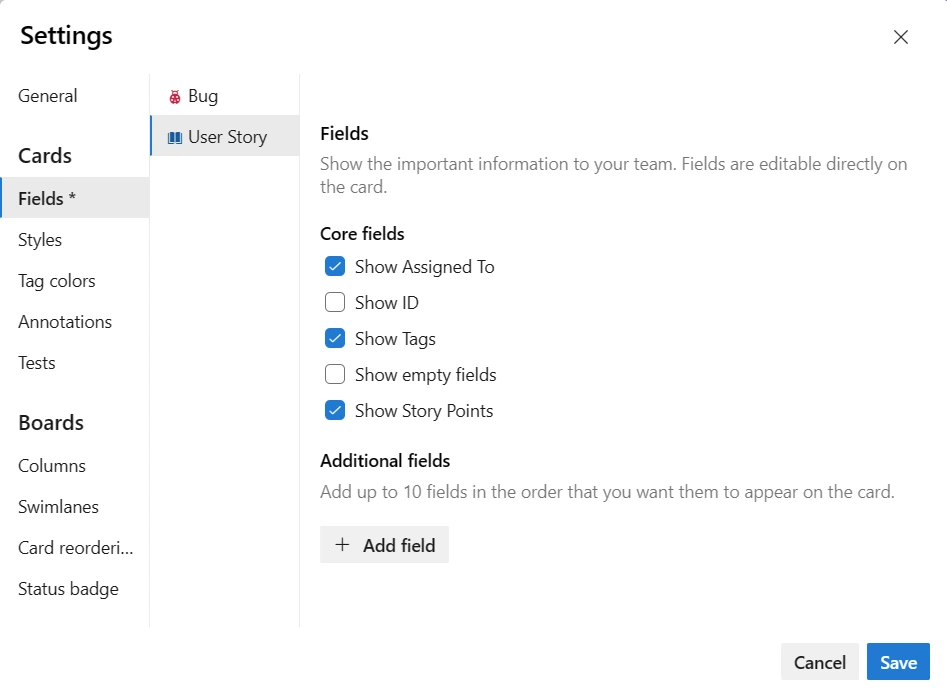
More fields are not better. Microsoft’s own advice on that page is to “Begin with essential fields and add more as needed.”
Four habits that make cards readable
- Lead with a verb. “Draft launch email” beats “Launch email”.
- Name one owner. Helpers go in the notes.
- Date only real deadlines. A date on every card teaches the team to ignore dates.
- Keep one card to one result. If the checklist keeps growing, split the card.
7 Kanban Card Examples You Can Copy
Each example gives the title, what shows on the face and what sits inside. The names are fictional.
| Team | Card title | On the face | Inside |
|---|---|---|---|
| Software, bug | Fix tax rounding at checkout | Label: Bug. Owner: Priya. Priority: P1 | Steps to reproduce. Done when the total matches the invoice |
| Software, feature | Add CSV export to reports | Label: Feature. Owner: Marco | The user story, a link to the design, a test checklist |
| Content marketing | Publish the October newsletter | Label: Email. Due: Oct 28. Owner: Lena | Link to the brief. Checklist: draft, review, schedule |
| Sales | Send proposal to Acme Dental | Due: Friday. Owner: Sam | Contact name, deal notes, the proposal file |
| Hiring | Schedule final interview for the designer role | Label: Hiring. Owner: Dana | Candidate profile, interview panel, scorecard |
| Customer support | Refund order 1042 | Label: Billing. Owner: Omar | The customer email and the amount. Done when the customer confirms |
| Personal | Renew passport | Due: Mar 14 | Checklist: photos, form, appointment |
Three patterns repeat in every row:
- The title starts with a verb. You know what to do before you open the card.
- The face stays small. No card shows more than three items next to its title.
- The inside holds what the owner needs to finish. Nothing else.
Working alone? The last row is all you need, and our guide to the personal kanban board builds a full system around it.
A kanban card template
Paste this into the notes of a card and fill in the lines you need:
Title:      Verb + result
Owner:      One person
Due:        Only a real deadline
Label:      Type of work
Why:        One or two sentences of context
Done when:  The condition that closes the card
Checklist:  Step 1, step 2, step 3
Links:      Brief, design, ticket
Kanban Card vs User Story vs Task: The Card Is the Container
These three get mixed up, because one card often holds all of them.
| Term | What it is | Example |
|---|---|---|
| Kanban card | The unit that moves across the board | A card titled “Add CSV export to reports” |
| User story | A way to describe work from the user’s side | ”As an analyst, I want to export a report so that I can share it” |
| Task | One step needed to finish the work | ”Write the export test” |
The card is the container. The story is what you write inside it, and the tasks are its checklist.
Azure Boards works this way. Its cards are work items such as a user story or a bug, and an annotation shows the child tasks on the card.
If your team plans with stories, user story mapping shows how to arrange them before they become cards.
Cards Move by Pull, and WIP Limits Keep Them Moving
A card should move because someone has room for it, not because someone pushed it. In Atlassian’s example, “when designers have bandwidth, they pull a kanban card from Prioritized to Design”.
That only works when the number of cards in play is capped. The Kanban Guide is firm here: members “must explicitly control the number of work items in a workflow from started to finished”.
Most teams do it with a work-in-progress (WIP) limit on each column. As Atlassian puts it, “Teams limit the number of kanban cards that can be in any one stage of a workflow at one time.”
How to Turn Google Tasks into Kanban Cards with TasksBoard
A Google task already has most of what a card needs. According to Google’s help page, you can add details, set a date and time, make the task repeat and add subtasks.
Google Tasks shows those tasks as lists, not as a board. TasksBoard displays each list as a column and each task as a card, and every change syncs with Google Tasks.
Your cards stay available in Gmail, Google Calendar and the Google Tasks mobile apps. Five steps get you from a list to a board:
- Sign in with Google. Go to tasksboard.com and click Sign in with Google. Your lists appear side by side as columns.
- Add a card. Click “Add a task” at the top of a list, type the title and press Enter.
- Fill the card. Click the title to open the editor. Type the details, then use Add date and Add subtask.
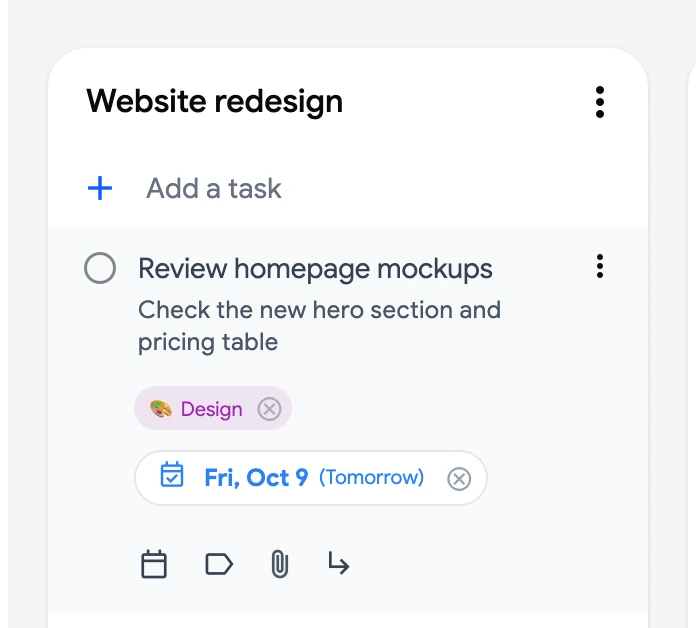
- Give it an owner. On a shared list, click Add assignee and pick a collaborator. Their avatar shows on the card.
- Move it. Drag the card to another list when the work changes stage. The move is saved to Google Tasks.
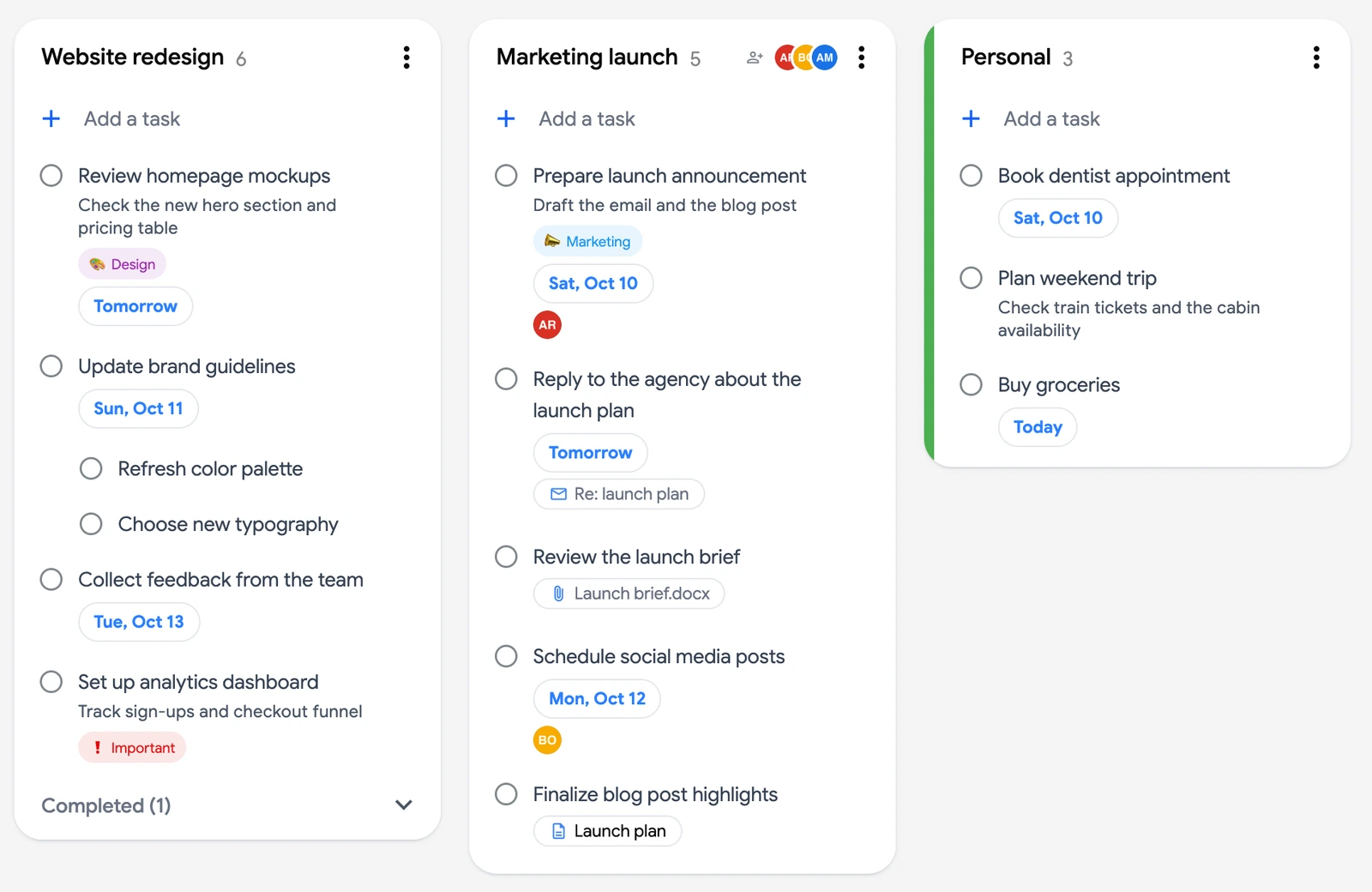
Our guide to the Google kanban board walks through the full setup.
What a TasksBoard card can show, by plan
The plans page splits the card fields between the free Personal plan and Premium:
One honest limit: the TasksBoard help center describes no WIP limit setting. Turn on Task count in the Display menu instead, and the number of open tasks appears next to each list title.
 Try TasksBoard
Turn the Google Tasks you already have into cards on a board. Lists become columns, cards carry owners and due dates, and every task stays in your Google account.
Get Started →FAQ
Conclusion
Kanban cards work when they are quick to read and complete enough to act on.
- Face: a verb-first title, one owner, a label, and a date only when it is real.
- Inside: notes, a checklist, links and a clear “done when”.
- Flow: pull a card when you have room, and cap how many are in progress.
TasksBoard turns the Google Tasks you already have into cards on a board. It is free to start, and every task stays in your Google account.