
Does Google have a project management tool? No single Google app plans a project, assigns the work and tracks it on a board or a Gantt chart.
What Google has is a kit. Its own tutorial runs a project with Sheets, Chat, Calendar, Drive and Meet, while Google Tasks collects whatever gets assigned to you.
This guide shows what each piece does, where the gaps are, and how to close them without leaving your Google account.
Quick answer:
- No dedicated app. Google’s Plan and manage a project tutorial combines Groups, Chat, Calendar, Drive, Sheets and Meet.
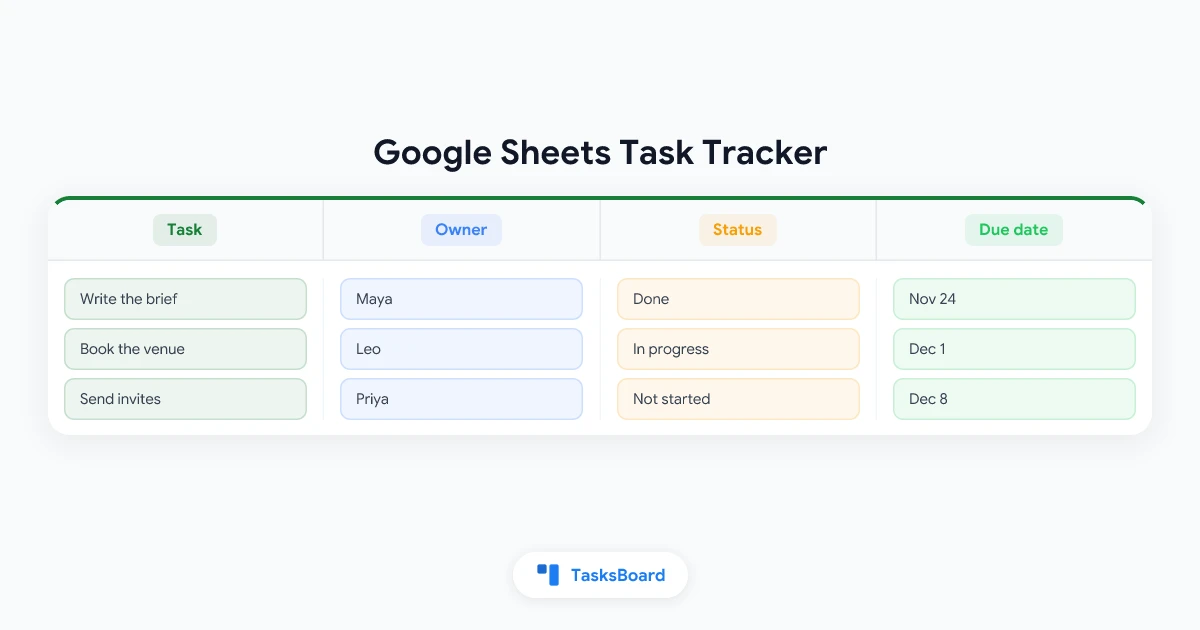
- The plan lives in Sheets. A shared spreadsheet with columns for tasks, owners, due dates and status.
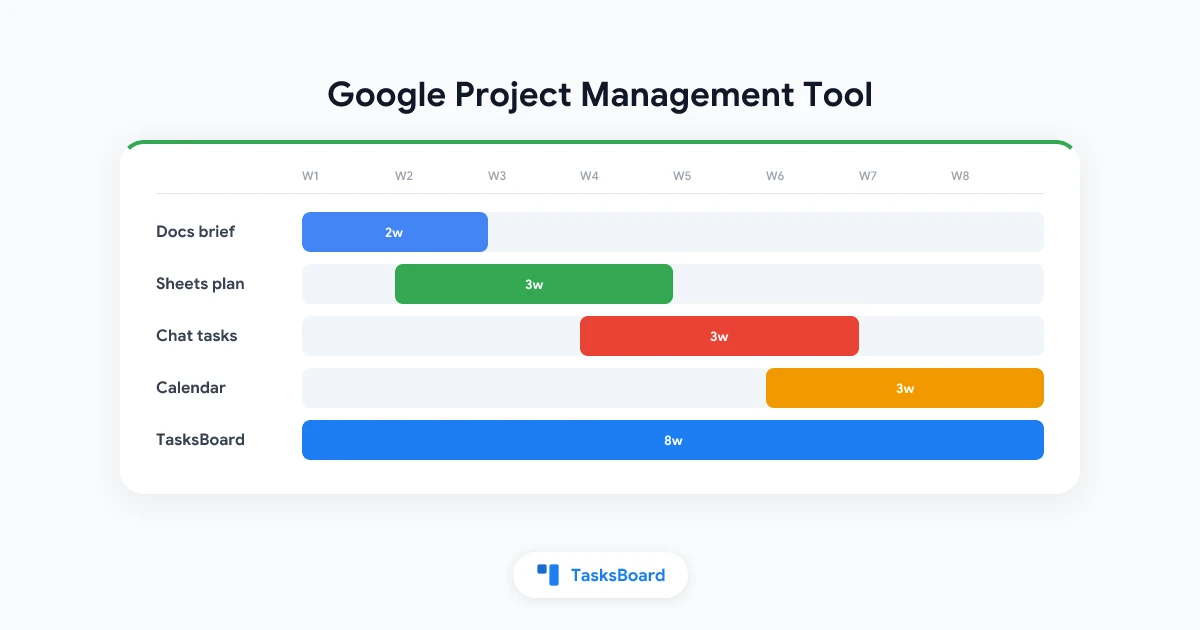
- The nearest thing to a Google Gantt chart is timeline view in Sheets, on the Workspace editions Google lists.
- Work is assigned in a Chat space or a Google Doc. The task then shows up in the assignee’s Google Tasks.
- The gap: one shared board where the whole team sees who is doing what.
- Google Tables is gone. Google turned it down on December 16, 2025.
What Google Offers Instead of a Project Management Tool
Google’s Learning Center has a business tutorial for exactly this job. It splits a project into five stages, and every stage uses an app you already have.
 Google's own recipe: a project in five stages
Each project job maps to one of those apps:
| Project job | Google app | What Google’s documentation says |
|---|---|---|
| Plan and track tasks | Google Sheets | ”Track, update, and collaborate on project tasks with your team in a shared spreadsheet” |
| See tasks over time | Timeline view in Sheets | ”An interactive visual layer in Sheets” for project tasks, campaigns and schedules |
| Hand a task to a teammate | Chat spaces, Google Docs | The task “appears in your personal task list in Google Tasks” |
| Keep your own to-dos | Google Tasks | A side panel in Gmail, Calendar, Chat, Drive and files in Docs, Sheets or Slides |
| Milestones and meetings | Google Calendar | ”Create a project calendar to track project milestones and dates” |
| Files | Google Drive | A shared project folder in My Drive or in a shared drive |
The Google Workspace blog gives the same advice. In its project management tips from October 2024, it adds that Workspace “can integrate with many popular project management tools, including Asana, Trello, and Monday”.
In other words, Google itself points to other apps once a project outgrows the kit.
Google Sheets Holds the Plan and the Closest Thing to a Google Gantt Chart
In Google’s tutorial, the project plan is a blank spreadsheet. The suggested columns are “tasks, task owners, due dates, status, and comments”.
Three additions from the same tutorial turn it into a tracker:
- A Status dropdown with options such as Not started, In progress and Complete.
- Conditional formatting that gives each status its own color.
- Notification rules (Tools > Notification rules) that email you when someone changes the plan.
Google’s help page on tables lists project tracking first among the things a table suits.
Timeline view turns dated rows into bars
Timeline view is what most people mean by a Google Gantt chart. Google calls it “an interactive visual layer in Sheets” that helps you manage project tasks, marketing campaigns and schedules.
- Prepare the data. Add a column for the card title, one for the start date and one for the end date. Google requires “at least one column of data in date format”.
- Insert the timeline. Click Insert > Timeline, select your data range and click OK.
- Adjust the cards. In Settings, pick the columns for Card title, Start date and End date. Card color, Card detail and Card group are optional.
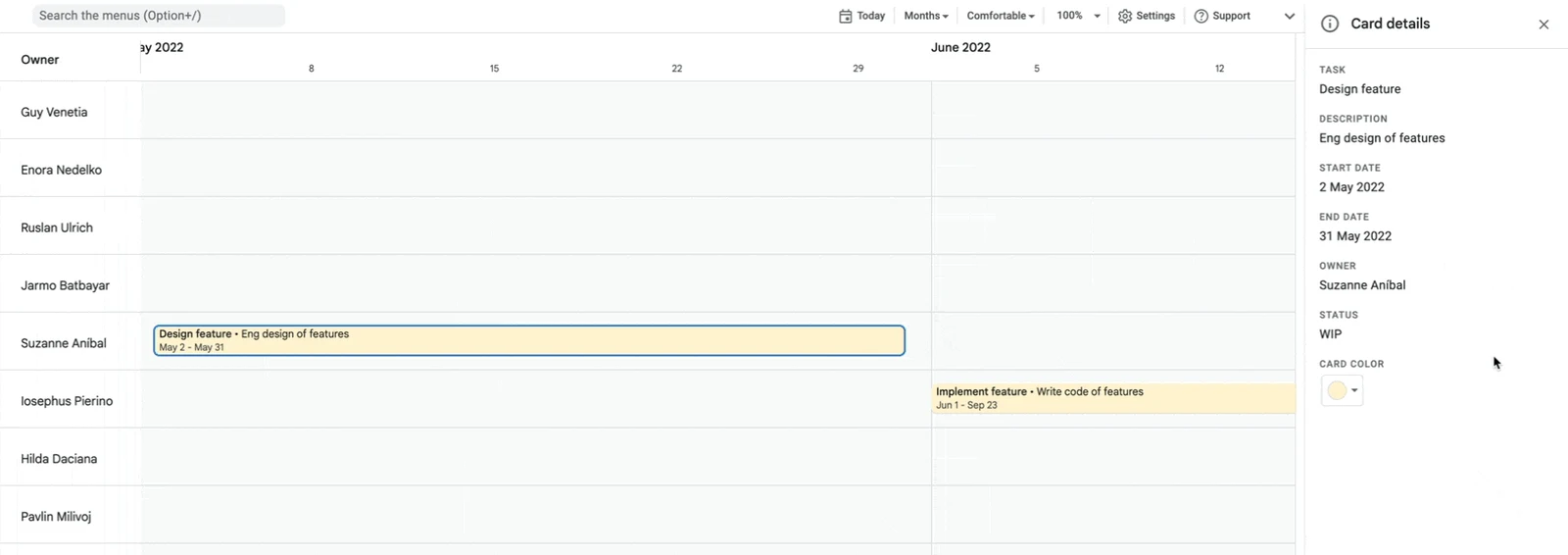
Two limits matter before you plan around it:
- Editions. Google’s help page lists the Workspace editions that can use timeline view: Essentials, Business Starter, Standard and Plus, the Enterprise editions, the Education editions and Frontline. The launch announcement from November 2022 says it is “Not available to users with personal Google Accounts”.
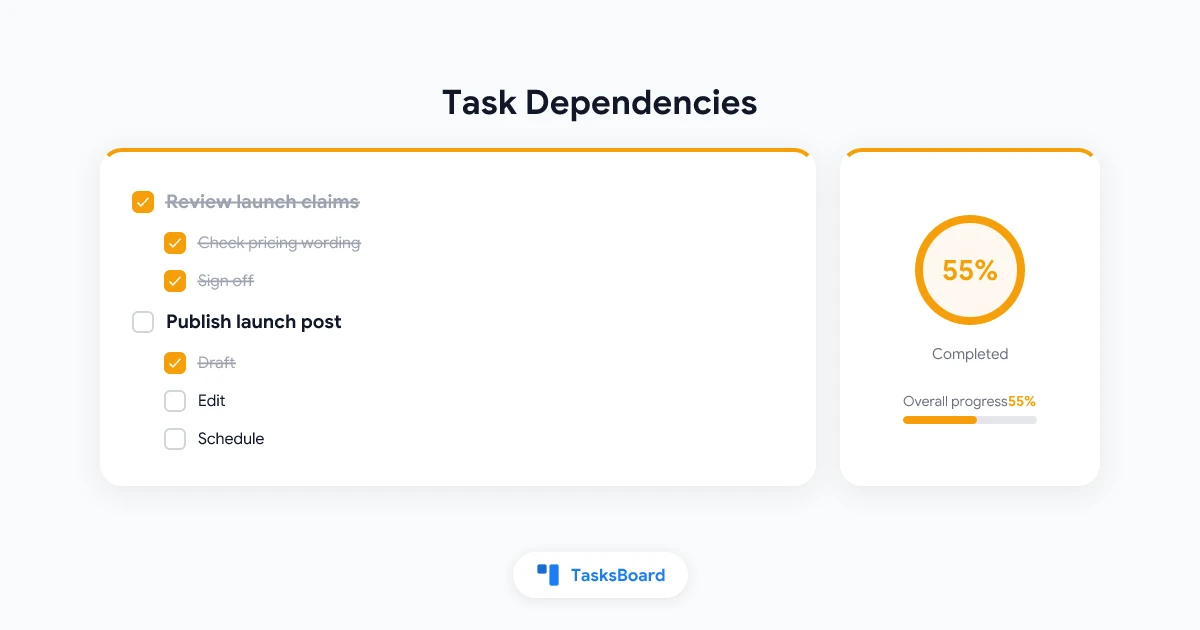
- No links between tasks. The card fields Google documents are title, dates, detail, duration, color and group. A dependency from one task to the next is not among them.
Chat and Docs Assign the Work, Google Tasks Collects It
Google Tasks on its own is a personal list. Handing a task to someone else happens through what Google calls shared tasks, in two places.
Assign a task in a Chat space
Google’s Chat help gives these steps:
- Open the space. In Google Chat, or in Chat inside Gmail, select the space for the project.
- Open Tasks. At the top right, click Tasks.
- Add a task. At the bottom of the panel, click Add.
- Fill it in. Enter a title, details, a date and an assignee, then click Add.
Google’s page adds: “If a task is assigned to you, it appears in your personal task list in Google Tasks.” A notification also appears in the space when someone creates or updates a task.
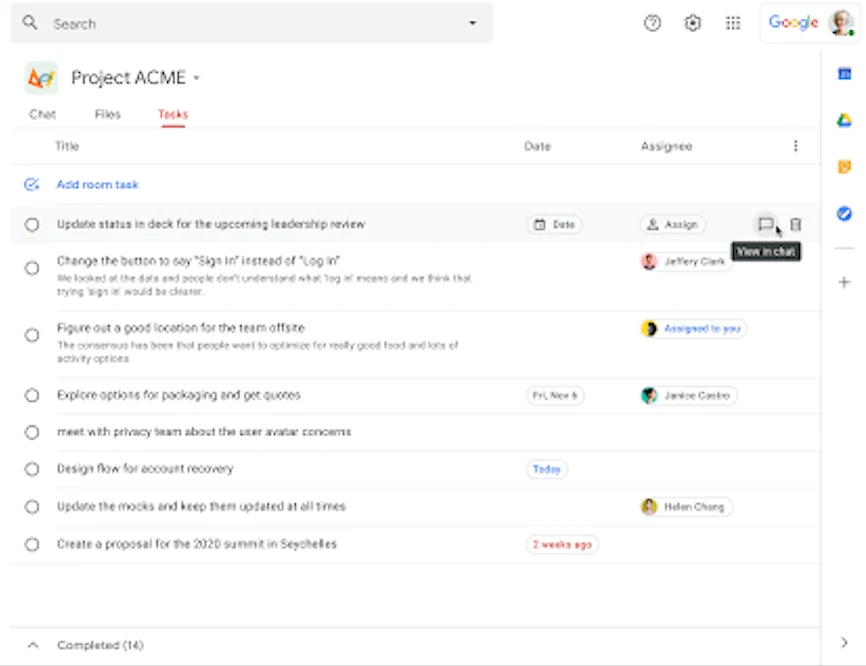
The capture above comes from a 2021 Google update. Since November 2025, the same list opens in a side panel from the Tasks icon in the header of the space.
Assign a task in a Google Doc
Type @task in a document, or click Add to Tasks next to a checklist item. Google’s page on assigning tasks from Google Docs limits this to work or school accounts, and to people in your organization.
The limits Google documents
- One landing spot. “Shared tasks go into your default list in Tasks, but you can move them into different lists.”
- No subtasks, no repeats. “You can neither create a subtask nor repeat shared tasks.”
- Big spaces. When a space becomes too large, you can no longer assign tasks in it.
- Plenty of room. Google Tasks allows up to 100,000 tasks across your lists and 20,000 uncompleted tasks in one list.
Our guide on how to assign tasks in Google Tasks compares these routes in more detail.
What Is Missing Compared with Project Management Software
Put the pieces together and the picture is clear. The plan sits in one file, tasks sit in several private lists, and updates travel by chat and email.
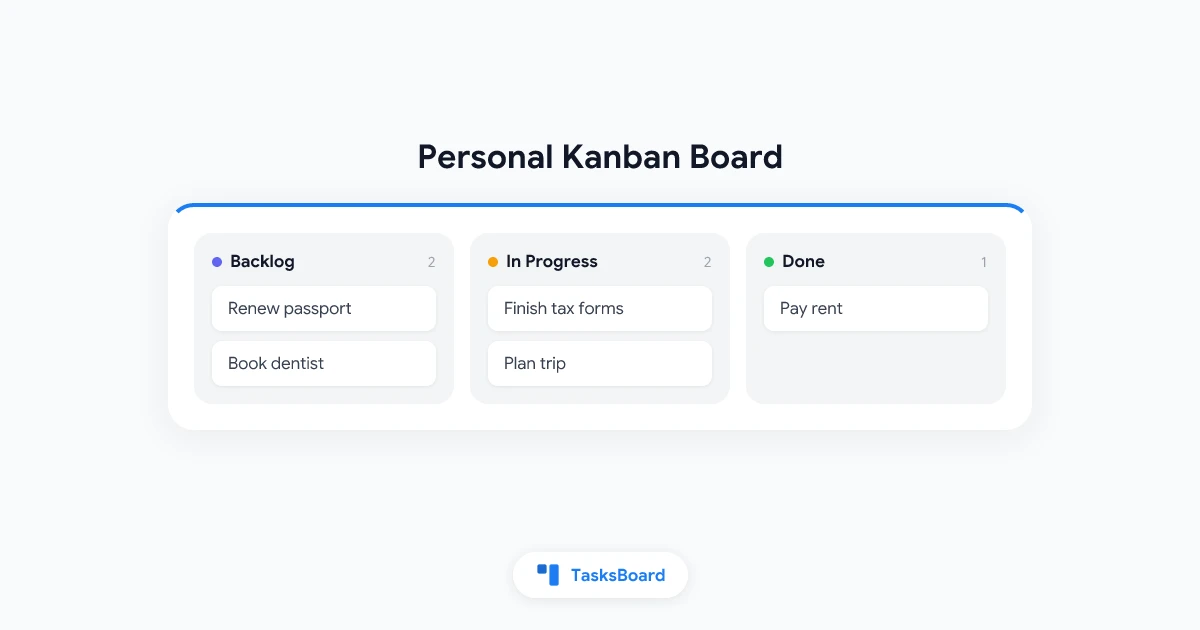
The board row is the one teams feel first. If that is your question, our guide to the Google kanban board covers it in detail.
Google Tables, AppSheet and the Marketplace: Other Answers You Will See
Search for a Google project management tool and four more names come up.
- Google Tables. A work tracker from Area 120, Google’s in-house incubator, launched in the U.S. on September 22, 2020. Its help center now reads: “Tables is no longer supported.”
- AppSheet. Google says the features of Tables “are now integrated into AppSheet”, its no-code platform. It is a builder, so you design your own tracking app.
- The Workspace Marketplace. Its Task management category lists third-party apps for Google Workspace. TasksBoard for Google Tasks is one of them.
- The Google Project Management Certificate. Google’s certificate is “a professional certificate in project management developed by Google”, taught on Coursera. It trains project managers. It is not software.
Add a Project Board to Google Tasks with TasksBoard
TasksBoard is a kanban board for Google Tasks, where each list becomes a column. Every change syncs with Google Tasks, so your tasks stay available in Gmail, Google Calendar and the Google Tasks mobile apps.
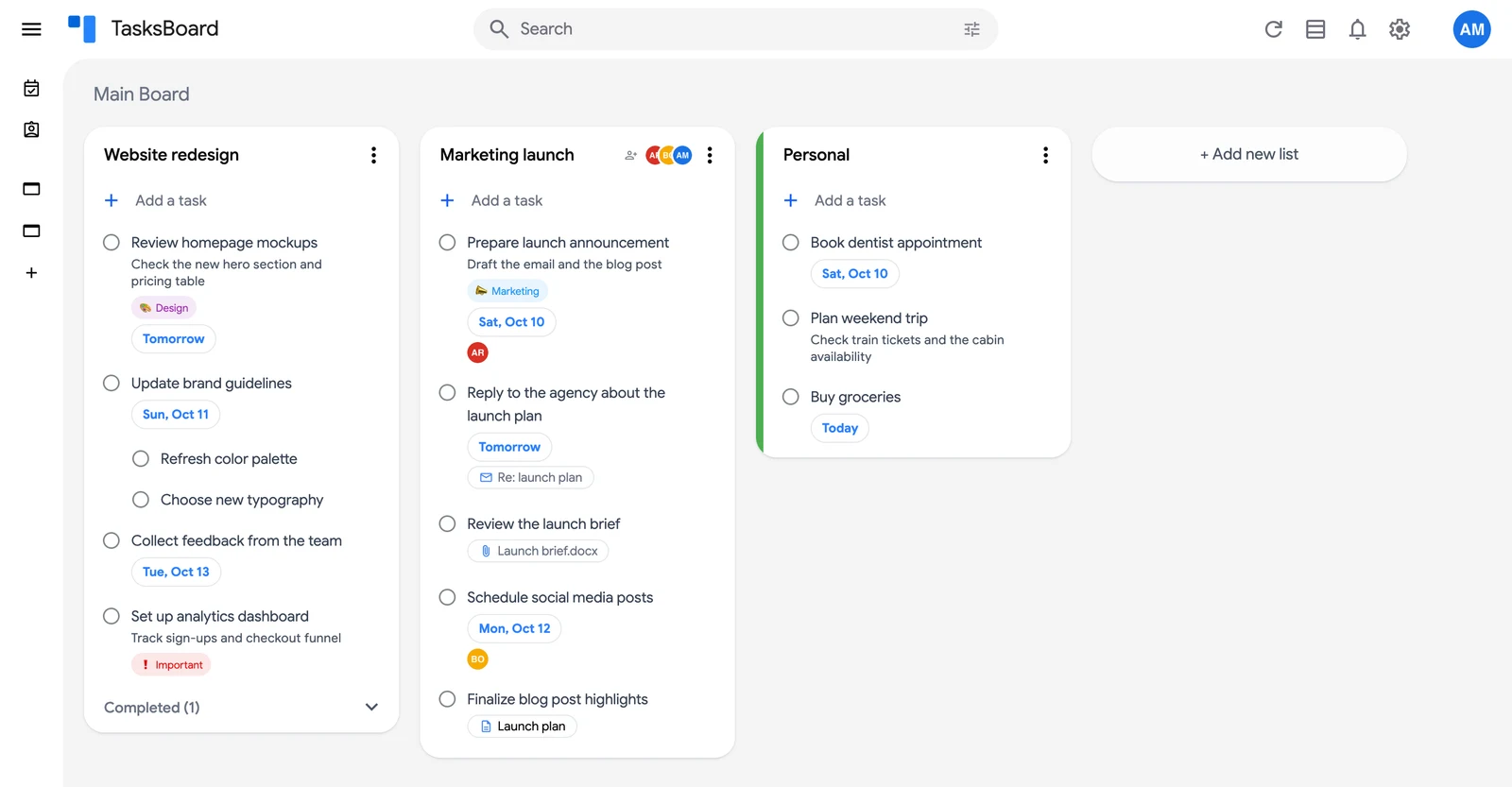
A project board takes five steps:
- Sign in with Google. Go to tasksboard.com and click Sign in with Google. Your Google account is your TasksBoard account, and your lists appear as columns.
- Add a list per stage. Click ”+ Add new list” at the end of the board. To do, In progress and Done is a good start.
- Share the list. Open the three dots menu of the list, click Share list and send the link. Each collaborator gets a copy of the list in their own Google Tasks account, and TasksBoard keeps the copies in sync.
- Assign the tasks. Open a task in a shared list and click Add assignee. A task can have several assignees, and their avatars show on the card.
- Follow the work. The “Assigned to me” board gathers your tasks from every list, including tasks assigned to you from a Google Doc or a Chat space.
The plans page shows what each plan covers:
| Plan | What it covers for a project |
|---|---|
| Personal (free) | Full screen kanban board, unlimited tasks and subtasks, sync with Google Tasks, Gmail and Calendar, up to 5 shared lists |
| Premium (Pro and Team) | Multiple boards, shared boards, custom labels, priorities, calendar view, templates and activity history |
One honest limit: TasksBoard is a board. It does not draw a Gantt chart, and it does not plan budgets or workloads.
 Try TasksBoard
Give your Google Tasks the shared board Google leaves out. Lists become columns, teammates get assignments, and every task stays in your Google account.
Get Started →For the full method, see how to use Google Tasks for project management.
Which Google Project Management Setup Fits Your Team?
| Your situation | Setup that fits |
|---|---|
| A solo project or a short list of deliverables | Google Tasks and Google Calendar |
| A plan with dates that many people read | A Sheets plan, plus timeline view if your edition has it |
| Work handed out in a team chat | Tasks in a Chat space |
| A team that wants one board with owners | TasksBoard on top of Google Tasks |
| A program with dependencies, budgets and workloads | A dedicated tool from the Workspace Marketplace |
Start with the lightest setup that answers your team’s main question. If that question is “who is doing what this week”, a shared board answers it faster than a spreadsheet.
FAQ
Conclusion
So, does Google have a project management tool? Not as one app, but as a kit that is enough for a simple project.
- Plan in Google Sheets, with timeline view where your edition includes it.
- Assign in a Chat space or a Google Doc.
- Track on a board, the piece Google leaves open.
TasksBoard adds that board on top of the Google Tasks you already use. It is free to start, and every task stays in your Google account.