
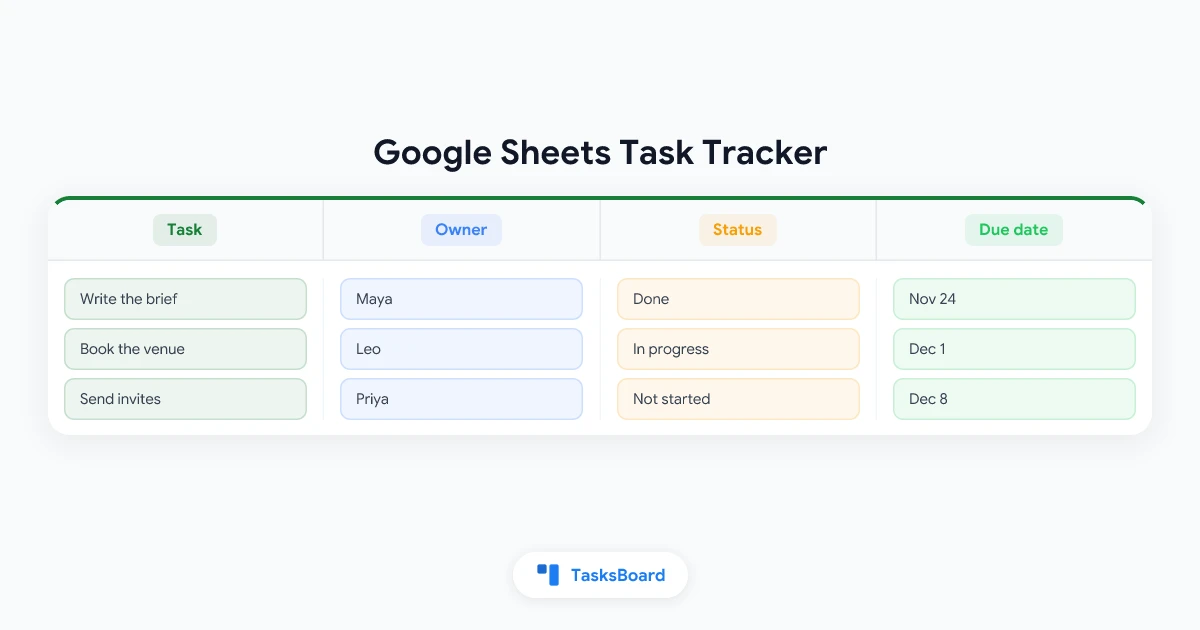
A Google Sheets task tracker takes one table and six steps. Insert a pre-built table or convert your own list, give each column a type, lock the status values, flag overdue rows, then group and count.
A sheet is strong on structure and silent on deadlines. This guide covers both sides: how to build the tracker with the menus Google documents, and how to move it into Google Tasks when you need reminders.
Quick answer:
- Fastest start: click Insert > Pre-built table and pick a task table. Dropdowns, people chips and date columns are already in place.
- Your own list: select it, click Format > Convert to table, then choose a type for each column.
- Columns that matter: Task, Status, Owner, Due date and Notes.
- Overdue rows: one conditional formatting rule with a custom formula colors them.
- The limit: Sheets sends no alert when a due date arrives. Google Tasks does.
- Cost: Google’s announcement of tables lists them as available to all Google Workspace customers and to users with personal Google accounts.
What a Task Tracker in Google Sheets Needs
A tracker answers four questions about every task: what, who, by when and how far along. Google’s help page on tables names project tracking first among the uses tables suit, and it lets you set a type for each column.
| Column | Column type in Sheets | What it is for |
|---|---|---|
| Task | Text | One row per task, starting with a verb |
| Status | Dropdown | A fixed set: Not started, In progress, Blocked, Done |
| Owner | People chip, under Smart chips | The person responsible |
| Priority | Dropdown | Optional: P0 to P2, or High, Medium, Low |
| Due date | Date | The day the task should be finished |
| Notes | Text | Links and context |
Start with these and add a column only when you miss it. Every extra column is one more cell somebody has to keep up to date.
 Why a table beats a plain range
How to Create a Task Tracker in Google Sheets in 6 Steps
Step 1: Insert a pre-built table
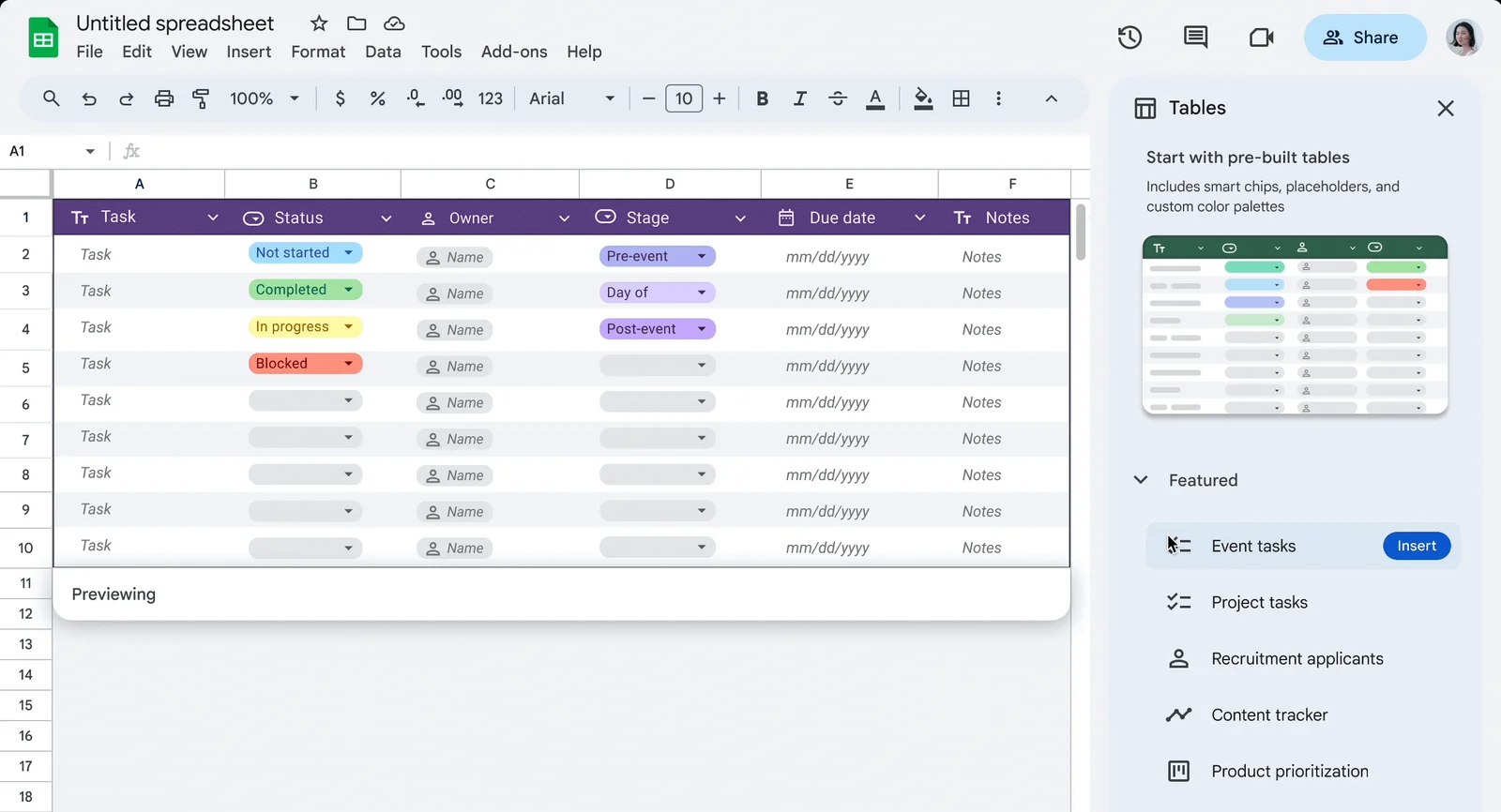
In a blank spreadsheet, click Insert > Pre-built table. Google’s help page says a sidebar opens where you can “browse, preview, and insert one or multiple pre-built blocks”.
In Google’s 2024 announcement, the Featured group of that sidebar includes Event tasks and Project tasks. Preview one, click Insert, then type over the placeholders.
Step 2: Or convert a list you already have
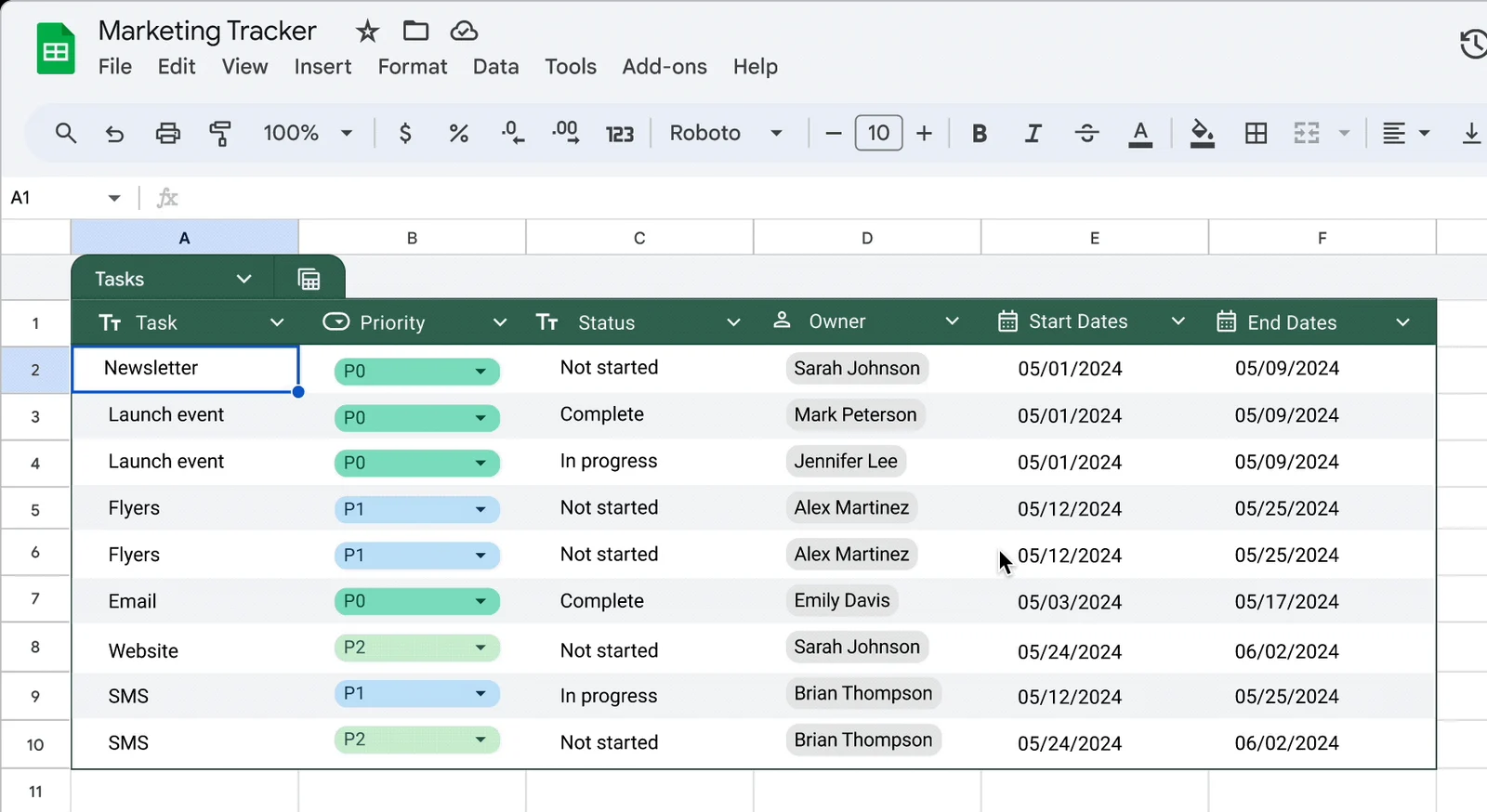
Tasks already sitting in rows? Select the range and click Format > Convert to table.
The next instruction on Google’s help page is “Select the appropriate column type for each column.” Sheets also names the table, puts a menu on every column header and applies basic formatting.
Step 3: Set a type for each column
Open the menu next to a column header and click Edit column type. Google lists Number, Text, Date, Dropdown, Checkbox and Smart chips, plus None for a column with mixed data.
Types are what keep a shared tracker clean. With Date selected, Sheets “shows a warning for cells within the column that don’t follow this type”.
Step 4: Lock the status values
A Status column only works when everyone uses the same words. Google’s guide to dropdown lists says an entry that does not match the list “is rejected”, unless you choose to show a warning instead.
- Shortcut: type @ in a cell and pick Dropdowns. The same guide mentions preset dropdowns for use cases such as Project status or Priority.
- Keep it short: Not started, In progress, Blocked and Done cover most teams.
- Prefer a tick box? Click Insert > Checkbox. Google’s checkbox help suggests checkboxes “to track a project, take attendance, and check off your to-do list”.
Step 5: Highlight overdue rows
Select the task rows and click Format > Conditional formatting. Under “Format cells if”, choose Custom formula is, the option Google’s conditional formatting help uses to format an entire row.
With Status in column B, Due date in column E and tasks starting in row 2, this rule catches every late, unfinished task:
=AND($E2<>"", TODAY()>$E2, $B2<>"Done")Pick a red fill and click Done. Two details matter:
- Dollar signs. They pin the column, so every cell in a row reads the same Status and Due date cells.
- Rule order. Google notes that “Rules are evaluated in the order listed”, so drag this rule above any status colors.
Step 6: Group by status and count progress
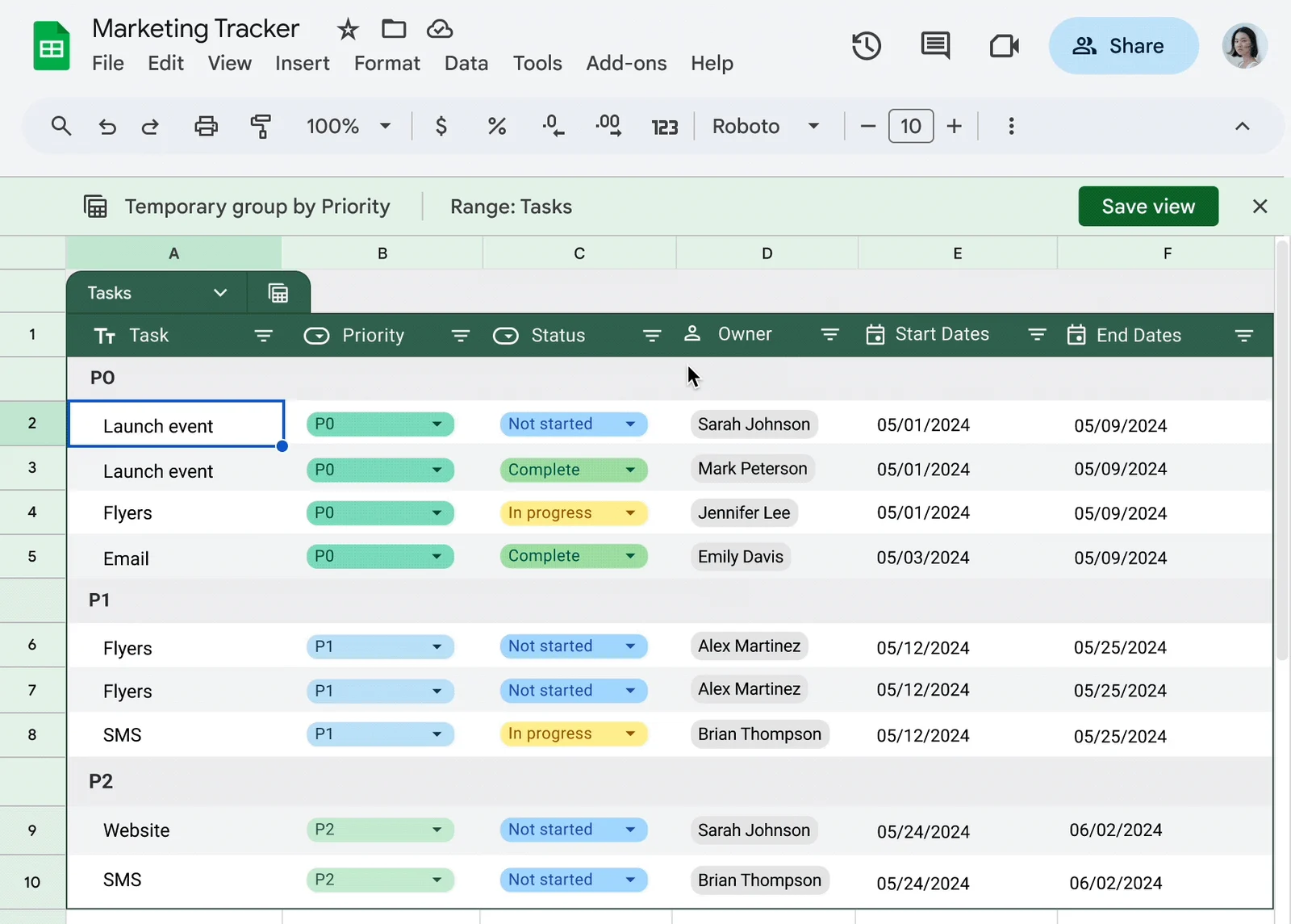
At the top of the table, click Views, choose Create group by view and pick Status. Google describes the result as “rows grouped together based on the field of your choice”, and a count is applied automatically.
The view is temporary at first. Click Save view at the top right to keep it.
For a progress number, use the table’s name in a formula. If the table is called Tasks, this counts the finished tasks:
=COUNTIF(Tasks[Status], "Done")Google’s help page says such references “update whenever you add or remove data from the table”, so the count keeps up as the tracker grows.
Google Sheets Task Tracker Template Options
Three starting points save you from a blank sheet.
- Pre-built tables. Step 1 above, and the quickest route to a typed table.
- The template gallery. On the Sheets home screen, click Template Gallery at the top right and choose a template. Google’s templates page says “A copy of the template opens”, so you work in your own file.
- A layout Google Tasks can read. The import window in TasksBoard has a Download a CSV template link. Its columns are List, Task, Subtask, Notes, Due date and Completed.
Two common variants need very little:
- Daily task tracker: add a Date column and group the view by it.
- To-do list template: a Task column, a Due date column and a Checkbox column are enough.
Where a Sheet Falls Short: Google Sheets vs Google Tasks
A tracker in Sheets is a document you open. Google Tasks is an app that comes to you, and the difference shows on the day a task is due.
Sheets has two kinds of email alert, and neither one watches the calendar.
- Notification settings. Google’s notifications page offers two triggers: “Any changes are made” and “A user submits a form”.
- Conditional notifications. These rules “send email notifications when a cell changes”, for example when a Status value changes. Google limits them to “certain work or school accounts”.
The same page warns about date formulas. If a cell with a TODAY() formula changes while the file is closed, “the notification will not trigger”.
Google Tasks works the other way round. Google’s Tasks help states: “If you add a date and time to your task, you get notifications at the scheduled date and time.”
Two more points before you pick a side:
- You can use both at once. The Tasks side panel opens inside a Sheets file, so your own to-dos can sit next to the team tracker.
- Start and end dates deserve a timeline. Timeline view, under Insert > Timeline, shows dated rows as cards on the Workspace editions listed on that page.
A board is the other gap. The views on Google’s tables page are group by and filter, and a group by view is still a grid of rows.
Our guide to the Google kanban board shows how Google Tasks lists become the columns of a board.
Move Your Tracker into Google Tasks with TasksBoard
When the tracker needs reminders or a board, you do not have to retype it. Google Tasks has no import of its own, as our guide on how to import tasks into Google Tasks explains, so TasksBoard reads the sheet for you.
- Open the import. In TasksBoard, open the three dots menu next to the board name and click Import tasks.
- Pick the sheet. Click Choose from Google Sheets and connect Google Drive. The import help page says this “only gives access to the files you pick”.
- Check the columns. In the Columns panel, match Task, Notes, Due date, Completed and List to your headers.
- Choose how lists are made. One list per sheet, one list per “List” value, or everything in one list.
- Click Import. The new lists appear on the board and sync to Google Tasks in the background.
One import takes up to 2,000 tasks and 100 lists. Loading the file and checking the preview works on a free account, and running the import is a Premium feature.
What each tracker column becomes
Google’s Task resource is small, and that decides what survives the move.
| Tracker column | In Google Tasks | What to know |
|---|---|---|
| Task | Title | Up to 1,024 characters |
| Status or a checkbox | Completed or open | Done, Completed, Yes and a ticked box count as completed. In progress stays open |
| Due date | Date | ”Only date information is recorded” |
| Notes | Details | Up to 8,192 characters |
| Project or Category | List | Choose one list per “List” value |
| Owner, Priority | No field | Copy them into Notes before you import |
After the move, a dated task notifies you on its day, at 9 AM when it has no time. If you want a nudge earlier, our guide to task reminders covers push and email alerts before a task is due.
Send a snapshot back to Sheets
The move is not one-way. In TasksBoard, a list’s three dots menu has Export to Google Sheet, which the export help page describes as a snapshot with five columns: Completed, Task, Subtask, Notes and Due date.
Export to Google Sheet is a Premium feature, and Download CSV works on every plan. Our Google Tasks export guide covers the other routes, including Google Takeout.
Prefer a script?
Google’s Tasks service for Apps Script “lets you use the Google Tasks API in Google Apps Script”, so a script can create one task per row. It is an advanced service that must be enabled before use, and the script is yours to maintain.
 Try TasksBoard
Turn the rows of your tracker into real Google Tasks, then work them on a kanban board with your team. Free to start, and every task stays in your Google account.
Get Started →Stay in Sheets or Switch?
- Stay in Sheets when the tracker is a report people read together, or when you need custom columns and formulas.
- Move to Google Tasks when tasks need an alert on the day, or when you spend the day in Gmail and Calendar.
- Use both when planning happens in bulk: draft the plan in a sheet, import it, and export a snapshot for the weekly review.
Google Tasks has room for the move. Its help page allows up to 20,000 uncompleted tasks in a list and 100,000 tasks across all your lists.
FAQ
Conclusion
A Google Sheets task tracker is the right start when the work needs custom columns and a shared overview.
- Build it with a pre-built table, typed columns and one overdue rule.
- Know the limit: Sheets colors a late task and never reminds you of it.
- Move it when the work needs alerts or a board, and keep Sheets for the report.
When that day comes, TasksBoard imports the sheet into Google Tasks and shows your lists as a board. It is free to start, and your tasks stay where Gmail and Calendar can find them.