How to Set a Due Time on a Google Task

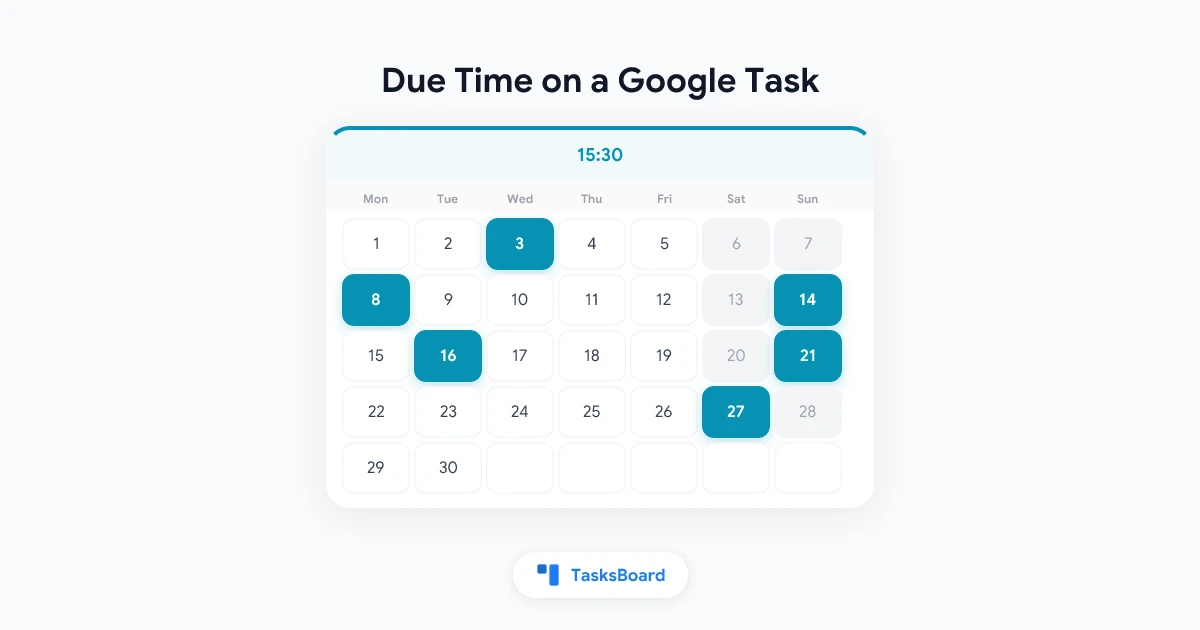
A task due “Thursday” and a task due “Thursday at 15:30” are different tasks. One can wait until the evening. The other is a call you have to be ready for. Google Tasks, as seen by every third-party app, cannot tell them apart.
That is not a bug in any one app. It comes from how Google’s Tasks API stores a due date. This guide explains the limit, shows how TasksBoard adds a due time on top of it, and covers what happens to that time everywhere else your tasks appear: the Google Tasks app, Gmail, Google Calendar and shared lists.
Due times are part of TasksBoard’s Premium “Repeat & remind” feature, together with repeating tasks and reminders. Paid plans start with a 7-day free trial.
Why Google Tasks has no due time for other apps
Google’s own Tasks app does let you pick a time when you set a date. So why do apps built on Google Tasks, including TasksBoard until now, show only the day?
Because the Google Tasks API, the interface every third-party app uses, keeps only the date. The documentation for the due field says it plainly: the due date only records date information, and the time portion of the timestamp is discarded when setting the due date. A time you enter in Google’s app is stored somewhere other apps cannot read, and a time another app sends is thrown away.
The same applies to Google’s repeat option. The API exposes neither the time nor the recurrence rule, and it cannot write them. That is why, for years, the practical advice for a time-specific task was to create a Google Calendar event instead. Our Google Tasks reminders guide still describes that approach.
How TasksBoard stores a due time
TasksBoard needs the time to survive a round trip through Google’s servers, show up on every device and travel with shared lists. The only field in the API that carries free text is the task’s notes (the “details” in Google’s apps). So TasksBoard writes the time as one short line at the top of the details:
⏰ 15:30The time is in 24-hour format, in your local time. TasksBoard hides this line in its own editor and shows the time next to the date instead. Labels, assignees and attachments have travelled this way for years, and the ⏰ line follows the same rule.
- ⏰ 15:30 — the due time, 24-hour, local time
- 🔁 weekly — the repeat rule, for example "weekly on Mon,Wed" or "every 2 weeks"
- 🔔 30 — the reminder, in minutes before the due time
TasksBoard hides these lines. Google's apps show them in the task's details. Leave them alone there and TasksBoard keeps reading them.
Because the line lives in the task itself, nothing is kept only on your computer. Open TasksBoard on another device, or share the list with a colleague, and the time is there.
How to set a due time in TasksBoard
- Open tasksboard.com and click a task’s title to open it.
- Click the due date chip. If the task has no date yet, click Add date (the calendar icon) under the details and pick a day first: Today, Tomorrow, Next week or any day in the calendar.
- Once the task has a date, a Time row appears under the quick picks. Click it and enter the time with your browser’s time picker.
- Click outside the task or press Esc to save.
The time shows next to the date on the card. To change it, open the picker again. To remove it, click the small X next to the time field; the date stays.
On a free account, clicking the Time field opens the Premium dialog instead of the picker.
You can also type the date in a task’s title, for example “Report by Friday”, and TasksBoard turns it into a due date. See dates in task titles in the help center.
Where the time shows up
Once set, the time is used in three places inside TasksBoard.
On the card. The due date chip shows the time after the day, “Today 15:30” or “Thu, Oct 22 15:30”, rather than the day alone.
In lists sorted by date. When a list is sorted by due date (three-dot menu at the top of the list, then Sort By), tasks are ordered by day and then by time. Tasks that have a date but no time come first on their day, so an all-day task sits above the 10:00 meeting prep. The help page Sort tasks in a list covers the other orders.
On the calendar. In the Calendar view, each card shows its time and timed tasks come first in their day. Dragging a task to another day on the calendar keeps its time; only the day changes.
What Google’s apps show
This is the part worth understanding before you rely on due times.
Google’s apps do not read the ⏰ line as a time. They store their own time in a field the API cannot see, and they treat TasksBoard’s line as ordinary text in the details. In practice:
- Google Tasks app and the side panel in Gmail or Calendar: the task shows its due day, and when you open it the first line of its details reads
⏰ 15:30. - Google Calendar’s grid: the task appears as an all-day item on its due day, as every API-dated task does. The time is visible in the details, not in the item’s position on the grid.
- Shared lists: the line travels with the task, so collaborators who use TasksBoard see the same time.
If you set a time in Google’s own app, TasksBoard cannot see it. The reverse is also true. For a task you manage from TasksBoard, set the time in TasksBoard.
Google also keeps due dates in two places, one for its own apps and one for the API, and has been known to leave them out of sync for tasks created from emails in Gmail. The help page on setting due dates explains that case; a date set in TasksBoard always sticks.
 Try TasksBoard
Add a time to any Google task, sort your lists by date and time, and get reminded before it is due. Premium, with a 7-day free trial.
Get Started →Reminders at a time
A due time is most useful when something happens at it. With a date and a time on the task, click the bell icon (“Remind me”) in the row of buttons under the details and pick when to be reminded:
- At the due time
- 30 minutes before
- 1 hour before
- 1 day before
A task with a date but no time is reminded relative to 9:00. Reminders arrive as a notification in TasksBoard when it is open, as a browser notification otherwise, and by email if you turn that on. The full details, including what happens when you complete the task in Google’s app, are in Task reminders for Google Tasks.
A simple rule for when to add a time
Not every task needs a time, and adding one to everything makes the date chips noisy. A rule that holds up:
- Add a time when the task is tied to a moment: a call, a submission deadline, something that must be ready before a meeting.
- Leave the day only when the task just needs to be done at some point that day. Those tasks sort to the top of their day anyway.
- Use a Google Calendar event, not a task, when you need to block the time itself or invite someone. Tasks are things to do; events are time you have committed. Our comparison of Google Tasks vs Google Calendar goes into that split.
FAQ
Conclusion
Google Tasks will keep storing the day only, as far as the API is concerned. TasksBoard works around it with a single ⏰ HH:MM line in the task’s details: visible as text in Google’s apps, read as a real time by TasksBoard, sorted and shown on the board and the calendar, and usable for reminders.
Set the time only where it earns its place, and pair it with a reminder when the moment matters. The help center page Set/Delete repeating tasks is the reference for times, repeats and reminders in one place.
Ready to share your Google Tasks?
Get started with TasksBoard for free, no credit card required.
Sign in