Google Tasks Templates: How to Create Reusable Task Lists

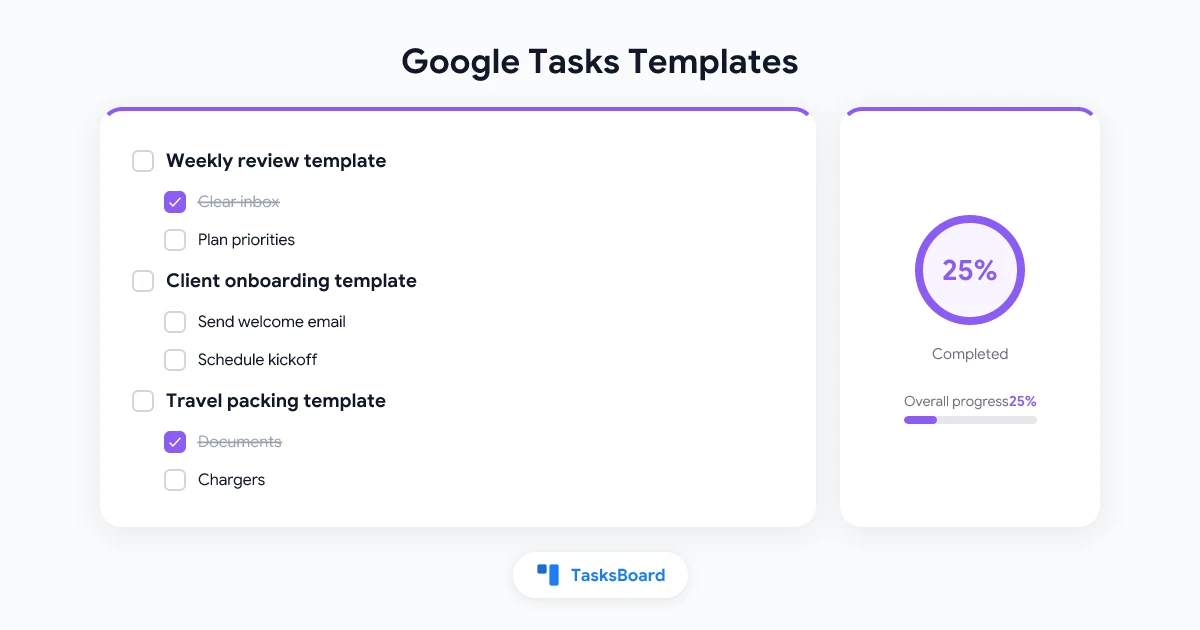
You finish a project, close the list, and two weeks later you are rebuilding the exact same set of tasks from scratch. A weekly review, a client onboarding checklist, a travel packing list. The tasks barely change, but you keep retyping them every time.
A task list template solves this by giving you a reusable starting point. Instead of rebuilding a list from memory, you create a copy from the template and start working.
The catch is that Google Tasks has no built-in “save as template” button. This guide covers the manual workaround inside Google’s own apps, and then how TasksBoard turns a Google Tasks list, or a whole board, into a real template that you can reuse in a click or have re-created every week or month.
Updated October 2026: this article originally described list duplication as the closest thing to a template. TasksBoard now has real templates, with a gallery, relative due dates and scheduled repeats. The sections from Save a list as a template onward are new.
Does Google Tasks Have Templates?
Not natively. Google Tasks lets you create lists, add tasks and subtasks, and set due dates, but there is no option to mark a list as a template or clone it. If you want to reuse a list’s structure in the Google Tasks app, the Gmail side panel or Calendar, you retype it.
That gap is why so many people search for a Google Tasks templates workaround. The underlying list format is simple enough that a few manual habits (or one extra tool) close the gap.
- In Google Tasks: a list you keep around, empty of dates and check marks, and copy from by hand whenever you start the same kind of work again.
- In TasksBoard: a saved object, separate from your lists, that creates new lists or boards on demand or on a schedule. It keeps subtasks, details, labels, priorities and relative due dates.
The Manual Workaround in Google Tasks
You can build a working template system with the native app. It takes more effort than a true template feature, but it holds up for personal use.
- Build the list once, fully. Add every recurring task and subtask exactly as you want it to appear each time, using the subtasks guide if your template needs nested steps.
- Name it clearly as a template. Something like “TEMPLATE - Weekly Review” keeps it separate from your active lists and easy to find.
- Leave dates and reminders blank. A template should not carry a due date. Add the date only after you copy the tasks into a working list.
- Recreate it by hand each time you need it. Open the template list, read through it, and add matching tasks to a new list. Google Tasks has no duplicate or copy function, so this step is retyping, not copying.
- Never check off tasks inside the template itself. Completed items are easy to lose track of, and you want the template to stay clean.
This method works, but step four is the weak point. Retyping a template list every week is exactly the busywork templates are supposed to remove.
Save a Google Tasks List as a Template in TasksBoard
TasksBoard shows your Google Tasks lists as columns on a board and adds a template system on top. Templates are a Premium feature. On the free plan you can browse the gallery and preview templates; creating lists from them needs Premium.
- Open the three dots menu (⋮) at the top of the list.
- Click “Save as template”.
- Give the template a name and, optionally, a description.
- Choose what goes in. “Include completed tasks” appears when the list has some; they are left out unless you check it, and every task starts open when the template is used. “Keep due dates relative to today” appears when some tasks have a date; see the next section.
- Check the preview and click “Save template”.
Subtasks, details, labels, attached files, priorities, due times, repeat rules and reminders are kept. Assignees are not: a template is about the work, not about who did it last time.
To save a whole board, open the board menu (⋮ next to the board title, or next to the board in the sidebar) and click “Save board as template”. Every list of the board, in order, becomes part of the template, colors included.
Templates are stored in your TasksBoard account, not in Google Tasks, so they are available on every device you use TasksBoard on and they never clutter your Google Tasks lists.
Relative due dates
Google Tasks stores a fixed due date. A template cannot do that, since “15 October” means nothing the second time you use it. TasksBoard stores dates as a number of days from the day you saved the template. A task due in 3 days when you save becomes due 3 days after the day you use the template.
When you create lists from a template you can turn this off (“Set due dates relative to today”), in which case the tasks are created without a due date. Uncheck “Keep due dates relative to today” when saving to drop the dates from the template altogether.
Create Lists from a Template
- At the end of the board, click the template icon next to ”+ Add new list” (“New list from template”), or open the board menu and click “Add lists from a template”.
- Pick a template under “My templates”, or a starter from the “Gallery”.
- Check the preview, then choose the board the lists are added to, an optional list name prefix (for example “Week 42 – ”), and whether to set due dates relative to today.
- Click “Create lists”.
The lists appear right away and sync to Google Tasks in the background, the same way an import does. Once synced they are ordinary Google Tasks lists, visible in the Google Tasks app and on mobile.
To start a whole board, click “New board from template” in the sidebar, pick a template, name the board and click “Create board”. Like multiple boards, this needs Premium.
The gallery
The gallery has eight starters. Four are single lists: Weekly planning, Home chores, Onboarding checklist and Trip packing. Four are whole boards: Sprint board, Content calendar, Client project and Event planning. Use them as they are, or create lists from one, adjust the tasks, and save your own version with “Save as template”.
 Try TasksBoard
Save any Google Tasks list or board as a template, create a fresh copy in a click, and have your weekly checklist show up on its own every Monday.
Get Started →Repeat a Template Every Week or Month
Some checklists come back on a schedule: Monday chores, the first-of-the-month invoicing run, a Friday wrap-up. Rather than creating the list each time, schedule the template.
- Click your profile picture, then “Account settings”, and find the “Templates” section.
- In the template’s menu (⋮), click “Repeat…”.
- Turn on “Repeat this template”, choose Week (and the weekday) or Month (and the day of the month, 1 to 28), and the board the lists go to. The dialog shows the date of the next list.
- Click “Save”.
The lists are created within the hour after midnight of the chosen day, in the time zone you set the schedule in, starting with the next occurrence. Due dates are counted from that day, so a task saved as “due in 2 days” lands on Wednesday for a Monday list.
TasksBoard creates the lists even when the app is closed. That needs offline access to your Google Tasks; if the dialog warns about it, sign out and sign back in, allowing TasksBoard to access your tasks. Gallery templates cannot be scheduled; save your own copy first.
Manage your templates
The “Templates” section of Account settings lists every template you saved, each with a “Use” button and a menu (⋮) to Rename (name and description), Duplicate, Repeat… or Delete it. Deleting a template does not touch the lists already created from it. “Browse” opens the gallery. The help center has the full reference on templates and recurring checklists.
5 Google Tasks Template Ideas Worth Building
A template only pays off when it covers something you repeat often. These five cover the most common cases:
- Weekly review. Check calendar for next week, clear inbox to zero, update project statuses, plan top 3 priorities. Schedule it weekly on Friday.
- Client onboarding. Send welcome email, schedule kickoff call, share intake form, set up shared folder, add to billing system. Save with relative dates: day 0, day 1, day 3.
- Travel packing list. Documents, chargers, toiletries, weather-specific items, work laptop and cables. No dates needed.
- New employee setup. Provision accounts, assign onboarding buddy, schedule first-week check-ins, share team documentation. Works well as a board template with one list per week.
- Content publishing checklist. Draft, edit, add images, SEO check, schedule, promote on social channels. Use a list name prefix like “Post: ” when you create it.
Each of these works well as subtasks under a parent task, which keeps the template compact. If you manage templates for a team, the team task list guide covers how to keep shared lists organized.
Template vs Recurring Task: What Is the Difference?
These two features solve related but different problems.
- A recurring task is a single task that repeats on a schedule, like “Water the plants” every Monday. Google Tasks supports this natively. See the recurring tasks guide for setup steps.
- A template is a full structure of several tasks and subtasks that you reuse on demand, such as a client onboarding checklist that is needed whenever a new client signs on.
- A repeating template sits between the two: a whole checklist that comes back weekly or monthly as a fresh list. Use it when the repeating thing is a set of steps, not one task.
If your repeating item is one task on a fixed cadence, use a recurring task. If it is a group of steps you kick off irregularly, build a template. If it is a group of steps on a fixed cadence, schedule the template.
FAQ
Conclusion
Google Tasks does not give you a template button, so inside Google’s apps a template is a master list you keep clean and retype from. TasksBoard replaces the retyping: save a list or a board once, create a fresh copy with relative due dates whenever you need it, and schedule the checklists that come back every week or month.
Get started with TasksBoard and turn your most-used Google Tasks lists into templates you can reuse in a click.
Ready to share your Google Tasks?
Get started with TasksBoard for free, no credit card required.
Sign in