
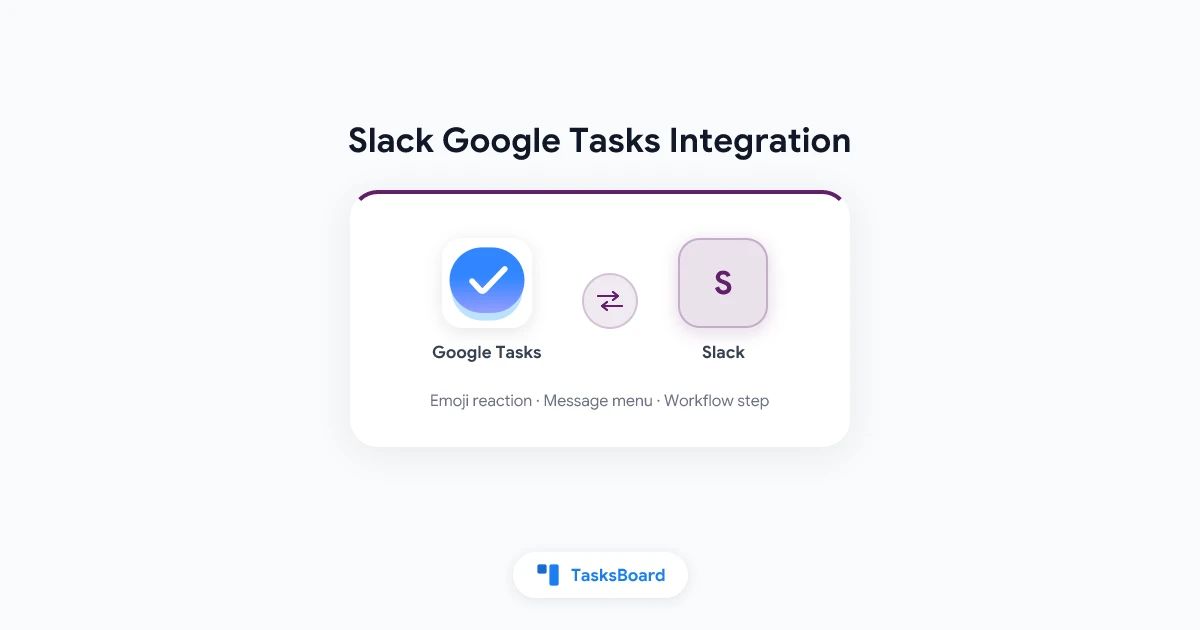
There is no official Slack Google Tasks integration: neither Slack nor Google ships an app that links the two. A message can still become a Google task in one click through one of four routes, and the simplest one fits in Zapier’s Free plan.
This guide covers each route, what actually crosses from a message to a task, the reverse direction, and the cases where Slack’s own to-dos are enough.
Quick answer:
- No native app. Slack’s Google Workspace collection features apps for Google Calendar, Gmail and Google Drive, and none for Google Tasks.
- Fastest setup: a two-step Zap that creates a task when you add a chosen emoji to a message.
- No outside tool: on a paid Slack plan, Workflow Builder has a Google Tasks connector with an Insert a task step.
- Several tasks from one thread: paste the thread into Turn text into tasks in TasksBoard.
- Every route creates a normal Google task, so it shows in the Gmail side panel, the Google Tasks app and on a TasksBoard board.
Does Slack Have a Google Tasks App?
No. What exists instead falls into three groups, which differ in who built them and what they cost.
- A Slack building block. Slack’s list of Workflow Builder connectors names Google Tasks next to Google Calendar, Google Docs, Google Mail, Google Meet and Google Sheets. A connector is a step you add to a workflow, not an app that runs by itself.
- Automation platforms. Zapier’s Google Tasks and Slack page lists 13 Slack triggers and a Create Task action for Google Tasks, with ready-made templates in both directions.
- A third-party app. TaskHub, published by Bryllyant in the Slack Marketplace, describes itself as a way to “create Google Tasks with a simple slash command (/taskhub)”. Its listing shows no pricing, so review its permissions and cost before you install it.
The table compares the routes covered below.
What Crosses from a Slack Message to a Google Task
A Google task is a small record, and that decides what survives the trip. Zapier’s Create Task action has four fields: Task List and Title are required, Notes and Due are optional.
Google’s Tasks API reference sets the limits behind those fields.
| Part of the Slack message | Where it lands | What to know |
|---|---|---|
| Message text | Title | A title holds up to 1,024 characters |
| Your comment, a link to the message | Notes | Notes hold up to 8,192 characters |
| A deadline | Due | ”Only date information is recorded”, so a time of day is dropped |
| Files, reactions, thread replies | Nowhere | The action has no field for them |
| The person who should do it | Nowhere | The task goes to the Google account connected to the Zap or workflow |
Long messages are the usual surprise. Keep the title short and send the full text to Notes, which holds eight times more characters.
 Three decisions before you build
Route 1: A Zapier Reaction or the Message Menu
This route needs no paid plan on either side. A Zap with one Slack trigger and one Google Tasks action has two steps, and Zapier’s pricing page lists two-step Zaps and 100 tasks a month on the Free plan.
Zapier labels both triggers used here as Instant, with the note “This event starts a Zap instantly.”
- Create the destination list. In Google Tasks, add a list such as “From Slack”.
- Start a Zap with a Slack trigger. Pick New Reaction Added in a Channel, which fires “when a reaction (reactji) is added to a message in a public/private channel”, and fill its Channel ID and Reaction fields. Pick New Pushed Message instead to start from the message menu.
- Add the Google Tasks action Create Task. Choose the task list, map the message text to Title, and send anything else to Notes.
- Test, then turn the Zap on. Add your emoji to a message and check that the task appears in the list.
For the menu version, Zapier’s announcement of the feature gives the gesture: “hover over the message, click the ••• icon, and click Push to Zapier”, then select the Zap to run. Zapier then sends a message back in Slack confirming that the Zap was triggered.
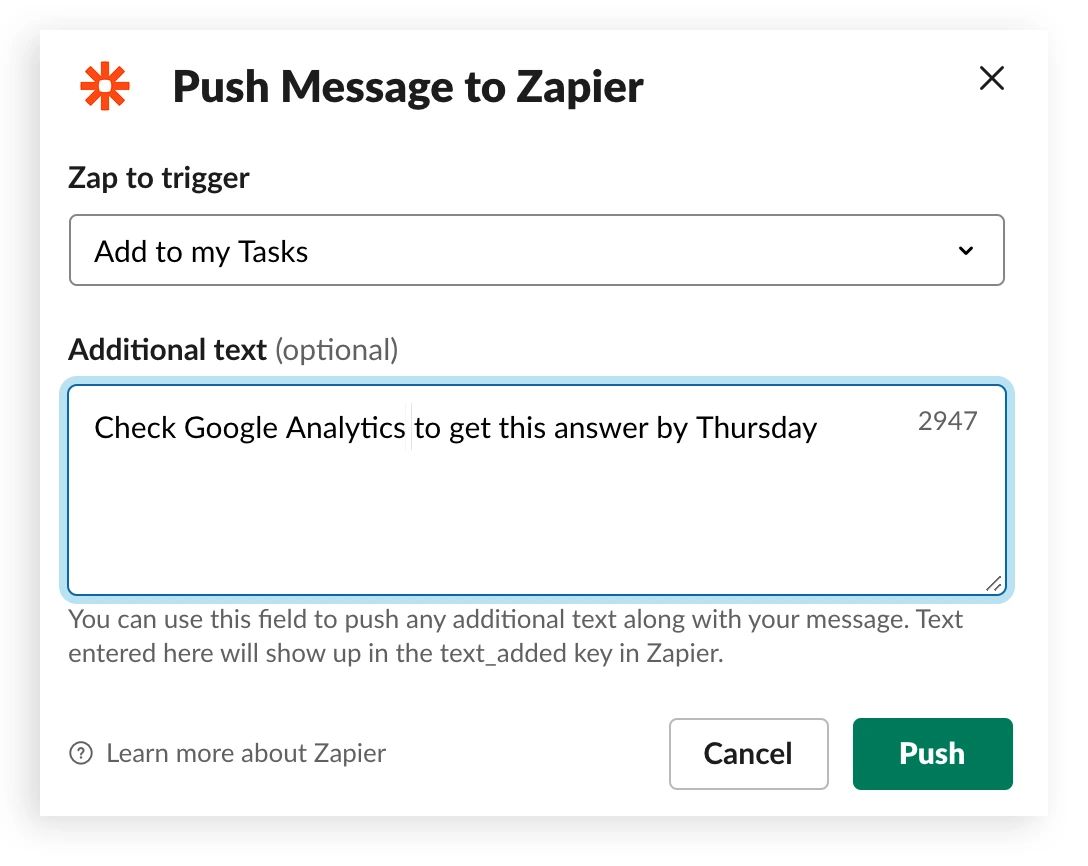
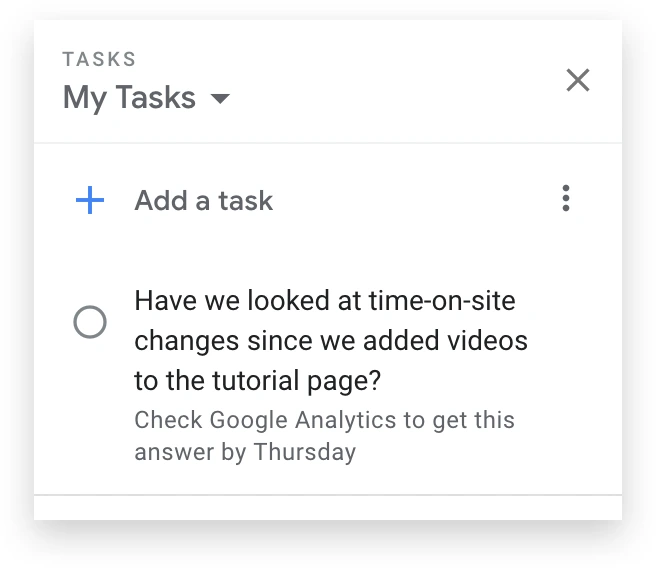
A Slack blog post from 2019 shows the result of the same Zap: the task appears “in your Gmail window under your Tasks tab”, with the original message text and any note you left.
Add a link back to the message
Test the trigger and check its sample data for a link to the message. If there is none, Zapier’s Get Message Permalink search adds a third step, and the pricing page lists multi-step Zaps from the Professional plan.
Be careful with the saved message trigger
Zapier also lists a New Saved Message trigger and a template built on it. Test it before you depend on it: Slack’s developer changelog says its saved items method “will not accurately reflect items the user would find in their Later tab”, and that the newer save feature has no direct API.
Route 2: Slack’s Own Workflow Builder Step
Slack can create the task itself, with no outside service. Slack’s guide to creating a workflow marks Workflow Builder as “Available on paid plans”, open to all full members by default.
The connector’s main step is documented in Slack’s developer reference: Insert a task takes a title, notes, the task list and an optional due date. A second step, Create a task list, makes a new list.
- Open Workflow Builder. Click Agents & tools in the sidebar (Tools in some workspaces), click New under Workflows, then select Build Workflow.
- Choose From a link as the starting event. The reference states that workflows relying on each user’s own sign-in “can only be started with a link trigger”.
- Add a form step that asks for the task title and any notes.
- Add the Google Tasks step Insert a task. Fill its fields with the form answers through insert a variable.
- Click Finish Up, then Publish. Share the workflow link in the channel where requests arrive.
Slack’s page on authenticating connector steps describes the setting “Whose account should be used for this step”. Pick “The person using the workflow” and each teammate’s task lands in their own Google Tasks, after a one-time prompt to link their Google account.
Two caveats before you roll this out:
- Approval. The reference warns: “Your admin may need to approve the connector first.”
- No message context. A workflow started from a link does not read a message, so the title is whatever the person types in the form.
Route 3: Paste the Thread into TasksBoard
One message, one task works until a thread holds five action items for three people. For that case, TasksBoard has Turn text into tasks, the feature behind our guide on how to turn an email or meeting notes into Google Tasks with AI.
- Copy the thread in Slack.
- Open the dialog in TasksBoard. Click Create at the top of the sidebar (or press Q), then the Extract tasks from text button.
- Paste and click Turn into tasks. The help center page says the box also accepts up to 4 images, so a screenshot of the thread works too.
- Review the proposed tasks. Each one shows its title and any date, priority, notes and subtasks found, and you untick what you do not want.
- Pick the list under Add to and click Add tasks.
Nothing reaches Google Tasks until that last click. The feature is part of the Pro and Team plans, with a limit of 50 AI requests per account per day.
Where every captured task ends up
Whichever route created it, the task sits in a Google Tasks list, and TasksBoard shows each list as a column on a board. The From Slack list becomes an inbox column: drag a card to the list where it belongs, or share the list so teammates see it too.
Sharing also reaches people outside your Slack workspace, since a collaborator joins with a Google account. The free Personal plan includes the board and up to 5 shared lists, per the plans page, and our guide to the Google Tasks kanban board explains how the board works.
 Try TasksBoard
Give the tasks you capture from Slack a real home: your Google Tasks lists as a kanban board, shared with the people who do the work. Free to start, and nothing leaves Google Tasks.
Get Started →The Reverse Direction: Google Tasks to Slack
Zapier’s page also lists templates that post in Slack, such as “Send Slack channel messages when tasks in Google Tasks are completed”. Two limits apply.
- It polls. Zapier labels the Google Tasks triggers Polling, and its help page on triggers gives the interval: 15 minutes on Free, 2 on Professional, 1 on Team and Enterprise. The task methods in Google’s API reference include no push or watch method, which is why connectors check on a timer.
- One list per Zap. New Task and New Completed Task have a required Task List field, so each Zap watches a single list.
The TasksBoard Team plan adds webhooks: when a task on a shared list is created, updated, completed or deleted, TasksBoard calls an https URL you registered. That URL cannot be a Slack incoming webhook directly, because Slack’s incoming webhooks expect a JSON payload with the message text and answer no_text without it.
TasksBoard sends the task in its own structure, so a small relay that reshapes the body sits in between. Our guide to the Google Tasks API and webhooks covers the events and the signature check.
Slack To-Do List Options vs Google Tasks: When to Skip the Integration
Sometimes the right integration is none. Slack has two task features of its own, and they cover different ground than Google Tasks.
- To-dos. Slack’s page on To-dos says the tab replaces Later from October 2026, on all plans. Hover over a message and click Add to-do, and keep in mind Slack’s note: “Creating a to-do doesn’t set a reminder by default.”
- Lists. Slack’s guide to lists describes a shared tracker on paid plans, with Completion, Name, Assignee and Due Date fields, subtasks, and table or board layouts. Any message can join a list through Add to list in its three dots menu.
Stay in Slack when the follow-up is yours alone, or when the whole team works in Slack on a paid plan. Send the message to Google Tasks when the task belongs with the rest of your Google Tasks, or when the people doing the work are not in your workspace.
FAQ
Conclusion
The right Slack Google Tasks integration depends on where the task starts:
- One message at a time: a Zapier reaction or the message menu, on the Free plan.
- A team on a paid Slack plan: the Insert a task step in Workflow Builder.
- A long thread with several action items: paste it into Turn text into tasks.
In every case the result is a plain Google task, and a list of captured messages still needs a place to be sorted, shared and finished. That is what TasksBoard adds: your Google Tasks lists as a board, free to start, with the From Slack column waiting next to the rest of your work.