Turn an Email or Meeting Notes into Google Tasks with AI

A client sends a long email with four requests buried in the third paragraph. You leave a meeting with a page of notes and six action items spread across them. Getting that into Google Tasks means reading the text again, picking out each item, typing it, then opening each task to add a date.
Most of the time the tasks never make it in. The email stays starred in Gmail and the notes stay in a document, and you rely on memory.
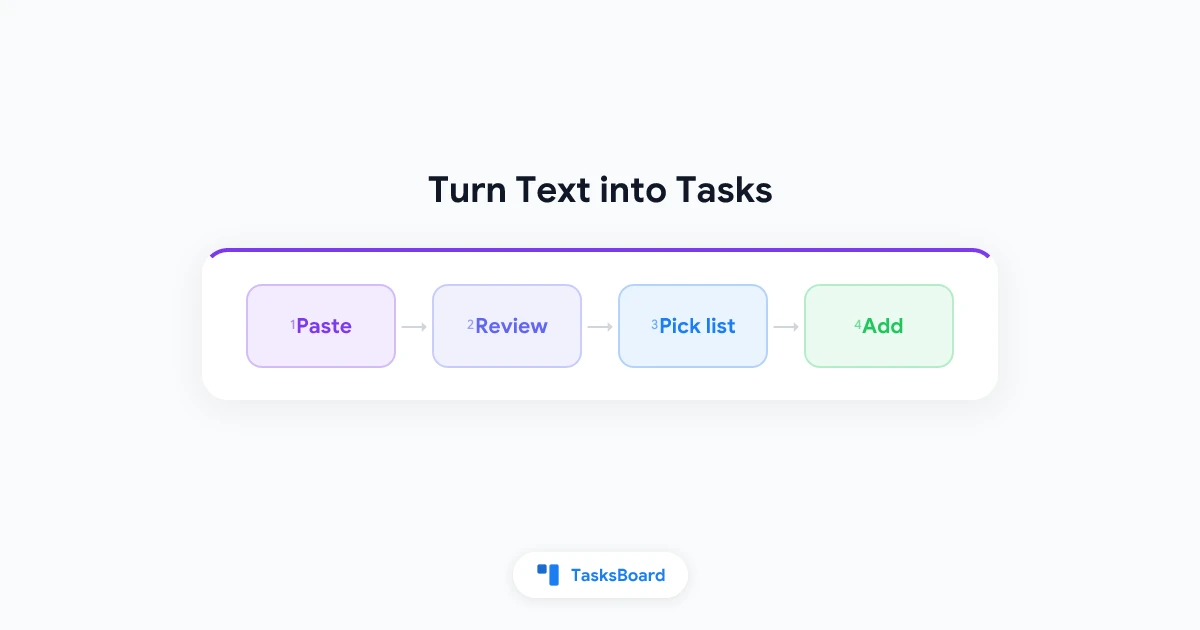
TasksBoard now has a feature called “Turn text into tasks” that does the extraction for you. You paste the text (or say it out loud), it proposes a set of tasks with dates, times, priorities, labels and subtasks, you review them, and they are created in the Google Tasks list you choose. This guide covers how to use it, what to check before you add the tasks, and where the limits are.
What “Turn text into tasks” does
The feature reads a block of text and returns the actionable items it finds. For each item it proposes:
- A short task title
- A due date, when the text mentions one (“by Friday”, “next Tuesday”, “end of month”)
- A due time, when one is stated (“at 3pm”)
- A priority (P1, P2 or P3), when the wording signals urgency
- Labels, but only labels you already have in TasksBoard
- Notes with the context the title cannot hold
- Subtasks, when an item clearly breaks down into steps
Dates are resolved from today, so “by Friday” in an email you paste on a Wednesday becomes the coming Friday. If the text explicitly asks for a number of tasks (“give me three tasks to prepare the launch”), you get that many.
The tasks it creates are ordinary Google Tasks. They sync to the Google Tasks app, the Gmail side panel and Google Calendar like anything else you add in TasksBoard. Priorities and due times are stored as lines in the task’s details, which we cover below.
- List menu: the three dots (⋮) at the top of any list, then "Turn text into tasks"
- Create button: click "Create" at the top of the sidebar (or press Q), then the "Extract tasks from text" button
- Paste into "Add a task": paste several lines of prose into the add-task row of a list and the dialog opens with the text already in place
How to turn an email into Google Tasks
- In Gmail, select the body of the email and copy it. You do not need to clean it up or remove the signature.
- Open TasksBoard and click the three dots menu (⋮) on the list where the tasks belong. Choose “Turn text into tasks”.
- Paste the text into the box and click “Turn into tasks” (or press Ctrl/Cmd+Enter).
- Wait a few seconds. The proposed tasks appear as a list, each with a checkbox, its title, and any date, time, priority, labels, notes and subtasks that were found.
- Review the list (see the next section). Untick anything you do not want, edit a title by clicking it, or click the ✕ on a task to drop it.
- Check the list under “Add to”. It defaults to the list you started from, but you can pick any list on the board.
- Click “Add tasks (N)”. The tasks are created and appear in the list right away.
If the result is off because the text was incomplete, click “Edit text” to go back to the box, adjust the text and run it again.
The same steps work for meeting notes, a Slack or Google Chat thread, a project brief, or a message someone forwarded to you. The dialog does not care about the format.
Pasting straight into the add-task row
There is a shortcut for the list menu. Paste several lines of text into the “Add a task” row at the bottom of a list. If the paste reads like prose (an email, notes) rather than a list of short titles, TasksBoard opens the “Turn text into tasks” dialog with the text already in place.
A plain list of short lines still behaves the way it always has: one task per line, no AI involved. If the dialog opens and you wanted the line-by-line behavior anyway, click “Add one task per line instead” at the bottom of the dialog.
Capture tasks with your voice
The same dialog has a microphone button labeled “Record”. Click it and say what you have to do, as you would say it to a colleague:
“Call the dentist tomorrow morning, send the invoice to Paul by Friday, and book the meeting room for the Thursday review.”
Click “Stop” when you are done. The recording is transcribed, the text lands in the box, and it is turned into tasks straight away. A recording stops by itself after one minute.
The button only appears in browsers that can record audio, and your browser will ask for permission to use the microphone the first time. Transcribing a recording does not count toward the daily request limit; the extraction that follows does.
This is useful on a laptop between meetings, when typing out five items feels like more work than saying them.
Review before you add
The AI can miss an item, merge two into one, or read a date wrong. The review step exists so that nothing reaches your Google Tasks until you have looked at it. A few things to check:
Titles. They should be short actions, not sentences copied from the email. Click a title to rewrite it.
Dates. Relative phrases are resolved from today. If the email was written last week and says “by Friday”, the proposed date may be a week late. Fix it in the editor after adding, or edit the text first.
Priorities. The AI marks something P1 when the text says things like “urgent” or “ASAP”. Unticking a priority is not possible in the review list, but you can remove it from the task editor afterwards with the flag button or Cmd/Ctrl+0. See the priority guide for how the flags work.
Labels. TasksBoard sends the names of your existing labels along with the text, so a task is only ever labeled with a label you already have. If you have a “Client” label and the email is from a client, expect to see it applied.
Subtasks. When an item breaks down into steps, they come as subtasks under the parent. They are created as real subtasks in Google Tasks.
Nothing is written to Google Tasks until you click “Add tasks”. If the result is wrong, close the dialog and nothing has changed.
 Try TasksBoard
TasksBoard shows your Google Tasks lists side by side on a board. Paste an email, review the tasks it contains, and add them to the right list without retyping anything.
Get Started →How the extras are stored in Google Tasks
Google Tasks stores a title, details (notes), a due date and a completion state. It has no field for a due time, a priority or a label. TasksBoard writes these as their own lines at the top of the task’s details:
⏰ 15:00for the due time⚑ P1for the priority- Labels on the first line of the notes
In the Google Tasks app or the Gmail side panel these lines show as plain text in the details. That is expected. Leave them alone and TasksBoard keeps reading them; delete the ⚑ P1 line in another app and the priority disappears in TasksBoard too.
This is the same approach TasksBoard uses for labels, so if you already use labels you have seen it work.
Limits and privacy
“Turn text into tasks” and voice capture are one Premium feature. The free plan does not include them. Typing dates and priorities directly into a task title, covered in the natural-language dates guide, works on every plan for the date part.
The limit is 50 AI requests per account per day. One paste that produces ten tasks is one request. Transcribing a voice recording does not count. The limit resets at midnight UTC, and when you reach it the dialog says “You have reached today’s AI limit. Try again tomorrow.”
On privacy: the text you paste, or the audio you record, is sent to the AI provider only to produce the tasks. Nothing is written to your Google Tasks until you click “Add tasks”. If an email contains something you would rather not send, trim it before you paste. The full description is on the help center page for Turn text into tasks.
When to use it, and when not to
The feature earns its place when the source text is messy: a long email, meeting notes, a forwarded thread. It also fits voice capture, where you would otherwise type five things one by one.
It is unnecessary when you already have a tidy list of short lines. Paste those into the add-task row and you get one task per line with no AI, no request counted and no review step. And for a single task with a date, typing “Call Anna tomorrow 3pm” in the title is faster than any dialog.
Frequently asked questions
Conclusion
Action items get lost between the inbox and the task list because moving them is tedious. “Turn text into tasks” removes the retyping: paste the email or notes, check the proposed tasks, pick a list, add. The tasks land in Google Tasks with dates, subtasks and, where it matters, a priority.
Keep the review step honest. Read the dates, trim the titles, and drop what you do not need. Then try it on the next long email you would otherwise have left starred. Details and current limits are on the help center page.
Ready to share your Google Tasks?
Get started with TasksBoard for free, no credit card required.
Sign in