Google Tasks Natural Language Dates: Type 'Tomorrow 3pm' in the Title

Adding a task with a due date in Google Tasks takes several clicks: type the title, open the task, click the date field, find the day in the calendar, close it. If the task also needs a time, that is one more field. Do this ten times a day and the clicks add up.
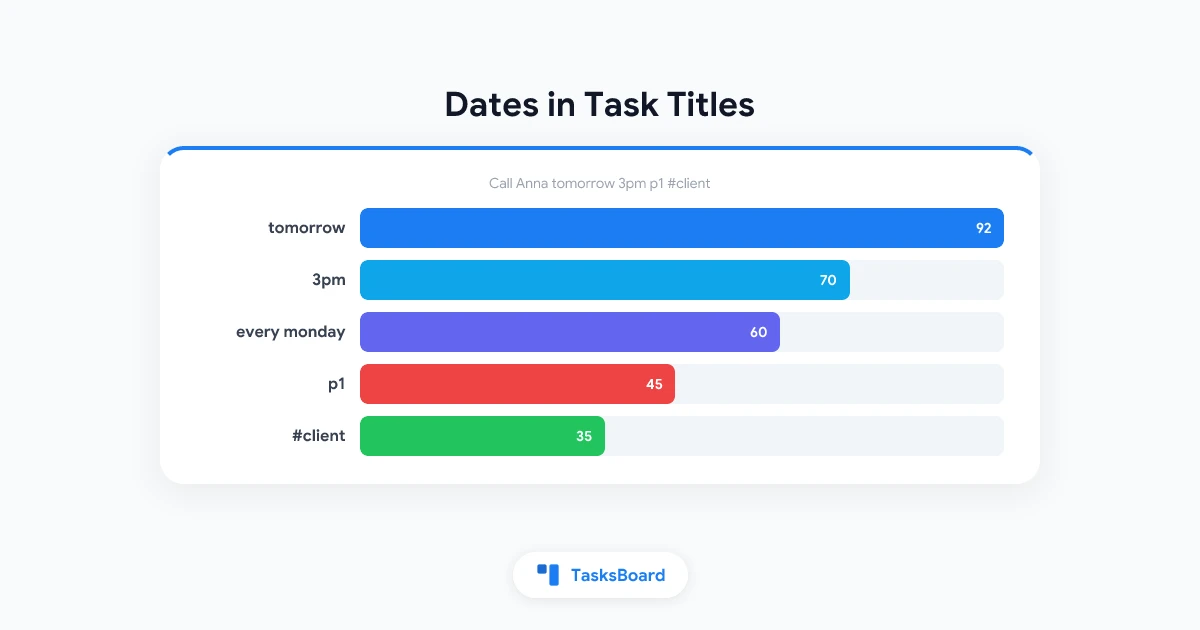
Apps like Todoist let you type “tomorrow 3pm” after the title and work out the rest. Google Tasks does not read your title that way. TasksBoard does. Type Call Anna tomorrow 3pm p1 #client into any task title and TasksBoard sets the due date, the time, the priority and the label, then trims the title to “Call Anna”.
This guide lists the full syntax, shows how the preview works, explains the setting that turns it off, and describes what actually gets written to the Google Task.
How quick add works
Natural-language parsing runs as you type in a task’s title, in the add-task row at the bottom of a list and in the task editor. It runs in your browser; nothing is sent to a server for this part.
When TasksBoard recognizes something, a preview appears under the title showing what it found and the cleaned-up title. If you keep typing, the preview updates. When you press Enter or save, the recognized parts are applied and the title loses the phrases that described them.
The date part works on every plan. Due times, repeats and priorities are Premium features (they belong to “Repeat & remind” and “Priorities”), and #labels need labels, which are also Premium. Those parts of a title only take effect with Premium; on the free plan, a #tag is simply left in the title.
- Dates: tomorrow, friday, by Friday, next week, on 3 November, 2027-01-15
- Times: 3pm, at 1pm, 9:30, 8am (a time alone also sets today or tomorrow)
- Repeats: every monday, every 2 weeks, every month on the 1st, every weekday, daily, weekly, monthly
- Priority: p1, p2, p3, or !!!, !!, !
- Labels: #client, #hot, any label you already have
Dates
Type the date the way you would say it. These all work:
Report by Fridaysets the due date to the coming Friday and keeps “Report” as the titleStandup wednesdaysets the next WednesdayDentist on 3 November 9:30sets 3 November with a 9:30 timeTaxes 2027-01-15accepts an ISO date as well
Weekdays resolve forward. If today is Wednesday, “wednesday” means today and “tuesday” means next Tuesday. “Tomorrow”, “next week” and similar relative phrases count from the current day.
Numbers alone are left in place. Buy 3 apples stays as typed, with no date. And a title that is only a date phrase, like tomorrow, keeps the word as its title while still getting the date, so you do not end up with an empty task.
One rule to remember: a date set by a phrase never overrides a date you picked with the calendar. If you set a date by hand and then type “friday” in the title, the hand-picked date wins.
Dates are understood in English and in most of the languages the app runs in, including German, French, Spanish, Portuguese, Italian, Dutch, Russian, Japanese and Chinese. Other languages fall back to English phrases.
Times
A time after the date sets a due time: Call Anna tomorrow 3pm becomes “Call Anna”, due tomorrow at 15:00. Both 12-hour (3pm, 8am) and 24-hour (9:30, 15:00) forms work.
A time with no date also sets a date. Lunch at 1pm typed in the morning is due today at 13:00. Breakfast 8am typed in the afternoon is due tomorrow at 08:00, since 8am today has passed.
Google Tasks has a due date but no due time field, so the time is stored as a line in the task’s details (see below). Due times are part of Premium.
Repeats
Recurrence phrases are recognized when they start with “every” or “each”, or when they are one of daily, weekly, monthly, yearly:
Team sync every monday 10amrepeats every Monday, at 10:00Pay rent every month on the 1strepeats monthly on the firstWater plants every 2 daysGym every weekdayBackup weekly
A repeat phrase on its own does not set a due date; the repeat rule decides when the task comes back. Repeats are part of the Premium “Repeat & remind” feature. For how repeating tasks behave in TasksBoard and in Google’s apps, see the recurring tasks guide.
Priorities
Google Tasks has no priority field. TasksBoard adds one with three levels, and the quick add syntax sets it:
p1or!!!for P1 (urgent)p2or!!for P2 (high)p3or!for P3 (medium)
The marker must stand on its own, surrounded by spaces or at an end of the title. Fix login p1 becomes “Fix login” with P1. Finish the p1 report also works, because “p1” is a separate word. Upgrade mp3 player is left alone, and Call Anna! keeps its exclamation mark because the ”!” is attached to a word.
Setting a priority is Premium. The priority guide covers the flag colors, the keyboard shortcuts and sorting by priority.
Labels
A #tag becomes a label only when it matches a label you already have. The match ignores case and any leading emoji, so #hot applies a label named “🔥Hot”. #random with no such label stays in the title as text.
This is deliberate. It stops typos from creating a new label every time, and it means a hash sign in a normal title (“Review issue #42”) does nothing unexpected.
 Try TasksBoard
TasksBoard puts your Google Tasks lists on one board. Type a task with its date, time and priority in one line and move on. Everything syncs back to Google Tasks.
Get Started →The preview under the title
While you type, a small preview appears under the title. It shows the cleaned-up title and the pieces that were recognized: the date, the time, the repeat rule, the priority, the labels.
Two things to know about it:
- It is a preview, not a commitment. Nothing is applied until you press Enter or the task saves.
- It has an × button. Click it to keep the title exactly as typed, with no parsing for that task. Use this when a task really is called “Review Friday agenda” and you do not want Friday turned into a date.
If you find yourself clicking × often, turn the feature off instead (next section).
Turning it off: the “Dates in task titles” setting
Some people never want their titles rewritten. To switch quick add off:
- Click your profile picture in the top right corner of TasksBoard.
- Choose “Account settings”.
- Under “Typing”, switch off “Dates in task titles”.
With the setting off, titles are saved exactly as typed and no preview appears. Turn it back on from the same place. The setting belongs to your account, so it follows you across devices. The account settings page of the help center lists the other options in that screen.
What gets written to the Google Task
This part matters if you also use the Google Tasks app, the Gmail side panel or Google Calendar. Google Tasks stores a title, details, a due date and a completion state. Everything else has to live somewhere Google can carry it.
Here is what Pay rent every month on the 1st 9am p2 #finance turns into:
| Part | Where it goes |
|---|---|
| Title “Pay rent” | The task title |
| Due date | The task’s due date field, which Google Calendar shows |
| Time 09:00 | A ⏰ 09:00 line at the top of the details |
| Repeat | A 🔁 every month on the 1st line in the details |
| Priority P2 | A ⚑ P2 line in the details |
| Label | The label name on the first line of the details |
In Google’s own apps these lines show as plain text in the task’s details. That is expected; Google has no fields for them. TasksBoard reads the lines back on every device. If you delete the ⚑ P2 line in the Google Tasks app, the priority is gone in TasksBoard too, so leave the lines alone unless you mean to remove the setting.
The due date is the one part that Google handles natively, which is why the free plan gets it and why those tasks show up on your Calendar at the right day.
Practical patterns
A few ways people use quick add once they are used to it:
- Daily planning in one pass. Type the day’s tasks one after another:
Draft proposal 10am,Call supplier 2pm,Gym 6pm. Each one lands with a time and sorts into place. - Triage from a meeting. As action items come up, type
Send deck to Maria friday p2. The date and priority go in without opening anything. - Recurring admin.
Invoice clients every month on the 1st,Backup weekly. Set once, forget. - Fast labeling. Give a few labels short names (#hot, #wait, #home) and tag tasks as you type them.
If a source text is longer than one line, for example an email with several requests, the “Turn text into tasks” feature is the better fit. It is covered in how to turn an email into Google Tasks. Quick add is for one task at a time.
Frequently asked questions
Conclusion
Typing Call Anna tomorrow 3pm p1 #client and pressing Enter is faster than any sequence of clicks, and the result is an ordinary Google Task with the right due date. Dates work for everyone; times, repeats, priorities and labels come with Premium.
Watch the preview the first few times so you learn what gets recognized, use the × when a word should stay a word, and switch the feature off in Account settings if it is not for you. The complete syntax table is on the help center under dates, priorities and labels in a task title.
Ready to share your Google Tasks?
Get started with TasksBoard for free, no credit card required.
Sign in