Task Reminders for Google Tasks: Push and Email Before a Task Is Due

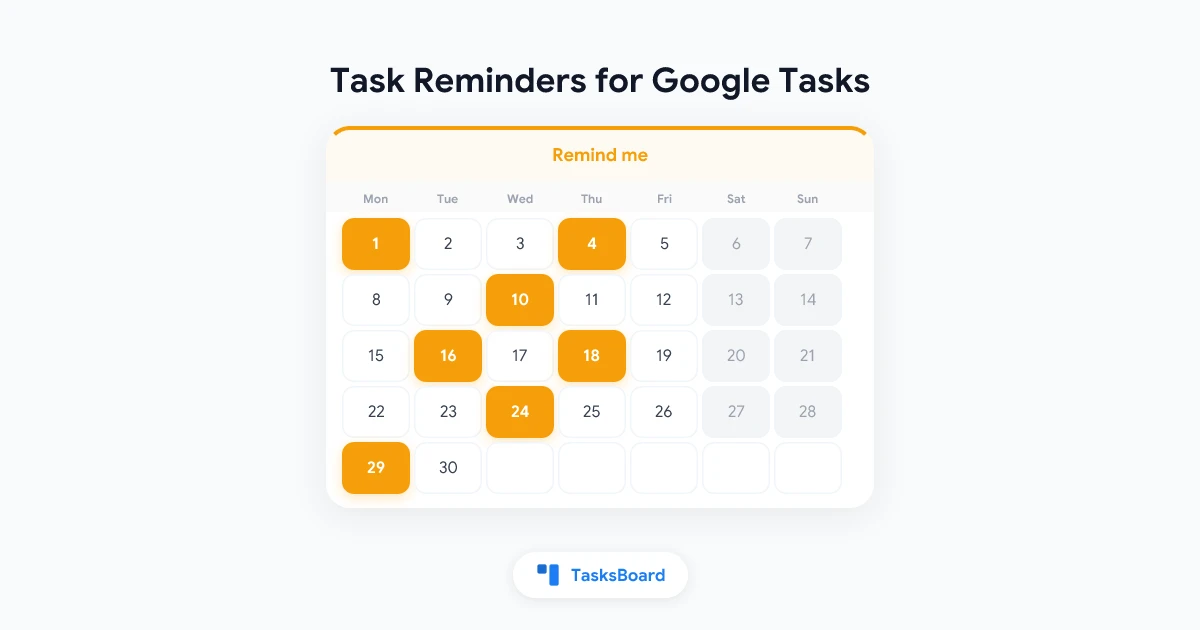
A due date is a record. A reminder is an interruption, at the right moment, that makes you act on the record. Google Tasks is good at the first and, for anyone using it through a third-party app, silent on the second.
Google’s own apps can notify you about a task, but that depends on a time Google’s Tasks API does not expose, and on notification settings spread across Google Calendar and your phone. Apps built on the API, including TasksBoard, had no way to know when you wanted to be nudged.
TasksBoard now has task reminders of its own. This guide covers the four reminder options, how they reach you as a browser notification or an email, the “Task reminders by email” setting, and what happens when you complete the task somewhere else before the reminder fires.
Reminders are part of TasksBoard Premium’s “Repeat & remind” feature, with due times and repeating tasks. Every paid plan starts with a 7-day free trial.
How to set a reminder on a task
A reminder needs a due date. Give the task one first; the time is optional.
- Open tasksboard.com and click the task’s title to open it.
- If it has no date, click Add date under the details and pick a day. Add a Time too if the task is tied to a moment (see how to set a due time).
- Click the bell icon (“Remind me”) in the row of buttons under the details.
- Pick one of the options: At the due time, 30 minutes before, 1 hour before or 1 day before.
- Click outside the task or press Esc to save.
Without a due date, the four choices are greyed out and the picker says so. On a task with a date but no time, the picker notes that the reminder is relative to 9:00: “1 hour before” on a task due Friday means Friday at 8:00, and “At the due time” means Friday at 9:00.
To remove a reminder, open the picker again and choose No reminder at the top.
- At the due time: when the task is due; 9:00 if it has no time
- 30 minutes before: enough to open the file and get ready
- 1 hour before: for tasks that take real preparation
- 1 day before: for deadlines, so the nudge lands while you can still act
One reminder per task. Reminders fire within about five minutes of the chosen moment.
How the reminder is stored
Like the due time, the reminder travels inside the task. TasksBoard writes it as a short line at the top of the task’s details, for example 🔔 30 for “30 minutes before” or 🔔 0 for “At the due time”. TasksBoard hides the line and shows a bell on the task instead. Google’s apps show the line as text in the details; leave it in place and TasksBoard keeps reading it.
Storing it there means the reminder is attached to the task, not to your browser. Set it at work, and the reminder still exists when you open TasksBoard at home. It also means the task’s notes carry one extra line in the Google Tasks app, which is the trade-off for a reminder that syncs.
How reminders reach you
A reminder can arrive in up to three ways.
In TasksBoard, when it is open
If TasksBoard is open in a tab when the reminder is due, you get a notification inside the app.
As a browser notification
When TasksBoard is not open, the reminder arrives as a browser notification on the device where you allowed them. This is the same channel TasksBoard uses to notify you when a collaborator adds a task to a shared list.
To allow them:
- Click the bell icon next to the gear at the top right of TasksBoard.
- Allow notifications when your browser asks.
If you blocked notifications for tasksboard.com earlier, the browser will not ask again; allow them from your browser’s site settings and click the bell once more. The help page Set up notifications for shared lists has the steps per browser. On a laptop, note that a closed lid or a browser that is not running means no push.
By email
Push depends on a browser being awake. Email does not. To also get each reminder in your inbox:
- Click your profile picture at the top right and choose Account settings.
- Under Notifications, turn on Task reminders by email.
The email has the subject “Reminder: ” followed by the task title, shows the due date and time, and has an Open in TasksBoard button that takes you to the right list. The setting is off by default and applies to every reminder you set. The Account settings page in the help center describes the other email options next to it.
 Try TasksBoard
Get a browser notification or an email before a Google task is due, on top of the lists you already use. Premium, with a 7-day free trial.
Get Started →When the task changes before the reminder fires
Reminders are only useful if they stop when the task no longer needs doing. Here is what happens in each case.
You complete or delete the task in TasksBoard. The reminder is cancelled on the spot. Nothing is sent.
You move the due date or time. The reminder moves with it. “1 hour before” stays one hour before the new moment; you do not have to set it again.
You complete the task in the Google Tasks app, Gmail or Google Calendar. Google’s apps know nothing about the reminder, so they cannot cancel it. TasksBoard handles this at send time: just before a reminder goes out, the task is read back from Google, and if it is completed, deleted or cleared, the reminder is dropped. The next time you open TasksBoard, reminders of tasks closed elsewhere are cleaned up as well.
The task repeats. When you complete a repeating task in TasksBoard, the next occurrence is created with the same 🔔 line, and its reminder is scheduled for the new date. If you completed it in a Google app instead, TasksBoard creates the next occurrence within about 15 minutes, and its reminder is scheduled the next time you open that task in TasksBoard. See the recurring tasks guide for how repeats work.
Your Premium plan ends. Reminders are a Premium feature, so they stop being sent. The 🔔 lines stay in your tasks and pick up again if you resubscribe.
Reminders in TasksBoard vs notifications from Google
The two systems do not overlap much, and you can use both.
| Google Tasks and Calendar | TasksBoard reminders | |
|---|---|---|
| Set from | Google Tasks app, Calendar side panel | TasksBoard task editor |
| Timing | Google’s own time on the task, or Calendar’s all-day event alerts | At the due time, 30 min, 1 h or 1 day before |
| Delivered as | Google Calendar or Tasks app notifications | In-app notice, browser push, optional email |
| Visible to other apps | No; Google’s time is not in the API | Yes, as a 🔔 line in the details |
| Cancelled when completed elsewhere | n/a | Yes, checked before sending |
If you rely on Google Calendar’s all-day alerts today, our older Google Tasks reminders guide explains how to turn those on. If you are seeing nothing at all from Google, Google Tasks notifications not working walks through the usual causes.
A few habits that make reminders work
- Pair “1 day before” with deadlines and “30 minutes before” with moments. A reminder the morning before a submission gives you time to act; a reminder 30 minutes before a call gives you time to prepare.
- Turn on email if your laptop sleeps. Browser push needs a running browser. Email reaches your phone regardless.
- Do not add a reminder to everything. The point is that a notification from TasksBoard means something. Use the Calendar view for the broad picture and reminders for the handful of tasks that cannot slip.
- Set the time first. A reminder “at the due time” on a task with no time fires at 9:00, which is rarely the moment you had in mind.
FAQ
Conclusion
Set a date, add a time if the task is tied to one, click the bell and choose how early you want the nudge. TasksBoard stores the reminder in the task as a 🔔 line, sends it as an in-app notice, a browser notification and, if you turn it on, an email, and checks with Google first so a task you finished elsewhere stays quiet.
The reference for all of this is the help center page Set/Delete repeating tasks, which covers times, repeats and reminders together.
Ready to share your Google Tasks?
Get started with TasksBoard for free, no credit card required.
Sign in