How to Import Tasks into Google Tasks from CSV, Excel, and Google Sheets

You have the tasks already. They sit in a spreadsheet, a project plan, a Markdown checklist, or an export from another app. Now you want them in Google Tasks, where they show up in Gmail, Calendar, and on your phone. The problem: Google Tasks has no way to import tasks. Every task has to be typed in by hand, one at a time.
This guide shows how to import tasks and whole lists into Google Tasks from a CSV, an Excel file, a Google Sheet, or a plain text file, using TasksBoard. It also explains how to prepare the file so subtasks, notes, due dates, and completed tasks come through.
TL;DR:
- Google Tasks can export your data through Google Takeout, but it cannot import anything.
- In TasksBoard, open the board menu (⋮) next to the board title and choose Import tasks, or click the upload icon on the Add a list card.
- Drop a CSV, Excel, Numbers, ODS, TXT, or Markdown file, or pick a spreadsheet with Choose from Google Sheets.
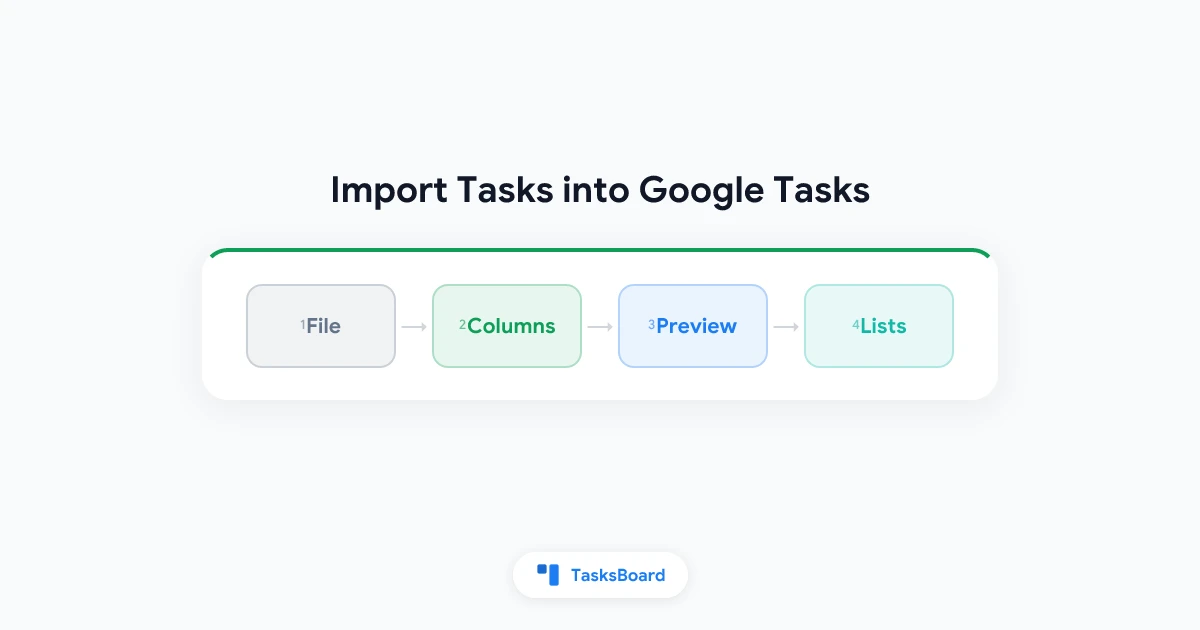
- Check the preview, adjust the columns if needed, and click Import. New lists appear right away and sync to Google Tasks.
- Up to 2,000 tasks per import. Bulk import is a Premium feature, and the preview is free to try.
Can You Import Tasks into Google Tasks?
Not with Google’s own tools. Google Tasks lets you get data out: Google Takeout downloads all your lists as a JSON file, and our Google Tasks export guide walks through every way to back up your tasks. Getting data in is a different story. There is no import option in the Google Tasks app, on the web, or in the Gmail and Calendar side panels.
That leaves three options:
- Type the tasks in by hand. Fine for ten tasks, painful for a hundred, and subtasks and due dates make it slower still.
- Write a script. Google Apps Script and the Google Tasks API can create tasks from a spreadsheet. It works if you are comfortable with code and don’t mind maintaining it.
- Use an app that imports for you. TasksBoard works on top of Google Tasks and reads the file for you, so the tasks land in your real Google Tasks lists.
TasksBoard can now turn a spreadsheet, a Google Sheet, or a text file into ready-to-use Google Tasks lists. You see a preview of every list and task before anything is created.
What You Can Import
TasksBoard reads the file formats people actually keep their tasks in:
| Source | File types | How it becomes lists |
|---|---|---|
| Spreadsheets | CSV, TSV, Excel (.xlsx, .xls), Numbers, OpenDocument (.ods) | One list per tab, one list per value of a “List” column, or one single list |
| Google Sheets | Picked from your Google Drive | Every tab of the sheet comes along, just like an Excel file |
| Text and Markdown | .txt, .md | Each line or bullet is a task, # headings start new lists |
| Google Takeout | Tasks.json | Your lists come back with their order, subtasks, and due dates |
The Takeout option is handy if you want to restore an old backup, or bring lists from one Google account into another one. To move everything to another account at once, our guide on how to transfer Google Tasks covers the faster route.
How to Import Tasks into Google Tasks Step by Step
- Sign in to TasksBoard with your Google account. Your existing Google Tasks lists appear on the board.
- Open the import. Click the menu (⋮) next to the board title and choose Import tasks. You can also click the upload icon on the Add a list card at the end of the board.
- Choose the file. Drag it into the drop zone, or click the zone to browse your computer. For a Google Sheet, click Choose from Google Sheets and pick it in the Google Drive window.
- Check the preview. TasksBoard shows how many lists, tasks, subtasks, and completed tasks it found, and draws each list the way it will look on your board.
- Adjust if needed. Pick where the tasks go, how rows are grouped into lists, and which column holds what. You can also rename any list right in the preview.
- Click Import. The new lists appear on your board immediately and sync to Google Tasks in the background.
From then on they are ordinary Google Tasks lists. You see them in the Google Tasks mobile app, the Gmail side panel, and Google Calendar.
 Try TasksBoard
Import a spreadsheet of tasks into Google Tasks in a few clicks. TasksBoard works on top of your existing Google Tasks, with no new account to create.
Get Started →How to Import a CSV or Excel File into Google Tasks
A spreadsheet is the most flexible source, because each column can carry a different part of a task. TasksBoard understands these columns:
| Column | What it does | Example |
|---|---|---|
| Task | The task title (required) | Prepare the quarterly report |
| Subtask | Creates a subtask under the task above it | Collect numbers from finance |
| Notes | The task’s details | Use last year’s template |
| Due date | The due date | 2026-10-12 |
| Completed | Marks the task as done | TRUE, yes, x, done |
| List | Which list the task goes into | Work |
Here is a small file that uses all of them:
List,Task,Subtask,Notes,Due date,Completed
Groceries,Buy apples,,Granny Smith,2026-10-05,
Groceries,Bake a cake,,,,
Groceries,,Flour,,,TRUE
Groceries,,Eggs,,,
Work,Prepare the report,,Numbers from finance first,2026-10-12,
Work,Book the offsite,,,,TRUE
It becomes two lists. “Groceries” holds “Buy apples” and “Bake a cake”, with “Flour” and “Eggs” as subtasks of the cake. “Work” holds the report and the offsite. You don’t have to write this from scratch: the import window has a Download a CSV template link with this exact layout.
A few things make preparing the file easy:
- Column names are recognized automatically. “Task”, “Title”, “Name”, “To-do”, “Description”, “Deadline”, “Status”, “Project”, and many more are matched to the right field, and so are the column names of a TasksBoard export in your language.
- You can map columns yourself. Open Columns in the preview to choose which column is the task, the notes, the due date, and so on. Next to each column you see its first values, so you know you picked the right one. If your file has no header row, untick First row contains column names.
- Indentation creates subtasks. No Subtask column? Indent a task title with a few spaces, or start it with ”↳”, and it becomes a subtask of the task above it.
- Dates are read the way people type them. 2026-10-12, 12.10.2026, 10/12/2026, and “Oct 12, 2026” all work. Ambiguous dates such as 03/04 follow your browser’s language settings. Google Tasks stores dates only, so times are dropped.
- Completed tasks come in as completed. Prefer a clean start? Tick Skip completed tasks in the preview.
How to Import from Google Sheets
If your tasks live in a Google Sheet, you don’t need to download it first:
- In the import window, click Choose from Google Sheets.
- The first time, TasksBoard asks you to connect Google Drive. It only gets access to the files you pick, never to the rest of your Drive.
- Pick the spreadsheet in the Google Drive window.
Every tab of the sheet comes along. By default each tab becomes its own list, so a sheet with “Home”, “Work”, and “Errands” tabs turns into three lists. Don’t want one of the tabs? Untick it under Sheets to import in the Columns section.
Excel and CSV files stored in Google Drive can be picked the same way.
This also works the other way around. TasksBoard can export any list to a Google Sheet from that list’s menu, and the exported sheet imports back without changing a single column. That makes a sheet a convenient place to plan a project in bulk: write the tasks in a spreadsheet, review them with your team, then import them as real lists.
Moving a Google Sheets Task Tracker into Google Tasks
Many people keep their tasks in a spreadsheet: a task sheet with a column for the task, one for the owner or project, a status, and a deadline. It works until you want reminders on your phone, tasks next to your Gmail, or a quick way to check things off.
You don’t have to rebuild the tracker. Import it as it is:
- Task name or Title column becomes the task.
- Project, Category, or Section column becomes the list. Choose One list per “Project” value under Create lists.
- Status or Done column marks finished tasks as completed. Values like “Done”, “Completed”, “Yes”, or a ticked checkbox count. Anything else, such as “In progress”, stays open.
- Deadline or Due date column becomes the due date, so the tasks show up in Google Calendar.
- Description or Comments column becomes the notes.
Columns that have no place in Google Tasks, such as priority or estimates, are simply left out. Move what matters into the notes column before you import if you want to keep it. Once the tasks are in, a board like TasksBoard gives you the same overview a spreadsheet does, with lists side by side, as our guide to the Google Tasks kanban board shows.
How to Import a Text or Markdown Checklist
Sometimes your tasks are just a list of lines, in a notes app, an email, or a Markdown file. Save them as a .txt or .md file and import that:
# Website launch
- [ ] Write the pricing page copy
  - [x] Draft
  - [ ] Review with Anna
- [ ] Record a demo video
  60 seconds max
- [x] Pick the launch date

# Marketing
- Schedule the social posts
- Email the newsletter list
TasksBoard reads it like this:
- Each
#heading starts a new list. A file with no headings becomes one list named after the file. - Each line or bullet is a task.
-,*, and numbered items like1.all count, and so do plain lines. [x]marks a task as completed,[ ]leaves it open.- Indented bullets become subtasks of the task above them.
- An indented line without a bullet is added to the notes of the task above it.
Add to New Lists or to an Existing List
By default every imported list becomes a new list on the board you imported from. You can change that in the preview:
- Import into: New lists on [your board]. Each list from the file becomes its own list. Choose how rows are grouped in Create lists: one list per sheet, one list per value of the List column, or everything in one list.
- Import into: Existing list. All tasks go into a list you already have, at the top, above the tasks already there. Handy for adding a batch of tasks to your inbox or to a running project.
Nothing is created until you click Import, so you can try different settings and watch the preview change.
Limits and Good to Know
- Up to 2,000 tasks per import. Larger files are trimmed, and the preview tells you how many tasks were left out. Split a very large file and import it in parts.
- Up to 100 lists per import, and files up to 20 MB.
- Rows without a task title are skipped. The preview tells you how many.
- Very long titles and notes are shortened to what Google Tasks accepts: 1,024 characters for a title and 8,192 for notes.
- Syncing a big import takes a moment. The tasks show up on your board at once and then sync to Google Tasks in the background. Each task is a separate request to Google, so a thousand tasks can take a few minutes to appear in the Google Tasks app.
- Unreadable due dates don’t block the import. The task is imported without a date, and the preview warns you about it.
Manual Entry vs Apps Script vs TasksBoard
| Typing tasks by hand | Apps Script and the Tasks API | TasksBoard import | |
|---|---|---|---|
| Setup | None | Write and authorize a script | None |
| File types | — | Whatever your script reads | CSV, Excel, Numbers, ODS, Google Sheets, TXT, Markdown, Takeout JSON |
| Subtasks, notes, due dates | One by one | If you code them | From columns or indentation |
| Preview before creating | — | No | Yes |
| Many lists at once | No | If you code it | Yes, from tabs or a List column |
| Cost | Free | Free | Premium (preview is free) |
For a handful of tasks, typing is fine. If you already run scripts on your Google account, Apps Script gives you full control. For everyone else, the import window is the fastest path from a file to working lists.
Tips for a Clean Import
- Start from the template. Download the CSV template from the import window and paste your tasks into it. Every column is already named.
- Write titles that stand on their own. “Send the signed contract to Marta” is clear in Gmail and on your phone. “Contract” is not.
- Put details in Notes, not in the title. Long titles are hard to scan on a board.
- Use one list per project or area. A “List” column or one tab per project keeps the board organized from day one. Our guide to multiple lists in Google Tasks has ideas for structuring them.
- Keep subtasks one level deep. Google Tasks supports a single level of subtasks, so deeper nesting is flattened. See our subtasks guide for how to use them well.
- Check the preview before you click Import. It’s the quickest way to spot a column mapped to the wrong field.
Planning to reuse the same set of tasks again and again, like an onboarding checklist? Keep it as a file and import it whenever you need it, or see our guide to Google Tasks templates for more ways to reuse lists.
FAQ
Conclusion
Google Tasks makes it easy to export your tasks and impossible to import them. If your tasks already live in a spreadsheet, a Google Sheet, or a checklist, retyping them is a waste of an afternoon.
With TasksBoard you drop the file, check the preview, and click Import. Lists, subtasks, notes, due dates, and completed tasks land in your Google Tasks account, ready on every device.
Get started with TasksBoard and import your first list today.
Ready to share your Google Tasks?
Get started with TasksBoard for free, no credit card required.
Sign in