Google Tasks Attachments: How to Attach Drive Files to a Task

For years, the honest answer to “can I attach a file to a Google Task?” was no. You pasted a Drive link into the notes field and hoped it stayed clickable.
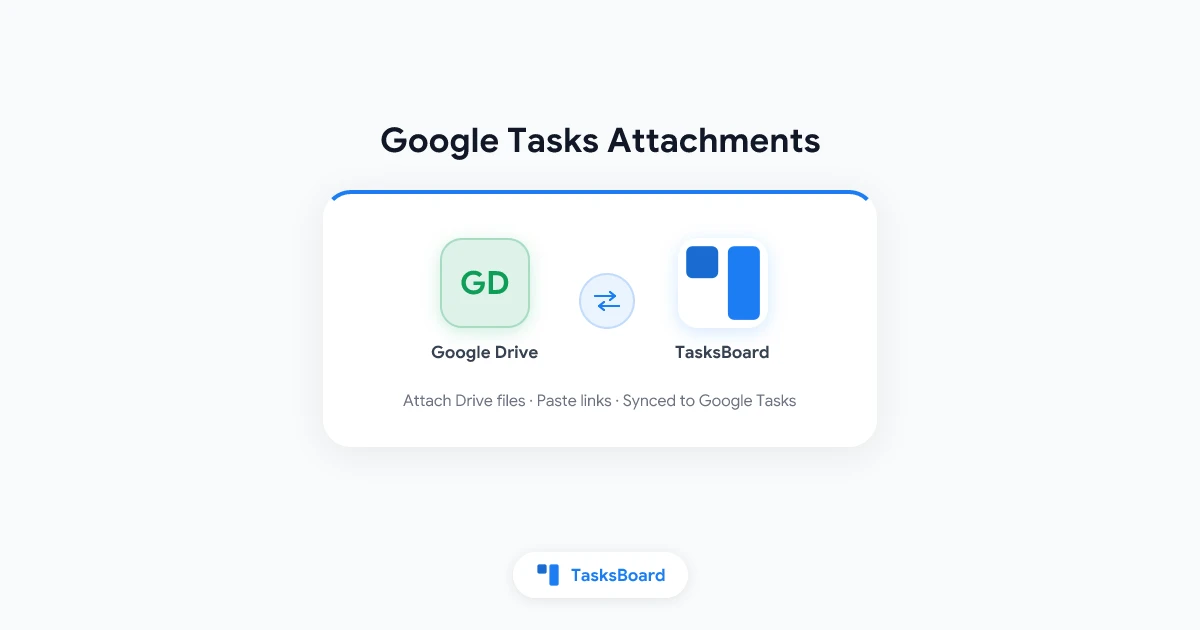
That has changed. Google Tasks attachments now exist natively, with one catch: Google only documents them inside Google Calendar, and only for files that already live in Google Drive.
This guide covers how the feature works on a computer and on Android, the limits Google sets, where attachments still do not appear, and how TasksBoard lets you attach Drive files and web links to any task from a board view.
Can You Attach Files to Google Tasks?
Yes. According to Google’s help page on attaching Drive files to a task, you can add files from Google Drive to a task in Google Calendar, either from the task editor or from the Tasks side panel.
A few ground rules apply:
- Drive files only. The picker opens your Google Drive. There is no button to upload a file straight from your computer.
- Up to 25 attachments per task. That is the documented ceiling.
- Work and school accounts need Drive turned on. If your administrator has not enabled Google Drive for the organization, you cannot add or open attachments.
- Calendar is the documented home. Google’s instructions use Google Calendar on a computer and the Calendar app on Android. The standalone Tasks app and the Gmail side panel are not mentioned.
The attachment sits on the same task you see everywhere else. The title, due date, notes and subtasks keep syncing exactly as before.
 What a native task attachment looks like
 Budget draft 2026.xlsx
Kickoff notes
Budget draft 2026.xlsx
Kickoff notes
How to Attach a Google Drive File to a Task on a Computer
Open Google Calendar in your browser. There are two routes to the same result.
From the task editor
- Click an existing task on your calendar, or click Create and choose Task.
- Click Add a Google Drive attachment.
- Pick the file in the Drive picker.
- Click Insert, then Save.
From the Tasks side panel
- At the bottom right of Calendar, click Show side panel, then click Tasks.
- Hover over the task and click Task options (the three-dot menu).
- Choose Add attachment.
- Select the file and click Insert.
The side panel route is handy because it works on tasks that have no date. As the Google Calendar help page on managing tasks notes, a task needs a date before it shows on the calendar grid at all. If you plan around due dates, the Google Tasks calendar integration guide explains how dated tasks reach your calendar in the first place.
To open an attachment, open the task and click the file. To remove one, open the task, click Edit, click Remove attachment next to the file, and save. Removing an attachment never deletes the file from Drive.
How to Attach Files on Android
On a phone, Google again routes you through Calendar rather than the Tasks app:
- Open the Google Calendar app.
- Create a new task or tap an existing one.
- Tap the Add a Google Drive attachment icon.
- Choose a file and tap Select.
To remove a file on Android, tap it and then tap Remove. The 25-per-task limit and the Drive requirement for managed accounts are the same as on desktop.
Google’s help pages give no steps for the iPhone Tasks app or the Gmail sidebar. If the option is missing there, the Calendar app is the reliable path for now.
Where Native Task Attachments Do Not Show Up
Two gaps are worth knowing before you build a workflow around native attachments.
Apps built on the Google Tasks API cannot write them. The Tasks API reference exposes a links collection on each task, but it is marked output only and read only. Its link types are things like email, generic, chat message and Keep note. There is no field that a third-party app can use to add a Drive attachment.
Notes stay plain text. The notes field holds up to 8,192 characters of plain text. Attachments live beside the notes, not inside them, so you still cannot embed an image or a formatted checklist in a task.
That API gap explains why every task manager built on Google Tasks, TasksBoard included, has its own way of attaching files. The next section covers how TasksBoard does it.
 Try TasksBoard
Attach Drive files and web links to any Google Task from a full-screen kanban board. Attachments show as chips on the card, sync to the Google Tasks app, and stay visible to everyone on a shared list.
Get Started →Attachments in TasksBoard: Drive Files and Web Links
TasksBoard turns your Google Tasks lists into a kanban board, and it adds an attachment button to every task. You can attach two kinds of things, as described in the TasksBoard attachment guide:
- Google Drive files, picked with the standard Drive picker.
- Web links, any address that starts with http or https, with an optional title.
Links matter more than they sound. A Figma board, a Notion page, a supplier’s quote in a web portal or a Loom recording can all sit on the task, not only files in Drive.
How to attach a file in TasksBoard
- Click the title of a task to open it.
- Click the paper clip Attach file button.
- Choose Pick from Google Drive or Paste a link.
- For Drive, pick the file in the picker. The first time, approve Drive access on Google’s page with the same account you use in TasksBoard.
- For a link, paste the address, add a title if you want one, and click Attach.
The attachment appears as a chip on the task card. Click the chip to open the file in Drive or the link in a new tab. Cards with more than three files collapse into a single attachments chip with a count, so a busy board stays readable.
What happens in Google Tasks
Each attachment is saved as a line in the task’s notes in Google Tasks: a paper clip emoji, the title and the link. That design has two useful side effects:
- The link also shows up in the Google Tasks app on your phone and in the Gmail side panel, so the file is one tap away even without TasksBoard open.
- On a shared list, every collaborator sees the same chip, because the note syncs through Google like any other task field.
TasksBoard hides those lines from the notes you edit, so your notes field stays clean. Removing an attachment is one click on the x of the chip, and the file stays in your Drive.
TasksBoard only uses Drive to let you pick a file. It does not read the file contents and has no offline access to your Drive.
Attaching files and links is included in the Pro and Team plans, which TasksBoard groups under its Premium features. The free Personal plan covers the board view, subtasks and up to 5 shared lists.
Which Method Should You Use?
Three realistic options exist today: the native Calendar feature, TasksBoard, and the old habit of pasting a link into the notes. Here is how they compare.
Three ways to attach something to a Google Task
Pick the native feature if you already plan your week inside Google Calendar and your files all live in Drive.
Pick TasksBoard if you work from a board, share lists with a team, or need to attach web links as well as files. Every attachment is visible to collaborators and still reachable from the Google Tasks mobile app.
Paste a link in the notes as the universal fallback. It works in every Google Tasks surface, costs nothing, and is exactly what TasksBoard automates for you behind a cleaner interface.
Tips for Working With Task Attachments
- Check the file’s sharing settings first. An attachment is a pointer to a Drive file. If a teammate cannot open the file in Drive, the chip will not help them. Share the file or its folder before you assign the task.
- One brief per task, not ten files. The 25-file ceiling is generous, but a card with 25 chips is hard to scan. Attach the one document people need to start, and link a Drive folder for the rest.
- Name files for the task. “Q4 budget v3” beats “Untitled spreadsheet” on a crowded card.
- Keep email context where it already is. Tasks created from Gmail carry a link back to the message. The Gmail integration guide covers that flow, so you never need to attach a PDF of an email.
- Use subtasks for multi-file work. If a task needs a draft, a review and a final export, make three subtasks and attach one file to each. Progress becomes visible at a glance.
For larger projects, attachments combine well with columns for each stage of work. The Google Tasks project management guide shows how to set that board up.
Frequently Asked Questions
Conclusion
Google Tasks attachments close one of the oldest gaps in Google’s task manager. On a computer or on Android, open the task in Google Calendar, pick a Drive file, and it travels with the task. Remember the three limits: Drive files only, 25 per task, and Drive must be enabled on managed accounts.
If your tasks live on a board, or you need web links and shared visibility across a team, TasksBoard adds attachments to every card and keeps them readable from the Google Tasks app too.
Ready to see your Google Tasks with files attached, on a kanban board? Start with TasksBoard for free and connect your Google account in a minute.
Ready to share your Google Tasks?
Get started with TasksBoard for free, no credit card required.
Sign in