Recover Deleted Google Tasks: What Works and What Doesn't

You clicked delete and the task vanished. Maybe it was a single reminder, maybe it was a whole list.
The good news is that you can sometimes recover deleted Google Tasks. The catch is that the Google Tasks app has no visible trash, so your options depend on how fast you act and how the task was removed.
Can you recover deleted Google Tasks?
Short answer: sometimes. Google’s Tasks apps do not show a Trash or Recycle Bin. I could not find an official Google help page that promises a recovery window.
The Tasks API does give a hint. Each task has a deleted field, which Google describes as a “flag indicating whether the task has been deleted.” That means deleted tasks are flagged for a while, but the standard apps do not surface them.
Here is how your options rank:
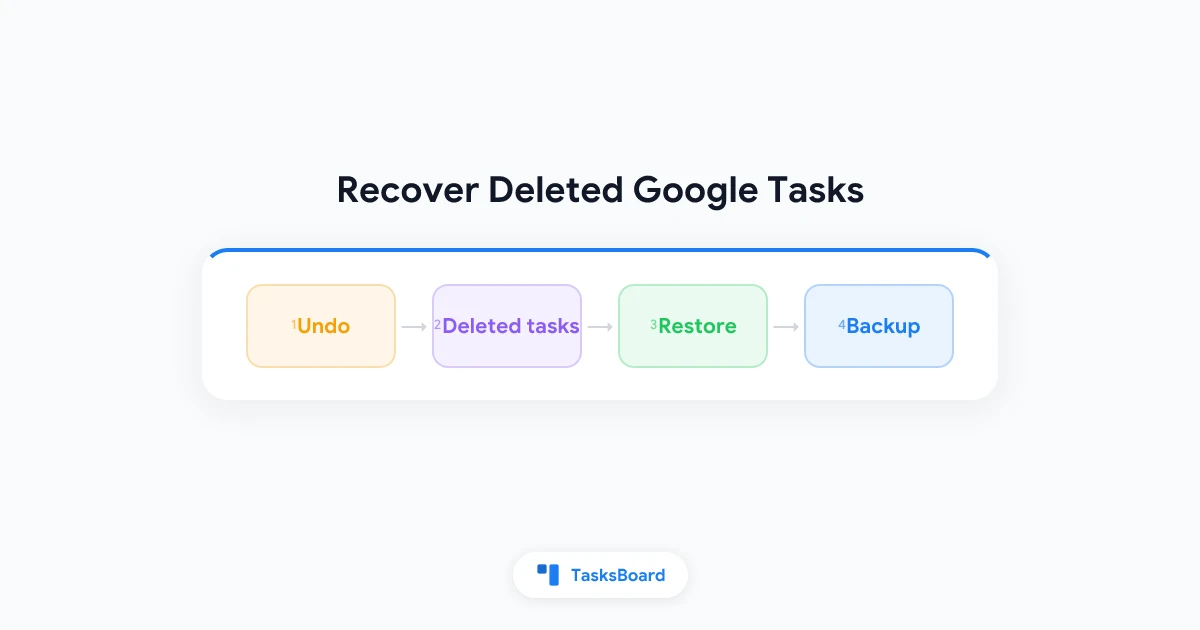
- Undo right away: best chance, but only for a few seconds.
- A tool that shows deleted tasks: works if Google still holds the data.
- A backup you made earlier: the only safe option for lists and cleared tasks.
Step 1: Use undo immediately
After you delete a task, a small message appears at the bottom of the screen. It usually includes an Undo button.
Click it before the message fades. This brings the task back with its notes and date.
If you miss it, do not delete anything else. Move on to the next method.
- Undo message: works for a few seconds after deleting a task
- Show deleted tasks: restores a task if Google still retains it
- Your own backup: the only fix for deleted lists
Step 2: Restore a deleted task in TasksBoard
TasksBoard sits on top of your Google Tasks account. It can list tasks that Google has marked as deleted, so you can bring them back.
- Open your board in TasksBoard.
- Click the three-dot menu next to the list name.
- Choose Show deleted tasks.
- Hover over the task and click the restore icon.
The task returns to the list with its notes and due date. If a list has no deleted tasks, TasksBoard tells you so. You can read the full steps on the TasksBoard support page.
 Try TasksBoard
Connect your Google account and use Show deleted tasks to restore a task you removed by mistake.
Get Started →What you cannot recover
Some deletions are final. Be careful with these:
- Deleted lists: when you delete a list, its tasks go with it. Google’s API reference describes the call as removing the list, and TasksBoard cannot bring those tasks back.
- Cleared completed tasks: “Delete all completed tasks” removes them from view for good. See our guide to Google Tasks completed tasks for what clearing does.
- Old deletions: Google does not publish how long it keeps deleted tasks. Assume the window is short.
- Assigned tasks: per Google’s API docs, deleting an assigned task also deletes the original item in Docs or Chat Spaces.
Back up so you never need to recover
Prevention beats recovery. A backup takes a few minutes and covers every case above.
Google Takeout lets you download your Tasks data as JSON. It exports the whole account at once and does not run on a schedule, so set a monthly reminder.
Our Google Tasks export guide walks through Takeout and other export options step by step. If you move many tasks around, also read how to move a task between lists, which is often safer than delete and recreate.
Habits that prevent accidental deletes
- Complete, don’t delete. A completed task can be unchecked later, while a deleted one may be gone.
- Archive in a list. Make a list called “Done” or “Someday” and move old tasks there.
- Pause before clearing. Check the completed section before you clear it.
- Use a board. Seeing every list side by side makes a wrong-list mistake easier to spot. Our Google Tasks kanban board guide shows how.
| What happened | Best fix |
|---|---|
| Deleted one task a moment ago | Click Undo |
| Deleted one task earlier | Show deleted tasks in TasksBoard |
| Deleted a list or cleared completed tasks | Restore from your Takeout backup |
FAQ
Conclusion
To recover deleted Google Tasks, click Undo at once, then try Show deleted tasks in TasksBoard for anything Google still retains. Deleted lists and cleared completed tasks are the real danger, so keep a Takeout backup.
Connect your account at tasksboard.com so a restore option is ready before you need it.
Ready to share your Google Tasks?
Get started with TasksBoard for free, no credit card required.
Sign in