A Calendar View for Google Tasks: See Every Due Date on One Grid

Google Tasks shows you lists. Each list is a column of tasks, and a due date is a small line under the title. That works until you ask a simple question: what does next week look like?
To answer it in Google’s apps, you open Google Calendar and look for task titles squeezed into the all-day row, mixed with your meetings. There is no view of your tasks alone, laid out by day, that you can rearrange.
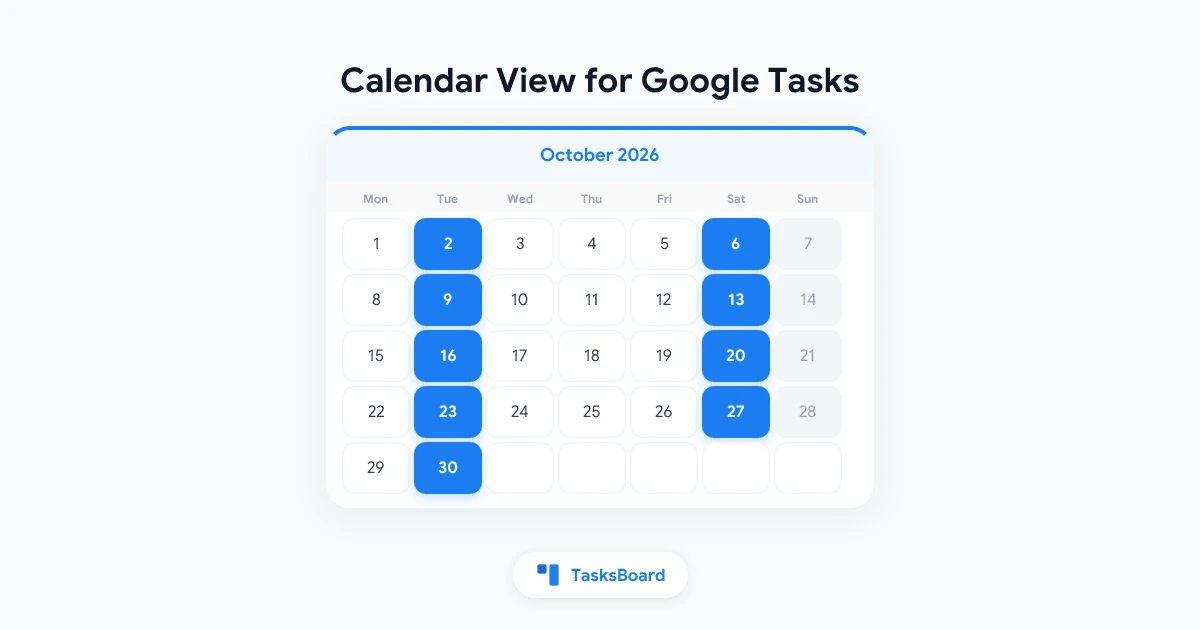
TasksBoard now has one. The Calendar view takes every Google task that has a due date, from every list and every board, and lays it out on a month or a week grid. You drag a task to another day to reschedule it, and the change is written back to Google Tasks. This guide walks through how it works, how it relates to the Tasks you already see in Google Calendar, and when a board is still the better view.
The Calendar view is part of TasksBoard Premium. A free account can open it, but the grid stays blurred behind an upgrade prompt. Every paid plan starts with a 7-day free trial.
Open the Calendar view
- Sign in at tasksboard.com and open your board.
- Click the calendar icon in the top bar. Its tooltip reads “Calendar view”. On the calendar, the same button reads “Back to the board”.
- Or click Calendar in the left sidebar, under “Due today” and “Assigned to me”.
The calendar lives at tasksboard.com/app/calendar, so you can bookmark it or pin it as a tab. On a phone-sized screen there is no calendar button; open that address directly.
Month and week
A Month / Week switch sits in the toolbar. TasksBoard remembers your choice on the device you are using.
- Month shows up to three tasks per day as single lines (title and time, plus the first assignee’s avatar). When a day has more, a “+N more” link opens that day in the week view.
- Week shows seven columns with every task of each day as a full card.
The week starts on the day you chose under “Start week on” in the settings menu (Sunday, Monday or Saturday). Today is highlighted. Move through time with the arrows, jump back with the Today button, or press the left and right arrow keys.
- List dot: a colored dot for the list the task belongs to; hover it for the list name
- Title: struck through when the task is completed
- Labels and assignees: the task's labels and the avatars of the people it is assigned to
- Time: shown when the task has a due time; timed tasks come first in their day
Two toolbar controls narrow the grid. Hide completed keeps only the open tasks. If you have several boards, the All boards selector limits the calendar to one of them.
The Overdue and Unscheduled panels
The grid alone would miss two groups of tasks: the ones whose date has passed, and the ones that never got a date. Both sit in panels to the right of the grid, each with a count.
Overdue
The Overdue panel gathers the open tasks whose due date is in the past, oldest first. An overdue task appears there and only there; it is not drawn on its original day. That keeps last month’s grid from turning into a wall of red.
To deal with one, drag the card out of the panel onto today or a later day. The due date changes and the task leaves the panel. Nothing can be dropped into the Overdue panel, so you cannot make a task overdue by accident.
Unscheduled
The Unscheduled panel lists the open tasks that have no due date. Drag one onto a day to give it a date. The reverse also works: drag a card from the grid into the panel to remove its date and send the task back to “someday”.
Close either panel with its X. The toolbar then shows an “Overdue N” or “Unscheduled N” button that reopens it, so the count stays visible. On screens narrower than about 1024 pixels the panels move under the grid.
Reschedule by drag and drop
- Find the task on the grid or in a side panel.
- Drag the card onto another day.
- Drop it. The task takes that date.
The task is updated in Google Tasks exactly as if you had picked the date in the task editor, so the new date shows in the Google Tasks app, Gmail and Google Calendar within moments. If the task had a due time, the time is kept and only the day changes.
Past days are read-only. You cannot drop a task on them, and instead of the + button they show a lock with the note “Past days are read-only: tasks can only be added or moved to today or later”. If you need to record that something was due last Tuesday, open the task and set the date in the editor instead.
Add and edit tasks from the calendar
You do not have to go back to the board to create a task for a given day.
- Hover a day that is today or later and click the + that appears.
- Pick the list the task goes to under “Add to list”.
- A new task, due on that day, opens at the top of that list. Type the title.
Click any card to open the usual task editor: title, details, date and time, labels, assignees and attachments. Press Esc or click outside to save and close. Everything you can do to a task on the board you can do here.
How this relates to Google Calendar’s own Tasks
Google Calendar already shows Google Tasks: a task with a due date appears as an all-day item at the top of its day in Month, Week and Day views, next to your events. For many people that is enough, and the two views do not compete; they read the same tasks.
The differences are about what each view is for.
- Google Calendar mixes tasks with events. It is the right place to check whether Thursday is already full of meetings before you promise a deadline. The TasksBoard calendar shows tasks only.
- Google Calendar has no overdue or unscheduled panel. A task you missed last week stays on last week. In TasksBoard, it waits in the Overdue panel until you drag it somewhere.
- List colors, labels and assignees are TasksBoard concepts. Google Calendar shows the task title.
- Due times. Google’s Tasks API only stores the day of a due date, so TasksBoard keeps a task’s time as a
⏰ 15:30line in the task’s details. The TasksBoard calendar reads that line and sorts timed tasks first. Google Calendar shows the task as an all-day item, with the⏰line visible when you open its details. See how to set a due time on a Google Task for the full picture.
If your tasks are not showing up in Google Calendar at all, our guide to Google Tasks calendar integration covers the Tasks layer and the usual causes.
 Try TasksBoard
See every Google task with a due date on a month or week grid, drag to reschedule, and clear the Overdue panel. Premium, with a 7-day free trial.
Get Started →Board or calendar: which view when
TasksBoard started as a kanban board for Google Tasks, and the board is still the default. The calendar does not replace it. They answer different questions.
Use the board when the question is “what stage is this at”. Columns are lists, and a card moves from Backlog to In progress to Done. The board shows every task, dated or not, and it is where you reorder by priority, move tasks between lists and work with subtasks.
Use the calendar when the question is “when”. Planning the week on Monday morning, spreading five deadlines that all landed on Friday, or finding a home for the tasks in Unscheduled: these are drag-across-days jobs, and the board makes them slow.
A routine that works for many people:
- Capture tasks on the board or from Gmail, without worrying about dates.
- Once a week, open the calendar. Empty the Overdue panel first: reschedule or complete each item.
- Drag what you want to do this week out of Unscheduled onto specific days.
- Go back to the board for the actual work.
Both views read and write the same Google Tasks data, so nothing is duplicated and nothing needs syncing.
On a phone
Under 768 pixels wide, the week view becomes a list of the seven days and the month view shows how many tasks each day has; tap a day to open it in the week view. Drag and drop is a desktop habit, so on a phone you will mostly use the calendar to read the week and open tasks.
FAQ
Conclusion
The Calendar view gives Google Tasks the one thing its lists cannot: a picture of the coming days that you can rearrange by hand. Open it from the top bar, empty the Overdue panel, pull tasks out of Unscheduled onto real days, and go back to the board to do the work.
The full reference, including keyboard shortcuts and the phone layout, is in the help center: See your tasks on a calendar. To add times and reminders to the tasks you schedule, read how to set a due time and task reminders for Google Tasks.
Ready to share your Google Tasks?
Get started with TasksBoard for free, no credit card required.
Sign in