Google Tasks Chrome Extension: Open Your Tasks in Any Tab

Google Tasks lives inside other Google apps. On a computer, Google’s own instructions send you to Calendar or to the side panel in Gmail, Drive and Docs, and the moment you leave those tabs your list disappears.
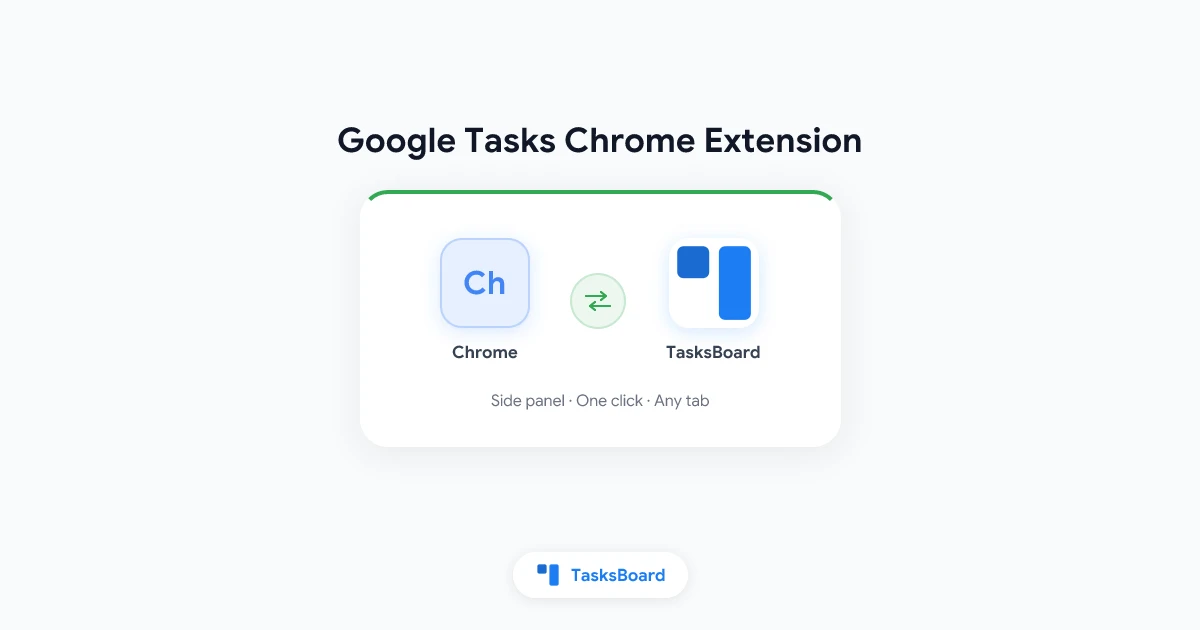
A Google Tasks Chrome extension fixes that. It puts your tasks in Chrome’s side panel, right next to whatever page you are reading, so you can capture and tick off work without switching tabs.
This guide covers what Google offers natively, how to install and pin the TasksBoard extension (the most installed option in the Chrome Web Store), what the side panel can do, and how the main alternatives compare.
Is There an Official Google Tasks Chrome Extension?
Not from Google itself. Google’s Tasks help page lists the places where you can create and manage tasks: Google Calendar, Chrome OS, Google Keep, the Tasks side panel in Gmail, Calendar, Chat and Drive, and the side panel of a Docs, Sheets or Slides file. On a computer, it points you to Tasks inside Calendar. None of those is a browser extension.
The closest thing to a standalone Google app is the full-screen site. The Google Workspace page for Tasks says you can visit tasks.google.com in your web browser, and it repeats the side panel list for Gmail, Calendar, Chat and Drive. That site is still an ordinary tab, though. It does not follow you around the web.
So every Google Tasks Chrome extension you find is third-party. Some embed Google’s own interface, one simply saves the current page as a task, and TasksBoard’s extension opens a full task manager in the side panel. The rest of this guide shows how that one works, then compares the alternatives.
 What the TasksBoard extension puts in Chrome's side panel
How to Install the Google Tasks Chrome Extension from TasksBoard
TasksBoard’s extension is published in the Chrome Web Store as Desktop app for Google Tasks. At the time of writing the listing shows 500,000 users, a 4.8-star rating from 1.2K reviews and Chrome’s Featured badge. The current build is version 0.5.4, and the description promises that you can add a task to Google Tasks in one click from any page in Chrome.
Installing takes about a minute:
- Open the listing. Use the link above, or in TasksBoard click the gear icon in the header and choose Install Chrome Extension.
- Click Add to Chrome. If Chrome asks you to approve permissions, click Add extension. Google’s Chrome Web Store help describes this same flow for every extension.
- Pin the icon. Click the Extensions icon (the puzzle piece to the right of the address bar), find Desktop app for Google Tasks and click the pin. Google’s help notes that hidden extensions reappear this way, and that a right-click on the icon lets you unpin it again later.
- Click the TasksBoard icon. The side panel opens on the right of the window.
- Sign in once. The first time, click Sign in with Google. Google’s sign-in opens in a regular tab, and the panel reloads with your lists as soon as you are done. Use the same account you use at tasksboard.com.
Two Chrome rules are worth knowing before you start. The Chrome Web Store help page states that you cannot add extensions in Incognito mode or as a guest, and that on a work or school computer your organization might block some extensions. If the Add to Chrome button does nothing, one of those two is usually the reason.
How to Open Google Tasks in the Chrome Side Panel
Once the extension is installed, there are two ways to bring your tasks up:
- Click the pinned TasksBoard icon in the toolbar. The panel opens on the right.
- Right-click anywhere on a page and choose Open TasksBoard from the context menu. This is handy when you are deep in a long article and your mouse is nowhere near the toolbar.
The panel belongs to the window rather than to one tab, so it stays available while you move between tabs. According to the TasksBoard Chrome extension guide, the same extension also works in Microsoft Edge and other Chromium browsers that support side panels.
Chrome gives you a few controls over the panel itself, documented on Google’s side panel help page:
- Resize it by selecting and holding the drag handle on the panel’s edge, then moving it.
- Move it to the left under More, then Settings, then Appearance. Pick the side you want in the Side panel section.
- Close it with the Close button at the top right of the panel.
What You Can Do Without Leaving Your Tab
The side panel shows one Google Tasks list at a time. The TasksBoard guide lists everything the panel displays and lets you do:
- See the full task, including notes, due dates, labels and subtasks.
- Add, complete and edit tasks directly in the panel.
- Drag tasks to reorder them.
- Switch lists with the arrow next to the list name. The panel remembers your choice, so your capture list is always the one that opens.
- Open the list menu (the three-dot icon) for the usual list actions.
- Jump to full screen with one button, which opens tasksboard.com in a new tab.
The panel also refreshes itself whenever you bring it back to the front. Add a task on your phone or in Gmail, click back into Chrome, and it is already there.
Everything you type is saved straight to Google Tasks. The same tasks appear in the Gmail Tasks sidebar, in Calendar and in the mobile apps, because the extension writes to your Google account rather than to a separate database. The listing is explicit about this: TasksBoard has no access to your data and never copies your tasks to its servers.
That makes the side panel a strong capture tool. Reading a supplier’s quote? Add the follow-up to your Work list without opening a new tab. When you want to plan rather than capture, the full-screen button takes you to the kanban board for Google Tasks, where the same lists become columns.
 Try TasksBoard
Keep your Google Tasks in Chrome's side panel while you browse, then switch to a full-screen kanban board when it is time to plan. The extension is included in the free plan, and every task stays in your Google account.
Get Started →Google Tasks Chrome Extensions Compared
Four extensions come up again and again when people search for a Google Tasks Chrome extension. They solve different problems, so the right pick depends on whether you want a side panel, a separate window or a quick “save this page” button. The figures below come from each extension’s Chrome Web Store listing in October 2026.
Four Google Tasks Chrome extensions side by side
Full Screen for Google Tasks does what the name says. It opens Google Tasks in a new tab or in an independent window that behaves like a desktop app, on Windows, Mac, Linux and Chromebook. It is a good fit if you want Google’s own interface in a bigger frame, but it does not use the side panel, so it still means leaving the page you are on.
Sidebar for Google Tasks by BrowseCraft opens Google Tasks in Chrome’s side panel. It is the closest alternative to TasksBoard in layout. Its listing notes that ads may appear in one of its tabs, which is worth knowing before you install.
Send to Google Tasks has one job: it sends the page you are reading, or a link, to Google Tasks, and since version 1.7 it can apply a default due date. It shows no list and has not been updated since 2024, but if “read this later” is your only need, it is the lightest option.
Desktop app for Google Tasks (TasksBoard) is the only one of the four that combines a side panel with a full task manager behind it. You get the list in the panel for capture, and the board, shared lists and labels when you open full screen. It is also the most installed and the highest rated of the group.
What the TasksBoard extension costs
Nothing on its own. The TasksBoard plans page lists “Chrome extension and mobile apps” as included in every plan, including the free Personal plan. Personal also covers unlimited tasks and subtasks, the full-screen kanban board, sync with Google Tasks, Gmail and Calendar, and up to 5 shared lists.
Pro and Team, which start at $5.99 a month, add unlimited shared lists, multiple boards, custom labels, Drive attachments and other Premium features. None of that is required to use the side panel.
Extension, Desktop App or tasks.google.com?
People often mix up three different ways of getting Google Tasks out of Gmail. Here is how to choose:
- The Chrome extension is for capture while you browse. One list, always a click away, in any tab.
- The desktop app is TasksBoard installed as its own window from the gear menu. It is for planning sessions with the full board. The Google Tasks desktop app guide walks through the install on Windows and Mac.
- tasks.google.com is Google’s own full-screen interface in a normal tab. No install, no board and no shared lists, but nothing to learn either.
Many people use two of the three: the extension for quick adds during the day, and the board for the weekly review. All of them read and write the same Google Tasks data.
Troubleshooting the Extension
- The icon is not in the toolbar. Click the Extensions puzzle piece, find Desktop app for Google Tasks and click Pin.
- Add to Chrome is unavailable. You are probably in an Incognito or guest window, or your organization blocks extensions on managed computers. Both limits come from Chrome, not from the extension. Separately, Google’s Tasks help notes that on work or school accounts the administrator controls access to Tasks itself.
- The panel only shows a sign-in button. Click it, finish Google’s sign-in in the tab that opens, and the panel reloads. Make sure it is the same account you use at tasksboard.com.
- A task you added on your phone is missing. Click anywhere in the panel to bring it to the front. It refreshes each time it becomes active.
- You want to remove it. Right-click the icon and choose Remove from Chrome. Your tasks stay in Google Tasks, untouched.
Frequently Asked Questions
Conclusion
Google does not ship a Google Tasks Chrome extension, and its own surfaces keep your list locked to Calendar, Gmail and the other Workspace tabs. A side panel extension changes that by keeping your tasks beside every page you visit.
TasksBoard’s Desktop app for Google Tasks is the most installed option for the job: a one-minute install, a pinned icon or a right-click to open, one list in the panel, and a full kanban board a click away. Everything is saved to your Google account, and the extension is free on every plan.
Ready to keep your tasks in view while you browse? Start with TasksBoard for free, then install the extension from the gear menu.
Ready to share your Google Tasks?
Get started with TasksBoard for free, no credit card required.
Sign in