Google Tasks Daily Planner: Plan Your Day Step by Step

Google Tasks is great at holding a list. It is less great at telling you what to do today. If you want a Google Tasks daily planner, you need a few habits and the right views.
This guide shows how to plan your day with Google Tasks and Google Calendar. You will also see where the built-in tools stop and how a Today view fills the gap.
Can Google Tasks Work as a Daily Planner?
Yes, for simple days. Google Tasks lets you add a date, a time, and subtasks, and it syncs with Gmail and Calendar.
What it does not have is a dedicated “my day” screen. Lists are flat, and there is no overdue section. You build the planner yourself.
Google has not released a daily view. Reports of a “Plan your day” screen come from unreleased app code, so do not count on it.
How Dates Decide What You See Today
Dates are the engine of any daily planner. According to the Google Calendar Help Center, a task only shows on your calendar if it has a date.
Here is how the two date types behave:
- Date and time: when you plan to work on the task. You get a notification at that time.
- Deadline: the day you expect to finish. It shows in the all-day section and notifies you at 9 AM local time.
- No time set: the notification also arrives at 9 AM.
A simple rule works well: give every task for today a date, and use deadlines only for hard stops. For the difference in detail, read our guide on deadline vs due date in Google Tasks.
- Date only: "sometime today", reminder at 9 AM
- Date + time: a fixed slot on your calendar
- Deadline: the last day, shown as all-day
- No date: invisible on the calendar, so it is not planned
A 10-Minute Morning Routine
Planning works best when it is short and the same every day. Try this routine.
- Dump: add anything new to your inbox list. Do not sort yet.
- Pick: choose three to five tasks that matter today and give them today’s date.
- Time: give the one or two big tasks a time, so they land on the calendar.
- Trim: push anything that will not fit to tomorrow or later.
Three to five tasks is a guess, not a rule. Adjust it to how many hours you truly have.
Use Google Calendar for the Time Side
Google Tasks says what. Google Calendar says when. Turn on Tasks in the Calendar sidebar and switch to Day or Schedule view.
Then match each task to a free gap. This is basic time blocking, and it stops you from planning eight hours of work into a four-hour afternoon.
If you want more on the Calendar link, see Google Tasks and Google Calendar integration.
Where the Built-In Tools Fall Short
After a few weeks, three problems show up:
- No Today view: tasks from many lists never appear together.
- No overdue flag: yesterday’s unfinished tasks quietly disappear into old lists.
- Hard to reprioritize: reordering means opening each list.
You can work around these by checking Calendar’s pending tasks view, which covers the last 365 days. It works, but it is one more place to look.
 Try TasksBoard
See every task due today in one column, with overdue items flagged. Everything stays synced with Google Tasks.
Get Started →Add a Today View with TasksBoard
TasksBoard is a kanban and planner layer built on top of Google Tasks. It reads the same lists you already use, so there is nothing to migrate.
A simple daily board uses three columns:
- Today: tasks with today’s date.
- Doing: the one or two things you are working on now.
- Done: what you finished, which feels good at 5 PM.
Dragging a card to a new column or date updates it in Google Tasks. You can also see how this works in our Google Tasks kanban board guide.
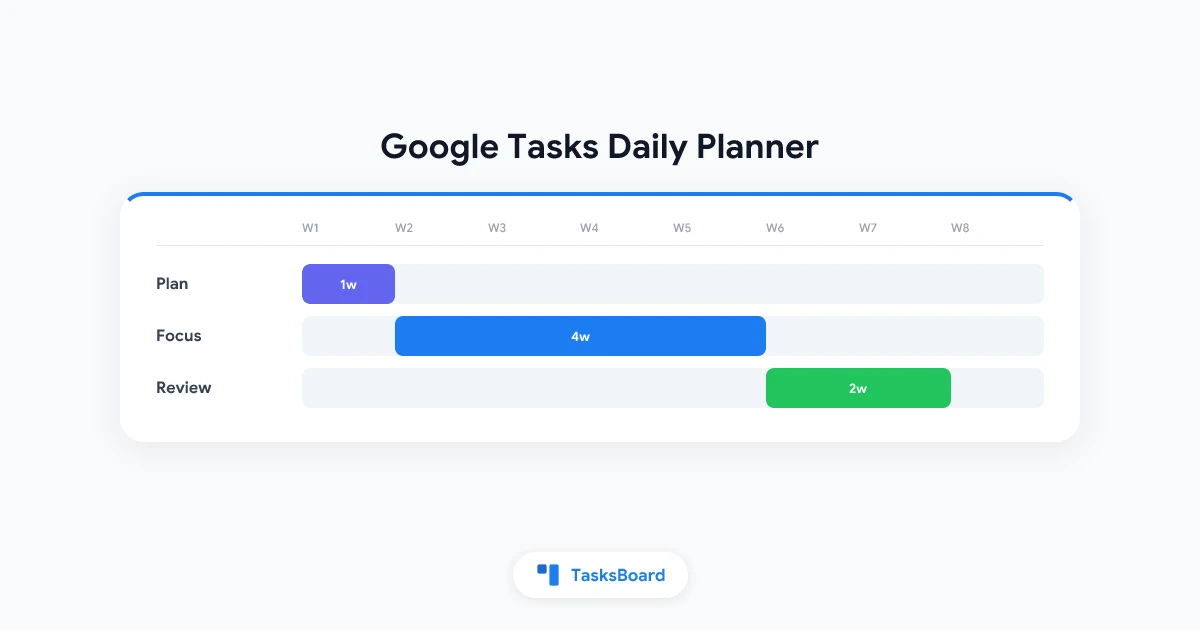
Plan, Focus, Review
The routine only sticks if it has an end. Add a two-minute review.
- Check what is still open.
- Move it to a new date on purpose, instead of letting it rot.
- Pick tomorrow’s first task before you close the laptop.
That last step removes the “what should I start with?” delay the next morning.
| Need | Google Tasks + Calendar | With TasksBoard |
|---|---|---|
| All today tasks together | Calendar day view | One Today column |
| Overdue tasks | Pending tasks view | Flagged in red |
| Reprioritize | Open each list | Drag and drop |
Tips for Better Daily Planning
- Keep lists short: Google allows 20,000 uncompleted tasks per list, but you do not need them.
- Name tasks as actions: “Email Sam the invoice” beats “Invoice”.
- Use subtasks for steps: note that tasks with subtasks cannot repeat, per Google’s Tasks help page.
- Share when needed: a shared list works well for household or team days.
FAQ
Conclusion
A Google Tasks daily planner comes down to three things: dates on today’s tasks, Calendar for timing, and a short routine to plan and review. Google Tasks handles the basics well.
If you want a Today column and overdue flags without leaving Google Tasks, try TasksBoard. It takes a minute to connect and your lists stay exactly where they are.
Ready to share your Google Tasks?
Get started with TasksBoard for free, no credit card required.
Sign in