How to Transfer Google Tasks from One Account to Another

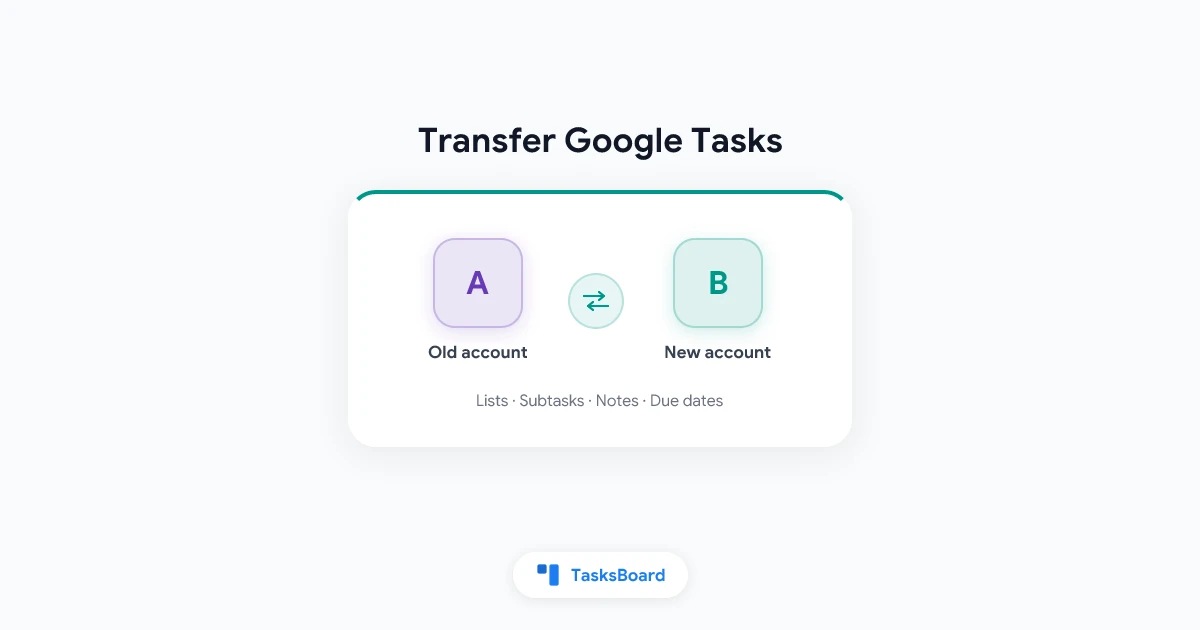
Sooner or later, a lot of people need to transfer Google Tasks from one account to another. You change jobs and get a new work account. You finally split personal and work life into separate Gmail addresses. Or you have used an old account for years and want everything in the one you actually check.
Your calendar and contacts can be moved with a little effort. Google Tasks is harder. There is no “move to another account” button anywhere in the app.
This guide shows you how to transfer all your Google Tasks lists to another Google account in a few clicks with TasksBoard. It also covers what gets copied, what does not, and the manual method if you prefer to do it by hand.
TL;DR:
- Google Tasks has no built-in way to move tasks between accounts. Google Takeout can export them, but there is no import on the other side.
- In TasksBoard, open your profile picture, choose Account settings, and click Transfer next to “Transfer tasks to another account”.
- Click Connect target account, pick the Google account to copy to, then click Start migration.
- Every list is copied with its tasks, completed tasks, subtasks, notes, due dates, and order. Your current account stays untouched.
- Transferring tasks is a Premium feature.
Can You Transfer Google Tasks to Another Account?
Not with Google Tasks alone. Each Google account keeps its own task lists, and the app gives you no option to send a list, or all of them, to a different account.
The closest native tool is Google Takeout. It exports your tasks as a JSON file, which is useful as a backup. The problem is the other half of the job: Google Tasks has no import feature, so that file cannot be loaded into your new account. Our Google Tasks export guide walks through Takeout in detail if you want a backup copy anyway.
That leaves two options. You can re-create every list and task by hand, or you can use a tool that talks to the Google Tasks API for you. TasksBoard does the second, directly from your browser.
TasksBoard Premium can now copy every Google Tasks list from the account you are signed in with to any other Google account. Connect the second account, click Start migration, and watch a progress bar copy your tasks one by one.
Why Move Google Tasks from One Account to Another?
The reasons are usually practical, and they tend to show up at the worst moment:
- A new job. Your new company gives you a Google Workspace account and you want your running to-do lists there.
- Leaving a job. Your work account is about to be closed, and the personal lists you kept in it would disappear with it.
- Splitting work and personal. You used one Gmail address for everything and now want a clean separation.
- Consolidating old accounts. You have tasks scattered across two or three accounts and want a single place to manage them.
- A new address. You created a new Gmail account and are retiring the old one.
In every case, the goal is the same: keep years of lists, notes, and subtasks without retyping them. If you rely on several lists to organize your work, our guide to Google Tasks multiple lists shows how much structure is at stake.
How to Transfer Google Tasks to Another Account with TasksBoard
TasksBoard works on top of your existing Google Tasks data, so there is nothing to export or convert first. The transfer copies your lists straight from one Google account into the other.
- Sign in to TasksBoard with the account that currently holds your tasks.
- Open Account settings. Click your profile picture in the top right corner and choose Account settings.
- Click Transfer. You will see “Transfer tasks to another account” in the settings. Click the Transfer button next to it.
- Connect the target account. Click Connect target account. Google shows its usual “Choose an account” screen. Pick the account you want to copy your tasks to and allow access to its Google Tasks.
- Check the target and start. Back in TasksBoard, the dialog shows the connected account, for example “Target account: you@newcompany.com”. If it is the wrong one, click Choose a different account. Otherwise, click Start migration.
- Keep the tab open. A progress bar shows which list is being copied and how many tasks are done. When it finishes, TasksBoard confirms how many lists and tasks were copied.
To see the result, click your profile picture, choose Switch account, and sign in with the target account. Your lists are waiting on its Main Board.
If you are on the free plan, clicking Transfer opens the Premium upgrade screen instead.
 Try TasksBoard
Transfer all your Google Tasks to another Google account in a few clicks, with subtasks, notes, and due dates intact. TasksBoard works on top of your existing Google Tasks, with no new account to create.
Get Started →What Gets Transferred (and What Does Not)
The transfer copies everything Google Tasks stores for your lists. Here is the full picture:
A few details are worth knowing before you start:
- Your current account stays untouched. The transfer is a copy, not a move. Nothing is deleted from the account you are signed in with, so you can check the result before cleaning anything up.
- Lists are added, not merged. The copied lists sit next to whatever already exists in the target account. If both accounts have a “My Tasks” list, you will see two of them.
- Custom labels need a quick setup. Labels travel with your tasks. Custom labels only show up as labels again once you create a label with the same name in the new account. Our Google Tasks labels guide explains how.
- Attached files stay in the old Drive. File links are copied, but the files themselves still live in the original account’s Google Drive. Share them with the new account if you need to open them there.
- Shared lists start private. The copy of a shared list is not shared with anyone. Share it again from the new account.
The Manual Way: Takeout and Copy by Hand
If you only have a handful of tasks, you can move them without any tool. Here is the process:
- Go to Google Takeout, deselect everything, select Tasks, and export.
- Download and unzip the archive. Your tasks are in a JSON file.
- Sign in to the new account and open Google Tasks.
- Re-create each list, then copy every task, note, and due date from the JSON file by hand.
- Rebuild subtasks and reorder tasks to match the original.
This works for five tasks. It falls apart at fifty, and it is painful with hundreds. Here is how the two approaches compare:
| Manual (Takeout + copy) | TasksBoard transfer | |
|---|---|---|
| Time | Minutes per list, hours for many lists | A few clicks, then it runs on its own |
| Subtasks | Rebuilt by hand | Copied under their parent |
| Notes and due dates | Copied one by one | Copied automatically |
| Completed tasks | Usually skipped | Copied |
| Task order | Rebuilt by hand | Kept |
| Cost | Free | TasksBoard Premium |
Tips for a Smooth Transfer
A little preparation makes the whole thing painless:
- Clean up first. Delete lists you no longer need before you start. It keeps the new account tidy from day one.
- Pick the right target. Google’s account chooser lists every account signed in to your browser. Double-check the email address TasksBoard shows before clicking Start migration.
- Keep the tab open. The transfer runs in your browser. Closing the tab stops it.
- Retry with care. If a transfer stops halfway, the lists already copied stay in the new account. Running it again copies them a second time, so delete the partial copies first.
- Reconnect if asked. The connection to the target account only lasts a limited time. If TasksBoard says it expired, click Connect target account again and restart.
- Re-share what you shared. Once your lists are in the new account, share them again with your family or team. Our guide on how to share Google Tasks covers the steps.
FAQ
Conclusion
Google gives you no direct way to transfer Google Tasks from one account to another. Takeout exports your tasks, but nothing imports them.
With TasksBoard, the whole move takes a few clicks. Open Account settings, click Transfer, connect the new account, and start the migration. Every list comes along with its subtasks, notes, due dates, and order, and your old account stays untouched until you decide to clean it up.
Get started with TasksBoard and move your Google Tasks to your new account today.
Ready to share your Google Tasks?
Get started with TasksBoard for free, no credit card required.
Sign in