
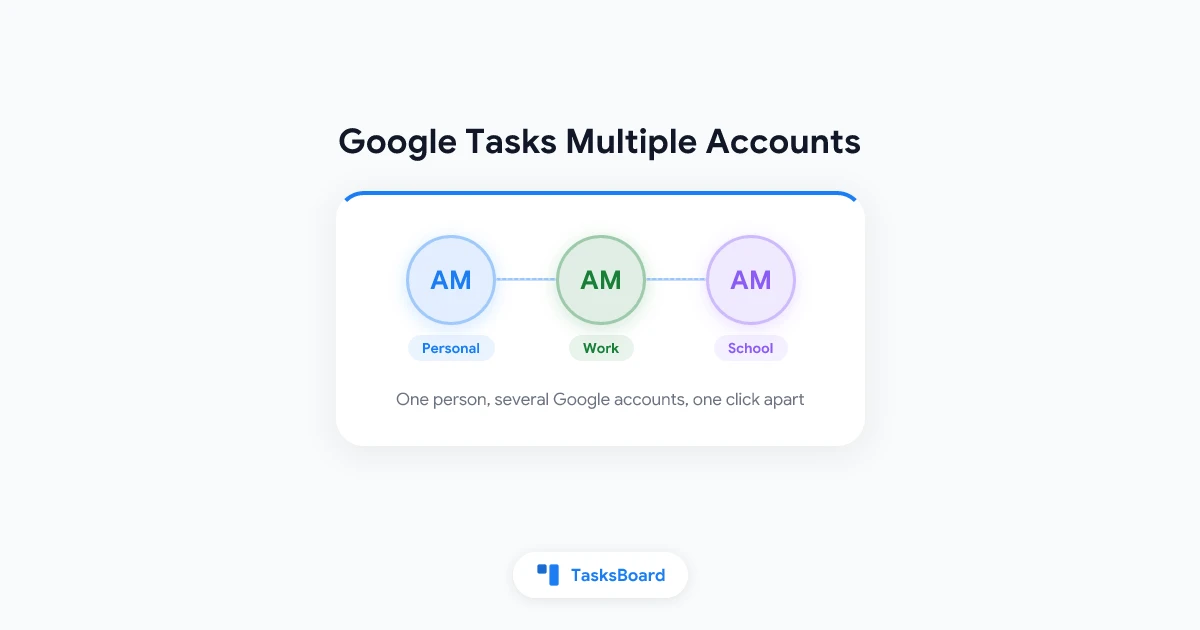
Most people with more than one Google Account hit the same wall. The work list lives in the work account, the errands list lives in the personal Gmail account, and nothing shows both at once.
This guide explains how Google Tasks multiple accounts really behave in Gmail, in Google Calendar and in the mobile app. It then walks through three ways to live with two or more accounts: switching fast, sharing a list between your own accounts, and moving everything into one account.
All three work on top of the Google Tasks data you already have, and TasksBoard turns the first one into a single click.
Why Google Tasks Shows One Account at a Time
Google Tasks has no account of its own. Every list belongs to the Google Account that created it, and Google’s overview of Google Tasks lists where that account’s tasks appear: in Google Calendar on the web, in the side panel of Gmail, Calendar, Chat, Drive and Docs files, and in the Tasks mobile app.
Each of those surfaces shows the tasks of the account it is signed into. Open Gmail with your work account and the Tasks panel shows work lists. Open a second tab with your personal account and the same panel shows a different set.
Google does let you keep several accounts signed in at once. Its help page on signing in to multiple accounts explains that you can switch between them without signing out and back in, and that each account keeps its own settings.
What Google does not offer is a merged view. No documented setting shows the tasks of two accounts in one list, one side panel or one calendar grid.
 Three ways to handle Google Tasks across accounts
How to Switch Accounts in Gmail and Google Calendar
On a computer, Google’s multi sign-in is the quickest route when you only need to glance at the other account.
- Add the second account. Select your profile image at the top right of any Google page, choose Add account and sign in.
- Switch when you need to. Select the profile image again and pick the account. Gmail, Calendar and the Tasks side panel reload for that account.
- Read the address bar. Google numbers the signed-in accounts in the address (u/0, u/1 and so on), which tells you at a glance which account a tab belongs to.
- Turn on the Tasks calendar. In Calendar, Google’s page on tasks in Calendar says to open My calendars in the left panel and make sure the Tasks box is checked. Only tasks with a date appear on the grid, and only for the account open in that tab.
Give each account its own Chrome profile
If you switch many times a day, separate browser profiles beat the profile menu. Google’s Chrome help describes profiles as the way to keep accounts like work and personal apart, each with its own bookmarks, history and passwords.
Open Chrome, select Profile at the top right, then Add Chrome profile, and sign in with the second account. From then on, a work window and a personal window each show their own Gmail, Calendar and tasks.
How to Switch Accounts in the Google Tasks Mobile App
The Google Tasks app shows one account at a time as well. Before you can switch, the second account has to be on the device.
- Android. Google’s Android help explains that you add a Google Account in the device Settings, under Passwords & accounts, then Add account, then Google. The added account becomes available to Google apps on the phone, Tasks included.
- iPhone and iPad. There is no system-wide Google sign-in. Google’s iPhone help says you sign in inside each Google app, and that the sign-in steps differ from product to product. In most Google apps you add or switch accounts from your profile image.
- Inside the Tasks app. Look for the account picker behind your profile picture at the top of the screen and pick the other account. Google’s multi-account page notes that the exact steps vary by app.
- In the Google Calendar app. The same help page on tasks in Calendar says the Tasks checkbox lives under Menu at the top left. Tasks need a date to show up there.
Whatever you add on the phone goes to the account the app shows at that moment. If a task seems to vanish, the account is the first thing to check, as our guide to Google Tasks not syncing explains.
Option 1: Keep Accounts Separate but One Click Apart
Switching in Google’s apps works, but every switch reloads the page and you lose your place. TasksBoard, a kanban board built on Google Tasks, is designed for people who live in two accounts.
According to the TasksBoard help page on using several Google accounts, you can keep several Google accounts signed in to TasksBoard on the same device, for example a personal Gmail account and a work account, and switch between them without signing in again.
- Add the account. Click your profile picture at the top right, then Add another account. Google asks you to choose the account and to allow TasksBoard to access its Google Tasks.
- Switch. Click the profile picture and click the account you want. The page reloads on that account right away, without going through Google again.
- Sign one account out. Switch to it, click the profile picture, then Sign out. Only that account leaves the device, and TasksBoard opens on the next one.
Two details make this safe. Every account keeps its own local copy of its boards and lists, so switching back shows the board immediately and nothing is mixed between accounts. Changes you have not synced yet are saved first, and TasksBoard shows a short “Saving your changes before switching account” message when that happens.
Switching in one tab also switches every other open TasksBoard tab. Boards, list colors, labels and shared lists stay with the Google account they were created in.
 Try TasksBoard
Sign in with your work account and your personal account once, then switch between their boards from the profile menu. Each account keeps its own kanban board, and the free plan includes unlimited tasks and up to 5 shared lists.
Get Started →Option 2: Share a List Between Your Own Accounts
Sometimes you do want one list in both places, such as an errands list you can see from the work account. In that case, share the list with your other account.
The TasksBoard help page on sharing lists explains the mechanics. Sharing a list gives each collaborator a copy of the list in their own Google Tasks account, and TasksBoard keeps all the copies in sync. Your second account is simply another collaborator.
- Share from the first account. Open the three dots menu next to the list name, click Share list and copy the link.
- Join from the second account. Switch to the other account in TasksBoard, open the link and click Join shared list.
- Use it anywhere. The list now exists in both Google accounts, so it appears in Gmail, Calendar and the Tasks app for each of them.
A free TasksBoard account can own up to 5 shared lists, and joining lists shared by others does not count. Shared lists sync in real time while TasksBoard is open, and changes made in the Google Tasks mobile app reach the other copy the next time someone on the list opens TasksBoard.
One pitfall from the shared lists FAQ: if you join with a different Google account than the one on your board, you see an empty list on the wrong account. Check the address under your avatar before you click Join. For a walkthrough with screenshots, see our Google Tasks shared list tutorial.
Option 3: Move Everything Into One Account
If the second account is a leftover from an old job or school, the cleanest fix is to consolidate. The transfer tasks to another account feature in TasksBoard copies all your Google Tasks lists and tasks from the signed-in account to another Google account. It is a Premium feature.
- Sign in with the source account. Click your profile picture, then Account settings.
- Connect the destination. Next to Transfer tasks to another account, click Transfer, then Connect target account, and pick the account that should receive the copy.
- Keep the tab open. Click Start migration and wait for the progress bar. TasksBoard then tells you how many lists and tasks were copied.
What gets copied: every list, all tasks including completed ones, subtasks under their parent task, notes, due dates, the order of your tasks, and the labels, assignees and attached files that TasksBoard stores in task notes. The source account stays untouched.
Two things to know first. The copied lists are added next to the existing ones and are not merged, so you can end up with two “My Tasks” lists to tidy. Boards, list colors and sharing are not transferred either, so share the lists again from the new account. Google Takeout and the manual routes are covered in our guide to transferring Google Tasks between accounts.
Switch, share or transfer: which one fits
Habits That Keep Work and Personal Tasks Apart
- Prefix list names. A “Work: Clients” list and a “Home: Errands” list are easy to tell apart in a side panel that shows no account name. Our guide to organizing Google Tasks lists covers naming and ordering.
- Pick one account for reminders. Voice assistants and the Calendar app save to whichever account is active, so decide where quick captures go and sort them later.
- Look at the avatar before you add. In Gmail, Calendar and the Tasks app, the profile picture is the only hint of the account you are about to write to.
- Do not open a second account for space. Google’s add or edit a task page states that you can create up to 100,000 tasks across all your lists and up to 20,000 uncompleted tasks per list, which is more than enough for one account.
- Expect limits on work accounts. Google’s overview page says that administrators control access to Tasks for work or school accounts. If Tasks is missing on that account, ask the admin.
Frequently Asked Questions
Conclusion
Google Tasks will not blend two accounts into one list, and that is partly the point: work tasks stay on the work account, personal tasks stay at home. The friction comes from switching, and that is fixable.
Use Google’s profile menu or a Chrome profile for quick checks, share a list with your other account when one list truly belongs in both places, and transfer everything when an account is on its way out. For the daily back and forth, open TasksBoard, add both accounts once, and keep each one on its own kanban board, a single click apart.