Google Tasks Deadline vs Due Date: What Each One Does

Google Tasks now has two date fields, and they are not the same thing. If you have ever wondered why a task showed up in Calendar but never pinged you, this is probably why.
This guide explains the Google Tasks deadline vs due date difference in plain terms. You will also see how to set both and how to combine them into a simple routine.
Due date and time: when you plan to work
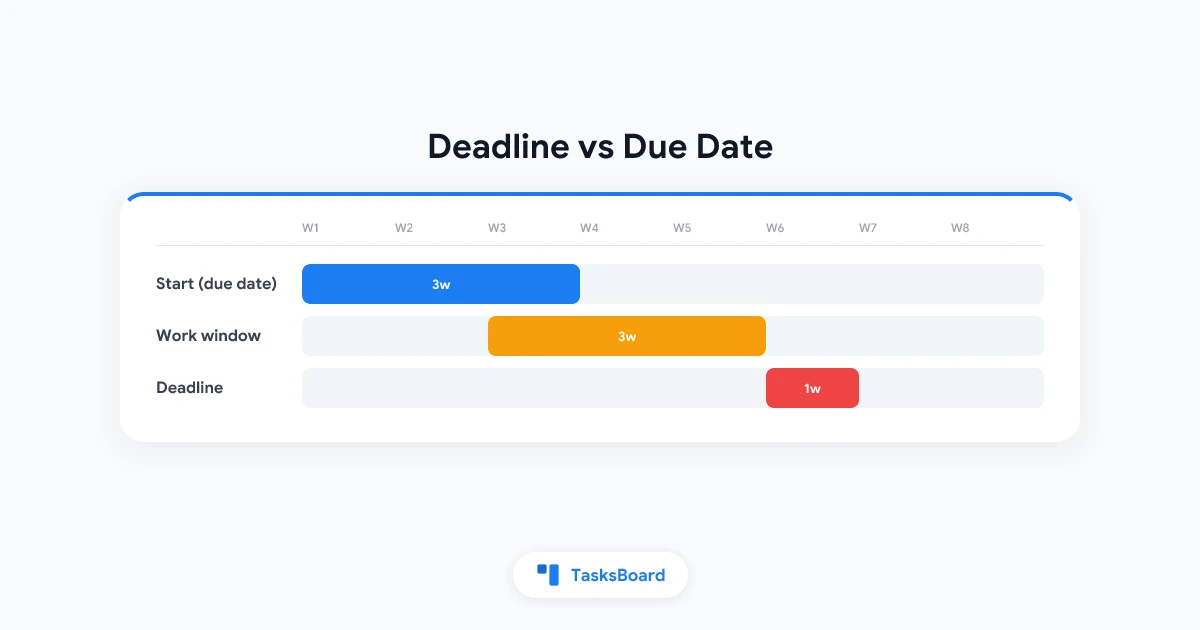
According to the Google Tasks Help Center, the date and time field is when you plan to spend time on the task. Think of it as a start slot.
Once you add it, the task appears on Google Calendar. If you add a time, you get a notification at that date and time.
- Date only: the task shows as an all-day item in Calendar.
- Date and time: the task shows at that hour and can alert you then.
- Repeat: available from the same field, with daily, weekly, monthly or yearly options.
Deadline: when it must be finished
The deadline is the date you expect to complete the task. Google’s documentation says deadline notifications arrive at 9 AM on that day in your local time zone, and deadlines show in the all-day section of Calendar.
The catch is that a deadline is a date only. As Android Authority noted when it rolled out on Android, you cannot set a deadline time.
| Field | Meaning | Alert |
|---|---|---|
| Date/time | When you plan to work | At the chosen time |
| Deadline | When it must be done | 9 AM that day |
How to set a due date and time
The steps are almost identical on web and mobile.
- Open Google Tasks (in the side panel of Gmail or Calendar, or the mobile app).
- Select a task, or add a new one.
- Click or tap Add date/time.
- Pick a day, then optionally add a time.
- Save.
You can only add a date once you start editing the task, so a quick add may need one extra tap. For more on alerts, see our Google Tasks reminders guide.
How to add a deadline
In the same task editor, look for the deadline option and choose the date you expect to finish. Availability has been rolling out by platform, so if you do not see it yet, update the app and check again later.
A deadline is a good fit for hard dates like a report submission or a bill. The due date is better for the day you actually want to do the work.
A simple way to use both
Here is a routine that works well.
- Set the deadline to the real finish date.
- Set the due date and time to the day you will start.
- Leave a gap between them so you are never working on the last day.
For example, a client proposal due Friday gets a deadline of Friday and a due date of Tuesday at 10:00. Tuesday’s alert tells you to begin, and Friday’s 9 AM alert is your safety net.
 Try TasksBoard
See every Google Task with its dates on a kanban board. Drag cards between columns and spot what is due soon.
Get Started →Common problems with Google Tasks dates
No alert for a date-only task. A due date without a time is an all-day item, so there is no timed push. Add a time if you want a ping. If alerts still fail, read why Google Tasks notifications stop working.
Repeating tasks with subtasks. Google states that tasks with subtasks can’t repeat. Keep recurring tasks flat, and see the recurring tasks guide for patterns.
Overdue tasks pile up. Google Tasks does not roll them forward for you. Open the Tasks panel in Calendar and drag each one to a new day.
Seeing dates on a board
A list sorted by date is fine for a few tasks. Once you have dozens, a board makes the picture clearer.
With TasksBoard, your Google Tasks lists become kanban columns, so you can group work by stage and still keep the dates you set in Google. Our kanban board guide shows how.
- Open Calendar and scan the all-day row for deadlines.
- Move overdue tasks to a new day.
- Add a time to anything that needs a real alert.
FAQ
Conclusion
The Google Tasks deadline vs due date split is simple once you see it. The due date is your work day, and the deadline is your finish line.
Set both, add a time when you need an alert, and review Calendar weekly. To see it all on a board, try TasksBoard.
Ready to share your Google Tasks?
Get started with TasksBoard for free, no credit card required.
Sign in