
You know you wrote that task down. You just cannot remember which list it lives in. So you open Google Tasks and look for a search box.
It is not there. Google Tasks search, in the sense of typing a word and getting matches, is not something Google’s help pages describe. This guide shows what you can do instead, and how to set things up so you rarely need it.
Does Google Tasks have a search function?
Not as far as Google’s documentation shows. The Google Tasks help page covers moving tasks, ordering lists, and viewing completed items. It does not describe a keyword search.
Android Authority has reported that a search bar appears in app code and may be in development. That is a rumor from an unreleased build, so do not plan around it.
For now, finding a task means browsing smartly. Here are the tools that exist today.
Find tasks with the built-in views
Google gives you a few ways to narrow things down without typing a keyword.
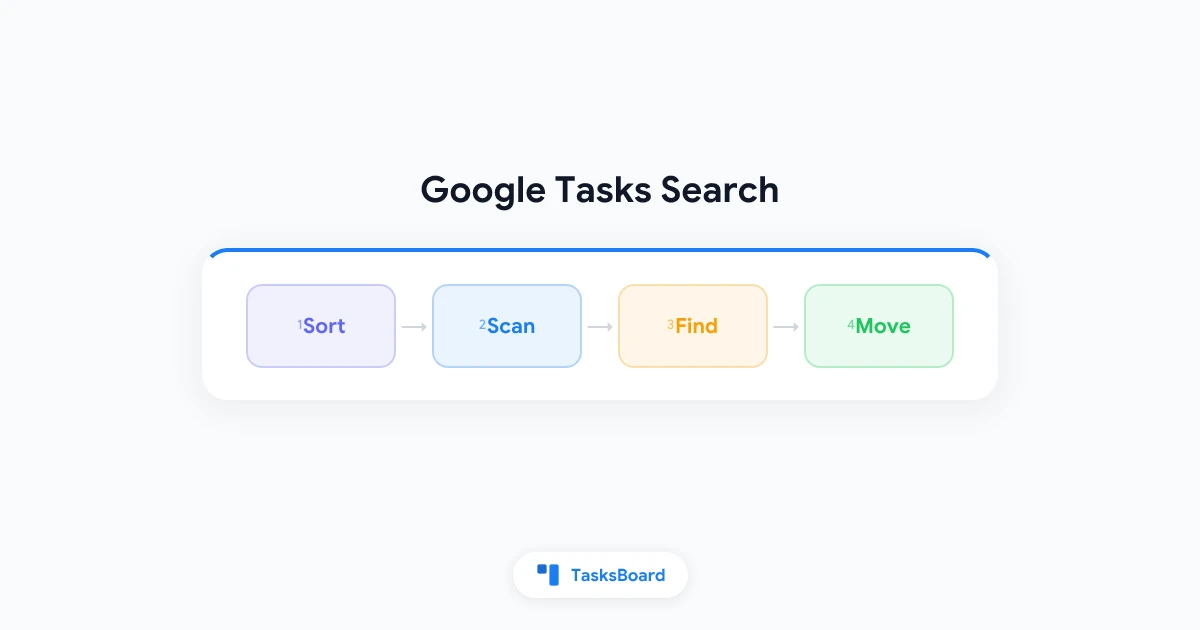
- Sort the list: use List options to order by My order, Date, Deadline, Starred recently, or Title. Sorting by Title is the closest thing to a quick scan.
- Check the Past section: uncompleted tasks you missed show up at the top of the list.
- Open Completed: click the arrow next to Completed to see what you already finished. Our completed tasks guide goes deeper.
- Look at the 365-day window: uncompleted tasks from the last 365 days appear on your current day in Calendar.
- Another list: check every list in the sidebar
- Completed: you may have ticked it off by mistake
- Past: overdue tasks collect at the top
- Subtasks: it may be nested under a parent task
Use your browser to search a long list
Here is the quick trick. On the web, open the list and press Ctrl+F (Cmd+F on Mac). Your browser will highlight matching words on the page.
This only works for tasks that are visible. Completed tasks stay hidden until you expand that section, so expand it first.
It also works on one list at a time. If you have many lists, you will repeat the search for each one.
Keep your lists small enough to scan
Search matters less when the list is short. Google allows up to 20,000 uncompleted tasks per list and 100,000 in total, according to the Google Tasks help on adding tasks. Few people want to scan anything close to that.
A few habits keep lists readable:
- Limit each list to one area. Work, home, and errands beat one giant inbox.
- Give tasks searchable titles. Start with the project or person, such as “Acme: send invoice”.
- Add dates. Dated tasks surface in Calendar, so you do not need to search at all.
- Review weekly. Move or delete tasks you will never do.
If you manage several lists, our guide to Google Tasks multiple lists shows how to structure them.
Move a task once you find it
When you find a task in the wrong list, move it. On the web, drag the task onto another list, or use Task options to pick a list by name.
One catch: Google says you cannot move tasks set to repeat to a different list. If that matters, see our recurring tasks guide for workarounds.
 Try TasksBoard
See all your Google Tasks lists side by side as kanban columns. When every list is on one screen, finding a task takes a glance instead of a hunt.
Get Started →See every list at once
The real reason tasks get lost is that Google Tasks shows one list at a time. You have to open each one to look.
A board view fixes that. In TasksBoard, each Google Tasks list becomes a column, so you can scan all of them together. Your data stays in Google Tasks, so nothing needs to be migrated. Read more in our Google Tasks kanban board guide.
| Need | Google Tasks | Board view |
|---|---|---|
| Scan every list | Open each list | All columns on one screen |
| Move a task | Drag to the sidebar | Drag between columns |
Third-party search options
If you want true keyword search, browser extensions exist. One example is “Search G. Calendar Tasks” in the Chrome Web Store, which searches task titles and details. It is a third-party tool for desktop Chrome, so review its permissions before installing.
FAQ
Conclusion
Google Tasks search is limited today, but a few habits go a long way. Keep lists short, write clear titles, add dates, and use sorting and your browser’s find tool.
To stop hunting across lists altogether, try TasksBoard and see all your Google Tasks on one board.