Google Tasks vs Google Calendar: Which Should Hold Your To-Do List in 2026?

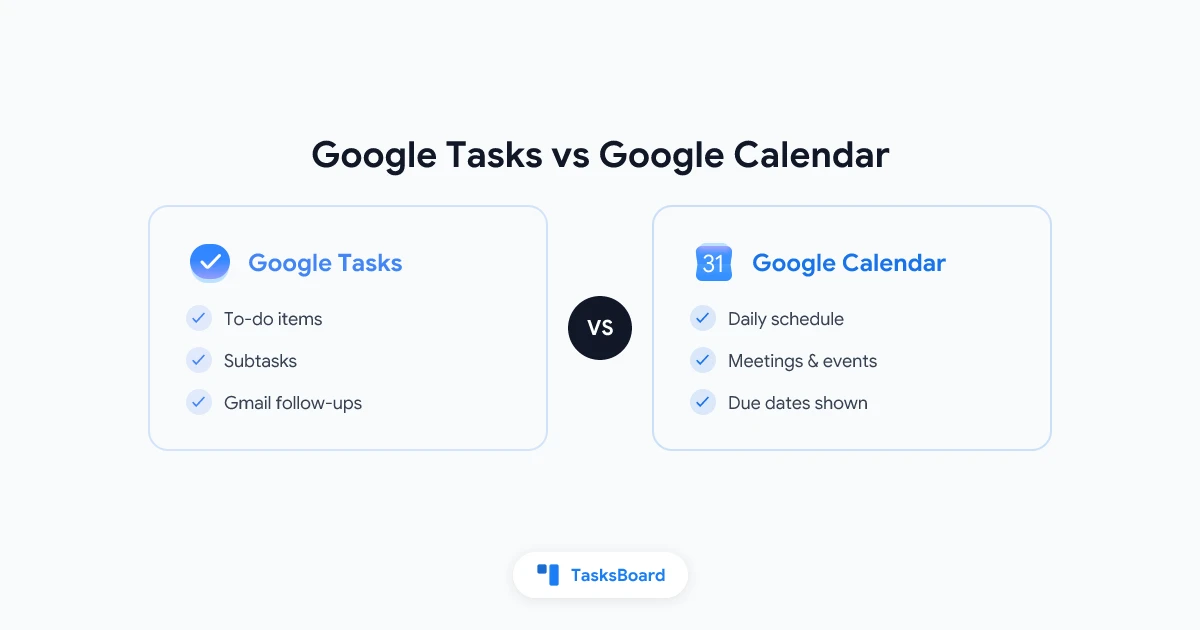
Google Tasks vs Google Calendar is a question a lot of Google users never mean to ask out loud, until they open Calendar one day and notice a small “Tasks” checkbox sitting next to their meetings. Both live inside your Google account. Both can hold something you need to do today. Neither one explains clearly when you should use the other instead.
This guide breaks down what each tool actually does with your to-dos, where due dates end up, and how to stop entering the same item twice. By the end you will know exactly which app to open first, and how TasksBoard fits in once your list needs more structure than either one offers alone.
TL;DR: Use Google Tasks to hold the to-do items themselves: things with a due date, a checkbox, and maybe a subtask or two. Use Google Calendar to see your day, including any tasks with dates layered on top of your meetings. They are not competing apps. Calendar displays a slice of what lives in Tasks. When your list needs sharing or a kanban view, TasksBoard adds that layer without asking you to leave Google.
Google Tasks vs Google Calendar at a Glance
| Feature | Google Tasks | Google Calendar |
|---|---|---|
| Primary purpose | Hold and check off to-do items | Show your schedule for the day, week, or month |
| Where tasks live | Native home for every task | Displays tasks with due dates, does not store them separately |
| Due dates | Set on the task itself | Shown as all-day entries, not editable from Calendar directly |
| Subtasks | One level under a parent task | Not shown as separate entries |
| Meetings and events | No | Full support, including guests and video links |
| Reminders | Notification tied to the due date | Popup or email alert you configure per calendar |
| Sharing | No native list sharing | Shared calendars, but not shared task lists |
| Recurring items | Limited, no true repeat rule | Full recurrence rules for events |
| Kanban or board view | No (add TasksBoard) | No |
| Best for | Capturing and completing action items | Seeing everything you have committed to in one view |
The short version: Tasks is where a to-do is born. Calendar is where it shows up once it has a date attached.
What Google Tasks Actually Holds
Google Tasks is the quiet list-keeping app tucked into Gmail, Calendar, and its own mobile app. Every item you add there is meant to be checked off eventually, not just looked at.
What it’s built for:
- Simple to-do lists, sorted into separate lists for work, home, or a specific project
- Due dates, which is the one field that connects a task to your calendar
- Subtasks, useful for breaking a task into two or three smaller steps
- Gmail follow-ups, turning an email into a task without leaving your inbox
- Cross-device sync, so a task added on your phone shows up on the web instantly
Tasks does not know about meeting times, guest lists, or video call links. It only knows a title, an optional note, and an optional due date. That narrow focus is the point. If you want a deeper walkthrough of the app itself, read how to use Google Tasks effectively.
Every item you check off started somewhere. In this pairing, that somewhere is always Google Tasks. Calendar reads from this list, it does not maintain a separate one of its own.
What Google Calendar Does with Your Tasks
Google Calendar added a native “Tasks” toggle in the left sidebar a few years ago, and that single checkbox is where most of the confusion starts. Turn it on and every task with a due date appears on the corresponding day as an all-day item, sitting right above your timed meetings.
Here is what that actually means in practice:
- Tasks with due dates show up as all-day entries on the matching day
- Tasks without due dates never appear on Calendar at all, they stay inside the Tasks app only
- Editing a task from Calendar is limited, you can check it off or open it, but detailed edits happen back in Tasks
- Calendar does not create tasks that “belong” to it. Every item still lives in your Google Tasks list underneath
This is different from a calendar event. An event has a start time, an end time, guests, and a location. A task on Calendar is really just a Tasks item wearing a calendar-shaped costume for the day. For the mechanics of how due dates travel between the two apps, see our full guide on Google Tasks calendar integration.
Due Dates, Reminders, and Notifications
Both apps can remind you about something, but they trigger notifications differently, and that gap causes most of the missed-deadline complaints.
| Scenario | What actually happens |
|---|---|
| Task with a due date, no time | Shows as an all-day item on Calendar, quiet notification at best |
| Task with a due date and time | Creates a timed reminder that behaves closer to an event alert |
| Task with no due date | Never appears on Calendar, only visible inside Tasks |
| Calendar event (meeting) | Full alert options: popup, email, or both, set per calendar |
A lot of people assume adding a task automatically means they will get pinged like they would for a meeting. That only holds true once a specific time is attached, not just a date. For a full breakdown of how alerts work across devices, read the Google Tasks reminders guide.
 Try TasksBoard
Keep due dates syncing to Google Calendar the way they already do, and add a kanban board and shared lists on top of the same Google Tasks data. No new account, no migration.
Get Started →When to Use Google Tasks vs Google Calendar
Think of it less as a choice between two apps and more as a question of where you go to enter something versus where you go to see everything.
Use Google Tasks when you…
- Need to capture a to-do quickly, with or without a date
- Want to break work into subtasks and check them off one by one
- Turn a Gmail email into a follow-up action
- Keep separate lists for work, personal errands, or a specific project
- Plan to add a kanban board through TasksBoard once the list needs more structure
Use Google Calendar when you…
- Want to see your whole day at a glance, meetings and tasks together
- Need to schedule a meeting with guests, a location, or a video link
- Are planning time blocks around fixed appointments
- Want a single view that shows conflicts between a task deadline and a meeting
Use both together when you…
- Add due dates to tasks specifically so they surface on your daily view
- Review Calendar each morning to see what’s due alongside what’s scheduled
- Treat Calendar as the “read” view and Tasks as the “write” view for anything without a fixed time
Where Google Tasks and Calendar Fall Short Together
Neither app was designed for team visibility. Google Calendar can be shared, but a shared calendar shows meetings, not a shared to-do list with owners and status. Google Tasks has no sharing at all, your list stays private to your account no matter how many people need to see it.
That gap is exactly why teams outgrow the two native apps once work involves more than one person. TasksBoard sits on top of the same Google Tasks data you already have, adding shared boards, a kanban view, and the ability to assign items to teammates, while due dates keep flowing to Google Calendar exactly like they do today.
Frequently Asked Questions
Conclusion
Google Tasks vs Google Calendar is not really a competition. Tasks is where your to-do items live, get organized into lists, and broken into subtasks. Calendar is where those same items surface once they have a due date, sitting next to the meetings and events that make up the rest of your day.
Use Google Tasks to capture and manage the work. Use Google Calendar to see it in context with everything else on your plate. When your task list needs sharing, assignment, or a visual board that neither app offers, TasksBoard extends the Google Tasks data you already have, without asking you to give up the calendar sync you rely on.
For a look at how Google’s other note-taking app fits into this picture, see our Google Tasks vs Keep comparison.
Ready to share your Google Tasks?
Get started with TasksBoard for free, no credit card required.
Sign in