How to Print Google Tasks: Print Multiple Lists on One Page

Knowing how to print Google Tasks sounds like a small thing, until the morning you want your whole week on a single sheet of paper. Maybe you plan better with a pen in hand. Maybe you need a handout for a meeting, a checklist for someone without a laptop, or a PDF snapshot of where a project stands today.
Google Tasks is built for checking things off on a screen. It gives you no dedicated way to print several of your lists together as one clean document.
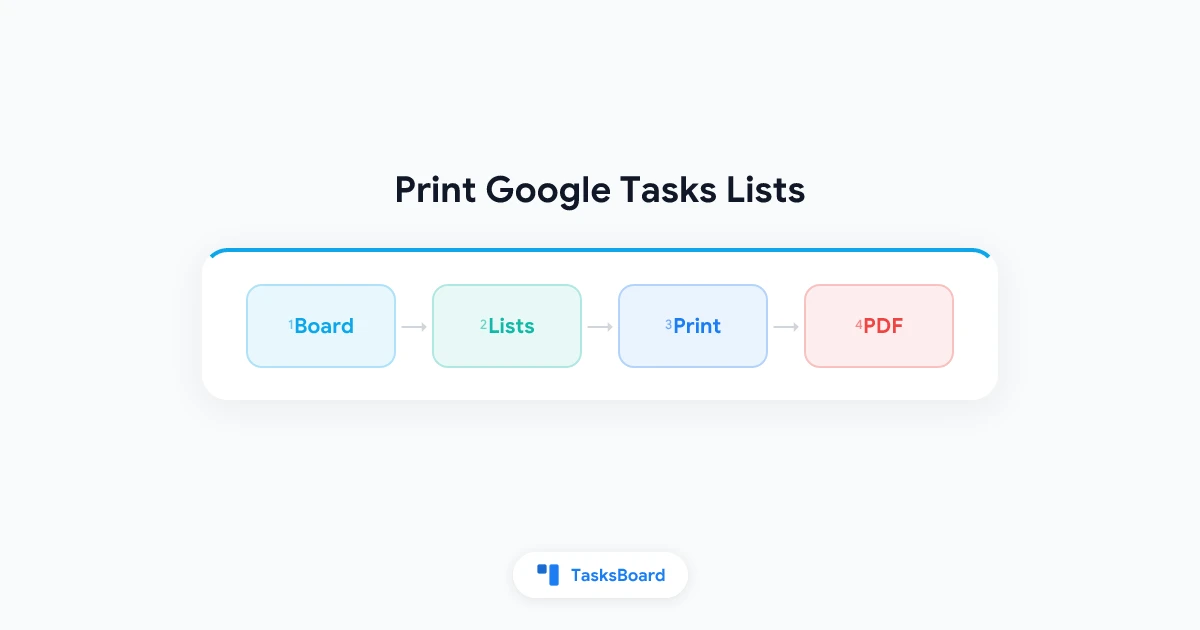
This guide shows you how to print a single Google Tasks list, how to print multiple lists on one page, and how to save everything as a PDF instead of paper. All of it runs through TasksBoard, which works directly on top of your existing Google Tasks data.
TL;DR:
- To print one list, open the list’s three-dot menu in TasksBoard and choose Print list. This option is free.
- To print every list on a board, open the board’s three-dot menu and choose Print board. This is a Premium feature.
- Print board stacks all lists one after another, starting with the board title. Open tasks, subtasks, notes, and due dates are included. Completed tasks are left out.
- In the print dialog, pick a printer or choose Save as PDF.
- To control which lists print together, put them on the same board with Move to another board.
Can You Print Google Tasks?
Yes, but the native options are thin. Google Tasks focuses on capturing and completing to-dos, not on producing a printable document. If you want more than one list on paper, you usually end up printing them one by one or copying tasks into a document by hand.
Your browser’s print command (Ctrl + P on Windows, Cmd + P on Mac) will print whatever page is open. That captures what is on screen, not a tidy task sheet built for paper.
A board-level print option solves the real problem. Instead of juggling separate printouts, you get every list you care about in one document, in order, with nothing extra.
TasksBoard Premium now includes a Print board option. One click prints every list on a board, stacked one after another, so your work, personal, and project lists can share a single printout or PDF.
Why Print Multiple Google Tasks Lists on One Page?
Most people who organize tasks well end up with several lists. Work, home, errands, and one list per project is a common setup. If you want ideas for structuring them, our guide to Google Tasks multiple lists covers the most useful patterns.
The downside shows up when you want to see all of those lists at once away from the screen. Here is when a single combined printout helps most:
- Weekly planning. Print your work and personal lists together on Monday morning and keep the sheet on your desk.
- Meetings and handoffs. Bring one page that covers every workstream instead of flipping between tabs.
- Shared households. Stick the chores, groceries, and weekend lists on the fridge as one document.
- Offline reviews. Mark up tasks with a pen during a commute or a quiet review session.
- Snapshots. Save a PDF of a project board at the end of a sprint or a month for your records.
In each case, the value comes from having everything together. A stack of separate one-list printouts is harder to read and easier to lose.
How to Print a Whole Board in TasksBoard
TasksBoard shows your Google Tasks lists as columns on a board. The Print board option turns that board into a printable document in a few clicks.
- Open TasksBoard and sign in with the Google account that holds your tasks.
- Go to the board you want to print. Every list on this board will be included.
- Open the board menu. Click the three-dot “more” menu next to the board title at the top of the board. You can also use the three-dot menu next to the board’s name in the left sidebar.
- Click “Print board”. Your browser’s print dialog opens with the whole board ready to print.
- Print or save. Pick your printer and print on paper, or choose Save as PDF as the destination to keep a digital copy.
That is the whole process. There is nothing to export, copy, or reformat first.
If you are on the free plan, clicking Print board shows the Premium upgrade screen instead of the print dialog.
 Try TasksBoard
Print all your Google Tasks lists on one page, or save them as a PDF in a few clicks. TasksBoard works on top of your existing Google Tasks, with no migration and no new account.
Get Started →What Your Printed Board Looks Like
The printout follows a simple, predictable layout. It starts with the board title at the top. Below it, every list on the board is printed one after another, stacked vertically down the page (and onto more pages if the board is long).
For each list, you get:
- The list title, so each section is easy to spot
- Every open task in that list
- Subtasks indented under their parent task, so the structure you built stays readable
- Task notes, for the extra context you added
- Due dates, so deadlines are visible on paper too
Completed tasks are not printed. The page only shows what still needs doing, which keeps the printout short and useful. If you want to review what you already finished, our guide to Google Tasks completed tasks explains where those items go.
Choose Which Lists Print Together with Boards
Print board prints every list on the board you open. So the way to control what ends up on the page is to decide which lists live on which board.
TasksBoard Premium lets you organize your Google Tasks lists into multiple boards. You might keep a “Work” board, a “Home” board, and a board per big project. When you print one of them, you get exactly that set of lists and nothing else.
To print a specific set of lists together, put them on the same board:
- Create or pick the board you want to print.
- Open the three-dot menu next to a list you want to include.
- Choose “Move to another board” and select the destination board.
- Repeat for each list you want on the printout.
- Print the board from the board menu, as described above.
A little planning here pays off every time you print. If you print the same combination each week, give those lists their own board and the printout is always one click away.
Print a Single Google Tasks List for Free
Sometimes you only need one list on paper, like a packing list or today’s errands. For that, the per-list print option is still there, and it is free for everyone.
- Open the three-dot menu next to the list title.
- Click “Print list”.
- Print it, or choose Save as PDF in the print dialog.
Here is how the two options compare:
| Print list | Print board | |
|---|---|---|
| What it prints | One list | Every list on the board, stacked |
| Where to find it | The list’s three-dot menu | The board’s three-dot menu (top of the board or left sidebar) |
| Plan | Free | Premium |
| Save as PDF | Yes, from the print dialog | Yes, from the print dialog |
Use Print list for quick, single-purpose sheets. Use Print board when you want the full picture on one document.
Save Your Google Tasks as a PDF
You do not need a printer to use either option. Both Print list and Print board open your browser’s standard print dialog, and that dialog lets you choose Save as PDF as the destination.
A PDF is handy when you want to:
- Email a status snapshot to a client or manager
- Archive a project board at the end of a milestone
- Keep an offline copy on your phone or tablet
- Share a checklist with someone who does not use Google Tasks
A PDF is a snapshot, not a live copy. For a data export you can reopen and edit, such as a spreadsheet, see our Google Tasks export guide.
Tips for a Cleaner Board Printout
A few small habits make a printed board much easier to use:
- Check off what is done. Completed tasks are left off a board printout automatically, so a quick tidy-up before printing keeps the page short.
- Add due dates to what matters. Due dates are included in the printout, which makes deadlines stand out on paper.
- Use subtasks for multi-step work. Subtasks print indented under their parent, so a big task reads like a mini checklist. Our Google Tasks subtasks guide shows how to set them up.
- Put context in notes. Notes are included in the printout, so a short line of detail saves you from opening the app later.
- Keep print boards focused. A board with a handful of lists makes a short, readable printout. A board with dozens of lists becomes a long document.
FAQ
Conclusion
Learning how to print Google Tasks comes down to two options. Use Print list when one list is enough. Use Print board when you want every list on a board stacked on one document, with subtasks, notes, and due dates included and completed tasks left out.
Organize the lists you print together onto the same board, and your weekly planning sheet, meeting handout, or PDF snapshot is always a couple of clicks away.
Get started with TasksBoard and turn your Google Tasks lists into a clean printout or PDF today.
Ready to share your Google Tasks?
Get started with TasksBoard for free, no credit card required.
Sign in