Google Tasks Move Task Between Lists: Every Method Explained

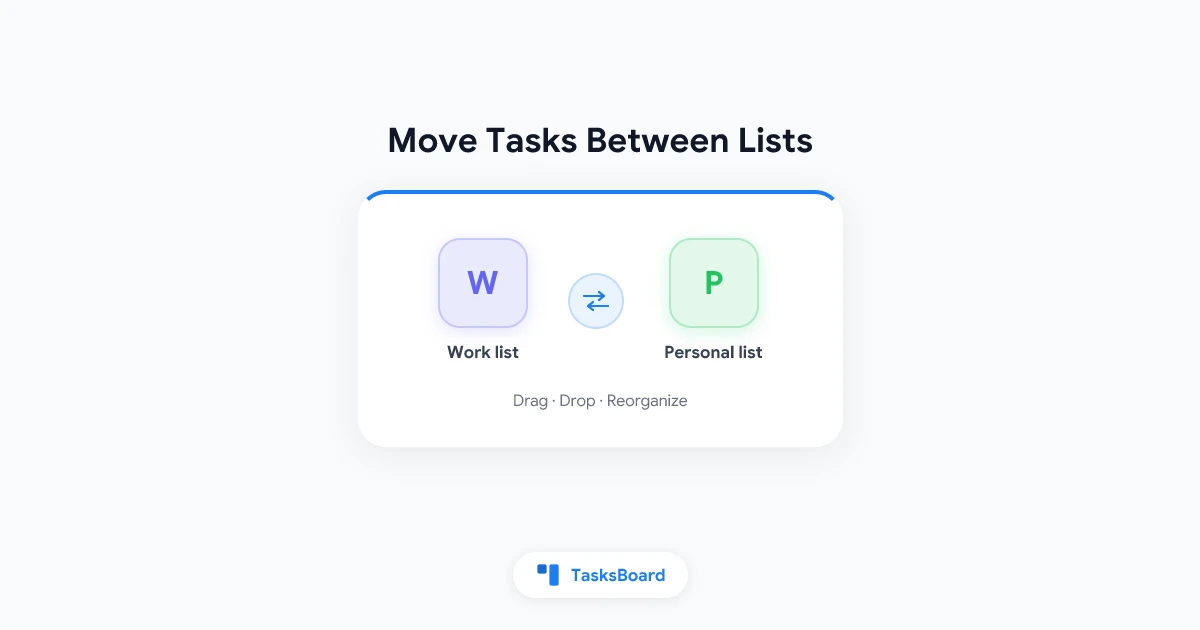
You added a task to the wrong list. Or a side project grew up and now needs its own home. Either way, you want to move the task without retyping it.
Google Tasks lets you move a task between lists, but the options are small and a few rules catch people out. This guide covers the methods that work, the limits, and what to do when you need to move many tasks at once.
How to move a task between lists in Google Tasks
Google’s own help page describes the steps for a computer. You do this in the Tasks panel inside Google Calendar, Gmail, or Drive, or in the Tasks side panel.
- Open Tasks and find the task you want to move.
- Click and hold the task.
- Drag it onto the list you want.
The task lands in the new list, and the old list no longer shows it. That is the whole move.
- Drag and drop: hold the task and drop it on a list name
- Task options: open the menu next to the task and pick a list name
- Not allowed: tasks set to repeat cannot change lists
Use the task options menu instead of dragging
Dragging can feel fiddly when you have many lists. Google also lets you open the task options next to the task and choose a list name from there.
This is a good fit for a trackpad or a long list of lists. You pick the destination from a menu, so there is no aiming involved.
Mobile steps are less clear. Google’s help content I checked only spells out the computer steps, so test the task detail screen in your app and look for a list picker. If your version has none, finish the move on a computer.
What happens to subtasks, dates, and notes
The task keeps its title, notes, and due date when it moves. If you have not yet read how nesting works, see our guide to Google Tasks subtasks.
Google’s help page does not say what happens to subtasks. Practical reports say subtasks follow their parent, but check the result after your first move before you trust it on a big cleanup.
There is one hard limit from the API documentation: a user can have up to 2,000 subtasks per task. That is rarely a problem, but it shows why one giant parent task is a poor design.
Tasks you cannot move
Google is clear on this point: tasks set to repeat can’t be moved to a different list. The Tasks API says the same thing: “Recurrent tasks cannot currently be moved between lists.”
Assigned tasks also have rules. The API says assigned and repeating tasks can’t be parents or be nested under a parent.
If you need a repeating task in another list, you have a workaround:
- Create a new task in the destination list.
- Set the repeat again.
- Delete the old task.
For more on repeats, read our guide to Google Tasks recurring tasks.
 Try TasksBoard
See every Google Tasks list as a column on one board. Drag a card from one column to another to move it between lists.
Get Started →Moving many tasks at once
Google Tasks has no multi-select. You move tasks one at a time, which is slow when you are splitting a big list.
Here are the options for a larger cleanup:
- Move in batches: do ten tasks, then take a break and review.
- Use a board view: with TasksBoard, lists appear side by side, so you can drag cards between them quickly. Our Google Tasks kanban board guide shows the setup.
- Export first: if you are about to reshuffle everything, take a backup using the Google Tasks export guide.
Developers can also use the Tasks API tasks.move method with a destinationTasklist value. Google lists a default quota of 50,000 requests per day for the API, which is plenty for personal scripts.
A simple way to decide where a task belongs
Moving tasks is easy. Deciding where they go is the hard part.
| If the task is... | Move it to |
|---|---|
| Captured in a hurry | The right area list during review |
| Part of a new project | A project list of its own |
| Waiting on someone | A "Waiting" list |
Pick one weekly time to sort. If you want a structure for your lists first, start with Google Tasks multiple lists.
FAQ
Conclusion
To move a task between lists in Google Tasks, drag it onto another list or pick a list from the task options. Remember that repeating tasks can’t move, and that there is no bulk move.
If you move tasks often, a visual board saves time. Try TasksBoard to see all your lists at once and drag cards where they belong.
Sources: Google Tasks Help: Move a task, Google Tasks API: tasks.move, Google Tasks API limits.
Ready to share your Google Tasks?
Get started with TasksBoard for free, no credit card required.
Sign in