






Google Tasks + Calendar
See Your Google Tasks in Calendar - Plan Your Day Without Switching Apps
Google Tasks live right inside Google Calendar. TasksBoard makes that integration even better - full-screen boards, real-time sync, and a today view that combines your meetings and to-dos.
Used by 2M+ people. Free to start.
Why TasksBoard for Google Tasks + Calendar
Tasks appear in the Calendar sidebar
No tab switching. Your tasks are visible right next to your events so you can plan your day in one place.
Due dates become calendar anchors
Set a due date on any task and it shows up on the correct day in Google Calendar - no manual entry.
Plan your week visually
TasksBoard gives you a full-screen Kanban board so you can see all tasks by list, drag them to new columns, and spot overdue work instantly.
Real-time two-way sync
Everything you do in TasksBoard syncs back to Google Tasks and Calendar immediately. No exports, no plugins.
Today view
Your tasks and meetings - side by side
Today view
Your tasks and meetings - side by side
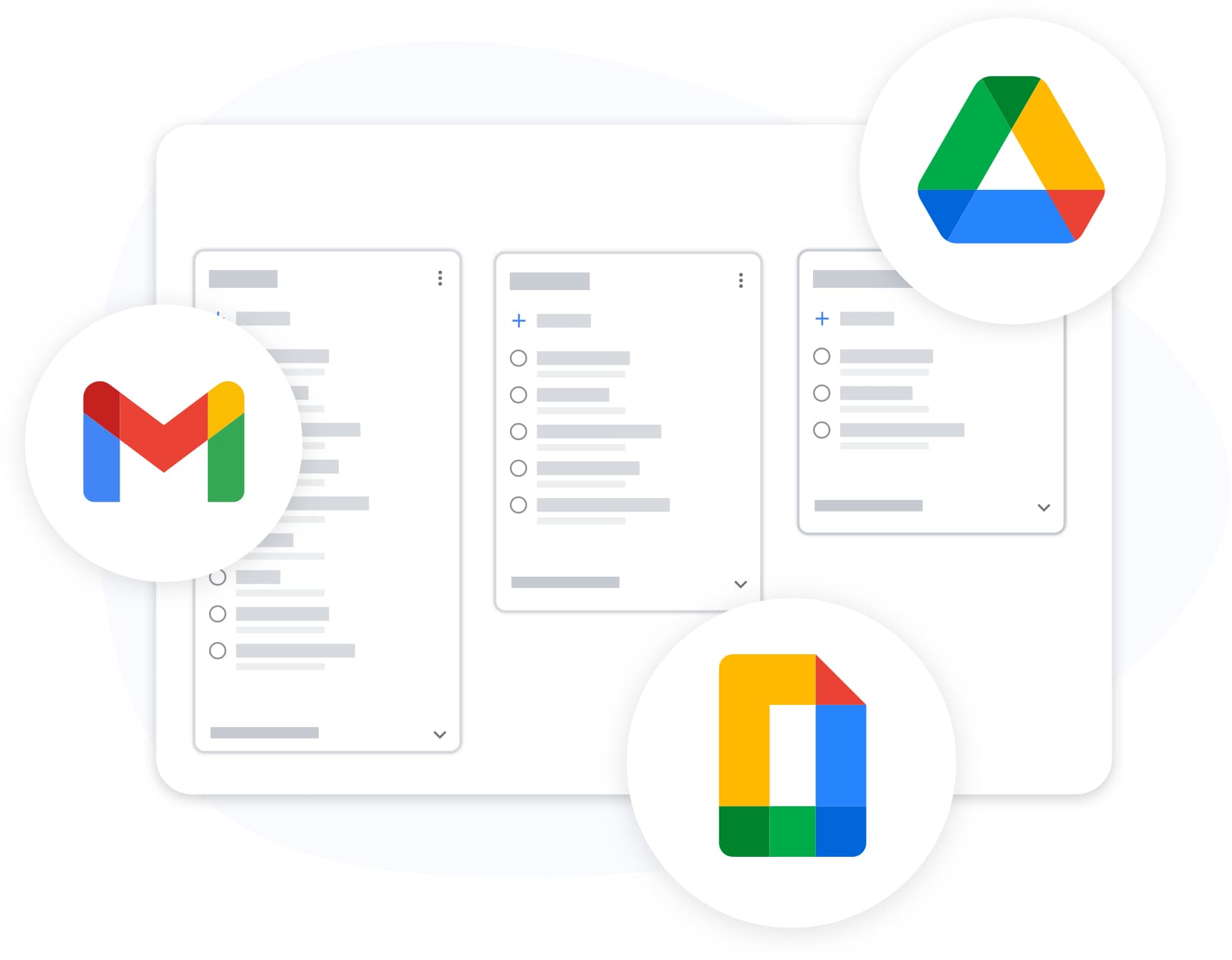
TasksBoard pulls your Google Tasks and your Google Calendar events into a single today view. See your morning standup at 9 AM and the three tasks you planned to finish before lunch - all without leaving one screen.
- Tasks with today's due date appear at the top
- Calendar events shown in time order
- Overdue tasks flagged in red - nothing slips through
Full-screen Kanban
Stop working in a tiny sidebar
Full-screen Kanban
Stop working in a tiny sidebar
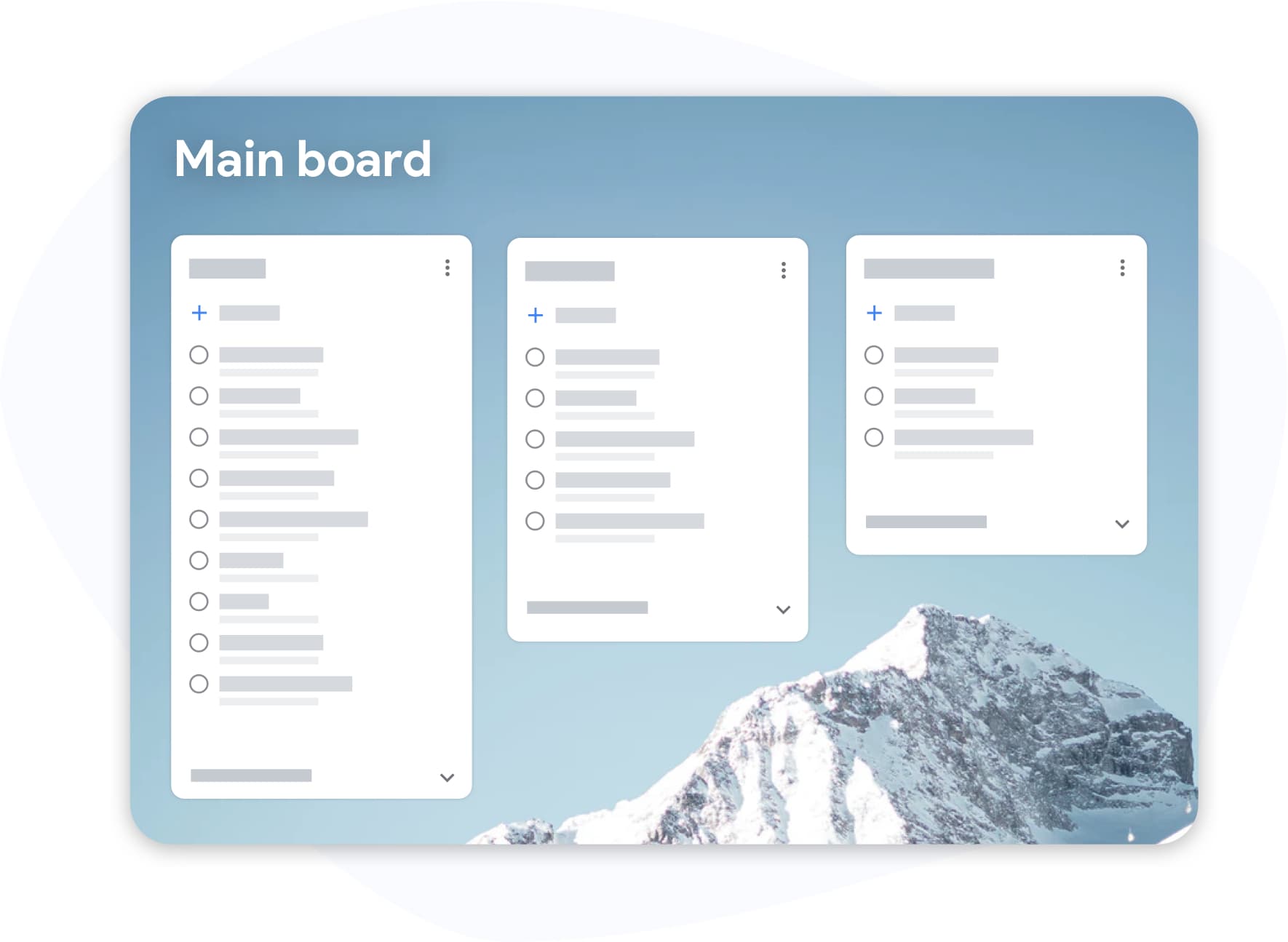
Google Tasks in the Calendar sidebar is useful but cramped. TasksBoard opens your tasks to full screen - see all your lists, drag cards between columns, and work without squinting.
- Multiple lists visible at the same time
- Drag & drop across columns and lists
- Keyboard shortcuts for fast task entry
How Google Tasks and Calendar work together
-
Add a task with a due date
In TasksBoard or Google Tasks, create a task and set a due date. It will appear in your Google Calendar on that day.
-
Open Google Calendar
Click the Tasks icon in the right sidebar of Google Calendar. Your tasks appear in a panel next to your events.
-
Plan your day from board
Use TasksBoard's full-screen board to drag tasks into the right order, mark completions, and start your day with a clear plan.
Loved by thousands of users
4.8 / 5 from 1,000+ reviews on the Chrome Web Store
"Always have 101 things to do and this helps me organize and prioritize like no other app can. It syncs to my phone and laptop, and when I add dates to tasks, they automatically integrate into my Google Calendar, which is immensely convenient. I can look at my daily, weekly, and monthly overview in Google Calendar and clearly see how much I was able to accomplish! Great tool indeed. Excited to see how it will evolve over time."

"Seriously, makes my tasks easier to share with the team, and the free version is quite nice for our little office. Eventually, we will expand, and this is definitely a great tool to do that! Syncs with my Workspace and Calendar."

"I love the simple, intuitive interface and the Add to Tasks feature, especially as I work through my emails! Sharing my tasks is also easy. Overall, outstanding and simple to use, and that means a lot with too many complex tasks out there!"

"Great too for managing daily routine and plan tasks. Would be perfect if it was updated for generating reports for statistics. For google tasks and google calendar"





Frequently asked questions
How do I see Google Tasks in Google Calendar?
Open Google Calendar in a browser and click the Tasks icon (checkmark) in the right sidebar. Your Google Tasks lists will appear there. Tasks with due dates show up on the calendar day they're due.
Do Google Tasks show up on the calendar as events?
Tasks with due dates appear on the correct day in Google Calendar, but they are shown differently from events - they don't occupy a time slot unless you also set a time. They appear in the day column as a task item.
Can I add a task directly from Google Calendar?
Yes. Click any empty time slot in Google Calendar and choose "Task" instead of "Event". The task will be added to your Google Tasks list with the date you selected.
What does TasksBoard add that Google Calendar doesn't have?
TasksBoard gives you a full-screen Kanban board for your Google Tasks, the ability to share boards with teammates, a today view that combines tasks and events, and bulk actions like drag-and-drop reordering - things the Calendar sidebar doesn't support.
Is TasksBoard free?
Yes. TasksBoard's free plan includes unlimited tasks, Kanban boards, Google Tasks sync, and mobile apps. A premium plan adds team sharing and advanced features.
Does TasksBoard sync with Google Calendar in real time?
Yes. Any task you create or update in TasksBoard is immediately reflected in Google Tasks, which in turn syncs to Google Calendar. There is no manual export step.
Get started
Plan your day with Google Tasks and Calendar - together
Sign in with your Google account and see your tasks in a full-screen board. Free forever, no credit card required.
No credit card required. Works with your existing Google Tasks.