














Kanban Board Examples
Kanban Board Examples - Templates for Software, Marketing, and More
See how real teams set up Kanban boards for different workflows. Each example includes column names, WIP limit ideas, and tips for adapting the template to your team.
Used by 2M+ people. Free to start.
Why These Examples Work
Each example shows a real workflow
The templates below are based on common team setups, not theory. Columns, WIP limits, and card naming conventions come from real usage patterns.
Copy any template in minutes
Open TasksBoard, create a new board, and add the column names from the example. You can start running the workflow the same day.
Adapt to fit your process
No two teams are identical. Start with an example, then rename or add columns to match your actual stages. Kanban is designed to evolve.
Backed by Google Tasks
Every card in TasksBoard is a real Google Task. Due dates sync to Google Calendar and tasks appear in Gmail - no extra integration needed.
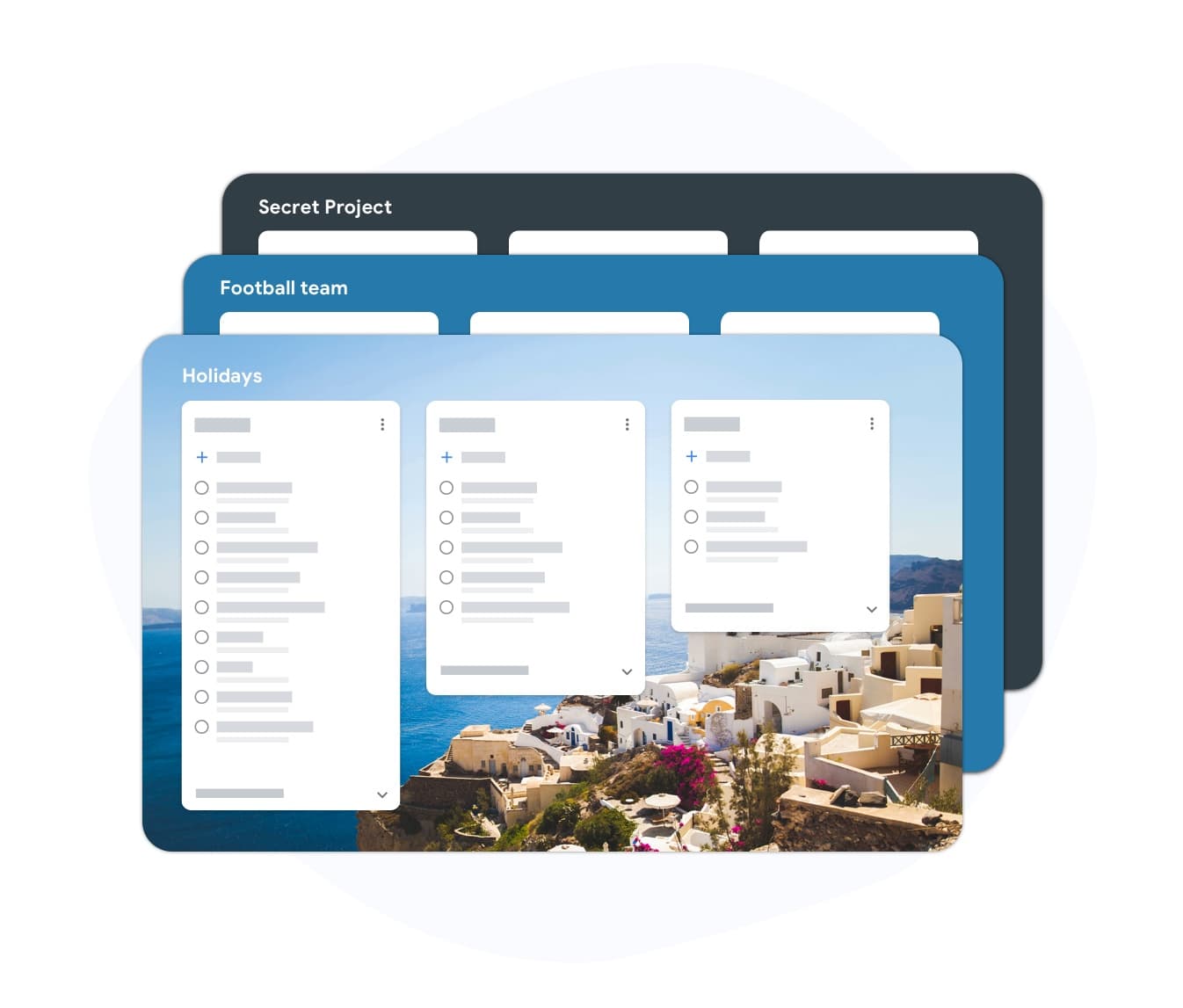
Software development board
Example: dev team workflow
Software development board
Example: dev team workflow
A typical software team Kanban board has five columns: Backlog, Ready, In Progress, In Review, and Done. The In Progress column usually carries a WIP limit of one to two tasks per developer. Cards include a short title, an assignee, and an estimated complexity. Bugs go into a dedicated Bug Fix lane or a color-labeled category within the same columns.
- Columns: Backlog, Ready, In Progress, In Review, Done
- WIP limit on In Progress: 1-2 per developer
- Color labels to separate features from bugs
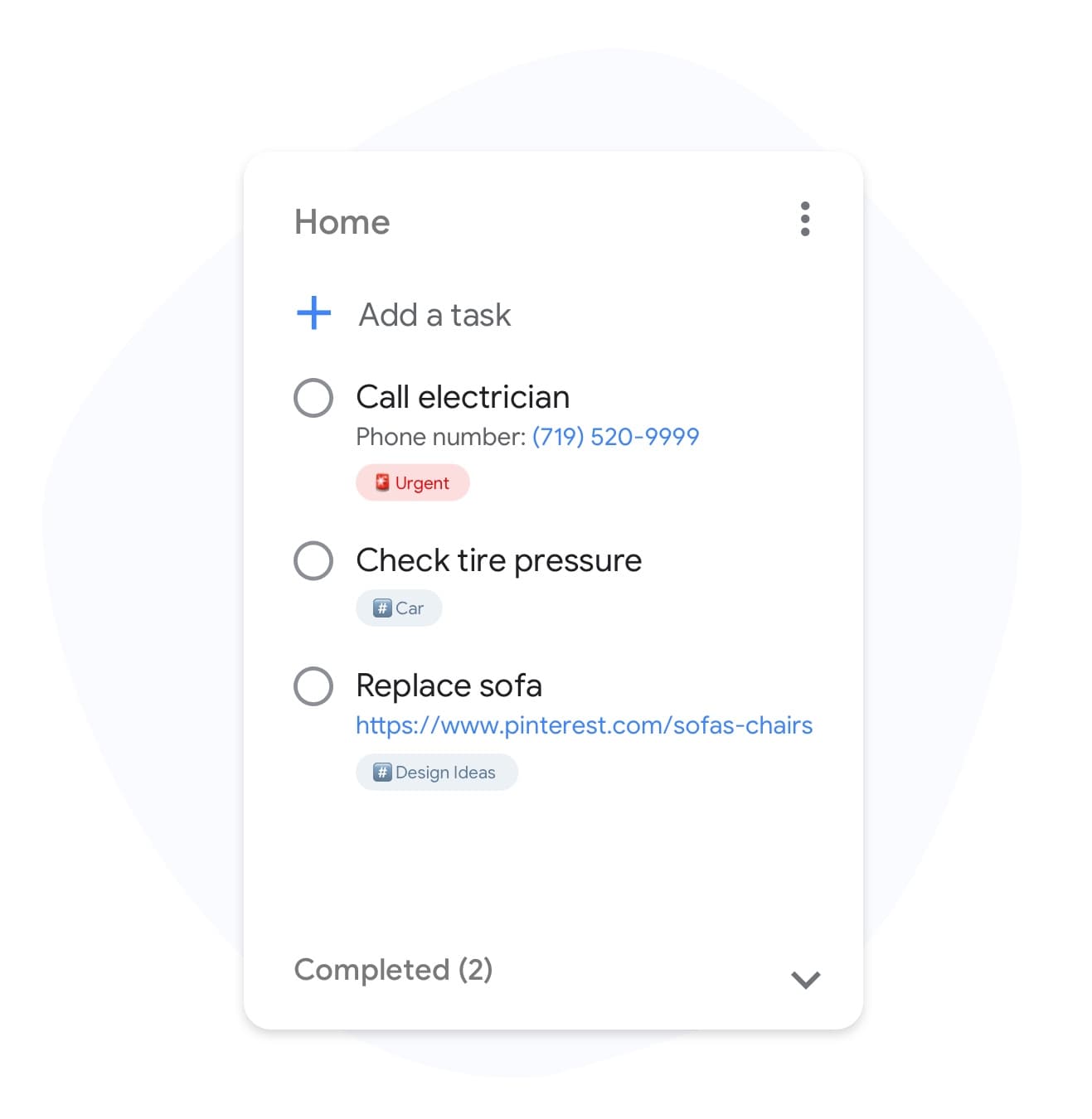
Marketing board
Example: content and campaign workflow
Marketing board
Example: content and campaign workflow
Marketing teams benefit from Kanban boards that mirror the content lifecycle. A common setup uses: Ideas, Briefed, In Draft, In Review, Scheduled, and Published. Each card is a piece of content or a campaign task. Due dates on cards ensure content hits the publishing calendar. Labels separate blog posts, social content, and paid campaign work.
- Columns: Ideas, Briefed, In Draft, In Review, Scheduled, Published
- Labels for content type (blog, social, email)
- Due dates link to the editorial calendar in Google Calendar
Personal productivity board
Example: personal Kanban for solo work

Personal productivity board
Example: personal Kanban for solo work
A personal Kanban board can be as simple as three columns: This Week, In Progress, and Done. The key constraint is a WIP limit of three on the In Progress column. This prevents the common trap of starting ten tasks and finishing none. When the In Progress column is full, the rule is simple: finish something before starting anything new.
- Start simple: This Week, In Progress, Done
- WIP limit of three on In Progress
- Review the board each morning to plan the day
How to create your board from an example
-
Pick the closest example
Choose the template above that best matches your team type. Note the column names and any WIP limits suggested.
-
Build the board
Sign in with Google, create a new board, and add a list for each column in the example. Rename lists to match your actual stage names.
-
Add tasks and start flowing
Drag existing Google Tasks into the correct columns or create new ones directly in the board. Adjust columns after a week based on what you learn.
Loved by thousands of users
4.8 / 5 from 1,000+ reviews on the Chrome Web Store
"Always have 101 things to do and this helps me organize and prioritize like no other app can. It syncs to my phone and laptop, and when I add dates to tasks, they automatically integrate into my Google Calendar, which is immensely convenient. I can look at my daily, weekly, and monthly overview in Google Calendar and clearly see how much I was able to accomplish! Great tool indeed. Excited to see how it will evolve over time."

"Seriously, makes my tasks easier to share with the team, and the free version is quite nice for our little office. Eventually, we will expand, and this is definitely a great tool to do that! Syncs with my Workspace and Calendar."

"I love the simple, intuitive interface and the Add to Tasks feature, especially as I work through my emails! Sharing my tasks is also easy. Overall, outstanding and simple to use, and that means a lot with too many complex tasks out there!"

"Great too for managing daily routine and plan tasks. Would be perfect if it was updated for generating reports for statistics. For google tasks and google calendar"





Frequently asked questions
What columns should a basic Kanban board have?
The simplest Kanban board has three columns: To Do, In Progress, and Done. This is enough to visualize work and apply WIP limits. Add more columns only when you identify a genuine stage that needs its own queue, such as Review or Waiting on Approval.
How many tasks should be in progress at one time?
A common starting WIP limit for In Progress is one to two tasks per person. The goal is to prevent multitasking and ensure work actually finishes before new work starts. You can adjust the limit up or down based on your team size and task complexity.
What does a Kanban card typically contain?
A Kanban card should have a clear title that describes the work, an optional due date, and any relevant labels or categories. Avoid long descriptions in the card title - use subtasks or notes for detail. The card should be actionable and specific.
Can I use a Kanban board for personal tasks?
Yes. Personal Kanban is very effective for solo work. A three-column board with a WIP limit of three on In Progress is enough to stay focused and prevent the feeling of being overwhelmed by a long to-do list.
How do I adapt a Kanban template to my team?
Start with the template closest to your current process. Run it for one week without changes, then hold a brief review. Identify the column where cards stall most often - that is usually where a bottleneck or missing stage is. Add or rename columns to address it.
What is the difference between a Kanban board and a to-do list?
A to-do list is a flat sequence of tasks. A Kanban board organizes tasks by status across multiple stages. This shows you not just what needs to be done but where every task is in the process - and where work is getting stuck.
Get started
Start with a Kanban template in TasksBoard
Sign in with Google and create your board in minutes. Use one of the examples above as a starting point and adapt it to your workflow.
No credit card required. Works with your existing Google Tasks.