Google Workspace Security: Best Practices for 2026

Google Workspace is the productivity backbone of millions of organizations, with email, documents, calendars, video meetings, and task management all running through a single platform. That centralization brings enormous convenience. It also creates a concentrated target for attackers, accidental data exposure, and insider risk.
Google Workspace security is not a one-time configuration. It is an ongoing practice that spans administrator controls, end-user behavior, third-party integrations, and organizational policy. This guide covers the most important security practices for 2026, organized by the control layer where each applies.
Why Google Workspace Security Deserves Serious Attention
Google invests heavily in infrastructure security, including encryption in transit and at rest, data centers with physical security, and continuous threat detection. What Google cannot fully protect against is how your organization configures and uses the platform.
The most common security incidents in Google Workspace are not Google infrastructure breaches. They are:
- Account takeover via phishing: an attacker tricks an employee into entering credentials on a fake login page.
- Overprivileged OAuth apps: a third-party app granted access to Google Drive or Gmail that later becomes malicious or is acquired by an untrustworthy company.
- Accidental sharing: a sensitive document shared with “anyone with the link” rather than specific people.
- Weak or reused passwords: particularly among accounts without 2-step verification.
- Compromised admin accounts: the highest-risk account type in any Google Workspace organization.
Each of these has a clear mitigation. The challenge is implementing all of them consistently.
Admin Console: The Foundation of Google Workspace Security
The Google Admin Console is where organizational security configuration lives. Every security best practice described here requires admin access to implement.
Enforce 2-step verification
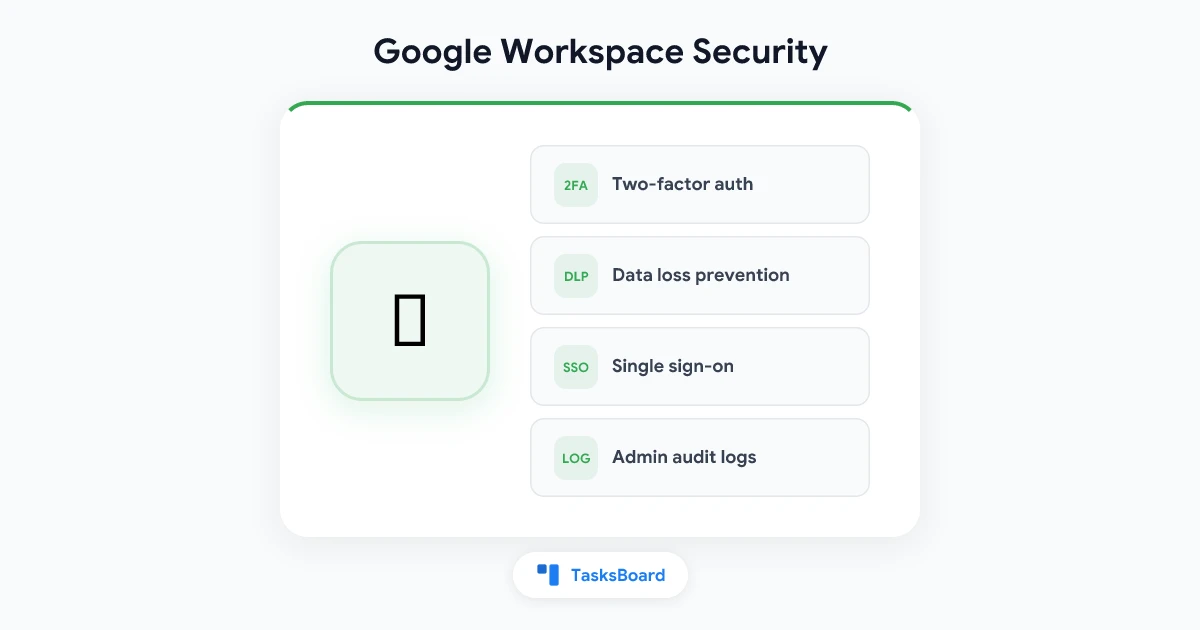
Two-step verification (2SV) is the single highest-impact security control available in Google Workspace. It requires a second factor (a code, a hardware key, or a biometric) in addition to the password. Even if an attacker obtains a user’s password, they cannot access the account without the second factor.
How to enforce it:
- In the Admin Console, go to Security > Authentication > 2-step verification.
- Enable enforcement for all users (not just optional).
- Set a grace period (7-30 days) for users to enroll before the policy takes effect.
- Consider requiring hardware security keys (FIDO2/WebAuthn) for high-privilege accounts like admins.
For maximum protection, hardware security keys are dramatically more phishing-resistant than SMS codes or authenticator apps. Google’s own research found that hardware keys blocked 100% of automated bot attacks, 99% of bulk phishing attacks, and 90% of targeted attacks.
Require strong passwords
Set a minimum password length of at least 12 characters and enforce reuse prevention (block the last 10 passwords). Pair this with Have I Been Pwned-style leaked credential detection, which Google includes in the Security Center.
Audit super admin accounts
Super admin accounts have unrestricted access to all data and settings in your Google Workspace organization. Best practices:
- Maintain no more than 2-4 super admin accounts.
- Never use super admin accounts for daily work. Create separate admin accounts for routine administrative tasks.
- Enable login challenges and require hardware security keys for all super admin accounts.
- Review the list of super admins quarterly.
Protecting User Data: Sharing and DLP
Audit external sharing settings
Google Drive’s default sharing settings allow users to share files with anyone who has the link, including people outside the organization. For most organizations, this is too permissive.
In the Admin Console, review:
- Drive and Docs > Sharing settings > Sharing outside [your domain]: restrict to specific trusted domains or disable external sharing entirely for sensitive organizational units.
- Disable link sharing set to “anyone” for organizational units that handle sensitive data.
Data Loss Prevention (DLP)
Google Workspace’s DLP rules automatically scan outgoing email and Drive file sharing for sensitive data patterns, including credit card numbers, Social Security numbers, national ID numbers, and custom patterns you define.
When DLP detects a sensitive pattern, it can block the share, warn the user, or notify the admin. DLP is available on Business Plus, Enterprise, and Education Plus plans.
Key DLP rules to configure:
- Block Drive files containing credit card numbers from being shared externally.
- Warn before sending emails containing certain keywords (confidential, proprietary, PII).
- Quarantine Gmail messages containing suspicious attachment types.
Vault for retention and eDiscovery
Google Vault lets admins set retention rules for Gmail, Drive, Chat, and Meet. This ensures that data is preserved for the required retention period even if users delete it, which matters for legal and compliance requirements.
For organizations subject to GDPR, HIPAA, or financial regulations, Vault is essential infrastructure, not an optional add-on.
Managing Third-Party App Access
Third-party apps that connect to Google Workspace via OAuth are one of the most underappreciated security risks. Every time a user clicks “Sign in with Google” and grants permissions to an app, that app gets ongoing access to the granted data until the user manually revokes it.
Audit connected apps
In the Admin Console, go to Security > Access and data control > API controls > App access control to see all third-party apps that have been granted OAuth access to your organization’s Google Workspace data.
Review this list for:
- Apps that request broader permissions than their function requires.
- Apps from vendors your organization no longer uses.
- Apps with no users currently using them.
- Apps that have been deprecated or whose vendors have been acquired.
Restrict third-party app access
For high-security organizations, you can restrict which third-party apps are allowed to connect to Google Workspace entirely. Two options:
- Allowlist mode: only apps explicitly approved by the admin can connect.
- Restrict unverified apps: only apps that have completed Google’s OAuth verification process can request sensitive scopes.
The allowlist approach provides the strongest protection but requires ongoing maintenance as the organization adopts new tools.
TasksBoard and OAuth security
TasksBoard uses the official Google Tasks API via OAuth, requesting access only to Google Tasks data. It does not request access to Gmail, Drive, or Calendar contents. When you grant TasksBoard access, it can read and write your Google Tasks and nothing else. This minimal permission scope follows the principle of least privilege.
When evaluating any third-party Google Workspace app, verify the permission scopes requested before granting access. An app that requests access to all Gmail data to “improve productivity” is a red flag.
Email Security: Gmail Protections
Gmail includes several security layers that admins can configure and strengthen.
Phishing and malware protections
In the Admin Console under Apps > Google Workspace > Gmail > Safety, enable:
- Enhanced pre-delivery message scanning: additional AI-powered scanning before messages reach users’ inboxes.
- Attachments: Protect against attachments from untrusted senders.
- Links and external images: Identify links behind shortened URLs.
- Spoofing and authentication: Protect against unauthenticated email.
Configure SPF, DKIM, and DMARC
These email authentication standards verify that email sent from your domain actually originates from your authorized mail servers.
- SPF (Sender Policy Framework): lists authorized sending IP addresses in your DNS.
- DKIM (DomainKeys Identified Mail): adds a cryptographic signature to outgoing email.
- DMARC: tells receiving mail servers what to do with email that fails SPF/DKIM checks.
Google Workspace makes DKIM configuration straightforward through the Admin Console. DMARC requires a DNS record. Start with a p=none policy that only monitors, then move to p=quarantine and eventually p=reject after verifying that legitimate email passes authentication.
Secure LDAP and SSO
For organizations using Secure LDAP or SAML-based single sign-on, ensure your SSO provider enforces the same 2SV policies as Google Workspace. Bypassing 2SV at the SSO layer eliminates your Google Workspace 2SV protections.
Endpoint and Mobile Device Management
Every device that accesses Google Workspace is a potential attack vector. Mobile device management (MDM) lets admins control and wipe devices that access organizational data.
Basic vs. advanced device management
Google Workspace includes basic device management at no additional cost. Advanced endpoint management is available on higher-tier plans. Key capabilities:
Basic (free):
- Require screen lock on mobile devices.
- Remote account wipe (removes Google Workspace data without full device wipe).
- Device inventory.
Advanced (paid plans):
- Require approved apps only.
- Block access from compromised devices.
- Full device wipe capability.
- Enforce OS update requirements.
Chromebook management
Organizations using Chromebooks can manage them through Google Admin with granular policy controls, including blocking USB storage, enforcing verified boot, restricting app installation, and setting network access policies.
Security Monitoring and Incident Response
Security Center
The Google Workspace Security Center (available on Business Plus and Enterprise) provides a dashboard of security health metrics, alerts, and investigation tools. Monitor:
- Failed login attempts and suspicious sign-ins.
- Email and Drive activity anomalies.
- Third-party app OAuth grants.
- Data exfiltration indicators.
Set up email alerts for high-priority security events so the admin team is notified promptly.
Alert Center
The Alert Center in the Admin Console aggregates security alerts from across Google Workspace, including account compromise warnings, government-backed attack notifications, suspicious login activity, and phishing campaigns targeting your domain.
Review the Alert Center regularly and establish an incident response workflow for common alert types.
Log retention and audit logs
Google Workspace generates audit logs for admin actions, Drive activity, Gmail activity, and more. These logs are the foundation of any security investigation.
For most plans, audit logs are retained for 180 days. Organizations requiring longer retention should configure Google Cloud Storage export or a SIEM integration.
Security Best Practices for End Users
Administrative controls only go so far. Employee security behavior is the other half of the equation.
Regular security training
Annual security training is a regulatory minimum for many industries, but the most effective programs provide ongoing, scenario-based training. Focus on phishing recognition, safe file sharing practices, and password hygiene.
Google provides free security training resources through the Google Workspace learning center that administrators can share with employees.
Phishing simulation
Running regular phishing simulations (sending fake phishing emails to employees to see who clicks) provides data on which employees or teams need additional training. This is most effective as a learning tool, not a punitive measure.
Clear data handling policies
Document and communicate which types of data can be shared externally, which require internal-only access, and which require encryption or additional controls. Without clear policies, employees make inconsistent decisions that create exposure.
Frequently Asked Questions
What is the most important Google Workspace security setting?
Enforcing 2-step verification for all users is the single highest-impact security control. Account takeover is the most common serious security incident in Google Workspace environments, and 2SV prevents the vast majority of credential-based attacks.
How do I see which apps have access to my Google Workspace?
In the Admin Console, go to Security > Access and data control > API controls > App access control. This shows all third-party apps with OAuth access to your organization’s data. Individual users can also see their personal connected apps at myaccount.google.com/permissions.
Can Google Workspace be HIPAA compliant?
Yes, with proper configuration. Google offers a Business Associate Agreement (BAA) for Google Workspace customers, which covers Gmail, Drive, Calendar, and other core services. You must execute a BAA with Google and configure appropriate controls (encryption, access controls, audit logging) to meet HIPAA requirements.
What is Google Workspace’s approach to data encryption?
Google encrypts data in transit (TLS) and at rest (AES 256-bit). For organizations requiring customer-managed encryption keys, Google Workspace offers Client-side encryption (CSE) on Enterprise and Education Plus plans, which lets you encrypt data with keys you control before it reaches Google’s servers.
How do I prevent accidental data leaks in Google Drive?
The primary controls are: restricting external sharing settings in the Admin Console, implementing DLP rules to flag sensitive data patterns, and training users on sharing best practices. For high-sensitivity organizations, requiring link sharing to be set to specific people rather than “anyone with the link” eliminates the most common accidental exposure vector.
How does TasksBoard handle Google Workspace security?
TasksBoard accesses Google Tasks only. It does not request access to Gmail, Google Drive, or any other Google Workspace service beyond tasks. TasksBoard uses OAuth 2.0 for authentication, meaning it never receives or stores your Google password. You can review and revoke TasksBoard’s access at any time via your Google account’s security settings at myaccount.google.com/permissions.
Building a Security Program, Not Just a Configuration
The most resilient Google Workspace security posture is not a one-time configuration. It is a living program with regular reviews, ongoing user education, and clear incident response processes.
Start with the high-priority controls: enforce 2-step verification, audit super admin accounts, review external sharing settings, and configure Gmail authentication (SPF/DKIM/DMARC). Then work through the lower-priority controls systematically.
Security is most effective when it is proportionate to your organization’s risk profile. A ten-person startup has different needs than a healthcare provider or financial services firm. Use this guide as a framework and adjust the rigor of each control to match what is actually at stake for your organization.
For more guidance on Google Workspace features and capabilities, see the Google Workspace tutorial.
Ready to share your Google Tasks?
Get started with TasksBoard for free, no credit card required.
Sign in