















How to Share Your Google Tasks Using TasksBoard

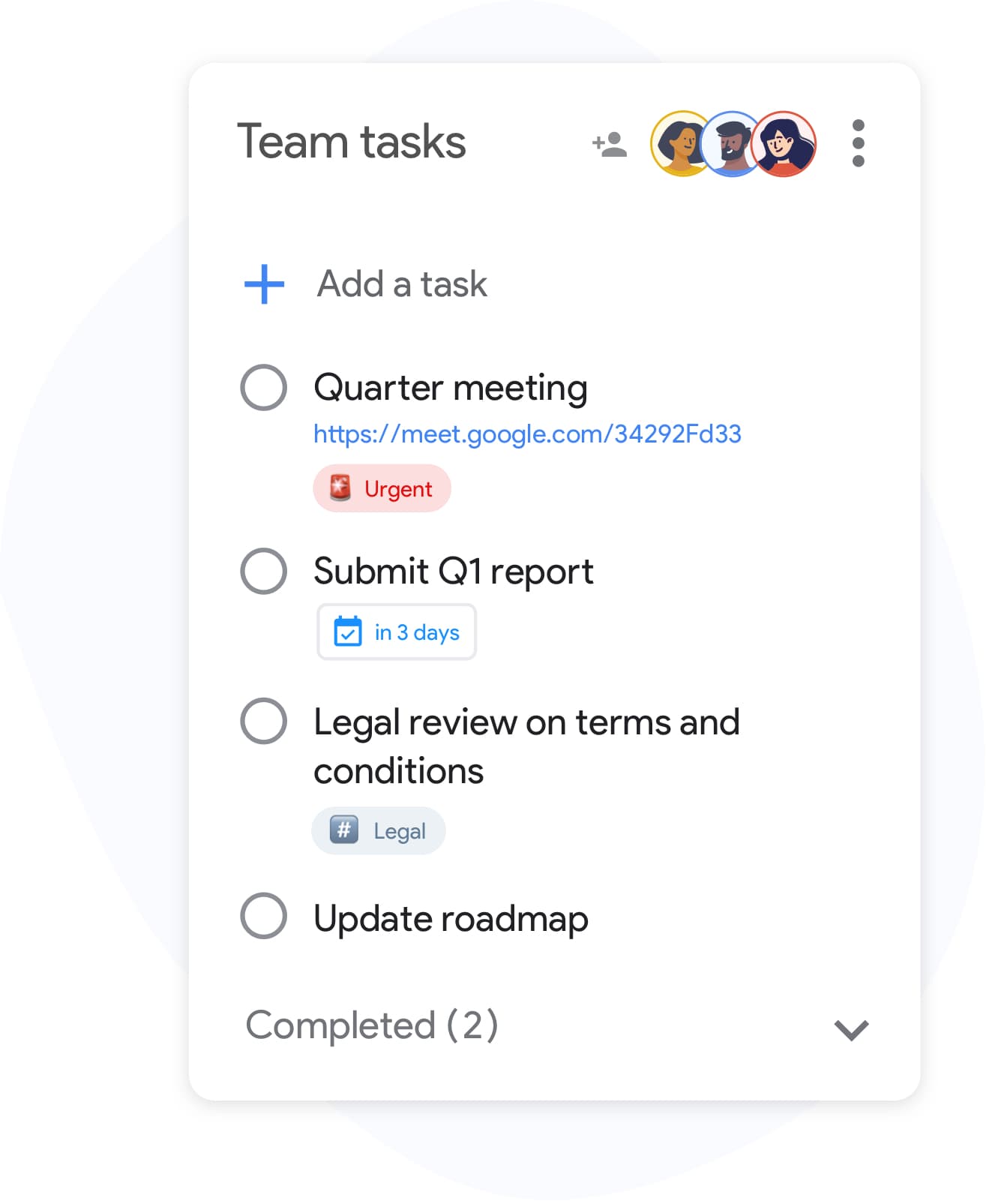
Google Tasks is a fantastic tool for managing your to-do lists, but it has one significant limitation — there’s no built-in way to share your task lists with others. Whether you want to collaborate on a project with your team, share a grocery list with your partner, or delegate tasks to a colleague, you need a way to share.
That’s where TasksBoard comes in. With TasksBoard, you can share any Google Tasks list or entire board with anyone, and all changes sync in real-time.
In this guide, we’ll walk you through exactly how to share your Google Tasks using TasksBoard, step by step.
What You Can Share
TasksBoard supports two types of sharing:
- List sharing — share individual task lists with one or more collaborators
- Board sharing — share an entire board (with all its lists) with your team
Both work through a simple link that you send to collaborators. Let’s start with the most common use case: sharing a list.
Step 1: Open Your Task List
First, open the task list you want to share in TasksBoard. You’ll see your list displayed as a card on your board, like this:
Click the share icon (highlighted in blue) in the list header to open the sharing modal.
Step 2: Copy the Share Link
When you click the share button, the Share List modal opens. This is where the magic happens. You’ll see a unique link generated for your list that you can copy and send to anyone:
Simply click “Copy Link” and send it to anyone you want to collaborate with — via email, Slack, WhatsApp, or any messaging app.
Tip: The share link stays the same as long as the list is shared. You can send it to multiple people at different times.
Step 3: Your Collaborator Joins the List
When your collaborator clicks the link, they’ll see a clean invitation screen showing who shared the list and its name:
They click “Join shared list” and the list is automatically created in their Google Tasks account. No setup, no configuration — it just works.
Step 4: Collaborate in Real-Time
Once your collaborator has joined, you’ll both see each other in the list’s sharing panel. Any changes either of you make — adding tasks, completing them, reordering, editing — are synced in real-time.
Here’s what you can see in the sharing panel:
- All collaborators with their names and emails
- Owner badge for the list creator
- Remove button (X icon) to remove individual collaborators (Premium)
- Copy Link to invite more people
- Stop Sharing to end the collaboration entirely
- Limit access to prevent new members from joining (Premium)
How the Sync Works Behind the Scenes
When you share a list through TasksBoard, here’s what happens under the hood:
- A copy of the list is created on each collaborator’s Google Tasks account
- TasksBoard monitors changes on all copies of the list
- Changes are propagated to all collaborators in real-time
- Conflict detection (using ETags) prevents duplicates or lost updates
This means your tasks stay synced across all platforms: TasksBoard, the Gmail sidebar, Google Tasks on mobile, and Google Calendar.
Sharing Entire Boards
Need to share more than one list? You can share an entire board — which includes all its lists — in one click. This is perfect for team projects where you have multiple task lists that all need to be collaborative.
The process is the same:
- Open your board settings
- Click the share icon
- Copy the link and send it to your team
When a collaborator joins a shared board, they get all the lists on that board added to their Google Tasks automatically.
Managing Access and Permissions
As the list owner, you have full control over who can access your shared lists:
Free vs Premium Sharing
TasksBoard offers sharing on both free and premium plans:
Frequently Asked Questions
Do my collaborators need a TasksBoard account? Yes, collaborators need to sign in with their Google account on TasksBoard to join a shared list. This ensures the list syncs to their Google Tasks.
Will changes sync if I edit tasks from the Gmail sidebar or mobile? Yes! Any changes made from TasksBoard, the Gmail sidebar, or the Google Tasks mobile app will sync with all collaborators when TasksBoard is open.
Can I share a list with someone who uses the free plan? Absolutely. Both free and premium users can join shared lists. The 5-list limit only applies to the number of lists you create as shared.
What happens when I stop sharing? All collaborators keep a copy of the list in its current state, but future changes will no longer sync between you.
Can I re-share a list after stopping? Yes, you can share the same list again at any time. A new share link will be generated.
Get Started
Sharing your Google Tasks has never been easier. Sign in to TasksBoard and start collaborating with your team, friends, or family today.
Ready to share your Google Tasks?
Get started with TasksBoard for free, no credit card required.
Sign in